11
Parental Controls on Free Streaming Apps: How to Keep Kids Safe Online
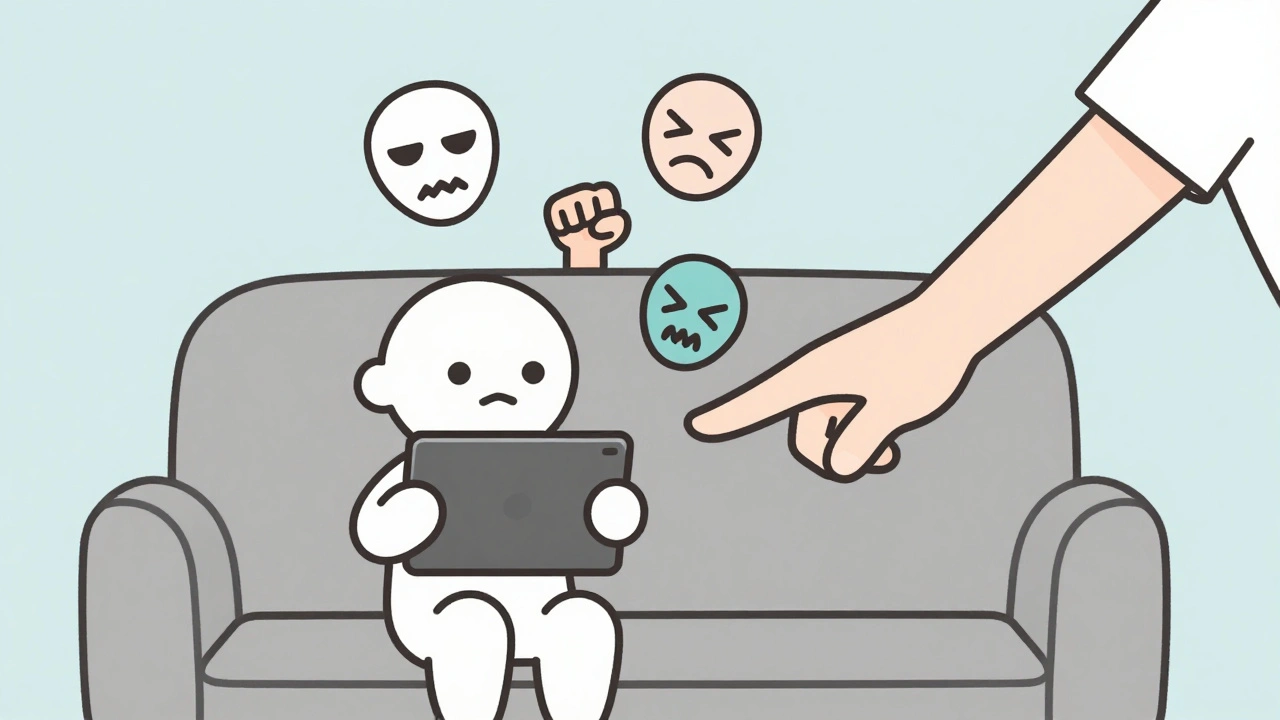
Free streaming apps are everywhere. Kids are watching them on tablets, phones, and smart TVs-sometimes for hours. You might think, "It’s just cartoons and kids’ shows," but that’s not always true. Free apps don’t always screen content the way paid services do. Ads, pop-ups, and user-uploaded videos can slip through. One moment your child is watching a cute puppy video; the next, they’re seeing something violent, inappropriate, or even predatory. And you might not even know it happened.
Why Free Streaming Apps Are Riskier Than You Think
Free streaming apps like Tubi, Pluto TV, Crackle, and YouTube Kids (yes, even the "kid-friendly" ones) don’t have the same content filters as Netflix or Disney+. They rely on ads and user uploads to fill their libraries. That means someone could upload a video titled "SpongeBob but with scary music" or "Peppa Pig with bad language," and it’ll show up in search results or recommendations. Algorithms don’t care if it’s safe-they care if it gets clicks.
Studies from the University of California found that 38% of free streaming apps showed children content rated for teens or adults within 15 minutes of opening the app. That’s not a glitch. It’s the system working as designed. These apps prioritize engagement over safety.
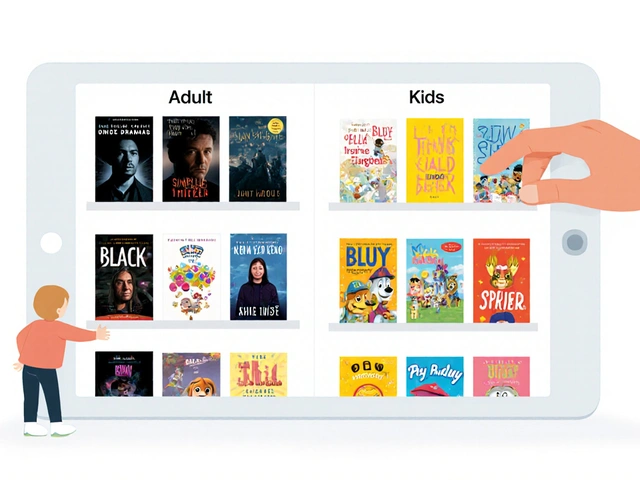
And here’s the kicker: many parents assume parental controls are built in. They turn on "Kids Mode" and think they’re done. But "Kids Mode" on free apps often just hides the adult section. It doesn’t block inappropriate content from appearing in search results, suggested videos, or ads.
What Parental Controls Actually Exist (And Which Ones Work)
Not all parental controls are created equal. Here’s what you’re actually dealing with on the most popular free streaming apps:
- Pluto TV: Has a "Kids" section, but no password lock. Anyone can tap out of it. No content rating filters. Ads can play before any video.
- Tubi: No built-in parental controls at all. You can’t block categories like horror, violence, or mature themes. The app doesn’t even let you create separate profiles.
- YouTube (free version): Has "Restricted Mode," but it’s unreliable. Kids can easily turn it off. Search terms like "funny pranks" or "scary challenges" still surface dangerous videos.
- YouTube Kids: Better, but still flawed. It filters by uploaders and keywords, but not by context. A video of a child singing a nursery rhyme could be followed by a comment section full of creepy messages. And ads? They’re unmoderated.
- Crackle: No profile system. No content restrictions. Everything is public.
So what can you actually do?
Three Real Solutions That Work (No Guesswork)
You don’t need expensive software or complicated setups. Here are three practical steps that block real risks-right now.
1. Use Your Device’s Built-In Parental Controls
Don’t rely on the app. Use your phone, tablet, or TV’s system-level controls. On an iPhone or iPad, go to Screen Time > Content & Privacy Restrictions. Turn on restrictions and set a passcode. Then, under Allowed Apps, disable the streaming app entirely-or only allow it during scheduled times.
On Android, use Google Family Link. You can block apps, set daily time limits, and approve or deny app installs. You can even remotely lock the device if your child is watching something inappropriate.
On smart TVs (Samsung, LG, Roku), check the parental control settings under Settings > General > Parental Controls. Set a PIN and block apps by name. Most TVs let you block apps like Tubi or Pluto TV completely.
2. Block Ads and User Content with a DNS Filter
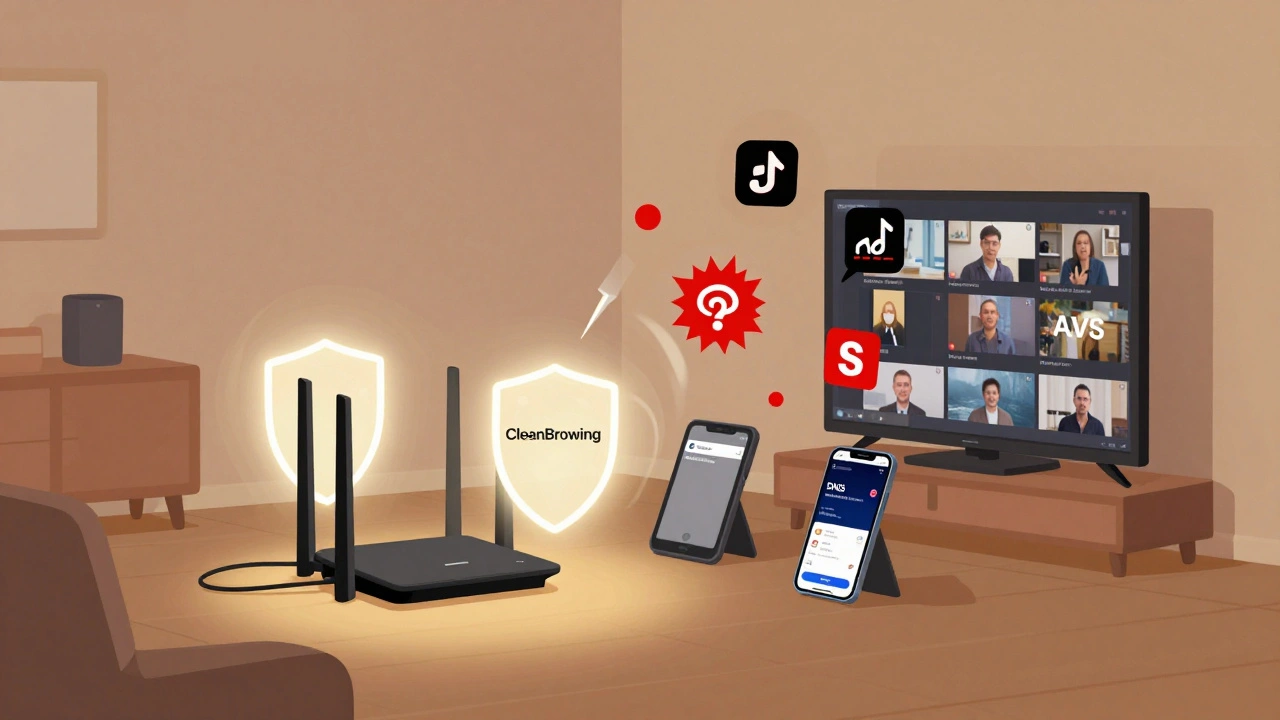
Ads and user-uploaded videos are the biggest sources of unsafe content. A simple DNS filter like OpenDNS or CleanBrowsing can block them across your whole home network.
Here’s how: Go to your router settings (usually by typing 192.168.1.1 into a browser). Find the DNS settings and replace the default ones with CleanBrowsing’s Family Filter: 185.228.168.168 and 185.228.168.10. Save it. Now, every device on your Wi-Fi-phones, tablets, smart TVs-will automatically block adult content, malicious ads, and known unsafe domains.
This works even if your child downloads a new app. It’s a blanket shield. No passwords needed. No app settings to mess with.
3. Create a "Safe Watch" Playlist on YouTube Kids
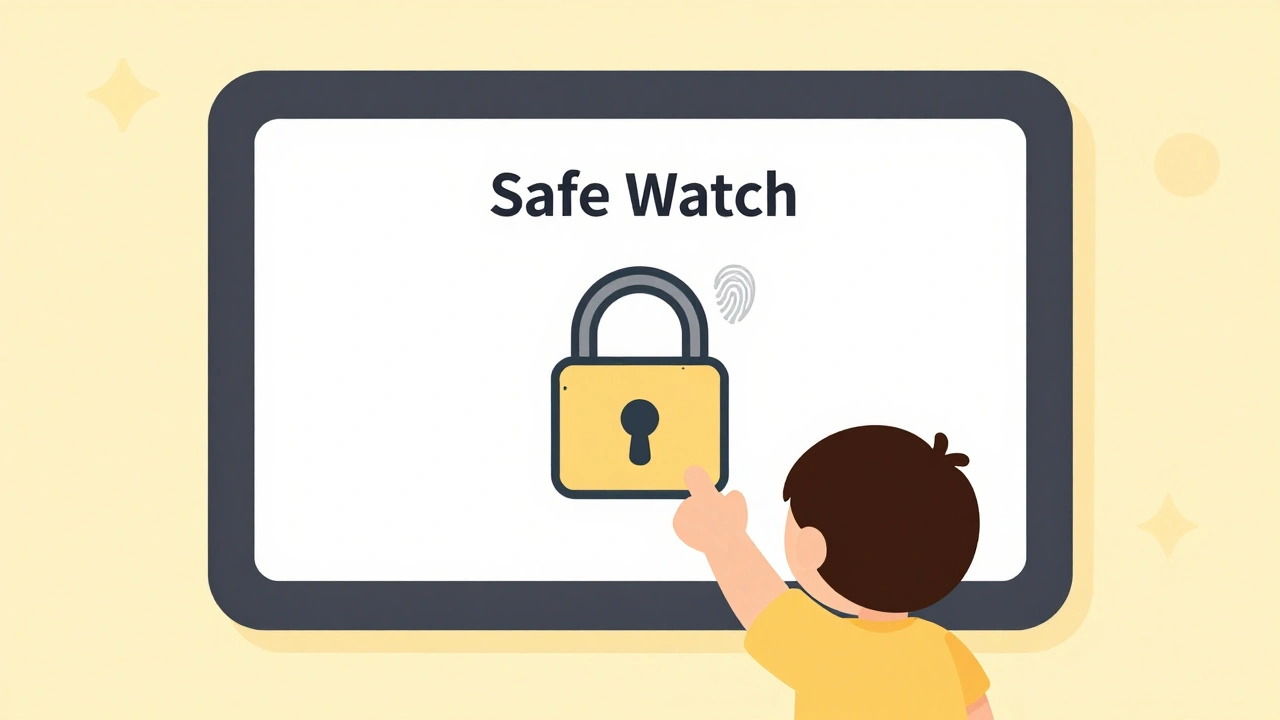
If your child uses YouTube Kids, don’t let them search. Instead, create a custom playlist of approved videos. Search for videos you’ve watched and approved. Tap the three dots > Add to playlist > Create new playlist named "Safe Watch". Then, lock the app so they can only access that playlist.
How? In YouTube Kids, tap the profile icon > Settings > Parental Controls > Set a PIN. Then turn on "Lock Mode". Now, your child can’t search, browse, or open new videos. Only the playlist you made is available.
What Not to Do (Common Mistakes Parents Make)
Here are the three most common mistakes-and why they leave your child exposed:
- Only relying on "Kids Mode": It’s a filter, not a firewall. It hides categories, but doesn’t stop inappropriate content from appearing in recommendations.
- Letting kids use your account: If your YouTube or Pluto TV account has a history of watching adult content, the algorithm will push similar stuff to your child’s device-even if they’re logged in as "Kids".
- Thinking "they’ll tell me if something’s weird": Kids don’t always recognize danger. They might not know why a video feels wrong. Or they’re scared to tell you because they think they’ll get in trouble.
How to Talk to Your Kids About Streaming Safety
Controls help. But conversations matter more. Don’t wait for a scary incident. Start early.
Ask: "What’s the weirdest video you’ve seen today?" Not in a scary way. Just curious. If they say "I don’t know," say: "Sometimes videos look fun but feel weird. If something makes you feel scared, confused, or uncomfortable, tap the home button and tell me. I won’t get mad. I’ll help you."
Make it normal. Like brushing teeth. Say it every night: "Did anything on your streaming app feel off today?"
And if they show you something weird? Don’t panic. Say: "Thanks for telling me. That’s not okay. Let’s block it together." Then, show them how to report the video. That builds trust-and teaches them how to protect themselves.
Final Checklist: Your 5-Minute Safety Routine
Set aside five minutes once a week. Do this:
- Check your router’s DNS settings. Make sure CleanBrowsing or OpenDNS is still active.
- On each device, confirm parental controls are turned on and locked with a passcode.
- Review your child’s YouTube Kids playlist. Delete anything you don’t remember adding.
- Ask your child: "What’s the last video you watched that made you laugh?"
- Update your device’s operating system. Updates often fix security holes in streaming apps.
This isn’t about being a spy. It’s about being a guide. You don’t need to monitor every second. You just need to make sure the door is locked, the lights are on, and your child knows they can come to you if something feels wrong.
Free streaming apps aren’t going away. But with the right tools and a little consistency, you can turn them into a safe space-not a risk.