9
Accessibility Settings for Streaming: Captions, Audio Descriptions, and Remotes
When you’re settling in to watch your favorite show on Netflix, Disney+, or any streaming service, you might not think about how the buttons on your remote or the text on screen make the experience work for everyone. But for millions of people with hearing, vision, or mobility challenges, these small details aren’t just nice-to-haves-they’re essential. Setting up accessibility features like captions, audio descriptions, and easy-to-use remotes can turn a frustrating viewing experience into one that’s smooth, personal, and truly enjoyable.
Why Accessibility Matters in Streaming
More than 1.3 billion people worldwide live with some form of disability, according to the World Health Organization. That’s nearly 1 in 6 people. Many of them rely on streaming services for entertainment, news, and education. Yet, without proper accessibility settings, these platforms can feel out of reach.
Imagine trying to follow a fast-paced drama without captions because they’re turned off by default. Or struggling to navigate a menu with tiny buttons and no voice guidance because your eyesight is limited. Or holding a heavy remote for 20 minutes just to pause a scene because the buttons are too close together. These aren’t hypotheticals-they’re daily realities for many viewers.
Streaming platforms have come a long way, but the settings aren’t always obvious. And once you find them, they often need to be set up individually for each app. That’s why knowing where to look and how to customize these features makes all the difference.
Captions: More Than Just Text on Screen
Captions (sometimes called subtitles) display spoken dialogue and key sounds as text. But not all captions are created equal. There are two main types: open and closed.
- Open captions are always visible and can’t be turned off-they’re baked into the video.
- Closed captions can be toggled on or off, and most streaming services let you customize them.
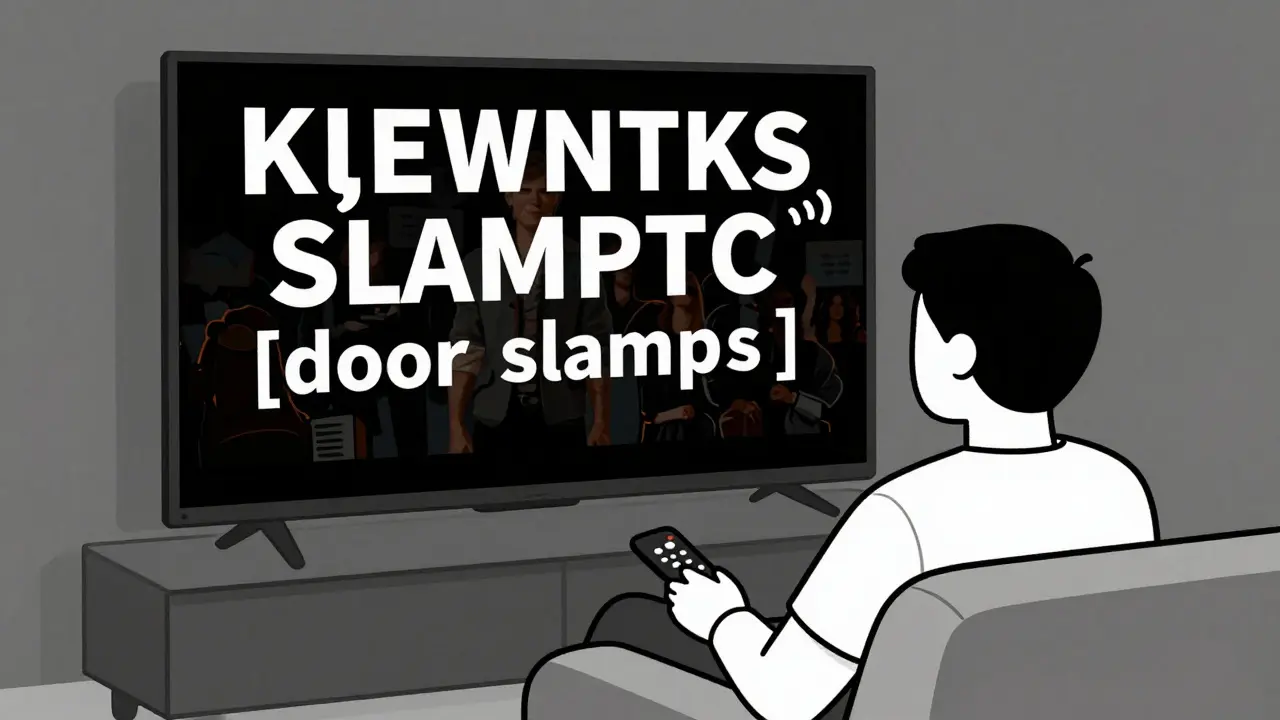
On platforms like Netflix, Amazon Prime Video, and Apple TV+, you can adjust caption size, color, background, and even font style. Want large white text on a black background for better contrast? Done. Prefer yellow text with a subtle outline so it pops against any scene? You can set that too.
Some services even offer captions for sound effects-like [door slams] or [music swells]. This is especially helpful for Deaf or hard-of-hearing viewers who rely on context beyond speech.
Pro tip: Always check the caption settings before starting a new show. Some apps reset preferences after updates. Save your layout as a default so you don’t have to reconfigure every time.
Audio Descriptions: Hearing the Visual
Audio descriptions (AD) are narrated tracks that describe key visual elements during pauses in dialogue. Think: “The detective picks up a blood-stained glove from the floor” or “A child laughs as she runs through a field of sunflowers.”
This feature is vital for people who are blind or have low vision. Without it, important plot points, character emotions, or setting details are lost.
Not every show has audio description-but most major originals do. Netflix leads the pack with over 700 titles offering AD. Disney+ and Apple TV+ follow closely, with most of their original series and films including it. Hulu and Max are catching up, but coverage is spottier.
To turn it on:
- Start playing a show.
- Press the Options or Settings button on your remote.
- Look for Audio & Subtitles.
- Select Audio Description from the language options.
If you don’t see AD listed, the title likely doesn’t support it. You can check availability on websites like DescriptiveVideoService.com or the platform’s accessibility page. Some services even let you filter searches by AD availability.

Accessible Remotes: Control Without the Struggle
A remote that works for one person might be impossible for another. Buttons too small? Too many functions? No voice feedback? These aren’t design quirks-they’re barriers.
Many modern streaming devices now support voice-controlled remotes. The Apple TV Remote, Roku Ultra, and Amazon Fire TV Stick with Voice Remote all let you say things like:
- “Play Stranger Things.”
- “Turn on captions.”
- “Go to Netflix.”
These remotes also often include a dedicated accessibility button that opens a quick menu for captions, audio description, and screen reader settings.
If voice control isn’t an option, look for remotes with:
- Bold, high-contrast buttons
- Large, well-spaced controls
- Tactile feedback (raised buttons or ridges)
- Simple layouts (no more than 12 buttons)
Brands like Tecla and AbleNet make specialized remotes for people with limited hand mobility. These connect via Bluetooth and can be controlled with a single switch, sip-and-puff device, or even eye-tracking software.
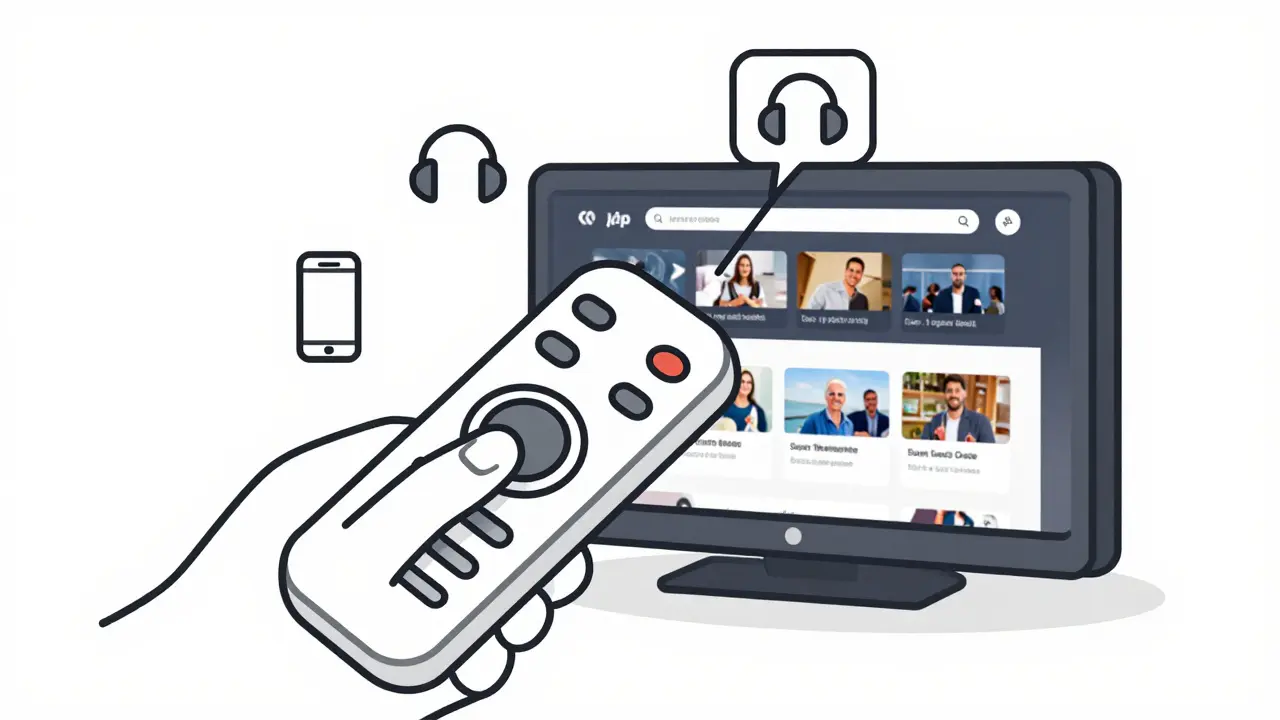
And don’t forget: your smartphone can double as a remote. The Netflix, Disney+, and Hulu apps all let you use your phone to control playback-perfect if holding a traditional remote is difficult.
Setting Up Accessibility Across Devices
Here’s the hard truth: each streaming app, TV brand, and device has its own menu. There’s no universal setting. But once you know where to look, it gets easier.
On Smart TVs (Samsung, LG, Sony):
- Go to Settings > Accessibility
- Enable Closed Captions and Audio Description as defaults
- Set Screen Reader to speak menu options aloud
On Streaming Boxes (Roku, Fire Stick, Apple TV):
- Use the device’s main menu to adjust caption styles
- Enable VoiceOver (Apple) or TalkBack (Android TV) for full screen reader support
- Check app-specific settings-some apps override TV settings
On Mobile and Tablet Apps:
- Go to Profile > Settings > Accessibility
- Toggle captions and audio description per app
- Use your device’s system-wide accessibility settings (like iOS’s VoiceOver or Android’s Select to Speak) to navigate the app
Once you’ve set up your preferences on one device, many services sync them across platforms. Sign into the same account on your TV, phone, and tablet-and your captions, audio, and voice settings often follow.
Common Mistakes and How to Avoid Them
Even after setting up accessibility, people run into roadblocks. Here are the top three mistakes-and how to fix them:
- Assuming captions are on by default. Most services turn them off unless you manually enable them. Always check the first time you watch a new title.
- Using the wrong remote. A sleek, minimalist remote might look cool, but if it has no voice control or tactile buttons, it won’t work for everyone. Prioritize function over form.
- Not updating firmware. Older TV or streaming box software may not support the latest accessibility features. Check for updates monthly.
Also, don’t assume all content has AD. Even on Netflix, only about 60% of titles include audio description. If you’re excited for a new release, search for “audio description available” on the show’s page before you hit play.
What’s Next? The Future of Accessible Streaming
Accessibility is no longer an afterthought-it’s becoming standard. In 2025, the FCC mandated that all new streaming devices sold in the U.S. must support closed captions and audio description out of the box. Similar rules are rolling out in Australia, the EU, and Canada.
AI is also helping. New tools can auto-generate accurate captions and even create audio descriptions from video content without human input. While not perfect yet, they’re getting closer. Some platforms now let users request audio description for a show they love-and if enough people ask, studios often add it.
And let’s not forget community. Online groups like Accessibility in Streaming on Reddit and Facebook are full of people sharing tips, troubleshooting issues, and pushing companies to do better. Your voice matters-ask for what you need.
Quick Checklist: Your Accessibility Setup
- ✅ Enable closed captions on every device and set your preferred style
- ✅ Check if your favorite shows have audio description and turn it on
- ✅ Use a voice-controlled remote or smartphone as backup
- ✅ Update your TV and streaming box firmware regularly
- ✅ Save your settings as default so they don’t reset
- ✅ Explore your device’s built-in screen reader (VoiceOver, TalkBack)
Do all streaming services offer audio descriptions?
No, not all titles include audio description, but the biggest platforms-Netflix, Disney+, Apple TV+, and Amazon Prime Video-offer it for most of their original content. You can check availability on the show’s page or use third-party sites like DescriptiveVideoService.com. Some services allow you to request audio description for a specific title, and if enough users ask, studios often add it.
Can I use my phone to control my TV instead of the remote?
Yes. The Netflix, Disney+, Hulu, and Apple TV apps all let you use your smartphone as a remote. Just open the app, sign in to the same account, and tap the remote icon. This is especially helpful if the physical remote has small buttons, no voice control, or is hard to hold. Your phone’s screen reader can also help navigate the app if you have vision loss.
Why do captions sometimes disappear after an update?
Many streaming apps reset preferences after software updates. This is frustrating, but common. To fix it, go back into the app’s settings after each update and re-enable your preferred caption style. Some platforms let you save a default profile-use it. Also, set captions to turn on automatically in your TV or device’s system settings, not just the app.
Are there remotes designed specifically for people with limited hand movement?
Yes. Companies like Tecla and AbleNet make specialized remotes that work with one switch, sip-and-puff controls, or even eye-tracking systems. These connect via Bluetooth to your streaming device and let you control playback without needing to press multiple buttons. Many also work with voice assistants like Alexa or Siri. They’re not cheap, but some health insurance plans cover them.
How do I know if a show has audio description?
On Netflix and Disney+, look for the AD icon next to the title. On Apple TV+, it’s marked with a headphones symbol. Amazon Prime Video shows it under the “Audio & Subtitles” section. If you don’t see it, the title likely doesn’t include audio description. You can also search the title name + “audio description” on Google or check the DescriptiveVideoService.com database.