4
How to Test Your Internet Speed for Streaming: The Ultimate Guide
There is nothing worse than the buffering wheel of death appearing right at the climax of a movie or during a crucial moment in a live sports match. You paid for premium service, you have a "fast" internet plan, yet your stream stutters. The problem usually isn't your subscription tier; it's how you are measuring and managing your connection. Most people rely on generic speed tests that lie about their actual performance under load. To truly fix your streaming experience, you need to understand not just raw speed, but stability, latency, and network congestion.
The Myth of Raw Download Speed
When you run a standard speed test, the result shows your maximum potential throughput. It measures how fast data can move from a server to your device when no one else is using the network. This number is useful for knowing what you are paying for, but it tells you very little about real-world streaming performance. Streaming services like Netflix or YouTube do not need massive bursts of speed; they need consistent delivery.
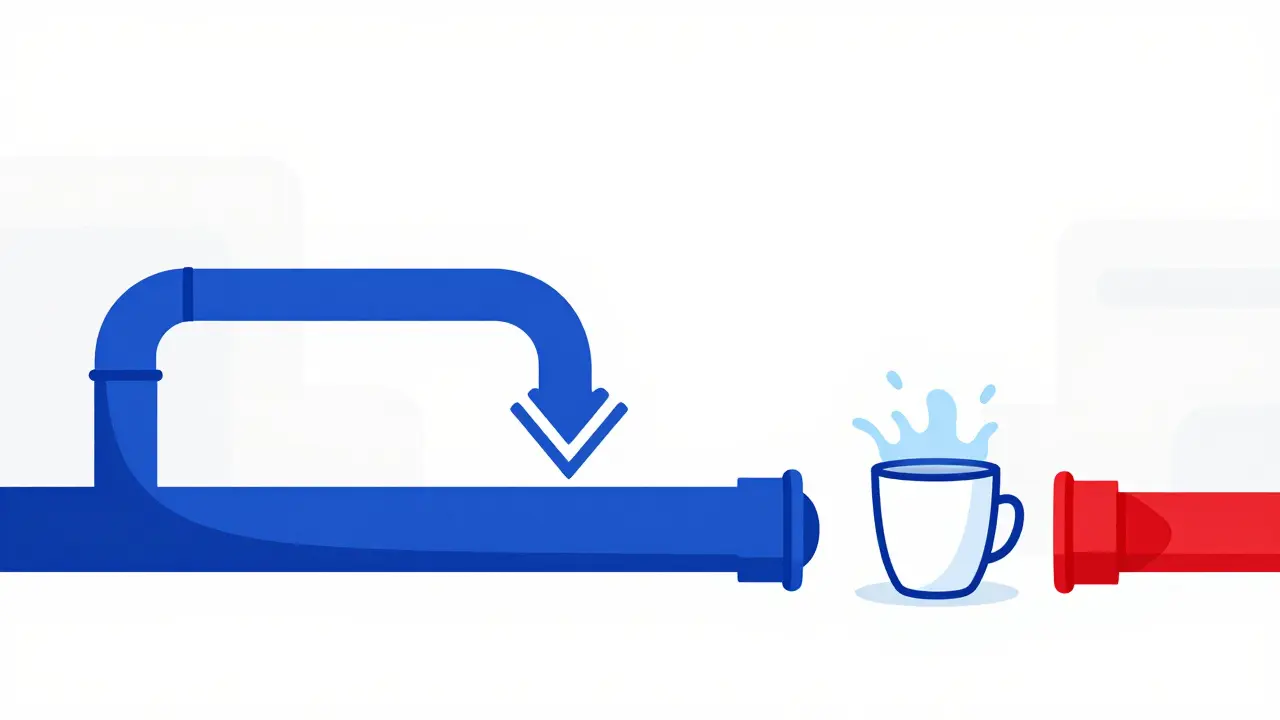
If your speed test says 500 Mbps but your video buffers, you likely have an issue with jitter-the variation in packet delay-or packet loss. Imagine pouring water into a cup. A high-speed connection is a wide hose. But if the flow is erratic (jitter) or drops water along the way (packet loss), the cup still fills slowly or spills over. For streaming, consistency beats raw power every time.
- 4K Ultra HD: Requires a steady 25 Mbps per stream.
- 1080p Full HD: Needs about 5-10 Mbps per stream.
- 720p HD: Can run on 3-5 Mbps per stream.
- Standard Definition: Works on 1-3 Mbps per stream.
Note that these are per device. If two people are watching 4K content simultaneously, you need 50 Mbps minimum, plus overhead for other devices on your network.
Why Standard Speed Tests Mislead You
Most free online tools connect you to the nearest server, which might be located just down the street. This gives you a best-case scenario result that ignores the long-haul distance to content providers like Amazon Prime Video or Disney+. Furthermore, many ISPs prioritize traffic to popular speed test servers, artificially inflating your results.
To get an accurate picture, you must test against servers that mimic actual streaming behavior. Look for tests that measure bufferbloat. Bufferbloat occurs when your router queues too much data, causing massive delays when the network gets busy. Even if you have gigabit speeds, severe bufferbloat will make your stream lag because old packets are clogging the pipe while new ones wait.
| Metric | Ideal Value for Streaming | Impact on Experience |
|---|---|---|
| Download Speed | >25 Mbps (4K) | Determines resolution quality |
| Jitter | <30 ms | Causes stuttering if high |
| Packet Loss | 0% | Any loss causes re-buffering |
| Latency (Ping) | <50 ms | Affects start-up time and interactivity |
Wi-Fi vs. Ethernet: The Hardware Reality
Your connection method matters more than your ISP plan. Wi-Fi is convenient but inherently unstable due to interference from walls, other electronics, and neighboring networks. Even with modern Wi-Fi 6 routers, wireless signals degrade over distance and through obstacles.
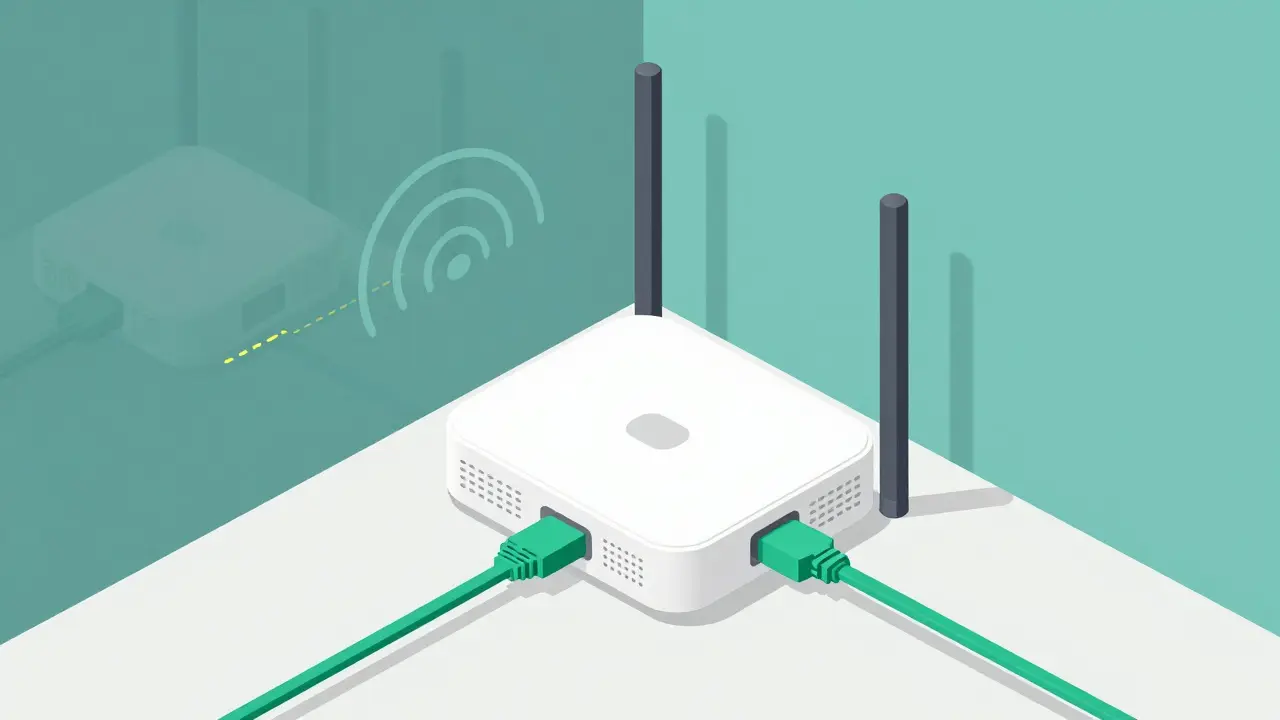
If you are experiencing issues on a smart TV, game console, or media stick like Roku or Chromecast, always use an Ethernet cable if possible. A wired connection eliminates Wi-Fi jitter and packet loss almost entirely. If wiring is impossible, position your router centrally and ensure your device connects to the 5 GHz band, which offers faster speeds with less interference than the crowded 2.4 GHz band.
Check your signal strength in decibels (dBm). A good signal is between -30 dBm and -60 dBm. Anything weaker than -70 dBm is likely to cause intermittent buffering, regardless of your internet speed.
Testing Under Real-World Conditions
Don't test your internet when everyone is asleep. Test it when the house is full. Run the speed test while someone else is downloading a large file, backing up photos to the cloud, or playing an online game. This simulates network contention.
- Open your preferred browser on the device you use for streaming.
- Navigate to a reliable testing tool like Ookla Speedtest or Fast.com.
- Run the test three times and average the results.
- Note the jitter and packet loss figures, not just the download speed.
- Repeat the test during peak usage hours (typically 7 PM - 10 PM).
If your speeds drop significantly during peak hours, your ISP may be throttling traffic or your neighborhood node is congested. This is known as peak-hour degradation.
Optimizing Your Router for Streaming
Your router is the traffic cop of your home network. Default settings often treat all data equally, meaning a background software update on your laptop can steal bandwidth from your movie night. You can change this using Quality of Service (QoS) settings.
Log into your router’s admin panel (usually via 192.168.1.1 or 192.168.0.1). Look for QoS options. Enable them and prioritize "Streaming" or "Video" traffic. Alternatively, manually set your TV or media player’s MAC address as the highest priority device. This ensures that when bandwidth is tight, your stream gets first dibs.
Also, check for firmware updates. Manufacturers frequently release patches that improve stability and security. An outdated router can struggle with modern encryption protocols used by streaming services.
Troubleshooting Common Issues
If your speed test looks great but streaming still fails, look elsewhere. First, check the app itself. Clear the cache or reinstall the streaming application. Corrupted local data can cause playback errors unrelated to your internet.
Second, inspect your physical cables. A damaged Ethernet cable or a poor-quality HDMI cable can sometimes confuse devices into thinking there is a signal error. Use Cat6 or higher Ethernet cables for best results.
Third, consider your modem. If it is older than four years, it may not support the latest DOCSIS standards required for optimal performance with modern fiber or cable plans. Upgrading to a gateway-compatible modem can resolve hidden bottlenecks.
Understanding Upload Speeds
While most streaming is download-heavy, upload speed matters if you are casting content from your phone or if you have smart home cameras uploading footage simultaneously. Low upload capacity can choke the entire network, causing bidirectional lag. Ensure your plan offers at least 5-10 Mbps upload speed if multiple devices are active.
What speed do I need for 4K streaming?
For smooth 4K Ultra HD streaming, you need a stable connection of at least 25 Mbps per device. If multiple devices are streaming 4K content simultaneously, multiply this requirement accordingly. For example, two 4K streams require 50 Mbps.
Why does my internet work fine on speed tests but buffer on Netflix?
Speed tests measure peak potential under ideal conditions. Streaming requires consistent delivery. Issues like jitter, packet loss, or bufferbloat can cause buffering even if your average speed is high. Additionally, Wi-Fi interference can affect streaming devices more than the computer running the speed test.
Is Wi-Fi 6 better for streaming than Wi-Fi 5?
Yes, Wi-Fi 6 (802.11ax) handles multiple devices better and reduces latency compared to Wi-Fi 5 (802.11ac). It is particularly beneficial in homes with many connected devices, reducing congestion and improving overall stability for streaming.
How do I reduce bufferbloat?
Enable Quality of Service (QoS) settings on your router to prioritize streaming traffic. You can also look for routers with Smart Queue Management (SQM) features, which actively manage packet queues to prevent congestion-induced delays.
Should I use an Ethernet cable or Wi-Fi for my TV?
Always prefer an Ethernet cable for the most stable connection. Wi-Fi is susceptible to interference and signal degradation. If Ethernet is not possible, ensure your TV is close to the router and connected to the 5 GHz band.