22
How to Allocate Bandwidth for Multiple Streaming Devices Without Buffering
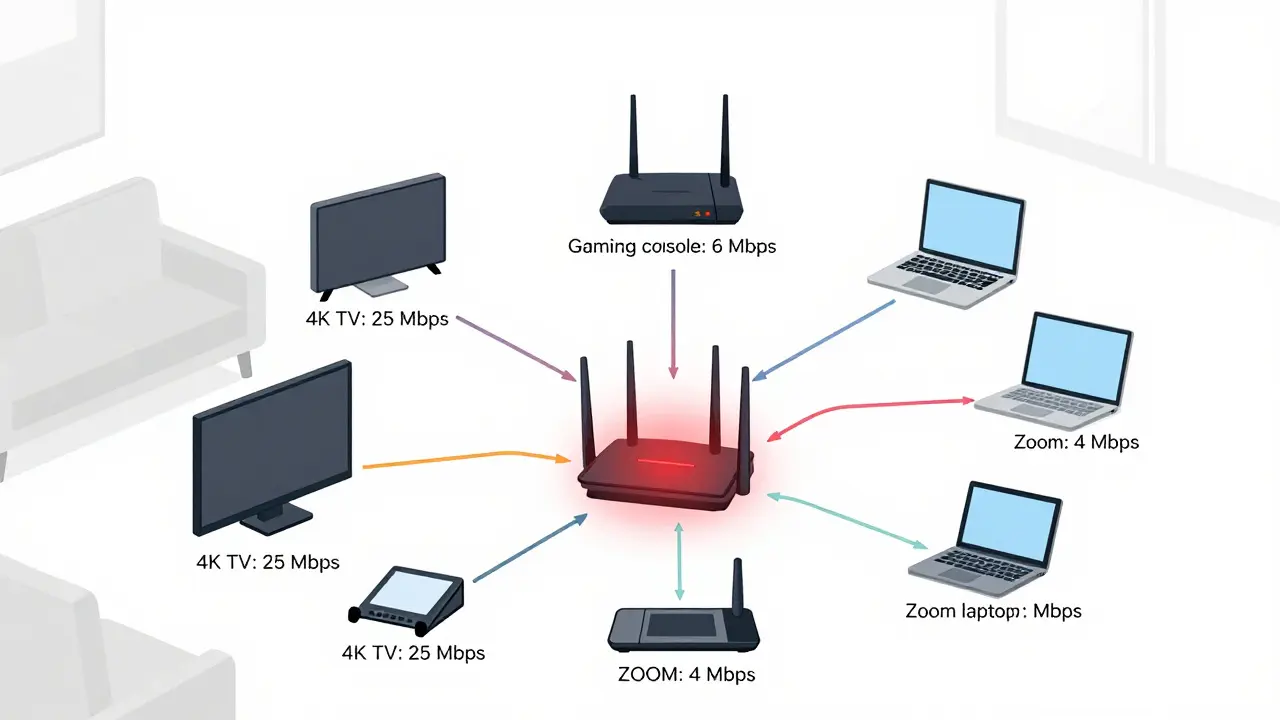
Ever sat down to watch your favorite show, only to have it freeze while someone else in the house is gaming or video calling? Or worse-your kid’s Zoom class cuts out because the Netflix stream is hogging the connection? This isn’t bad luck. It’s a bandwidth problem. And it’s happening in millions of homes right now.
What Bandwidth Actually Means for Streaming
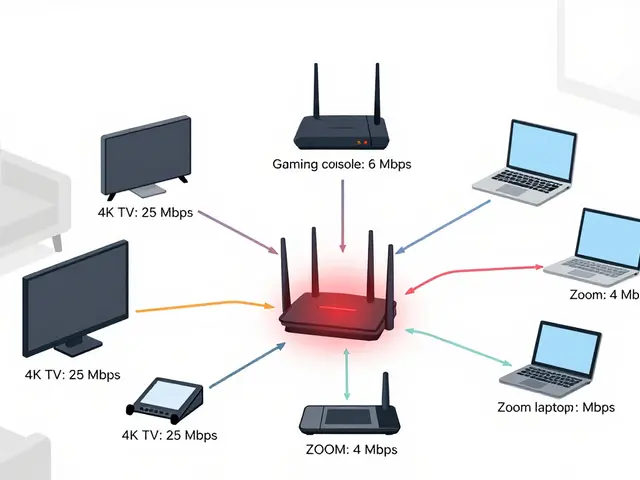
Bandwidth is the amount of data your internet can send or receive per second. Think of it like a highway. More lanes mean more cars can pass at once. If you have five people streaming, gaming, or video calling at the same time, and your highway only has two lanes, traffic jams happen. That’s buffering. Most streaming services have clear bandwidth requirements:- Standard Definition (SD): 3 Mbps
- High Definition (HD): 5-8 Mbps
- 4K Ultra HD: 25 Mbps
- Online gaming: 3-6 Mbps (low latency matters more than raw speed)
- Video calls (Zoom, Teams): 1.5-4 Mbps
How Many Devices Are Really Using Your Internet?
Most people think they have three or four devices streaming. They’re usually wrong. A typical household might have:- 2 smart TVs (one streaming 4K, one HD)
- 1 gaming console (Xbox Series X or PlayStation 5)
- 2 smartphones (streaming YouTube or TikTok)
- 1 tablet (kids’ schoolwork with video lessons)
- 1 laptop (working from home with Zoom)
- Smart speakers, security cameras, thermostats, and smart lights (they use tiny bits, but they add up)
How to Calculate Your Minimum Needed Bandwidth
Start with the heaviest users. Don’t guess. Track what’s actually happening.- List every device that uses the internet regularly.
- Identify the highest bandwidth activity for each. For example: 4K streaming on TV, gaming on console, video call on laptop.
- Add up the peak requirements. Don’t add up all devices-just the ones likely to run at the same time.
- Then add 20% buffer. Internet plans aren’t perfect. Congestion happens during peak hours (7-11 PM). Weather, nearby networks, and ISP throttling can slow things down.
ISP Plans Don’t Always Tell the Whole Story
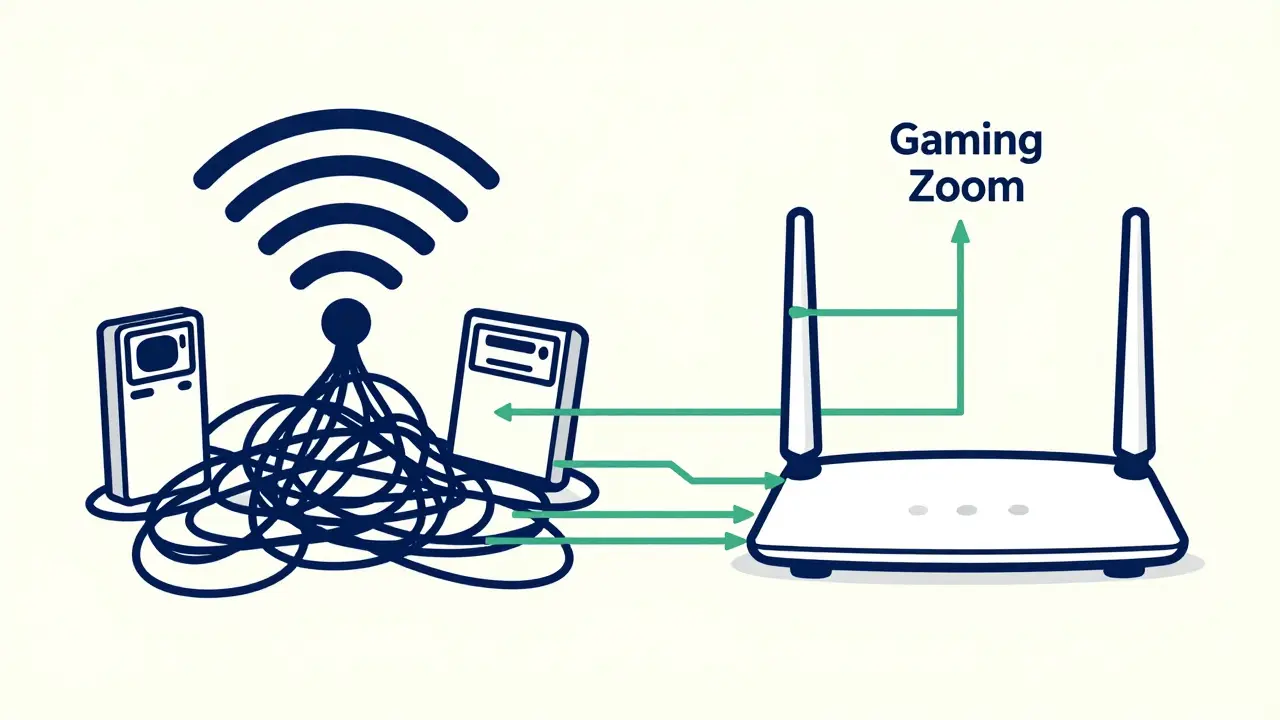
You might see an ad for “1 Gbps internet” and think you’re set. But here’s the catch: your router and Wi-Fi are often the real bottlenecks. Most home routers from 2020 or earlier can’t handle more than 3-4 high-bandwidth devices at once. Even if your ISP gives you 500 Mbps, your Wi-Fi 4 router might only deliver 150 Mbps to your living room TV. And if you’re using the 2.4 GHz band for everything? That’s a nightmare for streaming. It’s slow, crowded, and easily disrupted by microwaves, baby monitors, and neighbor’s Wi-Fi. Upgrade to a Wi-Fi 6 router. It handles multiple devices better, reduces interference, and gives each device a clearer path. Brands like Netgear Nighthawk AX12, TP-Link Archer AX73, or ASUS RT-AX86U make a real difference.Bandwidth Allocation: Prioritize What Matters
You can’t always add more speed. Sometimes you just need to manage what you have. Most modern routers let you set Quality of Service (QoS) rules. This lets you tell your network: “Give priority to the living room TV during prime time.” Here’s how to do it:- Log into your router’s admin panel (usually 192.168.1.1 or 192.168.0.1 in your browser).
- Find “QoS” or “Bandwidth Control.” It’s under Advanced Settings.
- Identify your key devices by their MAC address or device name (e.g., “LivingRoomTV” or “Xbox”).
- Assign higher priority to streaming devices and video calls.
- Lower priority for smart home gadgets, phones, or background downloads.
Wired Connections Are Still King
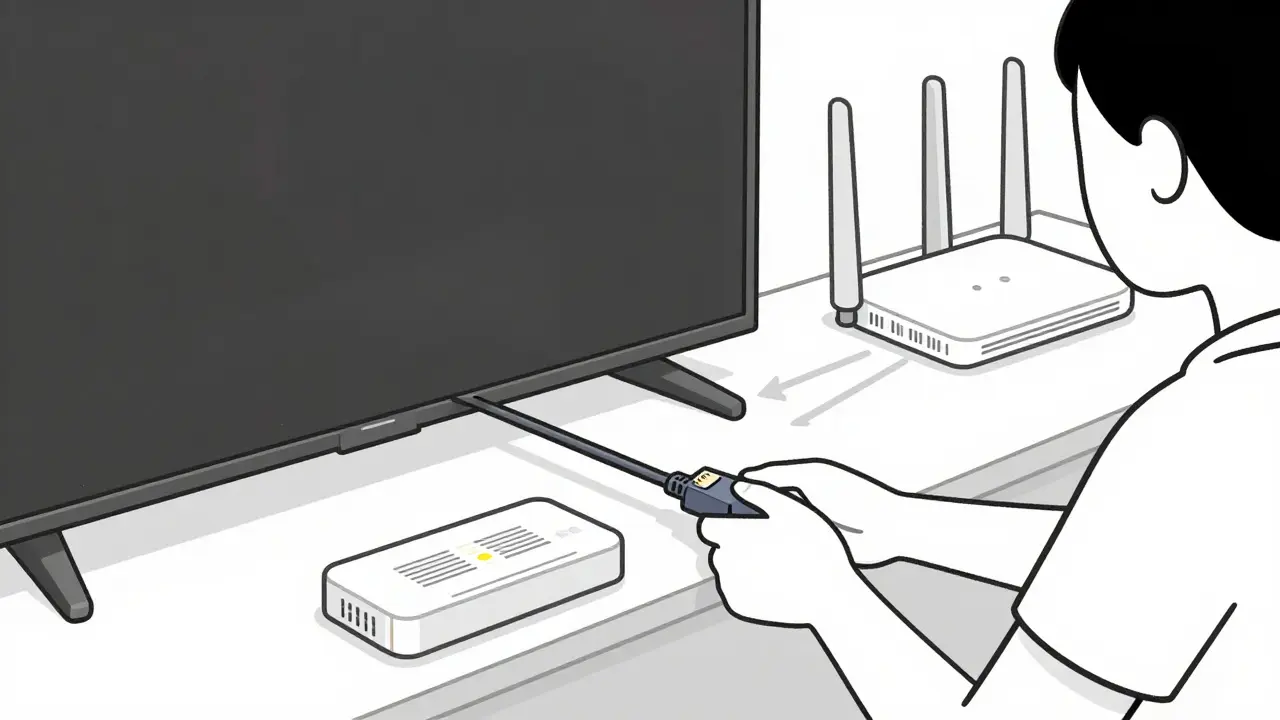
If you want the most reliable stream, plug it in. Ethernet cables give you full speed, zero interference, and no dropouts. This is especially true for:- Smart TVs
- Gaming consoles
- Home theater PCs
- Work laptops
What to Do If You’re Still Buffering
Even with good equipment and QoS, problems can linger. Try these fixes:- Restart your router every two weeks. It clears memory leaks and resets connections.
- Update your router’s firmware. Manufacturers patch bugs and improve performance.
- Move your router to a central location, away from metal objects and thick walls.
- Switch your 4K TV from 60fps to 30fps. It cuts bandwidth in half with almost no visible quality loss.
- Use a Wi-Fi extender only as a last resort. They cut speed by 50%. Mesh systems (like Eero or Google Nest Wi-Fi) are better.
- Check if your ISP is throttling. Use a speed test (speedtest.net) during peak hours. If your download drops below 70% of your plan’s speed, call your provider.
When to Upgrade Your Internet Plan
You don’t need 1 Gbps unless you’re downloading 4K movies every night or running a home studio. But here’s a simple rule:- 1-3 devices streaming HD: 100 Mbps
- 4-6 devices with 4K, gaming, and video calls: 200-300 Mbps
- 7+ devices, multiple 4K streams, remote work, smart home: 500 Mbps or more
Final Tip: Don’t Just Buy More Speed-Manage What You Have
More bandwidth helps. But smart allocation helps more. A 200 Mbps connection with proper QoS and wired connections will outperform a 1 Gbps connection with no rules and everything on Wi-Fi. Start by tracking your usage. Then prioritize. Then fix the weak spots. You don’t need to be a tech expert. Just be intentional.How much bandwidth do I need for 4 streaming devices?
For four devices streaming simultaneously, you need at least 40 Mbps if they’re all HD (8 Mbps each). If one or more are streaming 4K, add 25 Mbps per 4K stream. So two 4K streams plus two HD streams would need 25 + 25 + 8 + 8 = 66 Mbps. Add a 20% buffer, and you’re looking at 80 Mbps minimum.
Can I use Wi-Fi for 4K streaming?
Yes, but only if you have Wi-Fi 5 (AC) or Wi-Fi 6 and your router is close to the TV. For the most reliable 4K streaming, use Ethernet. Wi-Fi can drop packets under interference, causing buffering or pixelation-even if your speed test shows 100 Mbps. Wired connections are 100% consistent.
Why does my internet slow down when my kids are on Zoom?
Zoom doesn’t use much bandwidth by itself (4 Mbps max), but it’s very sensitive to latency and packet loss. If someone else is downloading a large file or gaming, the network gets congested. Even small delays cause Zoom to freeze or cut out. Use QoS to give Zoom and video calls top priority over downloads or background updates.
Do smart home devices affect streaming?
Indirectly, yes. A single smart camera might use 1-2 Mbps uploading footage constantly. A dozen of them can eat up 15-20 Mbps over time. They don’t cause buffering on their own, but they reduce the available bandwidth for other devices. Use QoS to cap their upload speed or put them on a separate guest network if your router supports it.
Is 100 Mbps enough for a family of four?
Yes, if the family uses one 4K stream, two HD streams, and one video call. That’s roughly 25 + 8 + 8 + 4 = 45 Mbps. With a 100 Mbps plan, you have room for updates, browsing, and a 20% buffer. But if everyone is streaming 4K at once, you’ll need 200 Mbps or more.