3
How to Reduce Netflix Data Usage Without Losing Video Quality
Ever hit your monthly data cap halfway through the month and had to turn off Netflix just to make it to the end? You’re not alone. Millions of people stream Netflix daily, and without adjusting settings, a single movie can eat up 3GB or more. The good news? You can cut your data use by half-sometimes more-without noticing much difference in picture quality. Here’s how to do it without sacrificing your binge-watching experience.
Understand How Much Data Netflix Actually Uses
Netflix doesn’t use the same amount of data for every show. It adjusts based on your settings and internet speed. Here’s what you’re really dealing with:
- Low (480p): ~0.3GB per hour
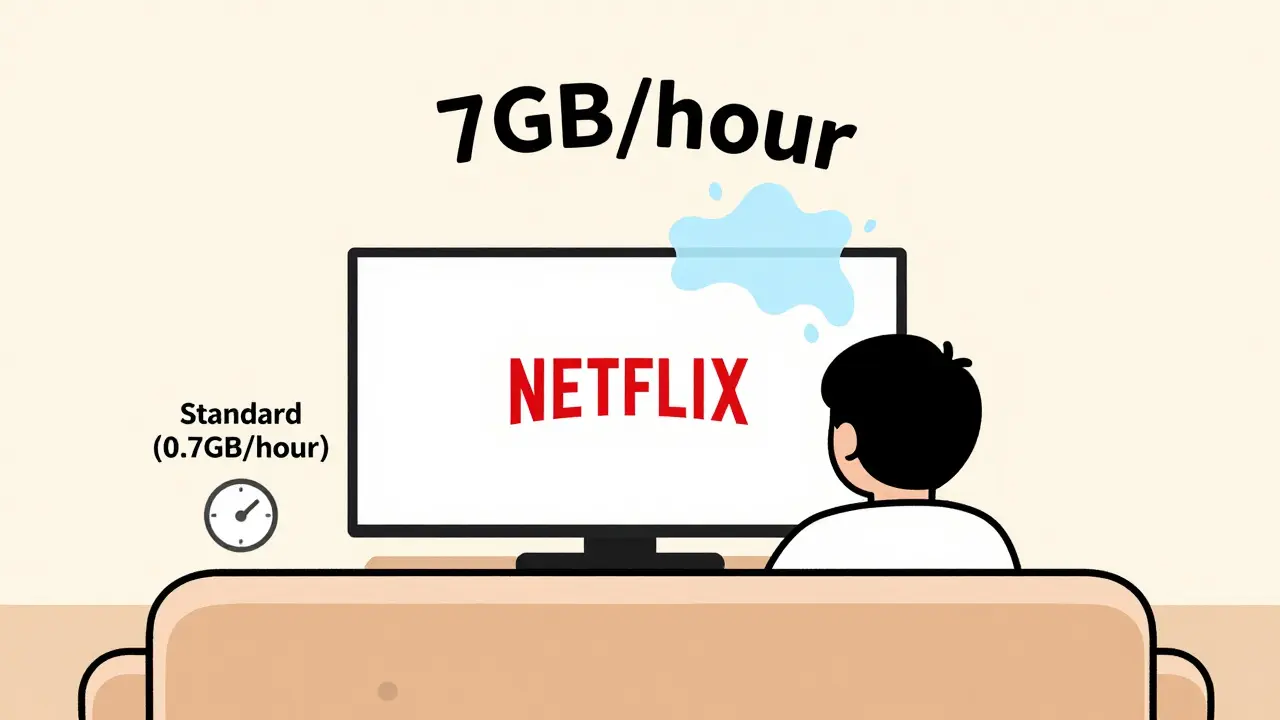
- Standard (720p): ~0.7GB per hour
- High (1080p): ~1.5GB per hour
- Ultra HD (4K): ~7GB per hour
That means watching Stranger Things for three hours in 4K uses more data than downloading an entire season of The Crown in HD. If you’re on a limited plan-like 50GB/month-you can only watch about 7 hours of 4K content before hitting your limit. But switch to Standard, and you get over 70 hours.
Most people don’t realize their Netflix is set to Auto or High by default. Even if your TV can handle 4K, your internet connection might not be stable enough to support it consistently. That leads to buffering, which wastes even more data as Netflix re-downloads chunks of video.
Change Your Netflix Streaming Quality Settings
The easiest fix? Lower your streaming quality. You don’t need to be a tech expert to do this. Here’s how:
- Go to netflix.com/account and sign in.
- Scroll down to Profile & Parental Controls.
- Click on your profile name.
- Under Playback settings, select Low or Standard.
- Save your changes.
That’s it. From now on, every device linked to that profile will stream at the lower quality. You won’t see a pop-up asking you to confirm-it just happens. If you’re on a mobile data plan, this setting also applies to the Netflix app on your phone or tablet.
Is 720p good enough? For most people, yes. On a 55-inch TV, the difference between 720p and 1080p is barely noticeable unless you’re sitting less than 3 feet away. On a phone or laptop, it’s practically invisible. And on older TVs or budget models, the TV itself can’t even display 4K properly-so you’re just wasting data.
Use the Netflix App on Mobile for Better Control
If you’re watching on your phone or tablet, you’ve got even more control. Open the Netflix app, tap your profile icon, then go to App Settings > Data Usage. Here you can choose:
- Save Data: Only streams in low quality (480p) over mobile networks.
- Wi-Fi Only: Won’t stream anything unless you’re on Wi-Fi.
- High Quality: Uses up to 1GB per hour-even over mobile data.
Most users pick Save Data. It’s perfect for commuting, traveling, or anywhere you’re on a limited data plan. You’ll still get clear, watchable video. And if you’re at home, you can switch back to High Quality when connected to Wi-Fi.
Pro tip: Turn off Auto-play in the same menu. That way, you won’t accidentally start the next episode and burn through 1GB while you’re scrolling through social media.

Download Shows for Offline Viewing (Yes, Really)
Here’s a trick most people overlook: download episodes instead of streaming them. Netflix lets you download shows and movies to watch later without using any data.
How it works:
- Open the Netflix app on your phone or tablet.
- Find a show or movie you want to watch later.
- Tap the Download button (it looks like a downward arrow).
- Wait for it to finish. You’ll see a checkmark when it’s ready.
Downloaded content uses data only once-when it’s being saved. After that, you can watch it as many times as you want without using any more data. That’s perfect for flights, road trips, or areas with spotty Wi-Fi.
And here’s the kicker: you can download in Standard quality even if your profile is set to High. Just go to App Settings > Download Quality and pick Standard. That cuts download size in half without making the video look bad.
Check Your Internet Speed and Network
Sometimes the problem isn’t Netflix-it’s your internet. If your connection is slow or unstable, Netflix will keep rebuffering, which uses more data than normal. Run a speed test on your phone or computer (try speedtest.net or Fast.com, Netflix’s own tool).
Here’s what you need:
- At least 5 Mbps for HD streaming
- 25 Mbps for 4K streaming
If you’re below 5 Mbps, Netflix will automatically drop to SD (480p) anyway. So why not set it manually? That way, you avoid the lag and wasted data from constant rebuffering.
Also, check for other devices hogging bandwidth. Are your kids streaming YouTube? Is someone downloading a game? Pause those during your Netflix time-or use your router’s Quality of Service (QoS) settings to give Netflix priority.
Use a Data-Saving Browser Extension (For Desktop Users)
If you watch Netflix on your computer, you can install a browser extension like Netflix Party or uBlock Origin to block ads and background scripts that eat up extra data. But more importantly, use Chrome or Edge and go to Settings > Privacy and Security > Site Settings > Media. Turn off Autoplay and set Hardware Acceleration to On. This reduces how much your browser strains your system and network.
Also, avoid using Netflix in multiple browser tabs. Each tab runs a separate stream-even if you’re just browsing the homepage. Close unused tabs to save bandwidth.
Track Your Data Usage
Most internet providers give you a data usage dashboard. Log in to your account and check how much you’ve used this month. Set a weekly alert if you’re close to your limit.
Or use a free app like Data Usage (Android) or My Data Manager (iOS). These apps track how much Netflix is using in real time. You’ll be surprised how quickly 4K adds up.
One user in Brisbane tracked their usage for a month. With Netflix set to Ultra HD, they used 120GB in 30 days. After switching to Standard, they dropped to 48GB-without missing a single episode.
What About Picture Quality? Is It Worth It?
You might be worried: “Will it look like a blurry mess?”
Try this test. Watch a scene from Dark or The Witcher in 720p. Then switch to 1080p. Now go back. Can you tell the difference? Most people say no-not unless they’re sitting right in front of a 75-inch screen.
Netflix’s compression has gotten way better since 2018. Even at 720p, colors stay rich, motion stays smooth, and text stays readable. The real trade-off isn’t quality-it’s peace of mind. No more worrying about running out of data mid-season.
Final Tips to Save Even More
- Use Wi-Fi instead of mobile data whenever possible.
- Turn off Netflix when you’re not watching. It doesn’t pause automatically.
- Use a single profile for everyone in your household. Multiple profiles mean multiple streams and higher data use.
- If you have a smart TV, disable automatic updates for the Netflix app. Those updates can be large and use data in the background.
- Consider upgrading your internet plan if you’re consistently hitting limits. Sometimes it’s cheaper than paying overage fees.
Netflix isn’t going away. But you don’t have to let it drain your data plan. With a few simple tweaks, you can watch everything you love-without the stress.
Does lowering Netflix quality affect sound?
No. Audio quality stays the same regardless of video quality. Netflix uses AAC or Dolby Audio at 192 kbps or higher even on Low settings. You’ll still get clear dialogue and immersive sound.
Can I set different quality settings for different devices?
Yes. Netflix lets you set playback quality per profile, not per device. So if you have a profile for kids and one for adults, you can set the kids’ profile to Low and the adult profile to High. Each device that logs into that profile will follow the setting.
Why does Netflix use more data on my phone than on my TV?
Your phone might be set to High or Auto quality, while your TV is on a different profile. Check the profile settings on both devices. Also, mobile apps sometimes default to higher quality if they detect a strong signal-even if your plan doesn’t support it.
Will changing settings affect my recommendations?
No. Your watch history and recommendations are based on what you watch, not how you watch it. Lowering quality doesn’t change Netflix’s algorithm.
Is it better to download or stream if I have limited data?
Download if you plan to watch the same content more than once. Streaming uses data every time you play it. Downloading uses data only once. For rewatching favorites, downloading saves you 50% or more over time.
If you’re still seeing high data use after making these changes, check for background apps or smart home devices streaming video. A security camera or smart fridge with a Netflix app could be the culprit. Turn them off and see if your usage drops.