5
AVR Passthrough for Atmos: How to Set Up Device Audio for Dolby Atmos Streaming
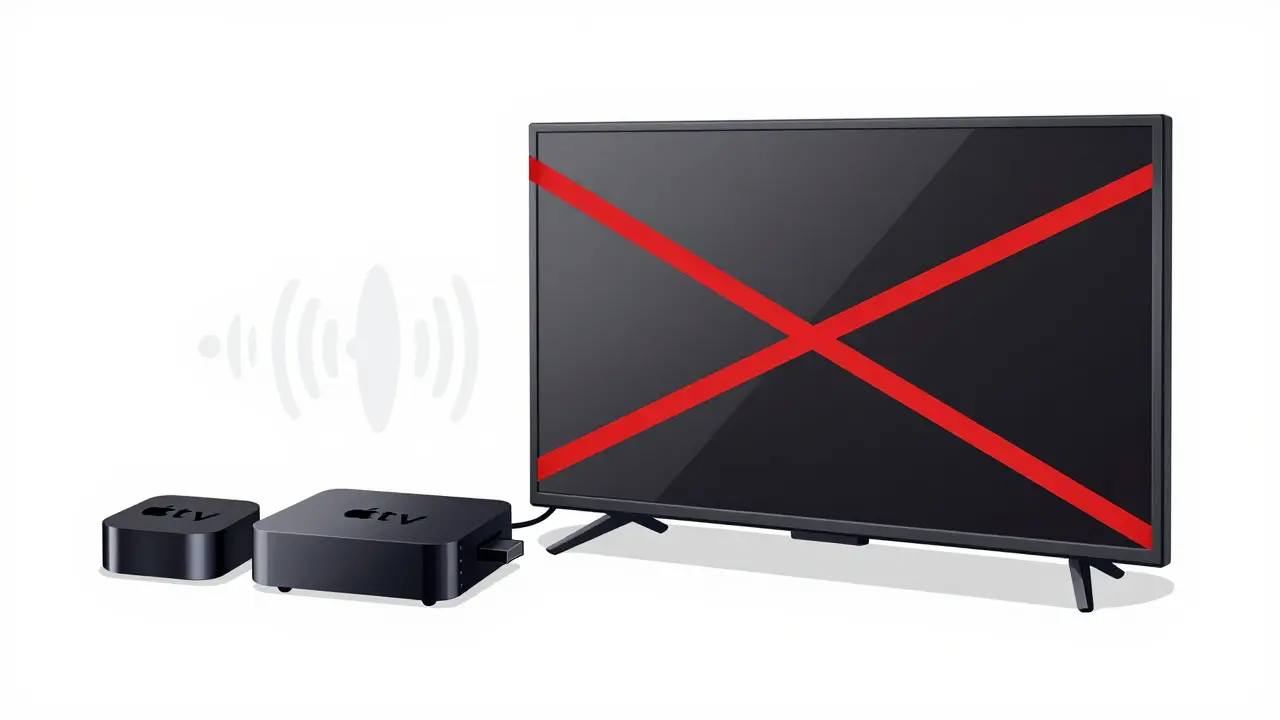
Ever plug your streaming box into your TV, only to realize the sound still sounds flat-even though you’ve got a fancy home theater system? The issue isn’t your speakers. It’s your audio path. If you’re trying to get true Dolby Atmos from your Apple TV, Roku, or NVIDIA Shield through your AVR (Audio Video Receiver), you need one thing: AVR passthrough.
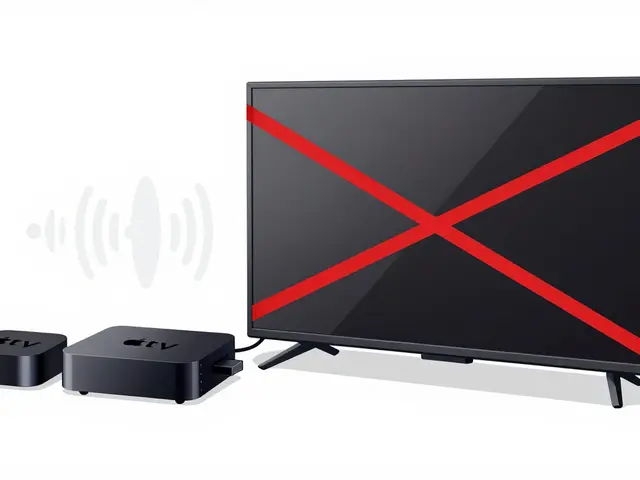
Most people think plugging their streaming device into the TV is enough. But TVs, even high-end ones, often strip away Atmos metadata before sending audio to your soundbar or receiver. That’s why you hear stereo or 5.1, not the immersive overhead channels that make Atmos feel like sound is falling from above. The fix? Bypass the TV entirely and let your AVR handle the audio directly.
What Is AVR Passthrough?
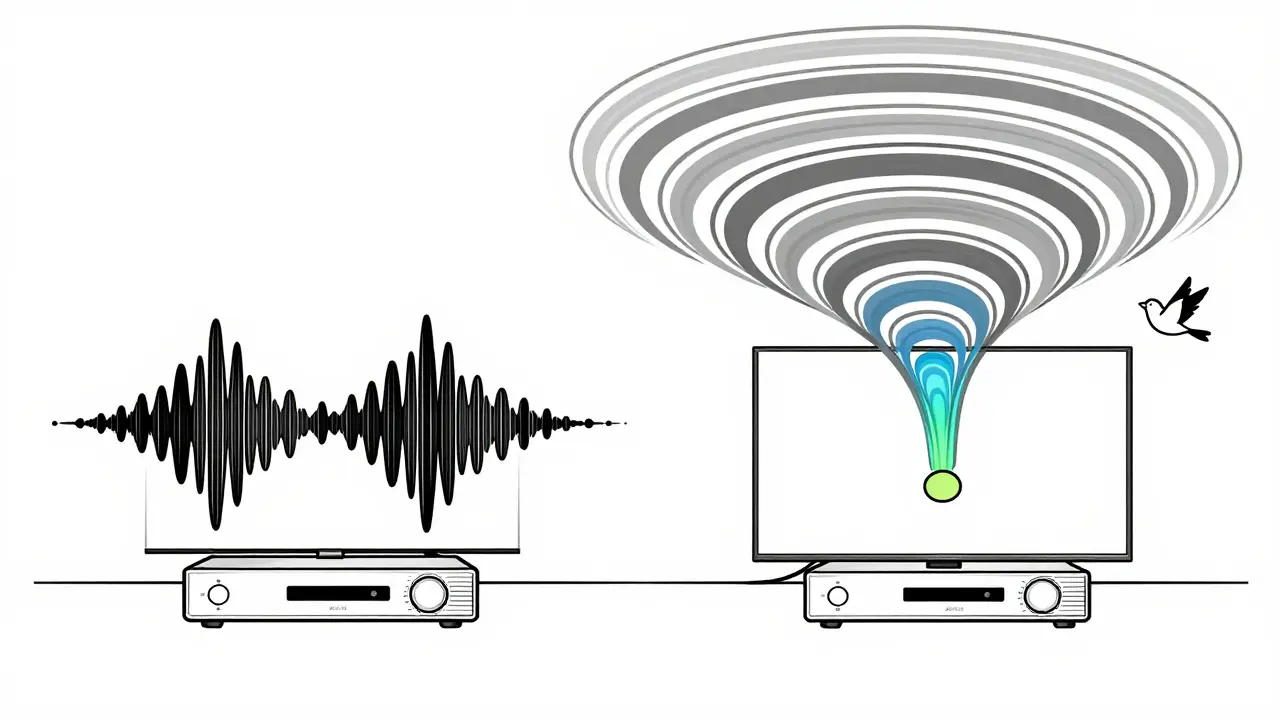
AVR passthrough means your streaming device sends audio directly to your receiver via HDMI, skipping the TV’s audio processing entirely. The TV only shows the video. The receiver gets the full, untouched audio stream-including Dolby Atmos, DTS:X, or even uncompressed PCM. This isn’t just a tweak; it’s the only way to get true object-based audio from modern streaming services like Apple TV+, Disney+, or Netflix on a 4K HDR setup.
Think of it like this: your TV is a middleman who only tells you the summary of a book. Your AVR is the person who reads the whole thing aloud-with all the emotion, pauses, and sound effects. If you want the full experience, you cut out the middleman.
How to Enable AVR Passthrough
Setting this up is simple-but only if you know where to look. Here’s how to do it on the most common streaming devices:
- Connect your streaming device directly to your AVR using an HDMI cable. Don’t go through the TV’s HDMI port. Use the HDMI OUT port on your Apple TV, Roku, or Shield and plug it into an HDMI IN port on your receiver.
- Connect the AVR to your TV using another HDMI cable. Use the HDMI OUT (ARC or eARC) port on the receiver and plug it into the TV’s HDMI IN port. This sends video to the screen while keeping audio routed through the receiver.
- On your streaming device:
- Apple TV: Go to Settings > Audio and Video > Audio Output. Set Audio Format to Atmos (not Auto or Stereo). If you don’t see Atmos, your receiver must support eARC and be set to passthrough mode.
- Roku: Go to Settings > Audio > HDMI Audio. Choose Bitstream (Dolby Atmos). Avoid PCM or Stereo.
- NVIDIA Shield: Go to Settings > Display & Sound > Audio Output. Select Dolby Atmos under Audio Format. Make sure HDMI Audio is set to Bitstream.
- On your AVR: Go into the receiver’s audio settings. Set the HDMI input to Pass Through or Bitstream. Disable any TV audio processing like "Surround Sound" or "Virtual Atmos"-those are fake and ruin the signal.
- On your TV: Set HDMI Audio Return Channel (ARC/eARC) to On and disable Audio Processing or Auto Lip Sync if it interferes. Some TVs override audio formats even when passthrough is enabled-check your manual.
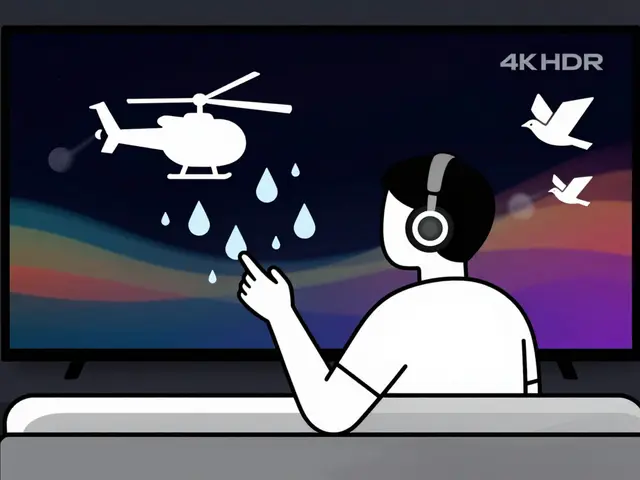
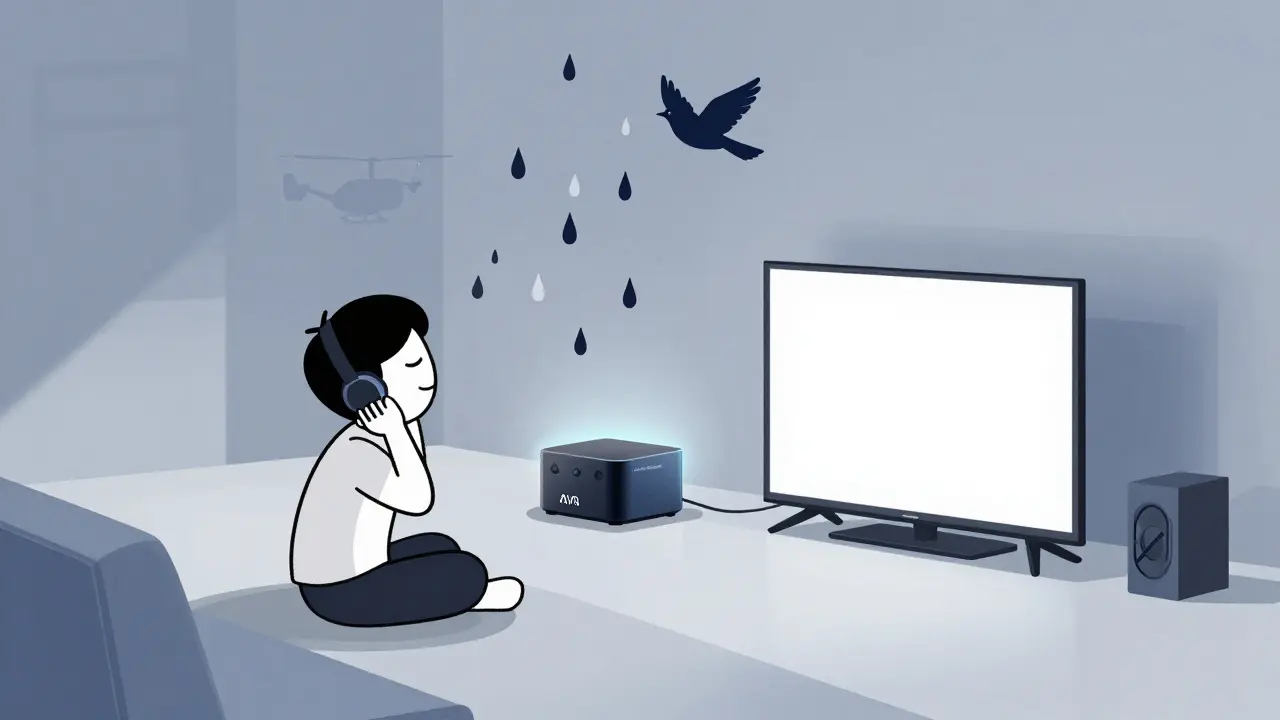
Once done, play a Dolby Atmos test clip or a supported movie. Listen for height channels-rain falling from above, helicopters circling, or a bird flying from front to back. If you hear it, you did it right.
Why Your TV Ruins Atmos (Even If It Says "Atmos Ready")
Many TVs claim to support Dolby Atmos. But that usually means they can decode Atmos and send it out as PCM. That’s not true passthrough. It’s a downgrade. Your TV converts the object-based audio into a fixed channel format-usually 7.1 or 5.1. That means no overhead channels, no precise positioning, no immersion.
Even if your TV has eARC, it doesn’t automatically mean it passes Atmos correctly. Some models (looking at you, older LG and Samsung) still strip metadata when the source is HDMI. That’s why direct connection to the AVR is non-negotiable.
Real-world example: A user in Brisbane plugged their Apple TV into a Sony TV with eARC, then into a Denon AVR. They heard stereo. Switched the Apple TV to HDMI OUT > Denon, then Denon to TV. Suddenly, overhead speakers kicked in during Ad Astra. The difference? Direct passthrough.
Common Mistakes (And How to Fix Them)
- "I have Atmos but it’s not working." You’re probably using PCM. Switch to Bitstream on your streaming device. PCM is uncompressed stereo. Bitstream carries the original Atmos data.
- "My receiver says "Dolby Digital" instead of "Atmos."" Check your source. Not all streaming content supports Atmos. Only select titles do. Try Stranger Things (S4), Black Mirror: Bandersnatch, or Top Gun: Maverick-they’re Atmos-certified.
- "I can’t find the audio settings." Some Roku models hide HDMI audio under "System > Audio." Try rebooting the device after changing settings. Settings don’t always apply until restart.
- "My TV turns off the sound." Disable "Auto Power Off" or "HDMI CEC" on your TV. Sometimes these features interfere with audio handshake.
What Hardware Do You Actually Need?
You don’t need the most expensive gear. But you do need the right ports:
- Streaming device: Apple TV 4K (2nd gen or later), Roku Ultra (2020+), NVIDIA Shield Pro (2019+), or Fire TV Stick 4K Max.
- AVR: Must have HDMI 2.1 or at least HDMI 2.0 with eARC support. Look for "Dolby Atmos passthrough" in the specs. Brands like Denon, Yamaha, and Sony have solid models under $600.
- TV: Needs eARC port (not just ARC). Most 2020+ models have it. If your TV only has ARC, you’ll still get Atmos-but only if the AVR handles decoding.
Don’t waste money on "Atmos-enabled" soundbars unless they’re paired with a full AVR. Most bar-and-sub combos fake height with upward-firing drivers-and they still can’t match true surround from discrete speakers.
Testing Your Setup
Don’t just trust the on-screen display. Test it:
- Play a Dolby Atmos demo video on YouTube (search "Dolby Atmos test 7.1.4").
- Check your AVR’s on-screen display-it should say "Dolby Atmos" or "DTS:X" during playback.
- Listen for vertical movement: If a sound moves from floor to ceiling, you’ve got it.
- Try turning off one speaker. If you notice the missing sound, your system is properly decoding object-based audio.
If your AVR says "Dolby Digital" or "Stereo" during an Atmos title, you’re still not getting true passthrough. Go back and check every setting.
What If I Can’t Connect Directly?
Some setups (like wall-mounted TVs or hidden AV racks) make direct HDMI connections hard. If you absolutely must route through the TV:
- Use eARC, not ARC. ARC can’t carry Atmos bitstream.
- Set your TV’s audio output to "Bitstream" or "Dolby Atmos" if available.
- Disable all TV audio enhancements: "Clear Audio," "Surround Sound," "Voice Enhancement." These compress or alter the signal.
- Use a high-speed HDMI 2.1 cable. Older cables can drop metadata.
But honestly? The best fix is still direct connection. It’s cleaner, more reliable, and future-proof.
Future-Proofing Your Setup
Streaming services are moving fast. By 2026, over 60% of new releases on Apple TV+ and Netflix will be Atmos-capable. Your setup needs to keep up. If your AVR doesn’t support HDMI 2.1 or Dolby Atmos passthrough, it’s time to upgrade. Even budget models like the Yamaha RX-V485 or Denon S360H handle Atmos perfectly.
And don’t forget: your streaming device matters too. Older Roku Express or Fire TV Sticks can’t output Atmos at all. Upgrade if you’re still using 2018 hardware.
Atmos isn’t just a buzzword. It’s a spatial experience. And if your audio path is broken, you’re missing half the movie.
Can I use ARC instead of eARC for Atmos passthrough?
No. ARC (Audio Return Channel) only supports compressed audio like Dolby Digital 5.1. It cannot carry the full Atmos bitstream. eARC is required to transmit Atmos without compression. If your TV only has ARC, you won’t get true Atmos-even if your receiver supports it. Upgrade your TV or connect your streaming device directly to the AVR.
Why does my AVR say "Dolby Digital" instead of "Atmos"?
This usually means your streaming device is sending PCM or your TV is converting the signal. Check your device’s audio output settings and ensure it’s set to "Bitstream" with Atmos enabled. Also confirm your receiver is set to passthrough mode-not processing or upmixing. If you’re playing a non-Atmos title, it’s normal. Stick to Atmos-certified content like "Dune," "Soul," or "The Midnight Sky" to test.
Do I need a 4K TV to use Atmos passthrough?
No. Atmos is an audio format, not video. You can use it with a 1080p TV as long as your AVR and streaming device support Atmos and your HDMI connections are properly configured. The video resolution doesn’t affect audio passthrough-only the HDMI version and settings do.
Can I use an optical cable instead of HDMI for Atmos?
No. Optical cables (TOSLINK) can only carry stereo or compressed 5.1 audio. They cannot transmit Dolby Atmos or DTS:X. HDMI is required for object-based audio. If your receiver only has optical input, you’ll need to upgrade to a model with HDMI inputs.
Is Atmos worth it if I only have two rear speakers?
Yes. Even with a 5.1 setup, Atmos adds height channels through upward-firing speakers or virtual processing. The key is getting the Atmos signal through correctly. A 5.1.2 system (two height speakers) will still create a convincing overhead effect. You don’t need 11 speakers to feel the difference-just a clean signal path.
If you’ve followed these steps and still don’t hear Atmos, try swapping HDMI cables. A faulty cable is the most common hidden culprit. Then reboot everything: streaming device, AVR, and TV. Audio handshake issues are common after firmware updates. Once it’s working, you’ll never go back.