13
Paramount+ Data Usage: How to Reduce Bandwidth on Mobile and TV
Streaming Paramount+ on your phone or TV can eat through your data plan faster than you realize. If you’ve ever hit a data cap mid-season or seen your internet slow down while watching Paramount+, you’re not alone. The good news? You can cut your data use by up to 60% without losing picture quality-here’s how.
Why Paramount+ Uses So Much Data
Paramount+ streams in HD by default, and sometimes even 4K on supported devices. A single hour of HD video uses about 3 GB of data. 4K? That jumps to 7 GB or more. If you watch two episodes a night, you’re burning through 6-14 GB per week. For mobile users on limited plans, that’s a recipe for overage fees or throttled speeds.
Most people don’t realize their streaming app automatically picks the highest quality available. It’s not a bug-it’s a design choice. Streaming services assume you have unlimited bandwidth. But if you’re on a 5 GB monthly plan, that assumption breaks fast.
How to Lower Data Usage on Mobile
On your phone, Paramount+ lets you set a data limit directly in the app. Here’s how to find it:
- Open the Paramount+ app and tap your profile icon in the top-right corner.
- Select Settings.
- Go to Data Usage or Streaming Quality.
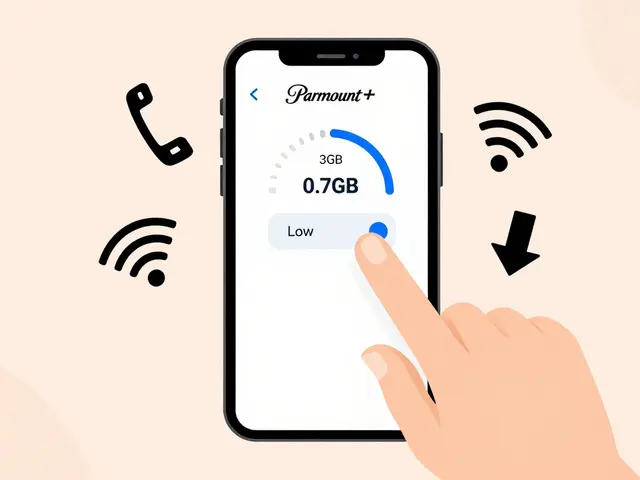
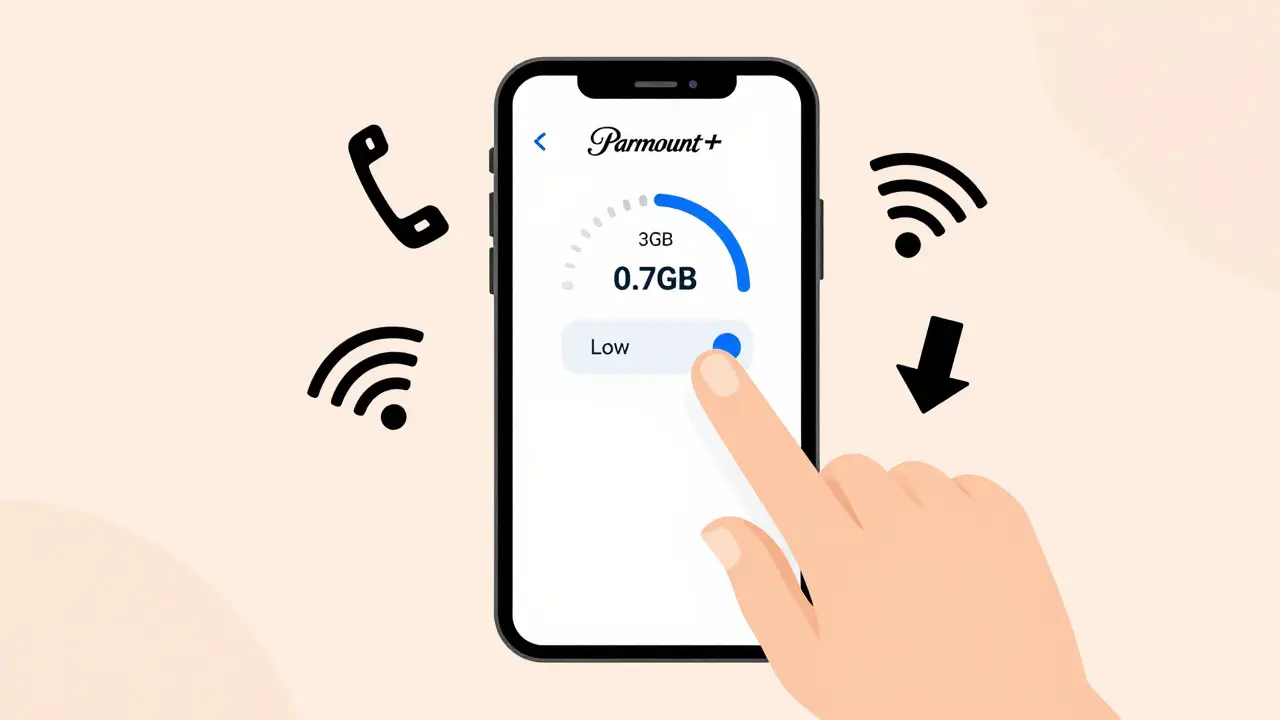
- Choose Low or Medium instead of High or Auto.
Switching from High to Medium cuts data use by nearly half-around 1.5 GB per hour instead of 3 GB. Low mode drops it to under 0.8 GB per hour. That’s enough for clear SD-quality video on a small screen. You won’t notice the difference unless you’re watching on a 65-inch TV.
Pro tip: Turn on Download for Offline when you’re on Wi-Fi. Downloading a show at home and watching it later uses zero mobile data. Paramount+ lets you download up to 25 titles at a time. Great for flights, commutes, or areas with weak signal.
Reducing Data on TV and Streaming Devices
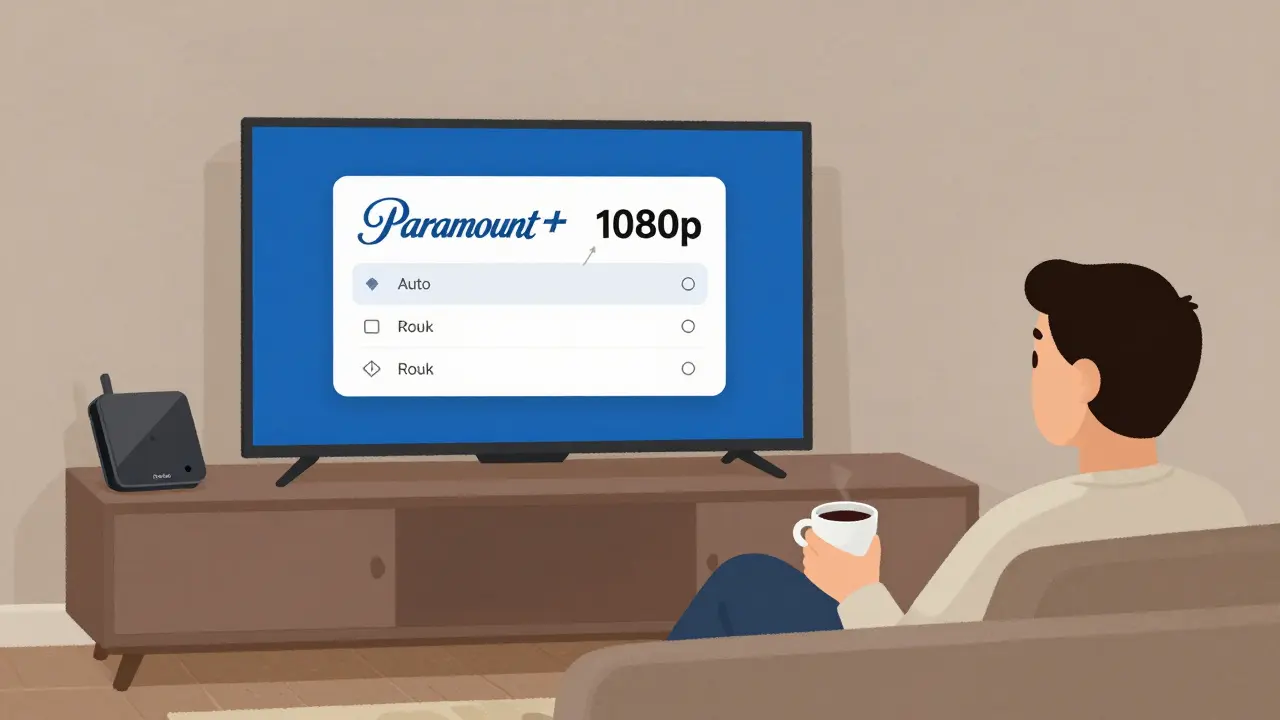
On Roku, Apple TV, Fire Stick, or smart TVs, Paramount+ doesn’t have a built-in data saver. But you can still control bandwidth by adjusting your router or device settings.
First, check your internet plan. If you’re on a 100 Mbps connection, you don’t need 4K streaming. Most TV screens don’t show the difference between 1080p and 4K unless you’re sitting less than 6 feet away. For most living rooms, 1080p is plenty.
To force lower quality:
- On Roku: Go to Settings > System > Advanced system settings > Network > Connection type and switch from Auto to 1080p.
- On Fire Stick: Open the Paramount+ app, start playing a show, press the Menu button on your remote, select Video Quality, then choose HD or SD.
- On Apple TV: Use Settings > Videos > Apps > Paramount+ and set Video Quality to 1080p.
If your router supports Quality of Service (QoS), prioritize other devices like laptops or phones over your TV. That way, even if Paramount+ tries to stream in 4K, your router will throttle it to save bandwidth.
What Quality Settings Actually Look Like
Here’s a real-world comparison of data use per hour based on Paramount+ settings:
| Quality Setting | Data Used per Hour | Best For |
|---|---|---|
| 4K Ultra HD | 7 GB | Large screens, fast internet |
| HD (1080p) | 3 GB | Most TVs, good internet |
| Medium (720p) | 1.5 GB | Mobile, limited data |
| Low (480p) | 0.7 GB | Phones, slow networks |
Notice how going from HD to Medium saves 1.5 GB per hour. That’s enough to stream another full episode every day for a week. On a 10 GB mobile plan, that change alone could double your viewing time.
When You Shouldn’t Lower Quality
Not every show benefits from lower settings. Documentaries, nature footage, and action movies lose detail when compressed. If you’re watching 60 Minutes or Star Trek: Strange New Worlds, stick with HD. But for sitcoms, talk shows, or reality TV? Low or Medium works fine.
Also, if you’re using a tablet or phone with a 7-inch screen, you won’t notice the difference between HD and Low. The pixels are too small to show the loss. Save your data for the big moments.
Other Ways to Save Data
- Turn off autoplay. Paramount+ auto-plays the next episode. That adds 2-3 extra hours of streaming per week. Disable it in Settings > Playback.
- Use Wi-Fi when possible. Even if your home Wi-Fi is slow, it’s still cheaper than mobile data. Connect your TV and phone to Wi-Fi before streaming.
- Limit background apps. Some phones stream video in the background even when you’re not watching. Check your device’s data usage stats and kill any suspicious apps.
- Set monthly limits. On Android, go to Settings > Network & Internet > Data Usage. On iPhone, go to Settings > Cellular > Paramount+. Set a warning or data cap to get alerts before you go over.
What Happens if You Go Over Your Data Limit?
Most carriers throttle speeds to 1-2 Mbps after you hit your cap. That’s slower than dial-up. Streaming at that speed means constant buffering, pixelation, and frustration. You might as well be watching VHS.
Some providers offer unlimited streaming plans. But even then, throttling can kick in during peak hours. Reducing your Paramount+ settings now prevents headaches later.
Final Tips
- Test your settings. Watch a 10-minute episode in Low mode. Then switch to HD. Can you tell the difference? If not, stick with Low.
- Update the app. Paramount+ improves compression over time. Newer versions use less data for the same quality.
- Track your usage. Most phone carriers show daily streaming data. Check it once a week. If you’re using over 5 GB on Paramount+, it’s time to adjust.
Paramount+ is great. But like any streaming service, it doesn’t care how much data you have. You have to take control. Set it once, and you’ll save hundreds of gigabytes a year-without missing a single episode.
Does lowering video quality on Paramount+ affect sound?
No. Audio quality stays the same regardless of video setting. You’ll still get Dolby Audio or stereo sound even in Low mode. The only thing that changes is picture resolution, not audio bitrate.
Can I set different quality levels for mobile and TV?
Yes. Mobile settings are controlled in the app, while TV settings depend on your streaming device or router. You can set your phone to Low and your Roku to HD without conflict. They’re independent.
Will reducing quality make the app lag or buffer more?
Actually, the opposite. Lower quality means less data to load, so buffering usually decreases. If you’re on a weak connection, Low mode often plays smoother than HD trying to catch up.
Is there a way to see how much data I’ve used on Paramount+?
Paramount+ doesn’t show your personal data usage. But your phone or router does. On Android: Settings > Network & Internet > Data Usage. On iPhone: Settings > Cellular > Paramount+. You’ll see total data consumed since the last reset.
Do I need to change settings every time I update the app?
No. Once you set your preferred quality, it stays saved. App updates don’t reset your preferences. You’ll only need to change it if you manually switch back to Auto or High.