14
Apple TV+ on iPhone and iPad: How to Stream and Maximize Your Experience
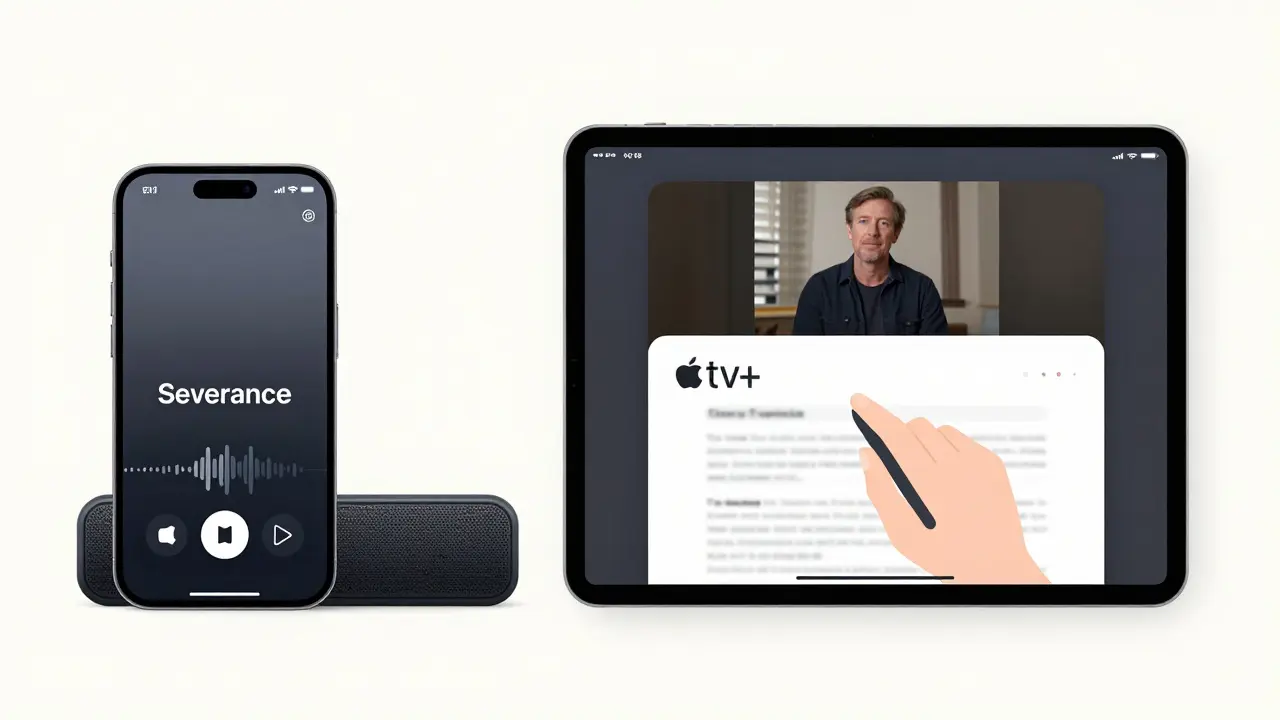
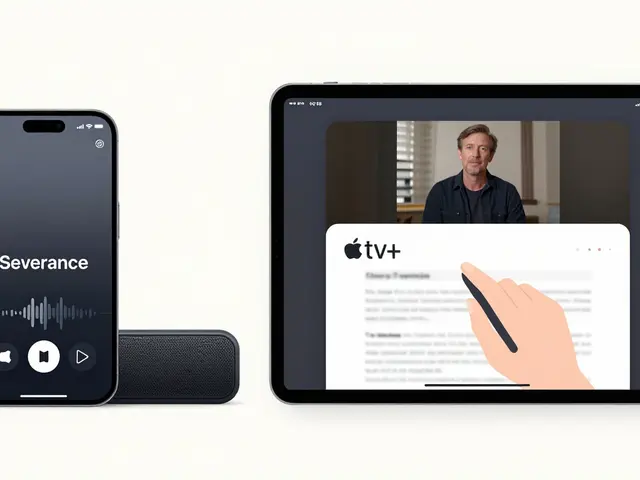
Apple TV+ works seamlessly on iPhone and iPad, but not everyone knows how to get the most out of it. If you’re using an Apple device, you already have everything you need to watch original shows, movies, and documentaries without extra hardware. No Roku. No Fire Stick. Just open the app and go. But there’s more to it than tapping play.
How to Find Apple TV+ on Your iPhone or iPad
The Apple TV+ app isn’t hidden - it’s right there on your home screen if you’ve ever used it. If you don’t see it, open the App Store and search for Apple TV+. Download the app. It’s free to install, even if you haven’t subscribed yet. Once installed, open it and sign in with your Apple ID. If you’re new, you’ll see the option to start a free trial. Apple still offers one month free for new subscribers.
Some users think Apple TV+ is part of the Apple TV app. That’s true - it lives inside the Apple TV app. But on iPhone and iPad, the Apple TV app is designed to show Apple TV+ content front and center. Your library, recommendations, and new releases all appear here. There’s no need to switch between apps.
What You Can Watch on Apple TV+ (2026)
Apple TV+ isn’t a giant library like Netflix. It’s focused. And that’s the point. Every show and movie is original, produced by Apple. No licensing deals. No third-party content cluttering your feed.
In 2026, Apple TV+ has over 120 original series and 30 films. Top titles include Severance, Ted Lasso, The Morning Show, and For All Mankind. New releases drop weekly. Mythic Quest Season 4 launched in January 2026. Slow Horses Season 5 is set for April. Apple also added three new documentaries this year, including one on the future of AI in healthcare.
Most shows are available in 4K HDR with Dolby Atmos sound. Even older titles were remastered in 2025. If you have an iPad Pro or iPhone 15 Pro, you’ll see the difference - deep blacks, vibrant colors, and immersive audio through headphones or AirPods.
How Apple TV+ Uses Your Device
Apple TV+ doesn’t just stream - it adapts. On iPhone, it remembers where you left off, even if you switched from iPad. Your watch history syncs across devices. Pause a show on your iPad at 8:17 PM, and it’ll pick up exactly there when you open it on your iPhone later.
Picture-in-Picture mode works perfectly. Watch a documentary while replying to messages. Swipe up from the bottom of your screen, and the video shrinks into a corner. No need to minimize the app. It stays active, audio continues.
Apple TV+ also supports AirPlay. If you’re watching on your iPad and want to move to your Apple TV, tap the AirPlay icon. It’s instant. No setup. No lag. Just tap and it’s on the big screen.
Offline Viewing: Download Shows for Later
Traveling? On a flight? In a place with spotty Wi-Fi? Apple TV+ lets you download episodes to watch offline. Tap the download icon (a downward arrow) on any show or movie. It saves to your device. You’ll see a cloud icon with a downward arrow when it’s ready.
You can download up to 25 titles at once. Storage space? Each hour of 4K video takes about 3 GB. A 45-minute episode of Severance uses around 2.1 GB. If you’re tight on space, go to Settings > Videos > Apple TV+ > Downloaded and delete what you’ve watched. The app doesn’t auto-delete, so you have to manage it yourself.
Parental Controls and Profiles
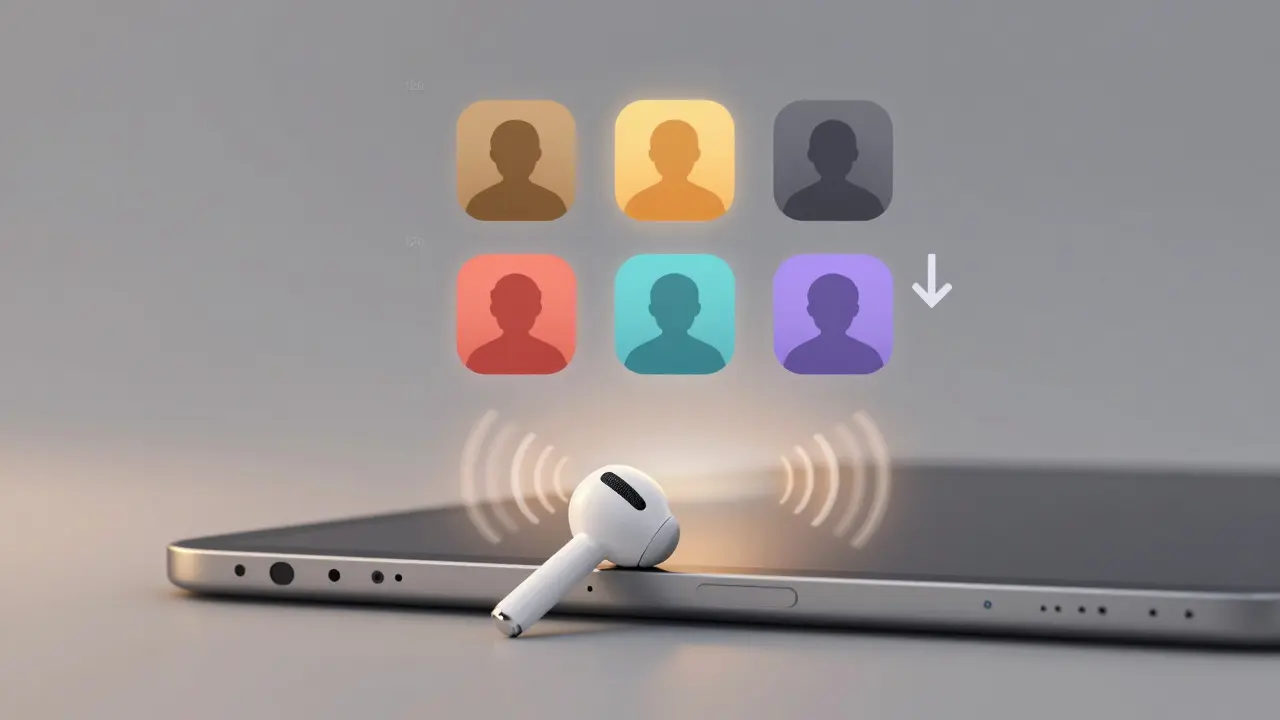
Apple TV+ supports up to six user profiles per Apple ID. Each profile has its own recommendations, watch history, and download list. Great for families.
To set up parental controls, go to Settings > Screen Time > Content & Privacy Restrictions > Content Restrictions. You can block shows based on age rating. Apple TV+ shows are labeled with ratings like TV-14 or TV-MA. You can also turn off automatic play of next episodes.
Profiles are tied to Apple IDs. So if your teen uses their own Apple ID, their activity won’t show up on your profile. No accidental recommendations for Mythic Quest on your main account.
Audio and Subtitle Options
Apple TV+ supports 20+ languages for subtitles and 15+ for dubbing. Most popular shows have full audio and subtitle tracks in Spanish, French, German, Japanese, and Mandarin. You can change this anytime while watching.
Tap the screen during playback, then tap the speech bubble icon. You’ll see options for subtitles, closed captions, and audio language. If you’re hard of hearing, the closed captions are customizable - font size, color, background. You can even choose a high-contrast mode.
For music lovers, Dolby Atmos is enabled by default on supported devices. Use AirPods Pro or AirPods Max for spatial audio. You’ll hear dialogue shift from left to right as characters move on screen. It’s subtle. But once you notice it, you won’t go back.

Why Apple TV+ Works Better on Apple Devices
Apple TV+ doesn’t just work on iPhone and iPad - it feels like it was made for them. The interface is clean. No ads. No pop-ups. No forced trailers before every episode. Just the show, and a simple menu.
Because Apple controls both the hardware and software, the app runs smoothly. No buffering. No crashes. Even on older devices like the iPhone 12 or iPad Air (2022), the app loads fast and plays without hiccups.
It also integrates with Siri. Say, “Hey Siri, play the latest episode of Ted Lasso on Apple TV+.” It starts immediately. No app switching. No typing. Just voice.
And if you have an Apple One subscription, Apple TV+ is included. No extra cost. It’s bundled with iCloud+, Apple Music, and Apple Arcade. Many users don’t realize they’re already paying for it.
Common Issues and Fixes
Still having trouble? Here are the most common problems and how to fix them.
- App won’t open - Force quit, then reopen. If that fails, restart your device.
- Video buffers constantly - Check your Wi-Fi. Go to Settings > Wi-Fi and tap the info icon next to your network. If signal is weak, move closer to the router.
- Downloads won’t start - Make sure you’re connected to Wi-Fi. Downloads don’t work on cellular data unless you allow it in Settings > Videos > Apple TV+ > Cellular Data.
- Audio out of sync - Restart the episode. If it persists, go to Settings > General > Reset > Reset All Settings. This clears temporary glitches.
If nothing works, sign out of your Apple ID in the Apple TV+ app, then sign back in. That fixes 90% of persistent issues.
Is Apple TV+ Worth It on iPhone and iPad?
At $11 per month, Apple TV+ isn’t the cheapest. But if you already own Apple devices, it’s the most convenient. No extra box. No complicated setup. Just open the app and watch.
It’s not for everyone. If you want a huge catalog of old TV shows, look elsewhere. But if you want high-quality originals, no ads, and seamless integration with your iPhone and iPad - it’s hard to beat.
Most users who try the free trial stick around. Why? Because once you watch Severance or Mythic Quest, you realize Apple doesn’t just make products - it makes experiences. And on your iPhone or iPad, that experience feels personal.
Can I watch Apple TV+ on iPhone without an Apple ID?
No. You need an Apple ID to sign in and access Apple TV+. It’s tied to your account for downloads, profiles, and syncing. If you don’t have one, you can create a free Apple ID in Settings > Sign in to your iPhone.
Does Apple TV+ work on iPadOS 17?
Yes. Apple TV+ fully supports iPadOS 17 and later. The app was updated in late 2025 to take advantage of new multitasking features, including Split View and Slide Over. You can watch Apple TV+ while using Notes or Safari side by side.
Can I share my Apple TV+ subscription with family?
Yes. With Family Sharing, up to five other people can use your Apple TV+ subscription at no extra cost. Each gets their own profile. They can download shows, watch live, and get personalized recommendations. Just set up Family Sharing in Settings > [Your Name] > Family Sharing.
Why can’t I download some shows on Apple TV+?
A few Apple TV+ titles, mostly newer releases or live events, are not available for download due to licensing restrictions. You’ll see a message saying "Download not available" when you tap the icon. This is rare - over 95% of the catalog can be downloaded.
Will Apple TV+ work on an iPad Mini 5?
Yes. The Apple TV+ app runs on iPad Mini 5 and later. You won’t get 4K, but you’ll still enjoy HD streaming and Dolby Audio. The interface is optimized for smaller screens, and downloads work just fine. Performance is smooth even on older hardware.