15
Apple TV 4K Hardware Guide: Best Streaming Experience in 2026
You’ve spent thousands on a high-end OLED television. You’ve subscribed to every major streaming service. Yet, when you hit play, the picture looks flat, or the menus lag just enough to break your immersion. The culprit usually isn’t your internet speed or your TV panel-it’s the tiny black box sitting behind it. In 2026, Apple TV 4K remains the gold standard for media players, but only if you pair it with the right ecosystem components. Most people treat their streaming device as an afterthought, plugging in whatever HDMI cable came in the junk drawer and using the basic remote that shipped with the box. That mistake costs you frame rates, color accuracy, and audio fidelity.
This guide cuts through the marketing noise to tell you exactly what hardware upgrades actually improve your viewing experience. We aren’t talking about expensive cables that promise "magic"; we’re talking about specific technical requirements like bandwidth, latency, and calibration standards that make the difference between watching a movie and experiencing it. Whether you are building a new home theater or trying to squeeze more performance out of your current setup, these are the tangible changes you need to make.
The Core Engine: Why the Apple TV 4K Still Dominates
Before diving into peripherals, let’s address the brain of the operation. The latest iterations of the Apple TV 4K run on the A17 Pro chip, which is overkill for most streaming tasks-and that’s exactly why it works so well. Unlike cheaper dongles that struggle with background apps, this processor handles heavy graphical interfaces and complex codec decoding without breaking a sweat.
Why does this matter? Because modern streaming isn’t just about playing a file. It’s about switching between apps instantly, loading metadata for hundreds of titles, and processing spatial audio in real-time. If your player stutters when you open Netflix, you’ll notice it immediately. The A17 Pro ensures zero-latency navigation. But hardware alone doesn’t guarantee quality. You need to ensure the rest of your chain supports the output capabilities of this chip. If your TV lacks specific ports or your cables can’t handle the data throughput, you’re bottlenecking one of the most powerful media players ever made.
HDMI Cables: Stop Buying Expensive Myths
Here is a hard truth: you do not need a $500 HDMI cable. Digital signals are binary-they either work perfectly, or they drop out completely. There is no such thing as a "slightly blurry" digital signal caused by a cheap cable. However, there is a massive difference between cables rated for different versions of the HDMI standard.
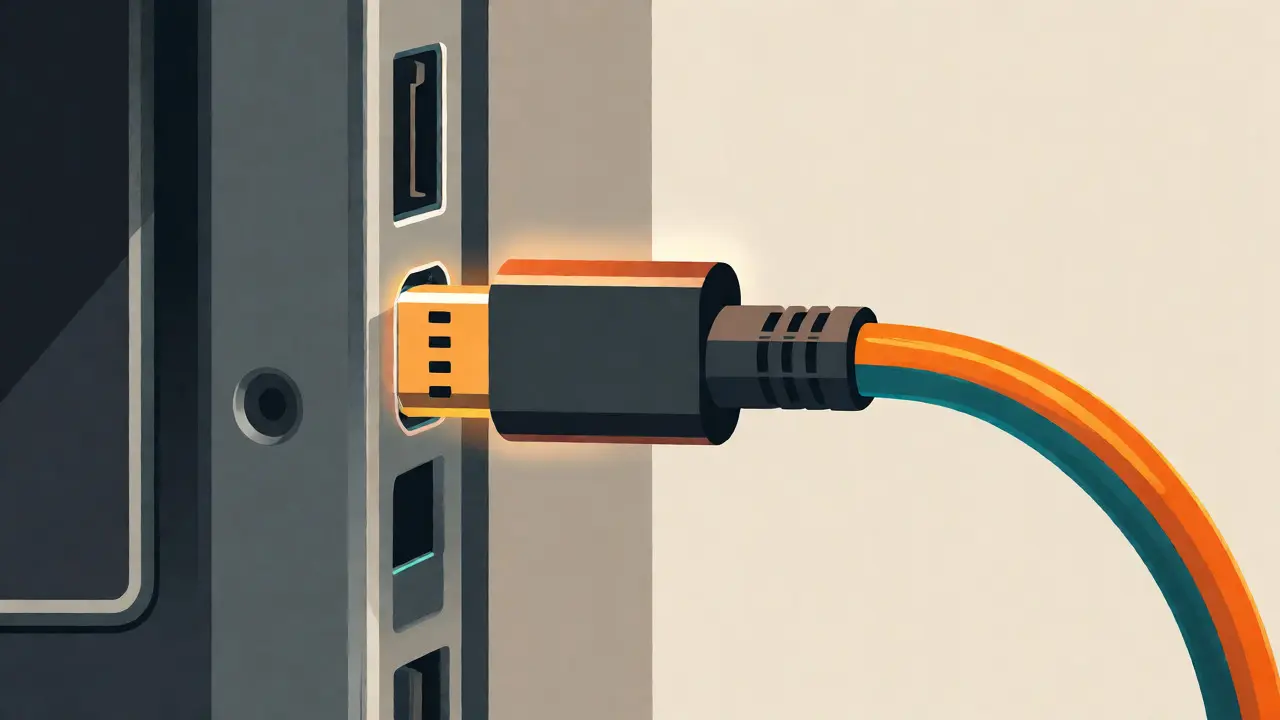
To get the best out of your Apple TV 4K, you must use a cable certified for HDMI 2.1. This is non-negotiable if you want features like Variable Refresh Rate (VRR) or 4K resolution at 120Hz. Older HDMI 2.0 cables cap out at 18Gbps bandwidth. While that’s fine for static movies, it struggles with dynamic content and future-proofing. Look for the official "Ultra High Speed" certification logo on the packaging. If your cable doesn’t have it, replace it. Brands like Belkin or Cable Matters offer certified options for under $30. Anything more is marketing fluff.
| Feature | HDMI 2.0 | HDMI 2.1 |
|---|---|---|
| Max Bandwidth | 18 Gbps | 48 Gbps |
| 4K Resolution Support | Up to 60Hz | Up to 120Hz |
| Variable Refresh Rate (VRR) | No | Yes |
| Auto Low Latency Mode | No | Yes |
| Recommended Use Case | Basic HD Streaming | High-End Home Theater & Gaming |
Television Compatibility: The Hidden Bottleneck
Your TV dictates the ceiling of your visual experience. Even the best streamer cannot display colors your panel cannot produce. When pairing an Apple TV 4K with a television, check for two critical certifications: Dolby Vision IQ and HDR10+.
Dolby Vision is the premium HDR format supported natively by Apple. It uses dynamic metadata, meaning it adjusts brightness and contrast scene-by-scene rather than just once per movie. This results in deeper blacks and brighter highlights simultaneously. If your TV only supports HDR10 (static metadata), you’ll miss out on this nuance. Furthermore, look for TVs with dedicated HDMI eARC ports. eARC (Enhanced Audio Return Channel) allows uncompressed high-quality audio formats like Dolby Atmos to pass from your Apple TV to your soundbar or receiver seamlessly. Without eARC, you might be forced to use optical audio, which compresses sound and kills the immersive effect.
Audio Setup: Beyond the Soundbar
Visuals grab attention, but audio drives emotion. The Apple TV 4K excels at spatial audio, but it needs a compatible playback system. Many users still rely on their TV’s built-in speakers. This is a waste. TV speakers are physically limited by the thin chassis; they cannot reproduce low-frequency bass or wide soundstages.
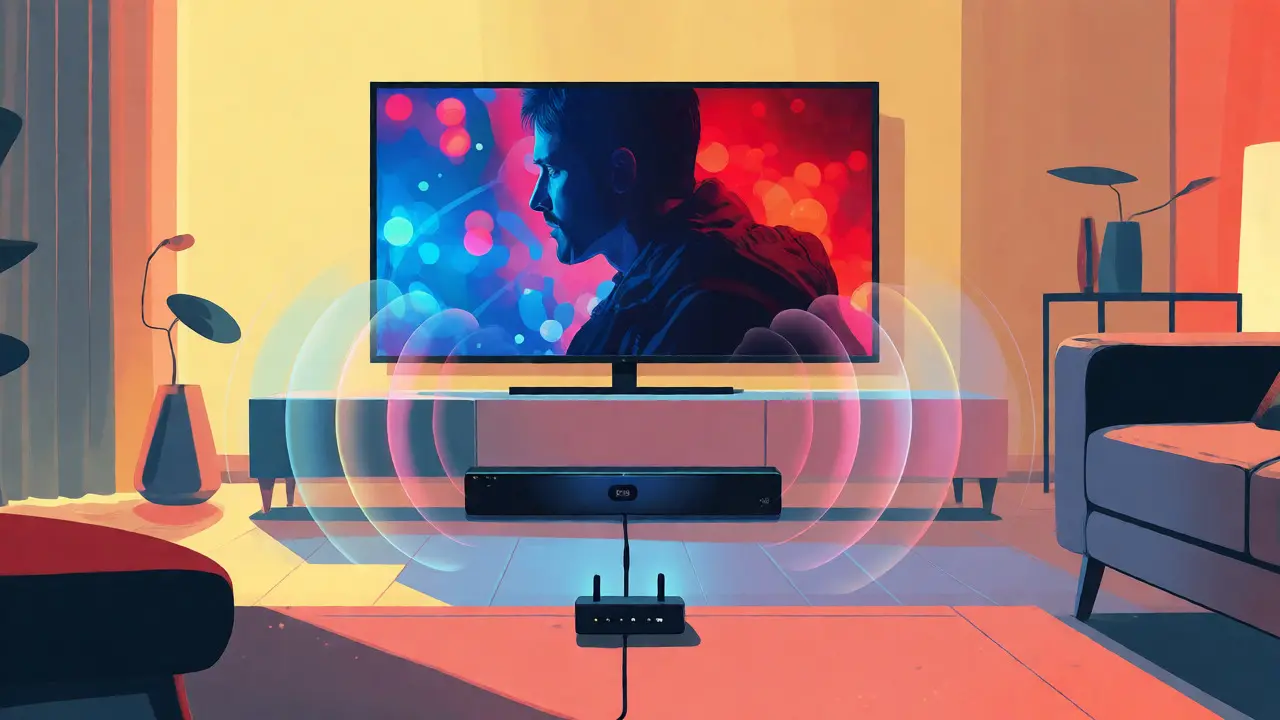
For the best experience, connect your Apple TV to an AV Receiver via HDMI eARC. This allows you to build a true surround sound system. If space or budget constraints prevent a full 5.1 or 7.1 setup, invest in a high-quality Dolby Atmos soundbar. Ensure the soundbar explicitly lists "Dolby Atmos passthrough" capability. Some budget bars claim Atmos support but only simulate it virtually. True Atmos requires upward-firing drivers that reflect sound off your ceiling. Check the specs closely-look for physical up-firing drivers, not just software processing.
Network Infrastructure: Wi-Fi vs. Ethernet
We live in a wireless world, but video streams hate interference. While the Apple TV 4K supports Wi-Fi 6E, relying solely on wireless is risky for 4K HDR content. Bitrates for high-quality streams can spike above 50Mbps during action scenes. On a congested 2.4GHz band, or even a busy 5GHz band, this leads to buffering or automatic quality downscaling.
If possible, hardwire your connection. Use a Cat6 or Cat6a Ethernet cable connected directly to your router. This eliminates packet loss and jitter, ensuring consistent frame delivery. If running a cable across your living room is impossible, consider a mesh Wi-Fi system with a dedicated backhaul channel. Place the satellite node near your entertainment center. Avoid powerline adapters if possible; they often introduce latency issues that disrupt audio-video sync.
Power Management and Longevity
It sounds trivial, but how you power your device matters. The Apple TV 4K runs warm. Placing it inside a closed cabinet with poor ventilation causes thermal throttling. When the internal temperature rises, the chip slows down to protect itself, leading to dropped frames. Ensure there is at least two inches of clearance around the unit for airflow.
Additionally, use a surge protector with USB-C charging ports if you plan to charge your Siri Remote nearby. Power fluctuations can corrupt firmware updates. Since Apple pushes regular software patches to improve codec support and fix bugs, a stable power source prevents failed updates that could brick your device. Treat your streaming hardware with the same care you’d give a gaming console.
Calibration: The Final Polish
Once your hardware is set up, you must calibrate the video output. Out-of-the-box settings rarely match industry standards. Go to Settings > Video and Audio > Test Pattern on your Apple TV. Adjust your TV’s settings until you can barely see the darkest squares in the pattern. This sets your black level correctly. Then, adjust brightness until the white squares are distinct but not blown out.
Disable any "motion smoothing" or "soap opera effect" on your TV. These artificial frame interpolations ruin cinematic intent. Directors shoot at 24fps; adding fake frames makes movies look like cheap TV dramas. Trust the native refresh rate. For audio, use the built-in test tones to balance left and right channels. Your ears are your best tool here-adjust until dialogue is clear and effects feel directional.
Do I really need an HDMI 2.1 cable for Apple TV 4K?
If you watch mostly standard movies, HDMI 2.0 is sufficient. However, if you want to future-proof your setup, enable Variable Refresh Rate for gaming, or ensure maximum compatibility with newer TVs, HDMI 2.1 is recommended. They are inexpensive now, so there is little reason to stick with older standards.
Is Wi-Fi 6E faster than Ethernet for streaming?
In ideal conditions, yes, Wi-Fi 6E can offer higher peak speeds. However, Ethernet provides lower latency and greater stability. For streaming, consistency matters more than raw speed. Ethernet prevents buffering during network congestion, making it the superior choice for critical viewing experiences.
Can I use any soundbar with Apple TV 4K?
You can use any soundbar, but for the best experience, choose one that supports Dolby Atmos and has an HDMI eARC port. This allows uncompressed audio transmission. Soundbars without eARC may require optical connections, which limit audio quality to compressed formats.
Does the Apple TV 4K upscale lower-resolution content?
Yes, the A17 Pro chip performs advanced upscaling. It takes 1080p or 720p sources and enhances them for 4K displays. While it cannot add detail that wasn't there, it sharpens edges and improves color depth significantly compared to older models.
How do I fix lip-sync issues?
Lip-sync problems often stem from audio processing delays in your receiver or soundbar. Try enabling "Pass-through" mode on your audio device instead of letting it process the sound. Also, ensure your TV's game mode is enabled if you are experiencing input lag, though this may disable some image enhancements.