20
Max Parental Controls: Create Kid Profiles and Set Content Ratings
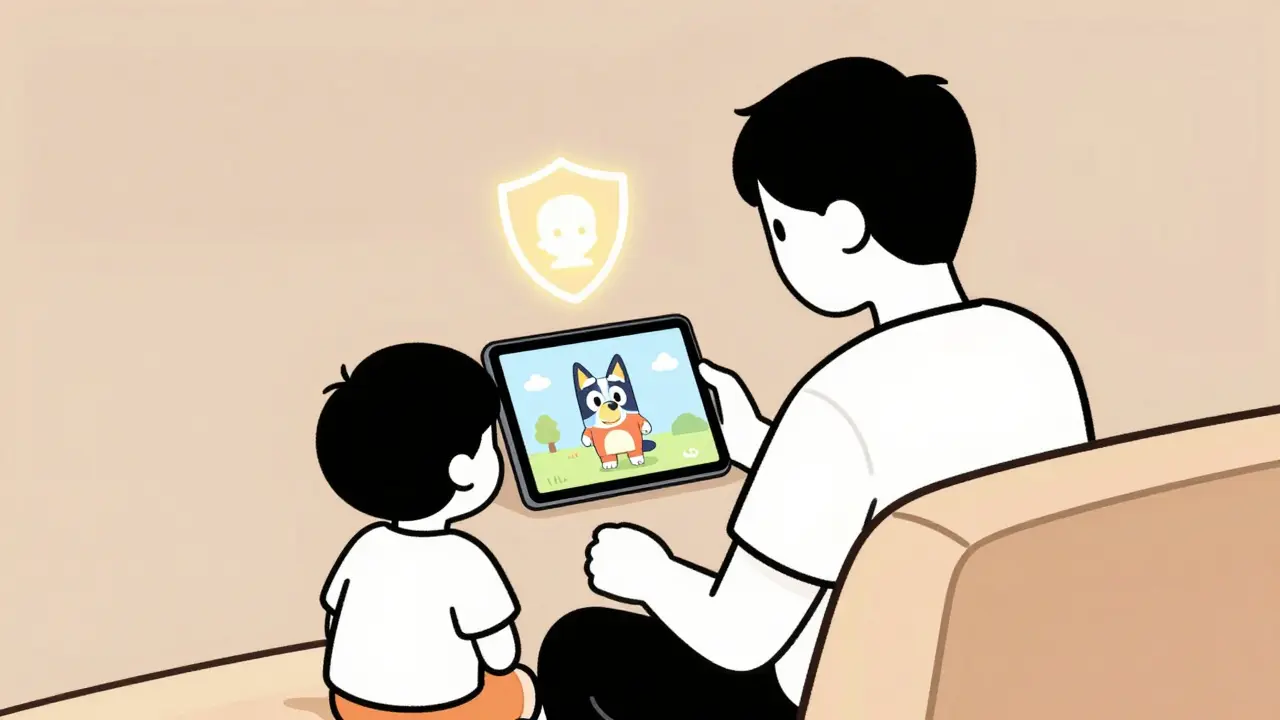
Every parent knows the struggle: you sit down to watch your favorite show, and suddenly your 8-year-old is scrolling through a thriller with blood on the screen. Or worse - they’ve stumbled into something you didn’t even know existed on Max. That’s why setting up proper parental controls isn’t just a good idea - it’s necessary.
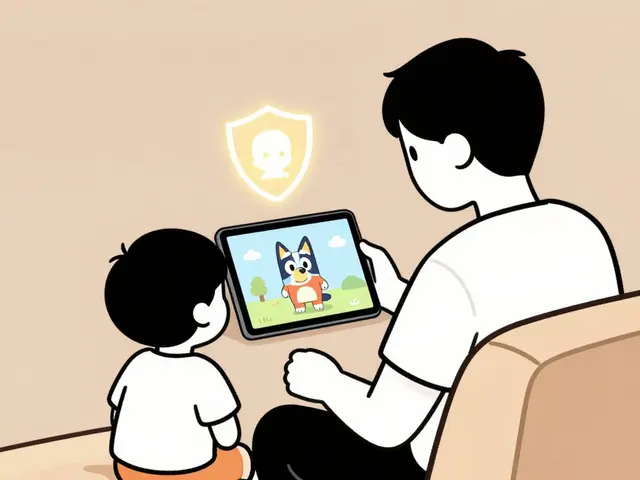
Max lets you create separate kid profiles with custom content ratings, so your child only sees what’s age-appropriate. It’s not about locking everything down. It’s about giving them space to explore, safely.
How to Create a Kid Profile on Max
Setting up a kid profile on Max is simple, but most people skip the steps and end up with their 10-year-old watching Stranger Things at 8 p.m. Here’s how to do it right.
- Open the Max app on your TV, tablet, or phone.
- Go to the profile section - it’s the icon in the top-right corner.
- Select Add Profile.
- Choose Kid as the profile type. This option only appears if you’re signed in as the primary account holder.
- Name the profile - something like "Lily - Age 7" helps you remember which kid it is.
- Confirm the birthdate. Max uses this to auto-set content ratings.
That’s it. The profile is now locked to G, PG, and some PG-13 titles based on the age you entered. No accidental R-rated episodes. No creepy thumbnails. Just cartoons, kid-friendly movies, and educational shows.
Why Content Ratings Matter More Than You Think
Max doesn’t just block "adult" content. It uses a smart system that considers tone, themes, language, and even how scary something feels. A show like Adventure Time is fine for a 6-year-old. But Black Mirror? Even if it’s labeled "PG-13," the anxiety, dystopian imagery, and moral ambiguity can be overwhelming for kids under 12.
When you set a child’s birthdate during profile creation, Max applies these rules:
- Ages 0-5: Only G-rated content (no violence, no scary sounds, no complex plots)
- Ages 6-8: G and PG content - mild themes allowed, but no supernatural horror or intense conflict
- Ages 9-12: PG and some PG-13 - light violence or emotional drama okay, but no sexual content, drugs, or explicit language
- Ages 13+: PG-13 and up - but still blocked from R-rated material unless you manually change the setting
This isn’t just about movie ratings. It’s about emotional readiness. A 7-year-old can handle Paddington. They can’t handle The Last of Us - not because of blood, but because of grief, loss, and moral gray zones.
What Happens If You Don’t Set Up a Kid Profile?
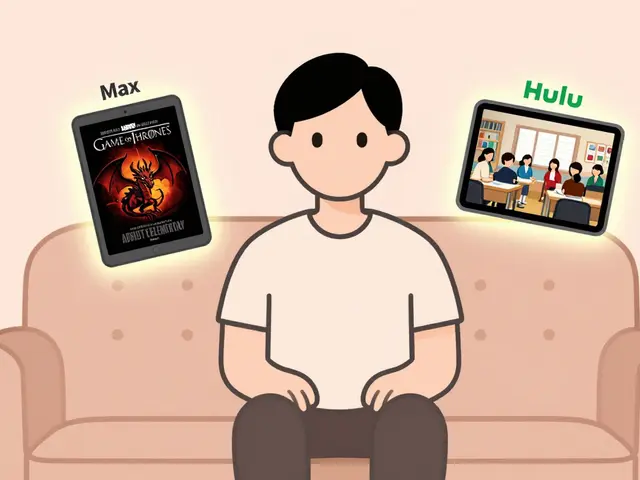
Here’s the scary part: if you don’t create a separate kid profile, your child is watching under your adult profile. That means they can see anything you can - including Game of Thrones, Hannibal, or even unlisted documentaries about true crime.
Max doesn’t hide adult content by default. It assumes you know what you’re doing. But kids don’t know. They click. They scroll. They binge.
I know a mum in Brisbane who found her 5-year-old watching an episode of Succession - not because he wanted to, but because the thumbnail showed a fancy dinner. He thought it was about food. He didn’t understand the yelling. He didn’t get the power plays. He just saw rich people arguing.
That’s why profiles matter. It’s not about control. It’s about context.
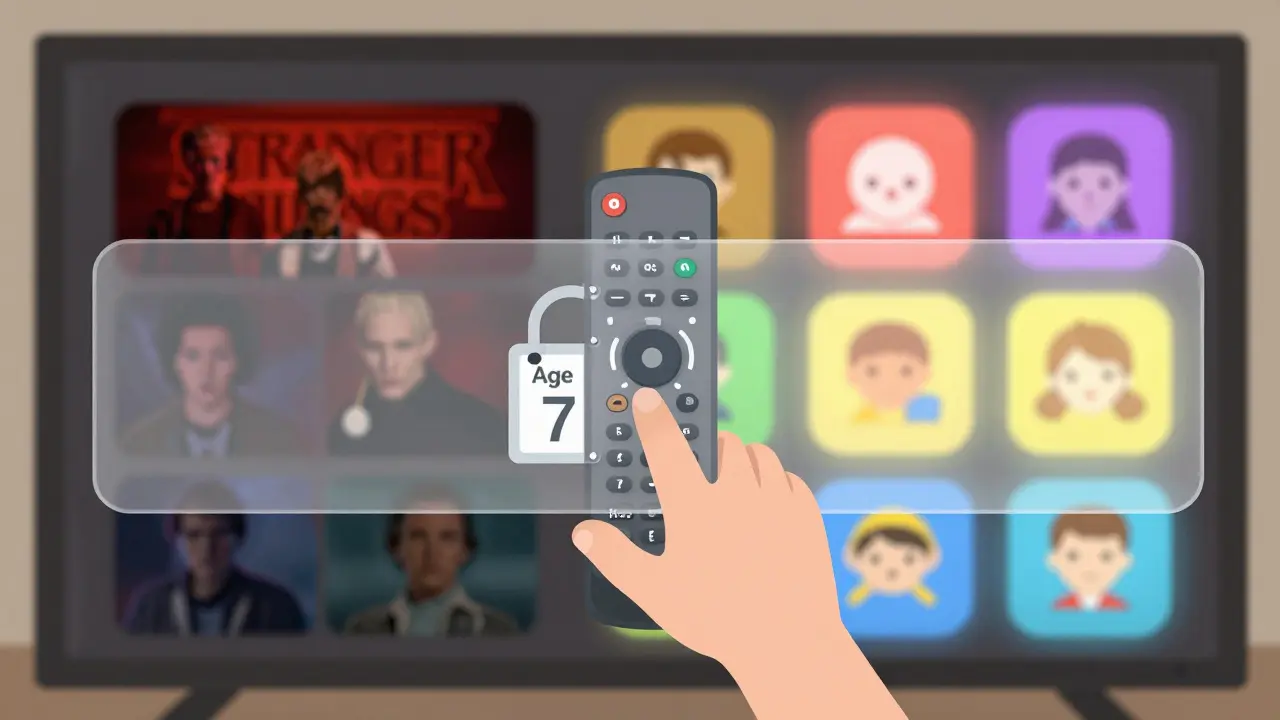
How to Lock Down Settings So No One Can Bypass Them
Once you’ve created a kid profile, don’t stop there. Someone else - maybe a grandparent, a babysitter, or even your teen - might accidentally change the settings.
Go to your Max account settings and turn on Profile Lock. Here’s how:
- From the main menu, select Account.
- Go to Parental Controls.
- Toggle on Profile Lock.
- Set a 4-digit PIN. Don’t use your birthday or "1234" - pick something only you know.
Now, if anyone tries to switch profiles, edit the kid’s age, or turn off parental controls, they’ll need that PIN. No exceptions. Even if they’re signed in as you.
This feature saved a dad in Sydney last year. His 11-year-old had a friend over. The friend knew the family’s Wi-Fi password and tried to log in as "Dad" to watch an R-rated movie. The PIN blocked him. The dad didn’t find out until he checked the watch history - and realized his kid’s profile was still locked to PG.
What You Can and Can’t Block
Max doesn’t let you pick individual shows to block. That’s intentional. Instead, it uses age-based filters that reflect real-world guidelines from the Motion Picture Association and Australian classification systems.
So what’s blocked? Anything rated R, NC-17, or equivalent. That includes:
- Explicit violence (like Peaky Blinders’ gunfights)
- Strong sexual content (even if it’s romantic, like Normal People)
- Drug use or abuse (even if portrayed realistically, like Euphoria)
- Graphic language (curses, slurs, threats)
- Horror with intense jump scares or psychological dread
What’s allowed? A surprising amount. Harry Potter (even the darker ones), Stranger Things (S1-S3), My Hero Academia, and even some anime with mild violence. Max’s system is smarter than you think. It doesn’t just look at the label - it analyzes scenes, dialogue, and pacing.
Monitoring What Your Kids Watch
Max doesn’t spy on your kids. But it does give you a quiet way to see what they’re watching - without hovering.
Go to Account > Viewing Activity. You’ll see a list of everything watched under each profile. It shows the title, date, and time. No screenshots. No notifications. Just a clean log.
This isn’t for punishment. It’s for conversation. If your 9-year-old watched Bluey every night for a week, that’s great. If they binged three episodes of Stranger Things in one sitting, maybe it’s time to talk about why they liked it - and what parts felt weird.
One mum in Brisbane told me she started asking her 10-year-old: "What did you think about the character who lied?" after they watched The Baby-Sitters Club. That led to a 20-minute talk about honesty and trust. That’s what parental controls are really for - opening doors, not slamming them shut.
What About Multiple Kids?
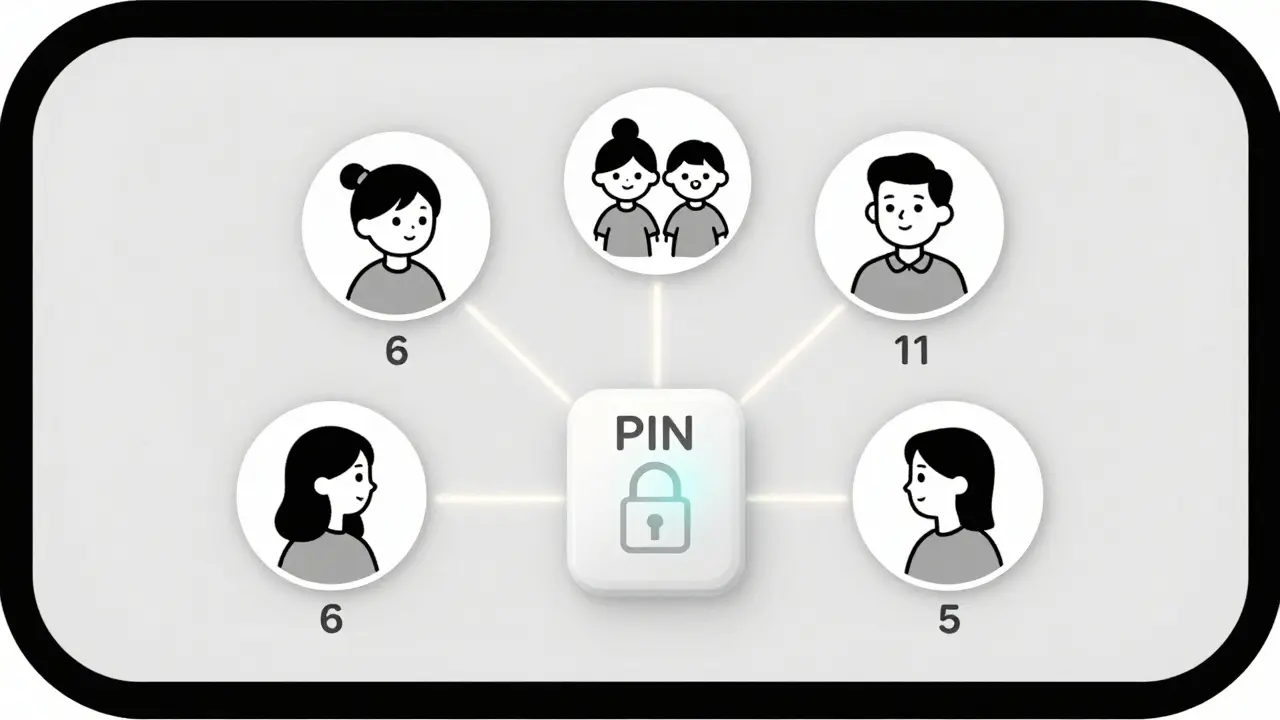
Max lets you create up to five profiles per account. That means you can have one for each kid - plus one for yourself, one for your partner, and one for guests.
Each kid profile has its own:
- Recommendations (based on what they’ve watched)
- Watch history
- Content restrictions
- Watch time limits (if you set them)
And here’s the best part: if your 12-year-old grows up and wants to watch something older, you can edit their birthdate in the profile. No need to delete and recreate. Just update the age, and the content filters adjust automatically.
Final Tip: Test It Out
Don’t just set it and forget it. Try logging into your kid’s profile as if you’re them. See what shows pop up. See what’s missing. See if the recommendations feel right.
Some families find their 8-year-old suddenly getting suggestions for teen dramas. That’s usually because they watched something borderline - like Avatar: The Last Airbender - and Max thought they were ready for more.
Adjust the birthdate by six months if needed. Or use Profile Lock to prevent changes. You’re not locking them out. You’re guiding them in.
Max’s parental controls aren’t perfect. But they’re the most thoughtful system out there. It doesn’t treat kids like security risks. It treats them like people who need space - and protection.
Can I set different content ratings for each kid profile?
Yes. Each kid profile is tied to a specific birthdate, which automatically sets the content rating level. You can have one child set to age 6 (G/PG only) and another set to age 11 (PG-13 allowed). Just edit the birthdate in each profile under Account > Parental Controls.
Can my child delete their own profile?
No. Only the primary account holder can delete or edit a kid profile. Kids can’t remove their own profile, change the age, or turn off parental controls - even if they know the password. Profile Lock adds another layer of protection.
Do I need to set up a profile on every device?
No. Once you create a kid profile on one device, it syncs across all devices where you’re signed in. Whether they watch on the TV, tablet, or phone, the same content rules apply. Just make sure they’re logged into the right profile each time.
What if my child finds a way to switch to my profile?
If Profile Lock is turned on, they can’t switch profiles without the PIN. Even if they know your password, they can’t access your account or content. Always keep Profile Lock enabled and never share the PIN with anyone under 18.
Can I set time limits on how long my child can watch?
Max doesn’t have built-in screen time limits. But you can use your device’s parental controls - like Apple Screen Time or Google Family Link - to cap daily usage. Combine those with Max’s content filters for full control.