5
Roku Tips and Tricks: Secret Menus and Advanced Settings You Didn't Know Existed
Most people think they know their Roku device inside and out-until they stumble on a hidden menu that lets them change the Wi-Fi channel or force a firmware update. If you’ve ever felt like your Roku is holding back, you’re not alone. Thousands of users have no idea these secret tools exist, and that’s exactly why they’re stuck with buffering, slow menus, or features they never knew they could use.
How to Access the Secret Roku Menu
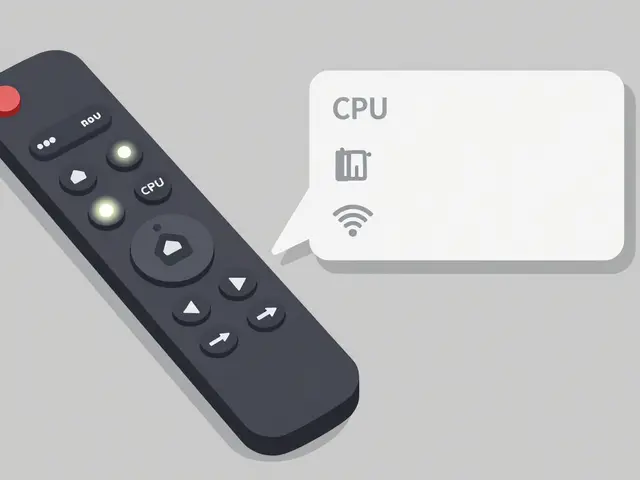
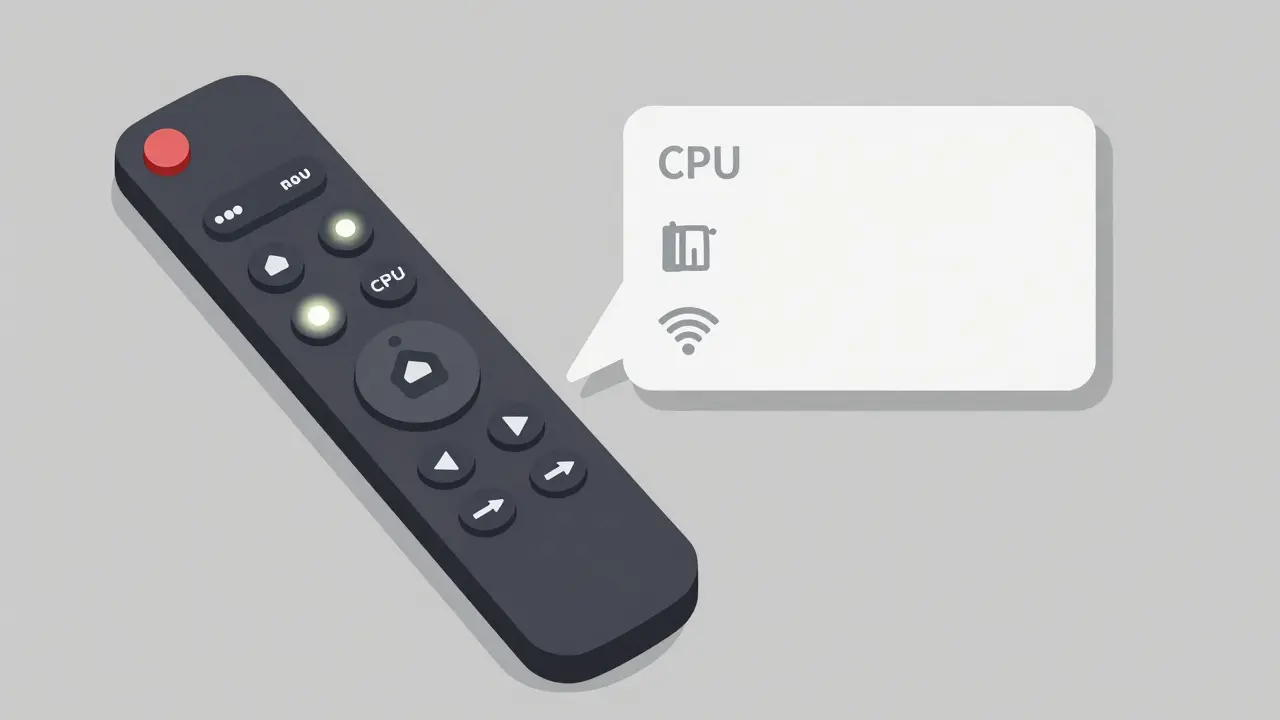
The secret menu isn’t hidden by design-it’s just not advertised. To get there, press the Home button five times on your Roku remote. Then press Fast Forward three times and Rewind two times. You’ll see a small debug screen pop up. This isn’t a glitch. It’s the Roku secret menu, also called the Developer Mode or System Information screen.
This menu shows you real-time stats: CPU usage, memory free, network signal strength, and even the exact firmware version your device is running. You can also manually trigger a system update here, which is useful if your Roku is stuck on an old version that won’t install automatically. Some users report faster load times after forcing an update this way.
Change Your Roku’s Wi-Fi Channel Without the App
Buffering on Netflix? Slow loading on Hulu? It’s probably not your internet speed-it’s your Wi-Fi channel. Roku devices default to the most crowded channel, usually 2.4GHz Band 6. Most routers auto-select this, but that’s why your Roku keeps dropping connections.
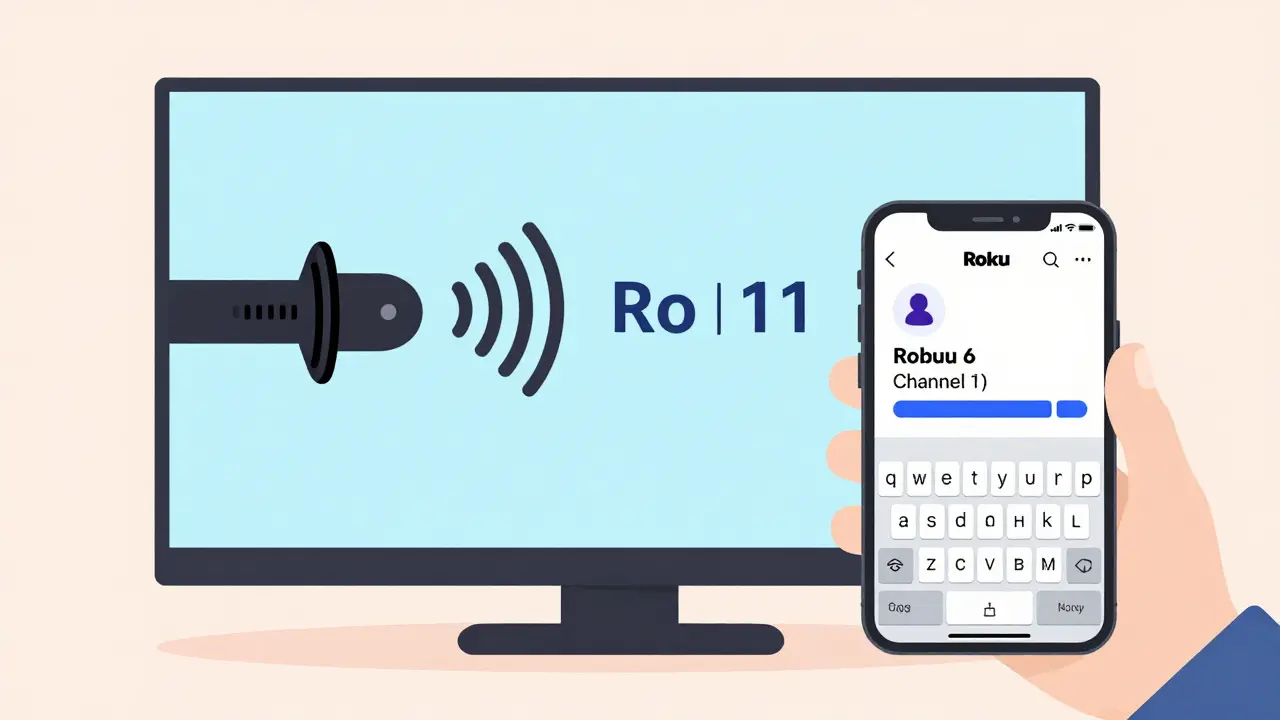
Here’s how to fix it: Go to Settings > Network > Set up connection > Wireless. Choose your network and enter the password. Now, instead of pressing OK, hold down the Home button for 5 seconds. A new option will appear: Advanced Wi-Fi Settings. Select it. You’ll now see a list of available Wi-Fi channels. Pick Channel 1, 6, or 11 on 2.4GHz, or any 5GHz channel that’s less used. You’ll notice fewer dropouts and smoother streaming.
Use Your Roku Remote Like a Keyboard
Typing on Roku’s on-screen keyboard is slow. But what if you could use your phone as a full keyboard? Open the Roku app on your iPhone or Android. Tap the keyboard icon. Now type anything-search terms, passwords, even URLs. The app sends keystrokes directly to your Roku. No more tapping A, B, C, A, B, C for 10 minutes.
Pro tip: If you’re typing a long password, use the app’s copy-paste feature. Just copy it from your password manager and paste it into the Roku app. It’ll autofill on your TV instantly. This works even if your remote is broken or lost.
Enable Hidden Audio Formats for Better Sound
Most Roku users leave audio settings on Auto. But if you have a soundbar or home theater system, you’re probably missing out on Dolby Digital Plus or DTS audio. Go to Settings > Audio > HDMI Audio. You’ll see three options: Auto, PCM, and Bitstream. Auto is safe, but Bitstream unlocks full surround sound.
Here’s the trick: If Bitstream is grayed out, go to Settings > System > Advanced system settings > Audio > Audio Output. Change it from Auto to Dolby Digital Plus. Now go back to HDMI Audio and Bitstream will be available. This is especially useful for streaming services like Apple TV+ or Disney+, which support high-bitrate audio. You’ll hear deeper bass, clearer dialogue, and more immersive effects.
Speed Up Your Roku With a Factory Reset (Without Losing Apps)
Over time, Roku’s interface gets sluggish. Apps take longer to load. The home screen lags. A factory reset fixes this-but most people think they’ll lose all their channels. You won’t.
Go to Settings > System > Advanced system settings > Factory reset. Choose Reset without removing channels. This wipes the OS cache and resets settings but keeps your channel list. After rebooting, your Roku will feel like new. No need to re-add Netflix, Prime Video, or YouTube. It’s like hitting Ctrl+Alt+Delete on a slow PC.
Unlock Hidden Channels With the Roku Channel Store Code
There are hundreds of channels not listed in the official Roku Channel Store. These are called private channels-used by small developers, local TV stations, or niche content creators. To add one, go to Settings > System > Advanced system settings > Add channel.
Enter a code like TV2134 or ROKU55. You’ll see a prompt: Would you like to add this channel? Click Yes. These codes are often shared on Reddit, Roku forums, or local community sites. One user in Brisbane added a live stream of the Queensland Parks and Wildlife camera feeds this way. Another added a free classical music channel that doesn’t show up in search.
Warning: Only add channels from trusted sources. Malicious codes can install adware or redirect your traffic. Stick to codes shared by verified users.
Turn Your Roku Into a Digital Signage Display
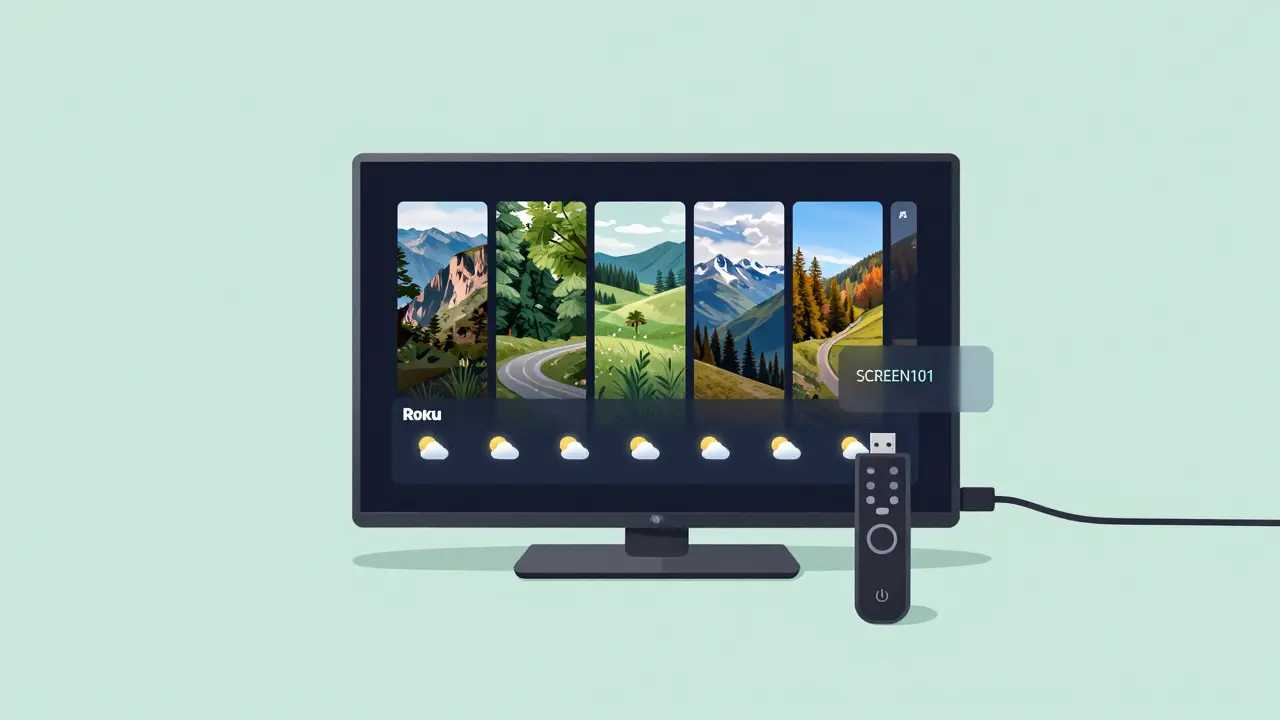
Want to use your Roku to show weather, news, or a slideshow in your kitchen or office? You can. Go to Settings > System > Power > Screen Saver. Choose Slideshow or Weather. Now plug in a USB drive with your photos or videos. The Roku will play them on loop when idle.
For more control, install the Screen Saver Pro channel (code: SCREEN101). It lets you schedule slideshows by time of day, set duration, and even pull live feeds from your Google Photos account. I’ve seen restaurants use this to display daily specials without buying expensive digital signage hardware.
Force a Firmware Update When Roku Ignores It
Roku sometimes skips updates. You’ll see a notification that says Update available, but nothing happens. The secret menu can fix this. Access it again with the five-home-button sequence. Scroll down to System Update. Press OK. If it says No update available, try this: unplug your Roku for 30 seconds, plug it back in, then immediately open the secret menu again. The system will re-check for updates on boot.
Some users report that updating via the secret menu fixes laggy remotes and voice search failures. It’s the most reliable way to force a firmware update if the normal method fails.
Disable Auto-Updates to Avoid Annoying Reboots
Roku auto-updates at 2 a.m. without asking. If you’re watching a movie, you get kicked out mid-scene. To stop this, go to Settings > System > Advanced system settings > System update. Change it from Automatic to Manual. Now you control when updates happen.
You’ll still get notifications, but you can pick a time that works-like after your evening show. This is especially useful if you use your Roku as a security monitor or always-on display.
Use the Roku Remote to Control Your TV Power
If your Roku remote can turn your TV on and off, you’re probably using IR. But if it doesn’t, you can still enable it. Go to Settings > Remotes & devices > Remote control > Set up remote for TV control. Follow the steps. Roku will scan for your TV brand. If it doesn’t find it, select Other and enter your TV’s brand manually.
Once set, the Power button on your Roku remote controls your TV. The Volume buttons work too. No need for two remotes. This works with most Samsung, LG, Sony, and Vizio TVs from 2015 onward.
What to Do When Your Roku Won’t Connect to Wi-Fi
If your Roku says Unable to connect to network, don’t reset it yet. Try this: Go to Settings > Network > Set up connection > Wireless. Select your network. Instead of entering the password, press the Star button on your remote. You’ll see an option: Use WPS. Press OK. Now press the WPS button on your router. Your Roku will connect automatically. No typing needed.
WPS works with most modern routers. It’s faster than typing long passwords and avoids typos. If your router doesn’t have a WPS button, try restarting the router first. Then go back to the Network menu and select Forget this network. Reconnect from scratch.
Can I use Roku secret menus on any Roku model?
Yes, all Roku streaming players and Roku TVs from 2016 onward support the secret menu. Older models like the Roku 1 or Roku 2 may not. If the five-home-button sequence doesn’t work, your device is too old. Stick to the standard settings menu.
Will using secret menus void my warranty?
No. These menus are built into the firmware by Roku. They’re not hacks or mods. Roku even mentions some of these settings in their official support documentation. You won’t get in trouble for using them.
Why can’t I find the private channel codes anymore?
Some private channels get removed if they violate Roku’s policies or stop working. Codes like ROKU55 or TV2134 are still active, but others may disappear. Check Reddit’s r/Roku or the Roku Community forums for updated codes. Always test a code before relying on it.
Can I use these tricks on a Roku TV?
Absolutely. Roku TVs (made by TCL, Hisense, or Sharp) have the same operating system as Roku streaming sticks. All the secret menus, Wi-Fi tweaks, and channel codes work the same way. You might even have better audio options since the TV’s built-in speakers can handle Dolby Digital.
Is it safe to use the USB slideshow feature?
Yes, as long as you use your own files. Roku only reads media files-it doesn’t execute code from USB drives. Just avoid downloading random .zip files or apps from strangers. Stick to photos, videos, and music you own.
If you’ve tried everything and your Roku still acts up, try a different HDMI port, a new power cable, or even a different TV. Sometimes the problem isn’t the Roku-it’s the connection. But if you’ve used these tricks, you’ve already done more than 90% of Roku owners. You’re not just watching TV-you’re controlling it.