8
Mesh Networks for Whole-Home Streaming: Complete Setup Guide
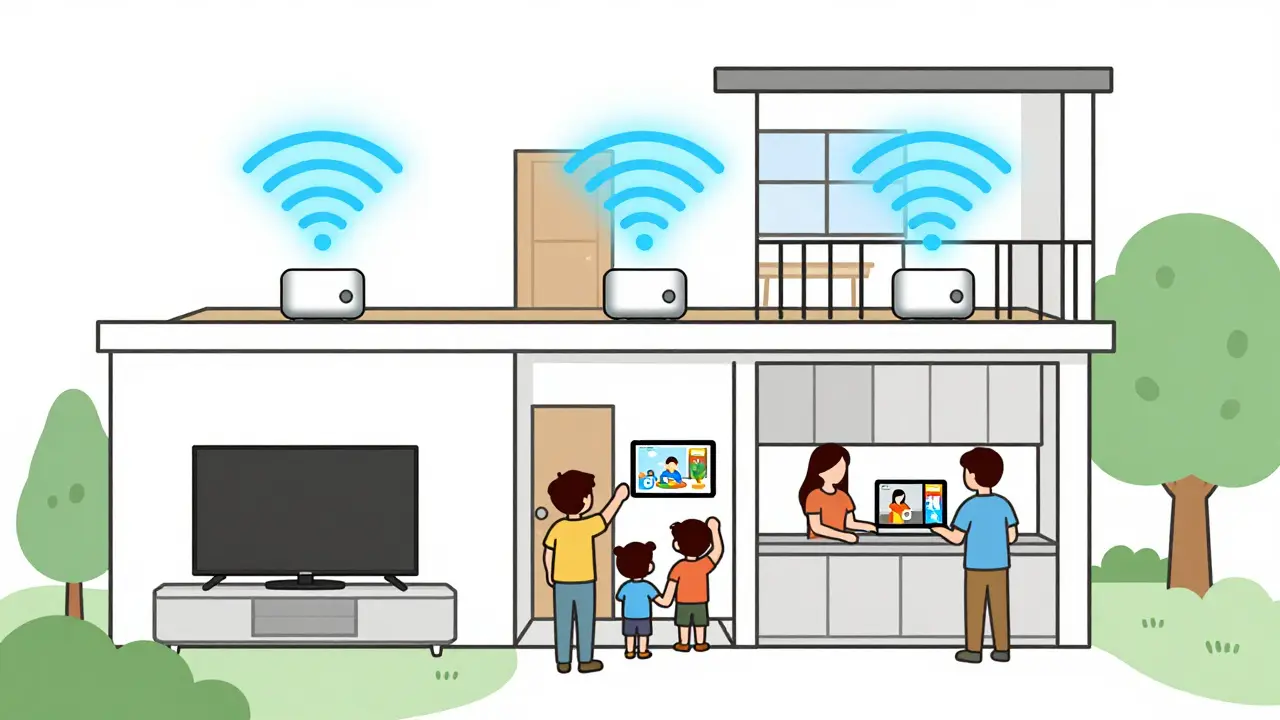
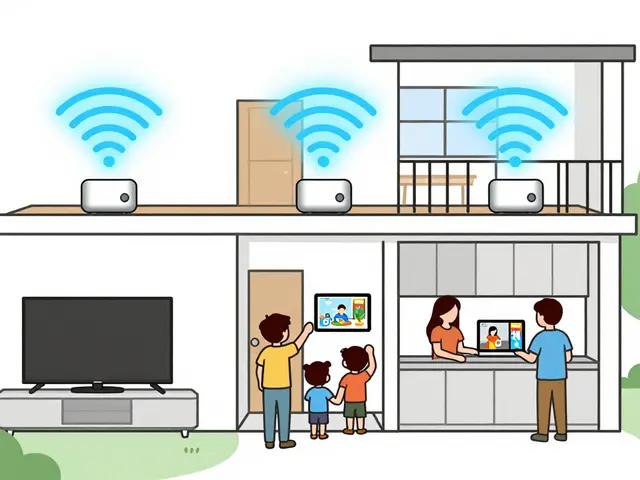
Ever tried watching a 4K movie on your phone in the backyard, only to have it buffer halfway through? Or maybe your smart TV freezes every time someone else in the house starts gaming or video calls? This isn’t a problem with your streaming service-it’s your Wi-Fi. Most home routers can’t handle modern streaming demands across multiple rooms, especially if your house has thick walls, metal framing, or multiple floors. That’s where mesh networks come in.
Why Your Old Router Fails at Whole-Home Streaming
Traditional routers were designed for one or two devices in a small apartment. Today, households average 12 connected devices per home, according to a 2025 survey by the Australian Communications and Media Authority. That includes smart TVs, gaming consoles, phones, tablets, smart speakers, security cameras, and streaming sticks-all competing for bandwidth. A single router placed in the living room might give you 80 Mbps on the couch but drop to 8 Mbps in the bedroom. That’s not enough for 4K streaming, which needs at least 25 Mbps per stream. Buffering, lag, and dropped connections aren’t glitches-they’re symptoms of poor coverage.
What Is a Mesh Network?
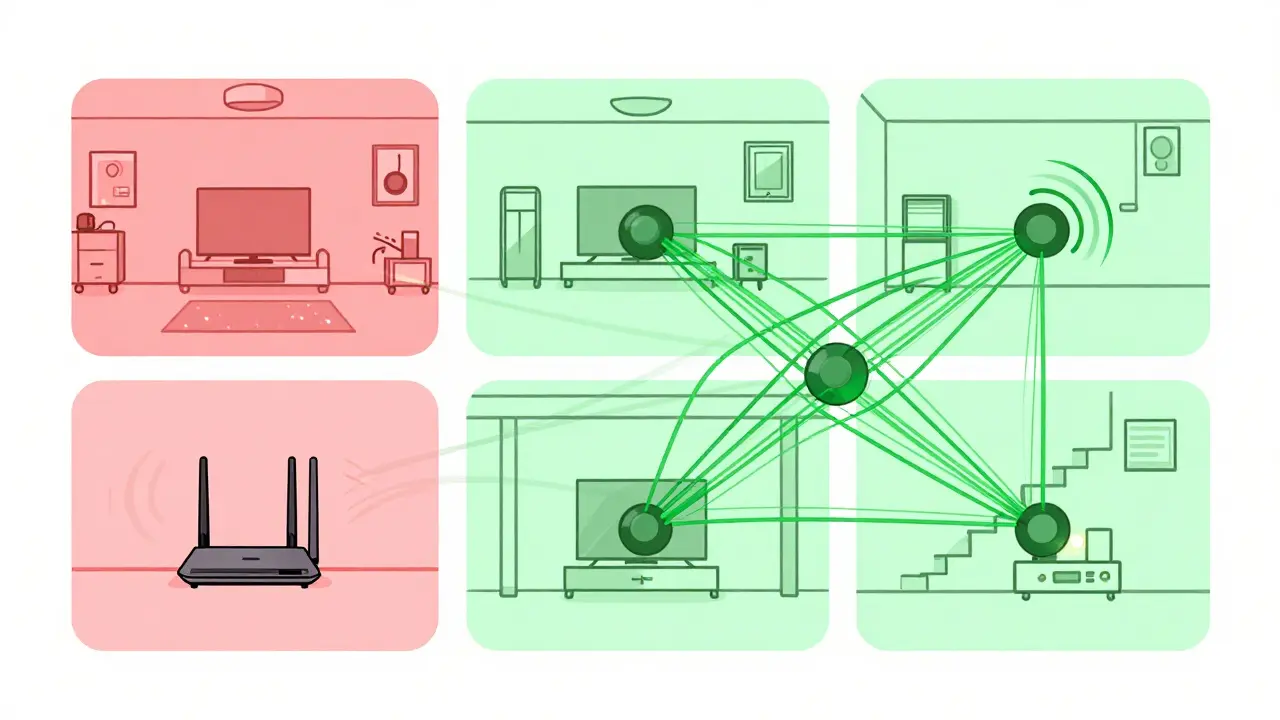
A mesh network isn’t just a stronger router. It’s a system of multiple devices-called nodes-that work together to blanket your home with Wi-Fi. Think of it like a team of messengers passing a note from room to room instead of one person yelling from the front door. One node connects to your modem, and the others spread out through your house, creating a seamless network. Each node talks to the others, automatically routing your data through the fastest path. No dead zones. No switching between networks. Just smooth, consistent streaming everywhere.
How Mesh Networks Handle Streaming Demands
Not all mesh systems are built the same. For whole-home streaming, you need three key features:
- Dual-band or tri-band: Tri-band mesh systems have three radio channels. One handles communication between nodes, while the other two handle your devices. This prevents congestion. Dual-band systems share one channel for both, which can slow things down under heavy use.
- Multi-user MIMO: This lets the router send data to multiple devices at once instead of one at a time. It’s like a toll road with multiple lanes instead of a single lane where cars have to wait in line.
- Quality of Service (QoS): This feature prioritizes streaming traffic over downloads or background updates. If you’re watching Netflix, the system makes sure your TV gets the bandwidth it needs-even if someone else is downloading a game.
Brands like TP-Link Deco XE75, Eero Pro 6E, and Netgear Orbi RBKE960 all include these features. They’re tested in homes across Brisbane with brick walls, steel roofs, and multiple levels-and they deliver consistent 4K performance.
Setting Up a Mesh Network for Streaming
Here’s how to set it up right the first time:
- Place the main node near your modem. Plug it into the same room as your internet cable. Avoid placing it inside a cabinet or behind a TV-it blocks signals.
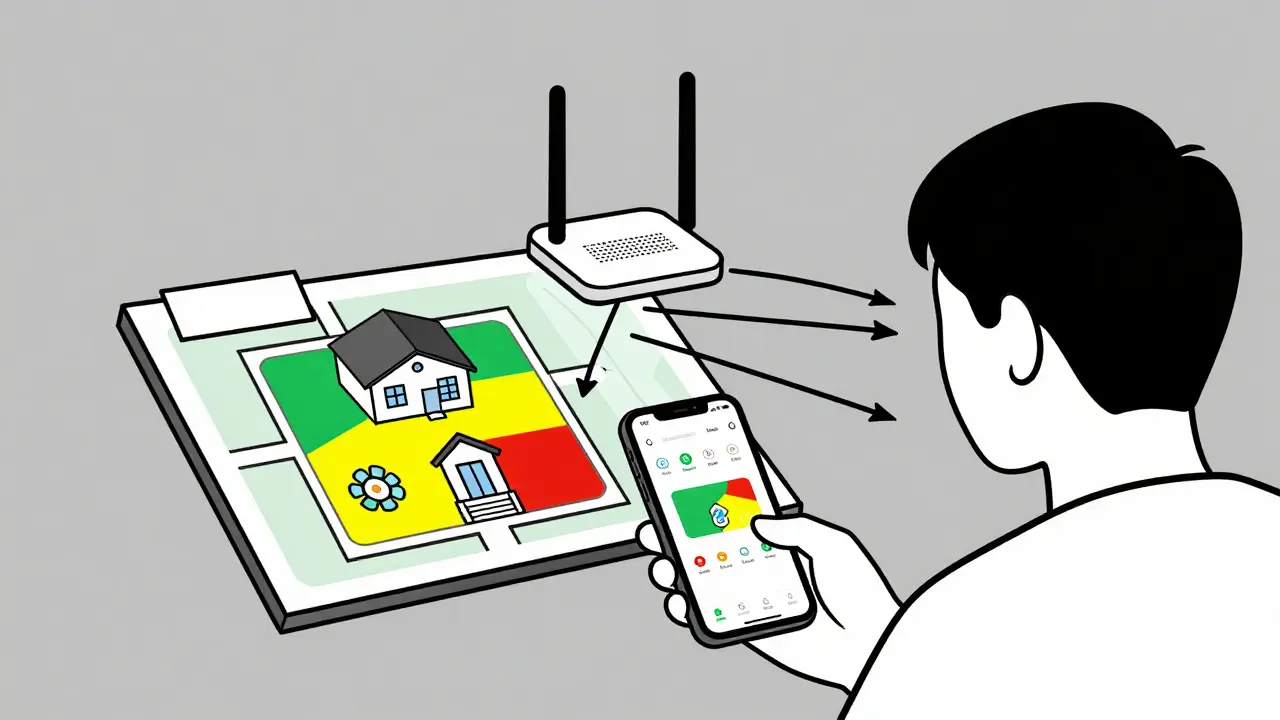
- Position satellite nodes halfway between the main node and dead zones. If your bedroom is 20 meters away and has no signal, put a node halfway-say, in the hallway or bathroom. Use the app to test signal strength. Most apps show a color map: green = strong, yellow = okay, red = weak.
- Don’t overdo the nodes. A 200-square-meter home usually needs two nodes. Three nodes are for homes over 300 square meters or with thick concrete walls.
- Use Ethernet backhaul if possible. If you can run an Ethernet cable from the main node to a satellite, do it. Wired connections are 10x faster and more stable than wireless ones. This is ideal for homes with pre-wired outlets.
- Enable QoS in the app. Go to the settings, find “Traffic Prioritization,” and set your TV, streaming box, or gaming console as high priority.
Real-World Performance: A Brisbane Home Test
Last month, a family in Fortitude Valley switched from a single TP-Link router to a TP-Link Deco XE75 mesh system. Their home is 220 square meters, with two floors and brick walls. Before the upgrade:
- TV in the living room: 35 Mbps (okay)
- Tablet in the kitchen: 5 Mbps (buffering)
- Phone in the upstairs bedroom: 3 Mbps (unusable)
After installing two nodes-one in the living room, one on the upstairs landing:
- TV in the living room: 78 Mbps
- Tablet in the kitchen: 62 Mbps
- Phone in the upstairs bedroom: 59 Mbps
They now stream four 4K videos at once without a single glitch. One kid plays online games while another watches YouTube, and mom video-calls from the backyard. No one even notices the network anymore-and that’s the point.
What to Avoid When Buying a Mesh System
Not every mesh system is built for streaming. Watch out for:
- Single-band systems: These are cheaper but can’t handle multiple streams. Avoid brands like TP-Link Deco E4 or Netgear Orbi RBK40.
- Systems without QoS: If the app doesn’t let you prioritize devices, you’re setting yourself up for frustration.
- Overpriced “gaming” models: Some brands add flashy lights and extra buttons but don’t improve streaming performance. Stick to specs, not marketing.
- Buying used or open-box units: Firmware updates and security patches matter. Older units may lack support or have unpatched vulnerabilities.
Mesh vs. Range Extenders: Why Extenders Are Outdated
Range extenders sound like a cheap fix-they plug into an outlet and repeat the signal. But here’s the catch: they cut your speed in half. Every time data hops from your router to the extender and then to your device, it has to make two trips. That’s why your 100 Mbps connection becomes 45 Mbps after the extender. Mesh networks don’t repeat signals-they create a single network with multiple access points. No speed loss. No switching. Just seamless coverage.
What About 5G Home Internet?
If you’re using 5G home internet from providers like TPG or Optus, a mesh network becomes even more critical. 5G signals can be strong outside but weaken through walls. A mesh system ensures that signal stays strong indoors. In fact, most 5G home internet providers now recommend or bundle mesh systems with their plans. The combo gives you the best of both: fast cellular backhaul and reliable indoor coverage.
How Much Does It Cost?
You don’t need to spend $1,000. Here’s what works in 2026:
| Model | Price (AUD) | Nodes | Bandwidth | QoS | Best For |
|---|---|---|---|---|---|
| TP-Link Deco XE75 | $399 | 2 | Tri-band | Yes | Large homes, 4K streaming |
| Eero Pro 6E | $449 | 2 | Tri-band | Yes | Apple users, smart home integration |
| Netgear Orbi RBK752 | $529 | 2 | Tri-band | Yes | Heavy gamers, multiple 4K streams |
| ASUS ZenWiFi XD6 | $319 | 2 | Dual-band | Yes | Small to medium homes, budget option |
For most Australian homes, the TP-Link Deco XE75 offers the best balance of price, performance, and ease of use. It’s available at JB Hi-Fi, Harvey Norman, and online retailers.
Final Checklist Before You Buy
- Do you stream 4K on more than one device at once?
- Do you have rooms with no Wi-Fi or constant buffering?
- Is your home over 150 square meters?
- Do you use smart TVs, gaming consoles, or security cameras?
If you answered yes to any of these, a mesh network isn’t a luxury-it’s a necessity. The right system turns your home into a streaming hub where every room works like the living room. No more excuses. No more buffering. Just smooth, uninterrupted entertainment.
Do mesh networks work with any internet provider?
Yes. Mesh networks connect to your modem, not your ISP. Whether you’re on NBN, 5G home internet, or fiber, any mesh system will improve your Wi-Fi coverage. Just make sure the mesh node has an Ethernet port to plug into your modem.
Can I use a mesh system with my existing router?
Technically, yes-but it’s not recommended. Mixing a mesh system with your old router creates two separate networks, which causes confusion and interference. The best practice is to turn off your old router’s Wi-Fi and use the mesh system as your only network.
Will a mesh network improve my download speeds?
Not directly. If your internet plan gives you 100 Mbps, a mesh network won’t make it 200 Mbps. But it will make sure you get close to that full speed everywhere in your home. Without mesh, you might only get 30 Mbps in the bedroom-so the mesh system helps you reach your plan’s full potential.
How often do mesh systems need updates?
Most modern mesh systems update automatically every few weeks. These updates fix bugs, improve security, and sometimes boost streaming performance. Always keep auto-updates turned on. Manual updates are risky-you might miss critical patches.
Is Wi-Fi 6E necessary for streaming?
Not for most users. Wi-Fi 6E adds a new 6 GHz band, which helps in crowded neighborhoods with dozens of networks. But in Australian homes, Wi-Fi 6 (not 6E) is enough for 4K streaming. Save the extra cost unless you have 20+ devices or live in a high-density apartment building.
Next Steps
If you’re ready to upgrade, start by measuring your current Wi-Fi speed in each room using the Speedtest app. Mark where you lose signal. Then pick a mesh system that fits your home size and budget. Most brands offer 30-day returns, so you can test it risk-free. Once it’s installed, forget about your Wi-Fi-until the next movie night.