29
Streaming Device Placement: Where to Position Your Streamer for Best Results
You've bought the latest streaming stick, but your video still buffers. You blame the internet speed, but sometimes the problem is physical. Where you plug that little box into your TV makes a massive difference to performance. It sounds simple, but poor placement causes overheating, signal dropouts, and slow load times. Today, we are looking past the software settings to fix the hardware setup.
Most users treat their Streaming Device as a compact media player connecting to a TV via HDMI. Also known as Smart Media Dongle, these units rely heavily on their environment to function correctly. Whether you are using a Fire Stick, Chromecast, or Roku, physics dictates how well they work. Placing them poorly blocks Wi-Fi signals or traps heat. Let's walk through exactly where to put this gadget for peak performance.
Optimize Wireless Signal Reach
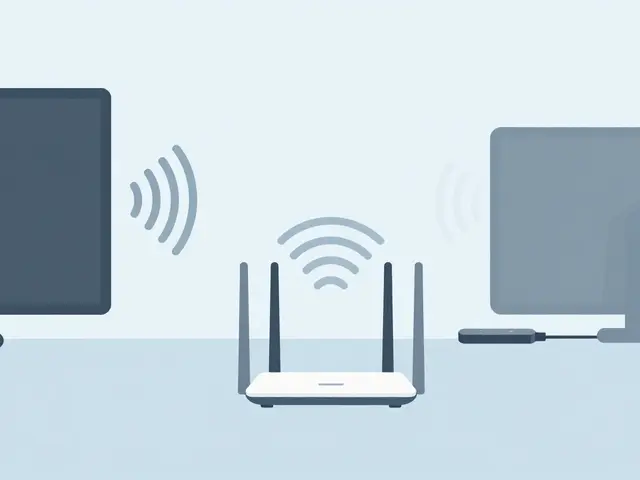
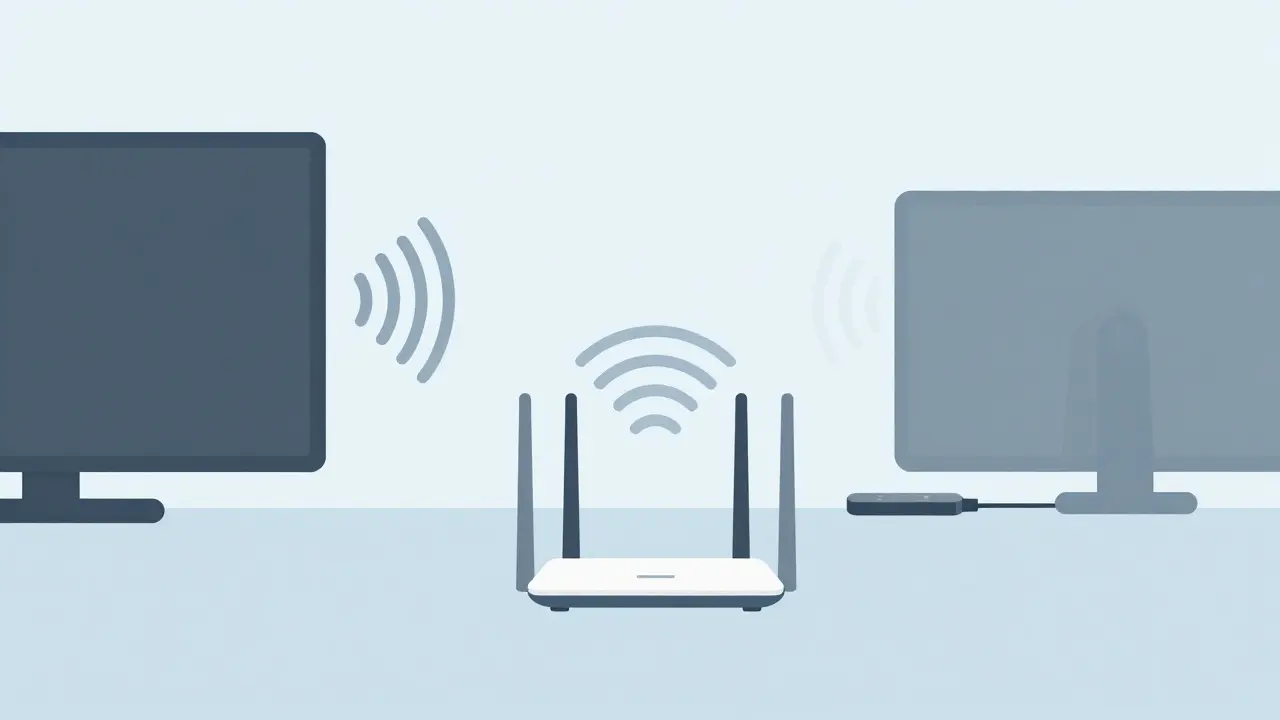
The biggest culprit behind stuttering playback isn't always your ISP. Often, it is the distance between your modem and the dongle. A Wi-Fi Router is the central hub transmitting data to your devices. Even with modern standards like Wi-Fi 6E, thick walls absorb radio waves. If you hide the streamer inside a closed cabinet or mount the TV on a brick wall, the connection weakens.
You should aim for line-of-sight between the two devices. Metal frames on TVs can act as Faraday cages, blocking signals entering the back ports. Try this quick test: hold the device in hand near the router and stream something heavy like 4K HDR content. If it loads fast there, the issue is placement.
- Distance: Keep the device within 10 meters of the router for optimal throughput.
- Obstacles: Avoid placing large appliances like microwaves between the router and TV.
- Frequency: Switch to the 5GHz band for higher speeds with less congestion than 2.4GHz.
If you cannot move the router, consider an Ethernet extender. Some models allow you to connect via a USB OTG adapter to run a wired LAN connection instead of relying on airwaves entirely. This bypasses all interference issues related to furniture layout or building materials.
Managing Thermal Throttling
Small electronics generate significant heat during high-definition decoding. A streaming device sitting deep in a TV crevice creates a trap. Without airflow, the processor slows down to protect itself. This is called thermal throttling, and it kills your frame rates instantly. You might notice pixelation appearing even when your network stats look green.
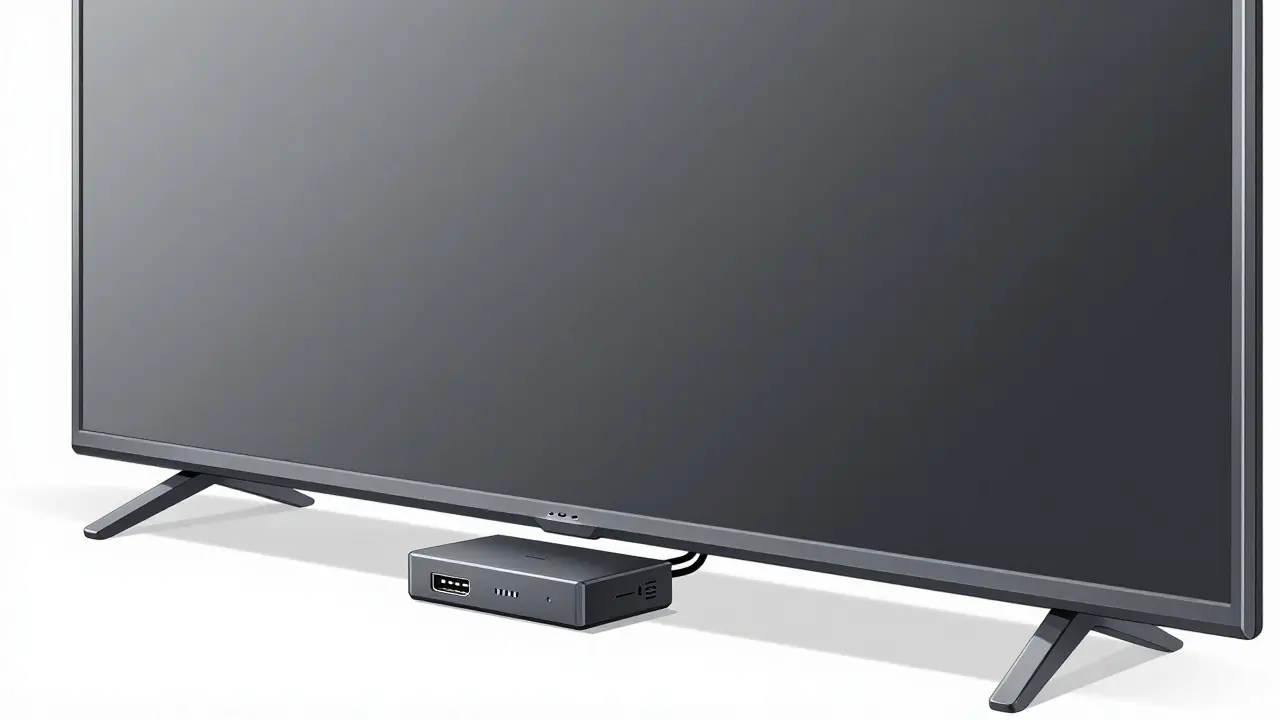
Avoid mounting the unit directly behind the bezel of a thin-profile TV. There needs to be at least two inches of clearance on top. If the design includes a passive Heat Sink is a metal component dissipating internal warmth. These vents need access to ambient air.
In summer months, rooms get warmer. Placing the streamer in direct sunlight through a window accelerates overheating. Conversely, very cold environments can cause condensation when plugged into warm TVs. A stable room temperature between 18°C and 25°C keeps the silicon chip running at full clock speeds.
| Placement Zone | Thermal Risk | Signal Strength |
|---|---|---|
| Deep in TV slot | High | Moderate |
| TV Mount Shelf | Low | High |
| Drywall Cavity | Critical | Blocked |
| Open Cable Tray | Very Low | Dependent on Router |
Power Delivery Consistency
Many people plug their streamer into the TV's own USB port. While convenient, this often leads to voltage drops. Older televisions provide limited amperage on those ports, barely enough to turn the device on. Modern apps require steady 5-volt power to decode compressed data streams.
Always use the included USB Power Adapter is a wall plug converting AC to DC power. Plug this directly into a mains outlet, not a power strip with surge protection that introduces resistance. An undervoltage condition makes the remote lag significantly because the CPU cannot process commands quickly enough.
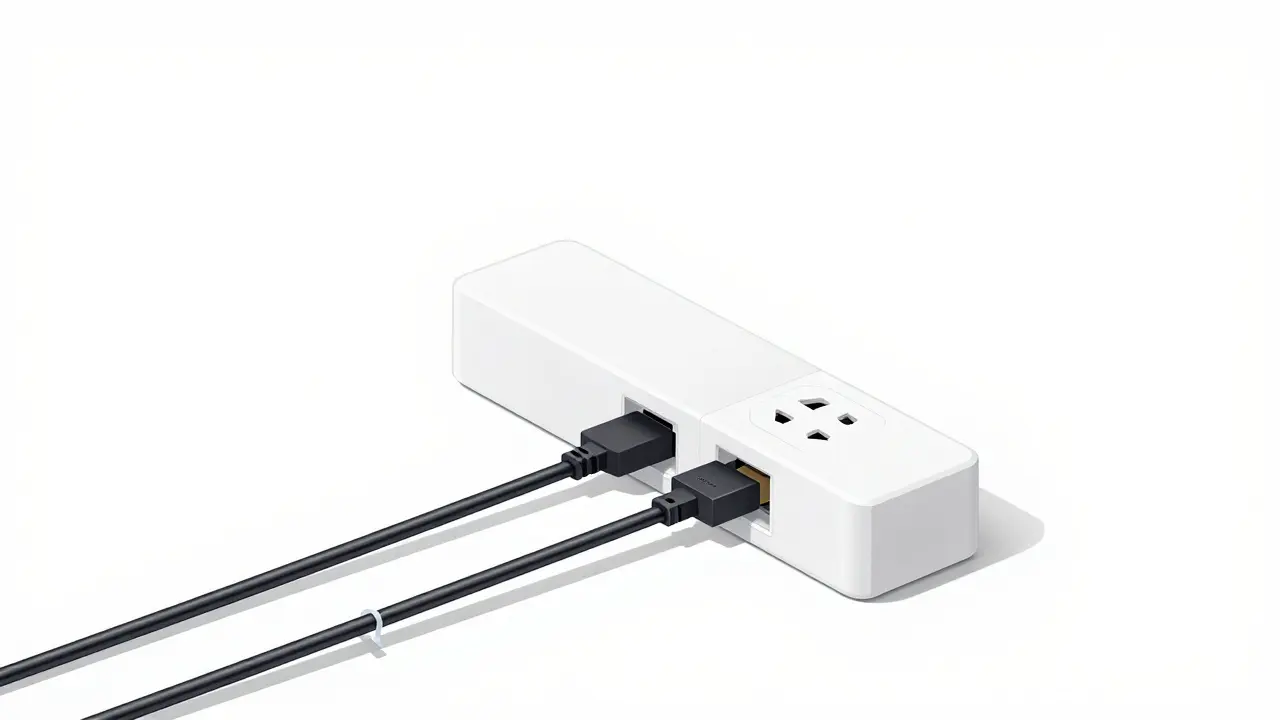
Check the cable length too. Long USB extensions degrade power quality. Keep the power cable short and separate from HDMI cables to avoid electromagnetic noise induction. Twisting wires together can induce hum or flickering artifacts on screen edges.
HDMI Connection Stability
The digital handshake between your player and the display happens over the HDMI cable. Physical pressure points matter here. Bending a 4K-ready cable sharply can break the delicate gold pins inside. Once a pin bends, the resolution downgrades automatically to 1080p to compensate for lost bandwidth.
If you need to extend the cable reach, invest in a certified High-Speed HDMI extender. Cheap adapters introduce packet loss. Ensure the connector seats firmly every time. Loose connections lead to black screens or "No Signal" messages when you try to navigate menus late at night.
Some TVs have multiple HDMI versions. HDMI 2.0 supports 4K at 60Hz, while older ports cap out at 30Hz. Check your manual. Putting a 4K streamer into a legacy port limits refresh rates. Always verify compatibility before permanent installation.
Accessibility and Aesthetics
Functionality shouldn't sacrifice convenience. If you hide the device too well, you cannot reset the physical button easily. Manufacturers place small reset pins for this exact reason. Keeping the device reachable prevents headaches during firmware updates.
Remote control functionality depends on technology type. Older remotes use infrared (IR) light, requiring direct sight of the TV. Newer ones use Bluetooth. If yours relies on IR, placing the streamer facing upward ensures the sensor sees the TV panel.
Cable management ties play a role too. Tying cords neatly reduces tripping hazards and makes future cleaning easier. Use velcro straps rather than zip ties, which are hard to remove later without damaging the plastic housing. A tidy setup looks professional and allows for easy troubleshooting if you spot dust buildup.
Troubleshooting Common Layout Failures
Sometimes you do everything right and issues persist. Start by moving the device. Sometimes simply sliding it three centimeters changes the antenna reception angle. Swap out the HDMI cable. Many manufacturers sell cheap cables designed for older bandwidths.
Restart the whole ecosystem. Unplug the router, then the streamer. Wait thirty seconds. This clears buffer cache and resets IP address assignments. If the app crashes repeatedly, the storage partition might be corrupted. Factory resets wipe custom preferences but clear out bad code.
Can I plug the streamer into the side of the TV?
Yes, provided the side port has sufficient ventilation. Side-mounted slots often trap heat more easily than vertical rear slots due to airflow restrictions.
Does the TV size affect placement strategy?
Larger screens often have thicker backs, meaning better air circulation channels. Small budget panels tend to squeeze the device tight, raising the risk of overheating.
Why does my device stop working after an update?
New software demands more processing power. If the unit is already thermally stressed from bad placement, it may freeze during operation cycles triggered by the update.
Should I buy an external antenna?
Generally no. Internal antennas are tuned specifically for the casing. External sticks often interfere with shielding unless the model specifically supports expansion modules.
Is it safe to leave the device plugged in 24/7?
It is safe if placed in a cool area. Constant power draw is minimal, but ensure the wall outlet doesn't overheat from continuous usage over years.