Organize Streaming Services: Simplify Your Watch List and Save Time
When you have too many streaming services, your TV or tablet becomes a maze of icons, forgotten passwords, and recommendations that don’t match you. Organize streaming services, the process of arranging apps, profiles, and settings to make viewing faster and less frustrating. Also known as streaming setup, it’s not about having more apps—it’s about making the ones you have work for you. Most people don’t realize how much time they waste scrolling through the same three apps every night. A cluttered home screen doesn’t just look messy—it slows you down, makes kids pick the wrong content, and hides the shows you actually want to watch.
Start with your streaming apps, the software platforms like Netflix, Disney+, and Paramount+ that deliver video content to your screen. Also known as streaming platforms, they’re the foundation of your setup. Group them by use: one row for family, one for movies, one for live sports. Rename them if your device lets you—call "Paramount+" "NFL & Showtime" instead. Use folders on Roku or Apple TV to hide the ones you rarely use. Don’t just pin everything because it’s there. If you haven’t opened it in 90 days, it’s taking up space you could use for something you love.
Then there’s streaming profiles, personalized user accounts that keep recommendations separate for each person in the household. Also known as user profiles, they’re the secret weapon against algorithm chaos. If your partner’s romance movies keep popping up when your kid wants cartoons, you’re not using profiles right. Set up a dedicated kid profile on every service—even if you think you don’t need it. That’s how you stop accidental purchases, block adult content, and keep your watch history clean. It’s not just for kids. Adults benefit too: a separate profile for work-related documentaries or late-night horror binges keeps your main feed focused.
And don’t forget parental controls, tools that let you lock content, limit screen time, and restrict purchases without changing passwords. Also known as family safety settings, they’re part of organizing, not an afterthought. Many services let you set PINs for mature content or restrict searches. Pair that with a kid-friendly remote—simple buttons, no hidden menus—and you’ve removed half the stress from family viewing. You don’t need a smart home hub or fancy app. Just the settings already built into your TV or streaming box.
What you’ll find below isn’t theory. It’s what people actually do to fix their streaming mess. You’ll see how to clean up your home screen in under five minutes, how to stop your kids from accidentally upgrading your plan, and why renaming your apps matters more than you think. There are guides for every device—Roku, Fire Stick, Apple TV, Android TV—and real tips for cutting through the noise. No fluff. No upsells. Just a clearer way to watch what you love.
1
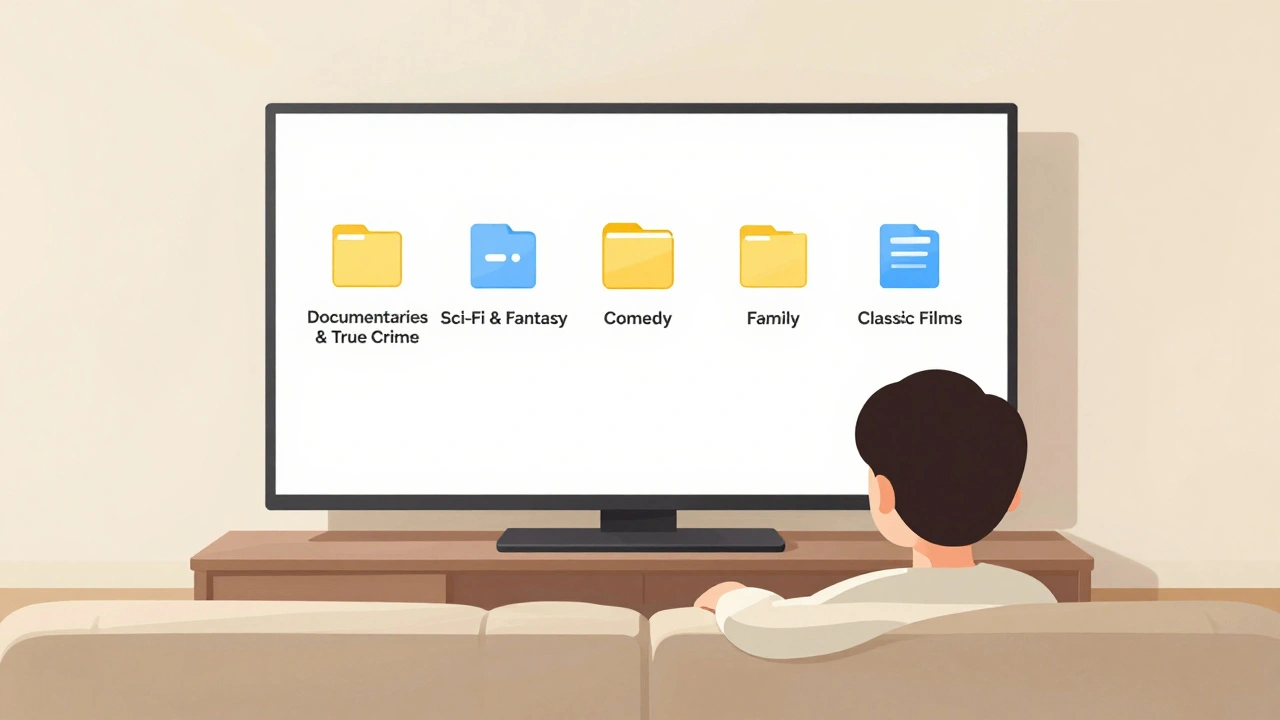
App Layout Strategies: Organize Streaming Services by Genre and Use
Organize your streaming apps by genre and viewing habits to save time and rediscover content you love. Learn simple, practical ways to group services like Netflix, Disney+, and HBO Max on any device.