4
Accessibility for Kids: How Captions and Audio Descriptions Help Learning
The Magic of Closed Captions for Young Learners
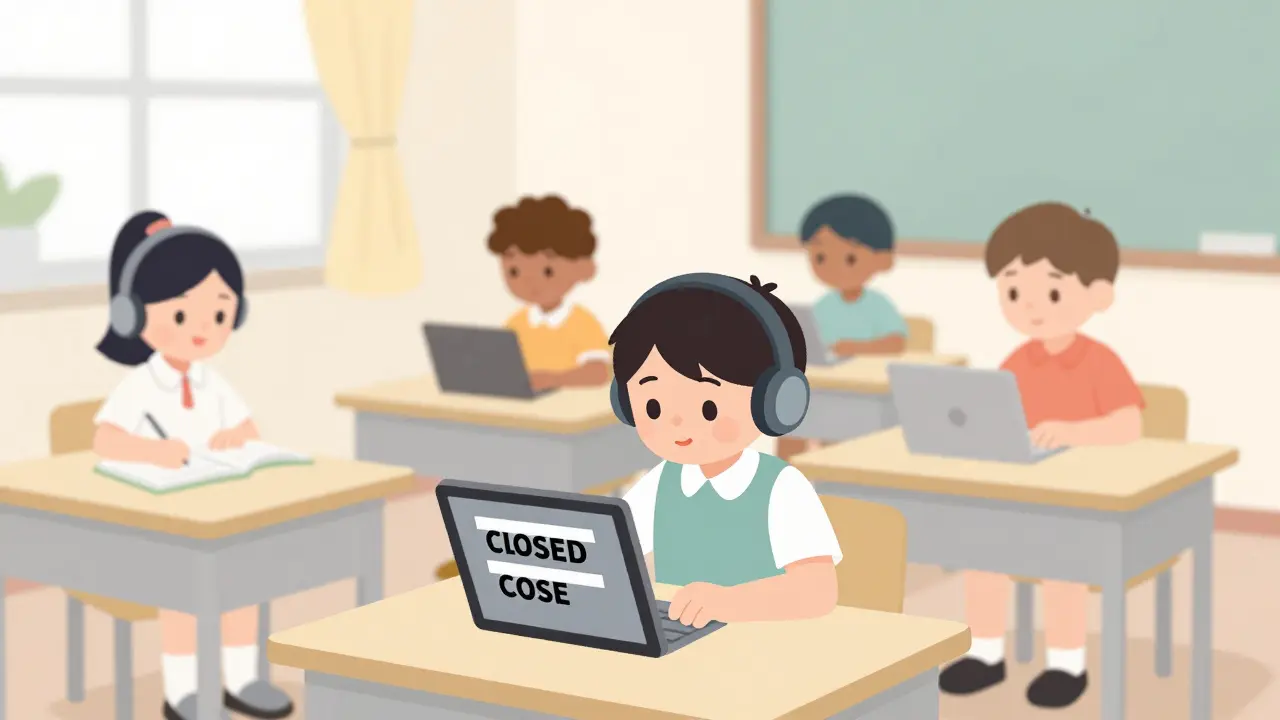
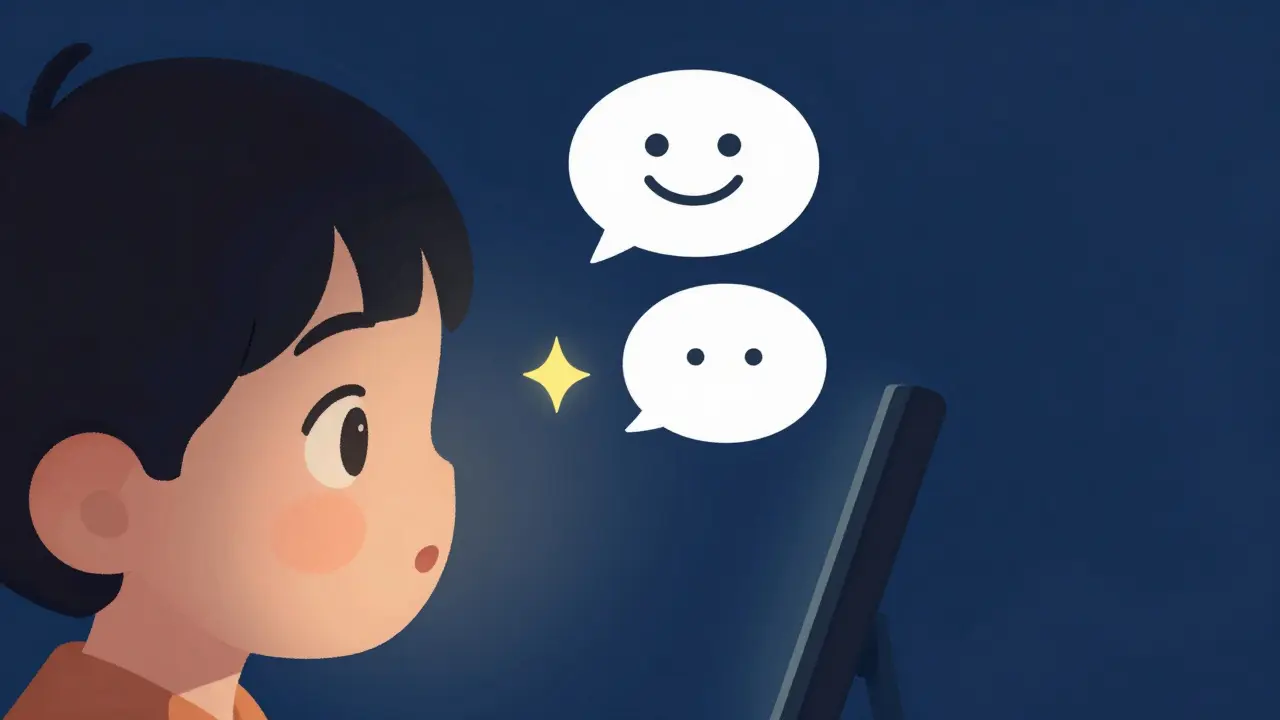
Many parents think captions are just for the deaf or hard-of-hearing community. While that's their primary purpose, the benefits spill over into almost every type of learner. Have you ever noticed your child humming along to a song they can't quite hear, or struggling to spell a word they've only heard spoken? Closed Captions (CC) provide a visual anchor for auditory information.
For a child with dyslexia, seeing the words while hearing them read aloud creates a multi-sensory connection. This "dual-coding" helps the brain process language more efficiently. In a practical sense, if a child is watching a science video about photosynthesis and sees the word "Chlorophyll" on screen while the narrator says it, they are far more likely to remember the spelling and the meaning than if they only heard the sound.
Captions also help kids in loud environments-like a busy living room-or for those who are learning a second language. It turns a passive viewing experience into an active reading lesson. When captions are accurate and timed correctly, they reduce the cognitive load, meaning the child spends less energy trying to figure out what was said and more energy understanding why it matters.
Breaking Barriers with Audio Descriptions
While captions help those who can't hear, audio descriptions are the lifeline for children with visual impairments or processing disorders. Audio Description is a narration track that describes important visual elements of a video, such as a character's facial expression, the setting, or an action that isn't captured by the dialogue.
Think about a scene in a children's movie where a character slowly looks surprised, then smiles, but doesn't say a word for ten seconds. A child who is blind misses that emotional beat entirely. An audio description would quietly insert: "Sarah's eyes widen in surprise, and a slow smile grows across her face." This doesn't just help them follow the plot; it helps them understand social cues and emotional intelligence, which are critical milestones in childhood development.
It's not just for the visually impaired, either. Children with ADHD often struggle with visual overstimulation. When a screen is too busy, they might miss the key action. A clear, concise audio description helps them focus on the most important part of the scene, acting as a guide that tells them exactly where to direct their attention.
| Feature | Primary Purpose | Learning Benefit | Best For |
|---|---|---|---|
| Closed Captions | Visualizing Audio | Literacy & Spelling | Hearing Impaired, Dyslexia, ESL |
| Audio Descriptions | Narrating Visuals | Context & Social Cues | Visual Impairment, ADHD |
| Transcripts | Text-based Record | Review & Note-taking | All learners, Deep study |
Connecting Accessibility and Parental Controls
You might wonder how this ties into the world of Parental Controls, which are software settings that allow parents to manage their children's access to content, time spent on devices, and privacy settings. Usually, we think of these controls as "walls"-blocking bad sites or limiting screen time. But the best parental controls are actually "gates" that let the right accessibility features through.
When you set up a child's profile on platforms like YouTube Kids or Netflix, you shouldn't just look at the age rating. Check if the accessibility settings are locked or available. Some strict filters accidentally block third-party captioning software or custom audio tracks. To truly support a child's learning, parents need to ensure that "Safe Search" or "Restricted Mode" doesn't strip away the very tools that make the content accessible.
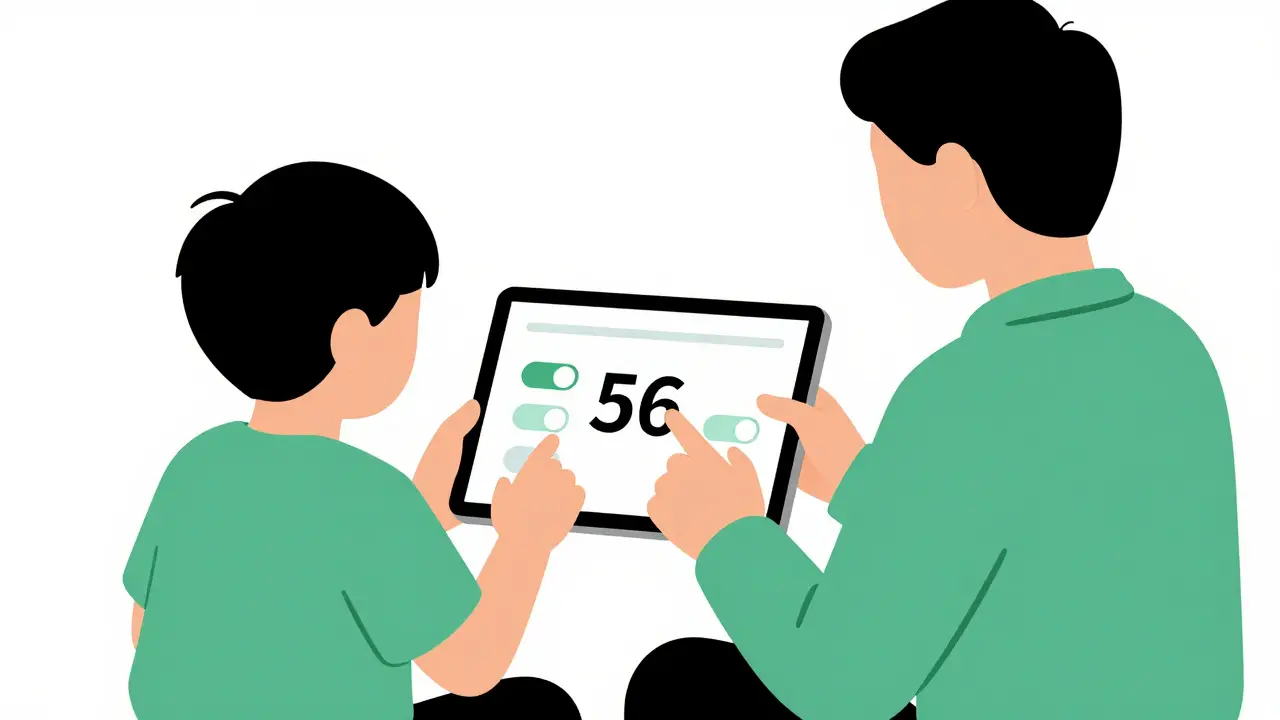
For example, if you use a dedicated tablet for your child, check the OS settings. On iPadOS or Android, you can enable "Live Captions" system-wide. This means that no matter what app the child is using-be it an educational game or a narrated story-the device will generate text on the fly. Integrating these accessibility settings into your overall parental control strategy ensures that the environment is not just safe, but inclusive.
Practical Steps to Implement Accessibility at Home
Making your home a supportive learning environment doesn't require a degree in special education. It just takes a few intentional changes in how you interact with technology. Start by auditing the media your children use. Do their favorite educational apps have a "Text-to-Speech" option? Can the captions be resized? Tiny text is useless for a seven-year-old who is still mastering their visual focus.
Here is a simple checklist to follow when setting up a new device for a child:
- Test the Captions: Turn on CC in a video. Is the text clear? Does it lag, or is it perfectly synced?
- Explore Audio Descriptions: Look for the "AD" or "Audio Description" track in the audio settings. Is the narrator's voice distinct from the characters?
- Adjust Visuals: Increase the contrast and font size in the system settings. This helps children with low vision or those who get tired easily from staring at a screen.
- Check Compatibility: Ensure your parental control app isn't blocking the system's ability to run accessibility overlays.
One pro tip: let your child help you set it up. Ask them, "Does this make it easier for you to understand?" Some kids might find captions distracting, while others find them essential. By involving them, you're teaching them a valuable lesson in self-advocacy-helping them understand how they learn best and how to ask for the tools they need.
The Long-Term Impact on Educational Confidence
When a child struggles to keep up because they missed a key detail in a video, they don't just miss a fact-they lose confidence. They start to feel like the material is "too hard" or that they aren't "smart enough." This is a heartbreaking misconception. The problem isn't the child's intelligence; it's the delivery method of the information.
By providing captions and audio descriptions, you remove the friction. When the friction is gone, the child can actually engage with the subject matter. A student who uses captions to learn science starts to realize they are actually great at science; they just needed a different way to receive the information. This shift from frustration to mastery is the real goal of accessibility.
Moreover, exposing all children-including those without disabilities-to these tools fosters empathy. When a typically developing child uses captions or hears audio descriptions, they realize that there are many different ways to experience the world. It normalizes accessibility, making it a natural part of life rather than a "special' accommodation. This prepares them for a diverse world where inclusive design is the standard, not the exception.
Do captions slow down a child's reading speed?
Actually, it's usually the opposite. Captions provide a visual reinforcement of spoken words, which can actually speed up word recognition and improve reading fluency, especially for kids who are struggling readers or learning a new language.
Where can I find videos with high-quality audio descriptions?
Many major streaming platforms like Netflix and Disney+ have a dedicated "Audio Description" track in the audio settings. For educational content, look for platforms that follow WCAG (Web Content Accessibility Guidelines) standards, as they are more likely to provide comprehensive descriptions.
Can parental control apps disable accessibility features?
Some very restrictive parental control apps may block the installation of third-party accessibility tools or disable system overlays. Always check the "Permissions" or "Accessibility" section of your control app to make sure these features are allowed to run over other apps.
Are automatic captions (AI-generated) good enough for kids?
AI captions are a great start, but they can make mistakes, especially with technical terms or strong accents. For critical learning material, look for "Closed Captions" (CC) which are human-verified, rather than "Auto-generated" captions, to ensure the child isn't learning incorrect information.
How do I know if my child needs these tools?
Look for signs of frustration: do they ask you to repeat things often? Do they seem lost during a visual sequence in a movie? Do they struggle to spell words they've heard? Try turning on captions for a week and see if their engagement levels and comprehension improve.
Next Steps for Parents and Educators
If you're just starting, don't try to fix everything at once. Pick one device-maybe the family tablet-and spend thirty minutes exploring the accessibility menu. Turn on the features, play a video with your child, and ask for their feedback. If you're an educator, encourage your students to use the tools available in their browsers, like the built-in immersive readers or captioning tools.
For those managing multiple devices, creating a "standard accessibility profile" can save time. Once you find a combination of font size, contrast, and captioning styles that works for your child, apply those settings across all their devices. This consistency reduces the learning curve and lets them focus on the content rather than the tool.
Remember, accessibility isn't about fixing a problem with the child; it's about fixing a problem with the design of the media. When we make the digital world accessible, we aren't just helping a few kids-we're making learning better for everyone.