4
Paramount+ 4K Devices: Best TVs and Streamers for Ultra HD
Quick Summary: The 4K Essentials
- Subscription: You must have the "Paramount+ with SHOWTIME" plan; the basic tier doesn't support Ultra HD.
- Hardware: Most modern Smart TVs (Samsung, LG, Sony) and top-tier streamers (Apple TV 4K, Nvidia Shield) work.
- Internet: A stable 25 Mbps download speed is the bare minimum for a stutter-free 4K experience.
- HDMI: Use HDMI 2.0 or 2.1 cables to ensure the signal actually reaches the TV in 4K.
The Hardware List: Which Devices Actually Work?
Not every box that plugs into your TV can handle the heavy lifting of Paramount+ 4K is the Ultra HD version of the Paramount+ streaming service, delivering a 3840 x 2160 resolution for supported titles. To get that crisp picture, you need a device that supports the HEVC (H.265) codec and has the processing power to decode high-bitrate streams.
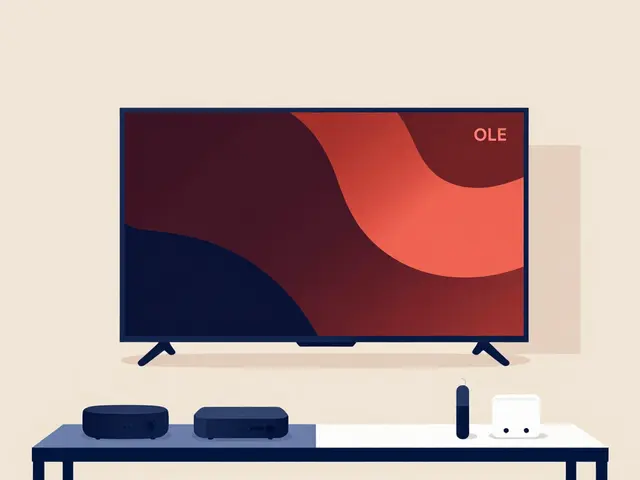
If you're using a Apple TV 4K, you're in the best possible position. It's widely considered the gold standard for Paramount+ because of its aggressive caching and high-bitrate handling. Similarly, the Nvidia Shield TV is a beast for those who want a more Android-centric experience with powerful upscaling.
For those using Amazon Fire TV devices, be careful. While the Fire TV Stick 4K and Fire TV Cube support 4K, some of the older "Lite" or standard versions will cap you at 1080p. The same goes for Roku; you'll need a Roku Premiere, Ultra, or a Roku-integrated TV to see the 4K badge on your content.
| Device Category | Compatible Models | Max Resolution | User Experience |
|---|---|---|---|
| Premium Streamers | Apple TV 4K, Nvidia Shield TV | 4K (2160p) | Very Smooth |
| Budget Streamers | Fire Stick 4K, Roku Streaming Stick 4K | 4K (2160p) | Good |
| Smart TVs | Samsung (2018+), LG, Sony Bravia | 4K (2160p) | Varies by OS |
| Gaming Consoles | PlayStation 5, Xbox Series X | 4K (2160p) | Reliable |
Smart TVs: Built-in Apps vs. External Boxes
You might wonder, "Why bother with a plug-in box if my Samsung or Sony TV already has the app?" The answer is usually performance. Built-in Smart TV apps are often the first to get buggy and the last to get updated. If you notice the Paramount+ app on your TV is sluggish or doesn't trigger the 4K quality, it's likely because the TV's internal processor is struggling.
Samsung and LG are generally great, but they use different operating systems (Tizen and webOS). If you're on a Sony TV, you're likely using Android TV or Google TV, which tends to be more flexible with 4K streaming updates. Pro tip: if the built-in app isn't giving you 4K, try a hard restart by unplugging the TV from the wall for 30 seconds. It sounds primitive, but it clears the cache and often triggers the correct resolution handshake.
The "Hidden" Requirements: Subscription and Speed
You can have a $3,000 TV and a brand new Apple TV 4K, but if you're on the wrong plan, you'll never see 4K. Paramount+ has a tiered system. The basic "Essential' plan is limited to 1080p. To unlock Ultra HD, you need the Paramount+ with SHOWTIME plan. This is a common point of confusion-many users assume that owning a 4K device automatically upgrades the stream, but the restriction is server-side.
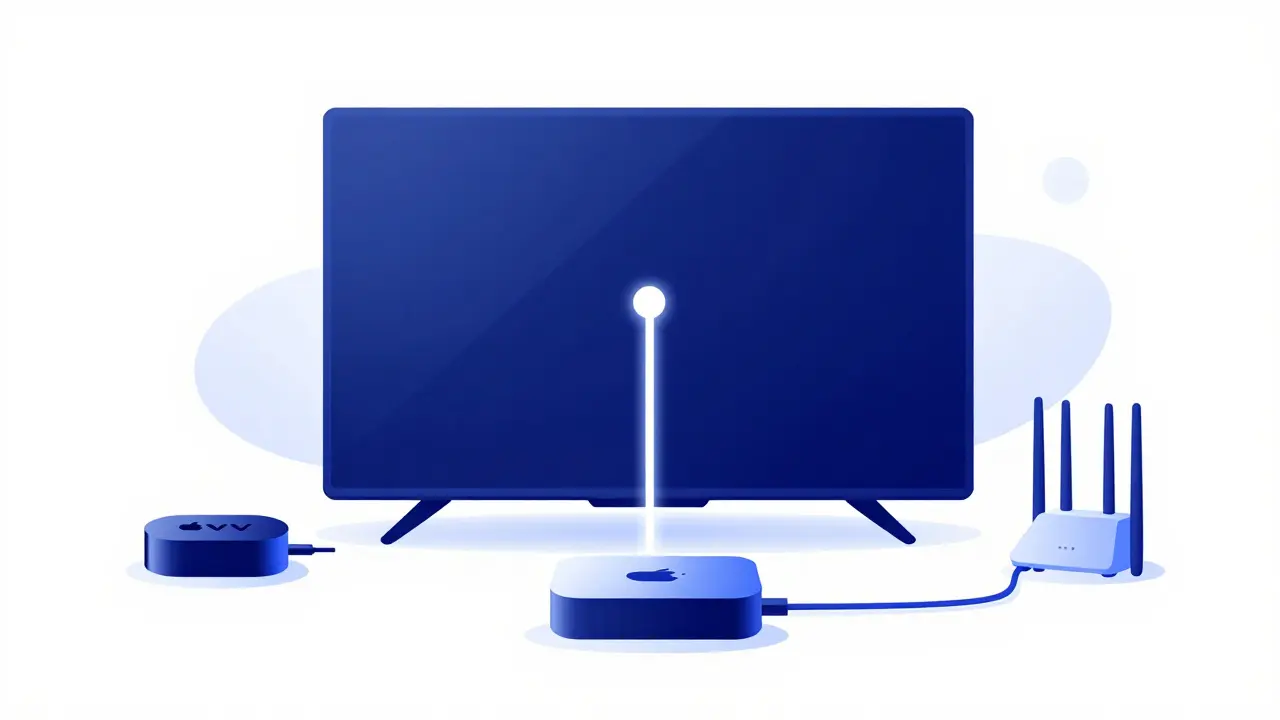
Then there's the internet. 4K video is essentially a giant file being sent to your house in real-time. If your Wi-Fi is spotty, the app will automatically drop you down to 1080p or even 720p to prevent the video from freezing. This is called "adaptive bitrate streaming." To stop this from happening, avoid using Wi-Fi for your 4K streamer if possible. Plug in an Ethernet cable. A wired connection is significantly more stable and prevents those annoying dips in quality right during a climax of a movie.
How to Verify You're Actually Watching in 4K
Paramount+ isn't always obvious about what resolution you're viewing. Unlike some other platforms, it doesn't always show a "4K" badge in the corner of the screen. So, how do you know? First, look for the "4K" or "UHD" label on the movie's detail page before you hit play. If that label isn't there, the movie simply isn't available in 4K, regardless of your gear.
If you're still unsure, check your TV's information settings. Most high-end TVs have a "Picture Info" or "System Info" button in the settings menu that tells you the exact signal being received (e.g., "3840 x 2160 @ 60Hz"). If it says "1920 x 1080," you're seeing HD, not 4K. This is where you should check your cables. If you're using an old HDMI cable from ten years ago, it might not have the bandwidth for 4K, forcing the device to downscale.
Common Pitfalls and How to Fix Them
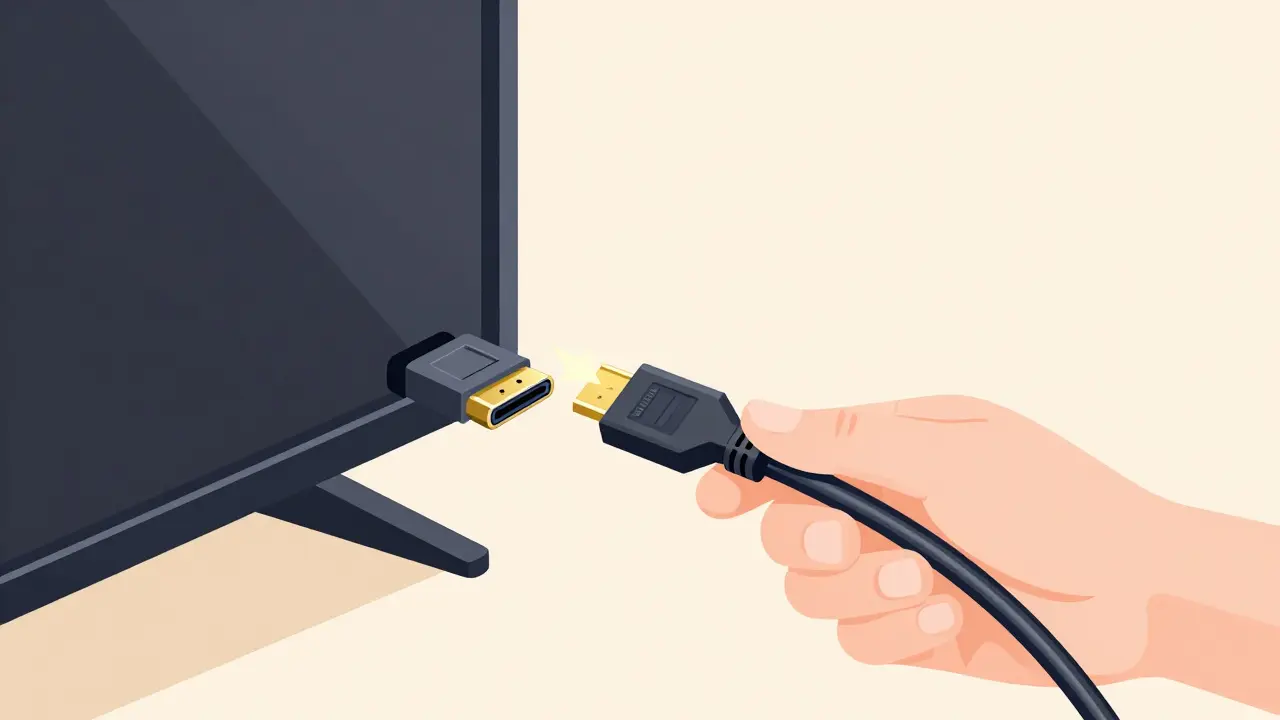
One of the most frequent issues is the "HDMI Handshake" failure. This happens when the streamer and the TV can't agree on the resolution. If your screen is black or the image looks distorted, try switching the HDMI port on your TV to one labeled "HDMI (ARC/eARC)" or "HDMI 2.1." These ports are designed for higher data throughput.
Another quirk is the use of HDR (High Dynamic Range). Many 4K titles on Paramount+ also feature HDR. While 4K is about the number of pixels (sharpness), HDR is about the quality of those pixels (brightness and color). If your TV supports HDR but it's turned off in the settings, the image might look washed out even if the resolution is 4K. Make sure "HDMI Ultra HD Deep Color" or a similar setting is enabled in your TV's input menu.
Why is my Paramount+ movie not playing in 4K on my 4K TV?
Check these three things: First, ensure you are subscribed to the "Paramount+ with SHOWTIME" plan. Second, verify that the specific movie or episode you are watching is actually available in 4K (look for the 4K badge on the title page). Third, check your internet speed; if it drops below 25 Mbps, the app will automatically downgrade the quality to prevent buffering.
Do gaming consoles like the PS5 support Paramount+ 4K?
Yes, both the PlayStation 5 and Xbox Series X support the Paramount+ app in 4K. However, ensure your console's display settings are set to "Automatic" or "2160p" to ensure the app can trigger the highest available resolution.
Will a 4K Fire Stick work on any 4K TV?
Generally, yes. As long as the TV has an HDMI port and supports 4K resolution, a Fire TV Stick 4K will work. Just make sure the stick is plugged into a 4K-capable HDMI port (often labeled HDMI 2.0 or 2.1) for the best results.
Is an Ethernet cable really necessary for 4K streaming?
It's not strictly necessary if you have a very strong 5GHz Wi-Fi signal, but it is highly recommended. 4K streams require a consistent flow of data. Wi-Fi is prone to interference and "jitter," which can cause the app to drop the resolution from 4K to 1080p mid-movie. A wired connection eliminates this variability.
Can I use a Chromecast for Paramount+ 4K?
Yes, the Chromecast with Google TV (4K version) is fully compatible. Make sure you aren't using the older "Chromecast 3" (which is 1080p) and that your Google TV device is updated to the latest firmware.
Next Steps for Your Setup
If you've just checked your gear and realized you're missing a piece of the puzzle, start with the subscription. There's no point in buying a new Apple TV if you're on the Essential plan. Once the plan is sorted, audit your cables. If you're still using the HDMI cable that came with a device from 2015, spend ten dollars on a certified "High Speed" HDMI cable.
For the power users, try adjusting your TV's "Motion Smoothing" or "Interpolation" settings. While this doesn't affect the 4K resolution, it can make 4K content look like a soap opera. Switching your TV to "Cinema" or "Filmmaker Mode" usually provides the most accurate picture as the directors intended for those Ultra HD titles.