1
App Layout Strategies: Organize Streaming Services by Genre and Use
Ever opened your streaming app and felt like you’re scrolling through a junk drawer? You know you have a dozen shows you want to watch, but half the icons are buried under reality TV reruns and kids’ cartoons you haven’t touched in months. It’s not just clutter-it’s wasted time. And with over 200 streaming services available globally, organizing them by genre and use isn’t a luxury anymore. It’s the only way to actually enjoy what you pay for.
Why Your Streaming App Layout Matters
Most people treat their streaming apps like a default setting-just leave everything in the order the app gave you. But apps like Netflix, Disney+, and Apple TV+ don’t care about your habits. They push what’s trending, what’s new, or what they want you to watch next. That’s fine if you’re into whatever’s popular. But if you’ve got a specific viewing pattern-say, documentaries after dinner or action movies on weekends-you’re fighting an uphill battle.
A 2024 study by the Australian Digital Content Association found that users who organized their streaming apps by genre spent 47% less time browsing and watched 32% more content they actually liked. That’s not a small boost. That’s reclaiming hours every week.
Start With Your Viewing Habits
Before you rearrange anything, ask yourself: what do you actually watch? Not what you think you should watch. Not what your friends are bingeing. What do you pick when you’re tired, stressed, or just want to zone out?
Most people fall into one of these patterns:
- Evening unwinders: Light comedies, nature docs, slow-paced dramas
- Weekend bingeers: Thrillers, sci-fi, fantasy series
- Family viewers: Kids’ content, animated films, educational shows
- News and info seekers: Documentaries, true crime, current affairs
- Movie collectors: Classic films, foreign cinema, indie releases
Write down your top three categories. You don’t need to be perfect. Just get the big buckets right. This becomes your blueprint.
Group by Genre, Not by Service
Don’t organize by platform. Organize by content type.
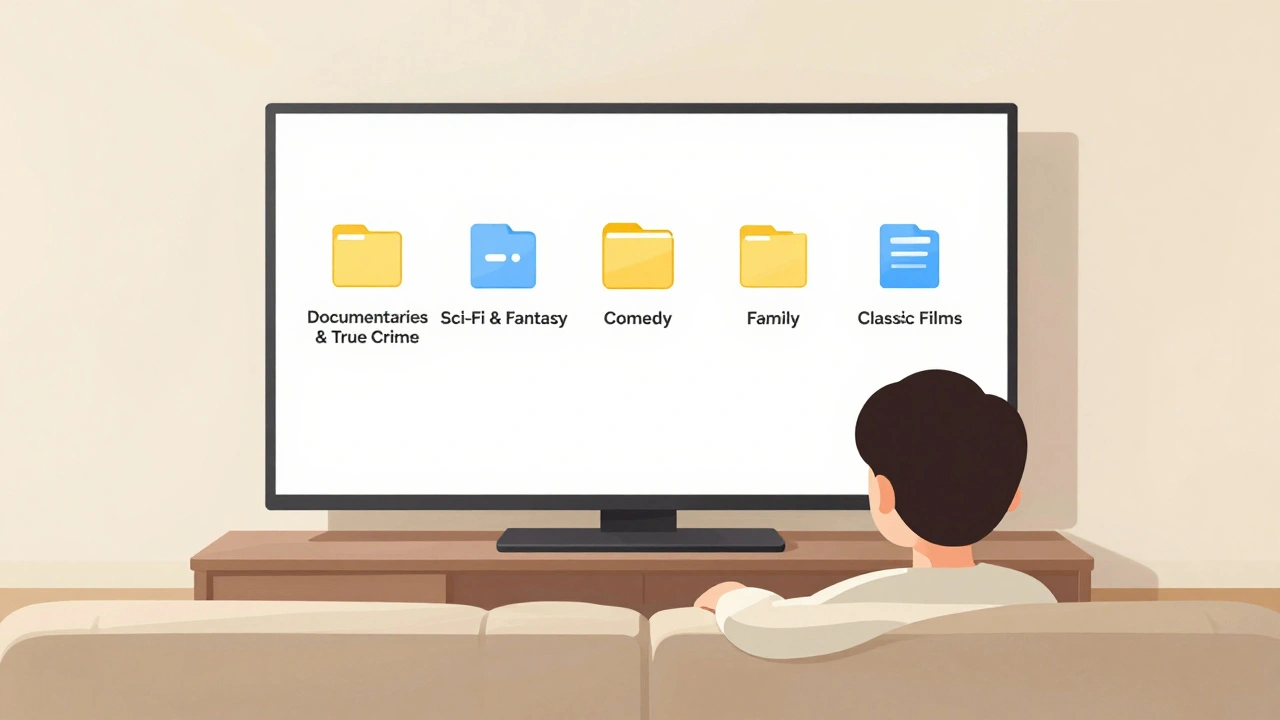
Instead of having a folder for "Netflix" and another for "Hulu," create folders like:
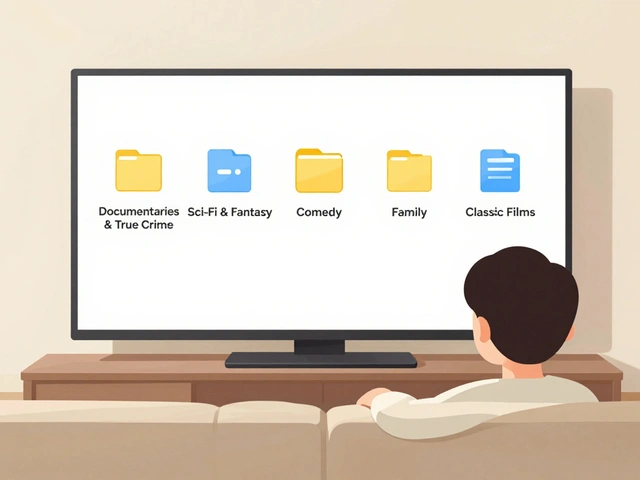
- Documentaries & True Crime - includes Netflix, Hulu, Apple TV+, Discovery+
- Sci-Fi & Fantasy - Disney+, HBO Max, Peacock, Amazon Prime
- Comedy & Light Viewing - Netflix, Apple TV+, YouTube Premium
- Family & Kids - Disney+, Paramount+, YouTube Kids
- Classic Films & Arthouse - Criterion Channel, MUBI, Kanopy
This way, when you’re in the mood for a thriller, you don’t have to open three different apps. You open one folder. Done.
Use Your Device’s Built-In Tools
You don’t need a third-party app to do this. Every modern device lets you group apps:
- Apple TV: Use "Folders" to create genre-based groups. Long-press an app icon, tap "Add to Folder," then name it.
- Android TV / Fire TV: Go to "Settings > Applications > Manage Installed Applications," then use "Create Group" to bundle apps by category.
- iOS / iPadOS: Long-press on the home screen, tap "Add Folder," drag in your streaming apps, and label them.
- Smart TVs (Samsung, LG): Use "Customize Home Screen" to rearrange and group apps into sections. Rename sections to match your genres.
Pro tip: Put your most-used genre folder on the first screen. If you watch documentaries every night, make that your default landing spot.
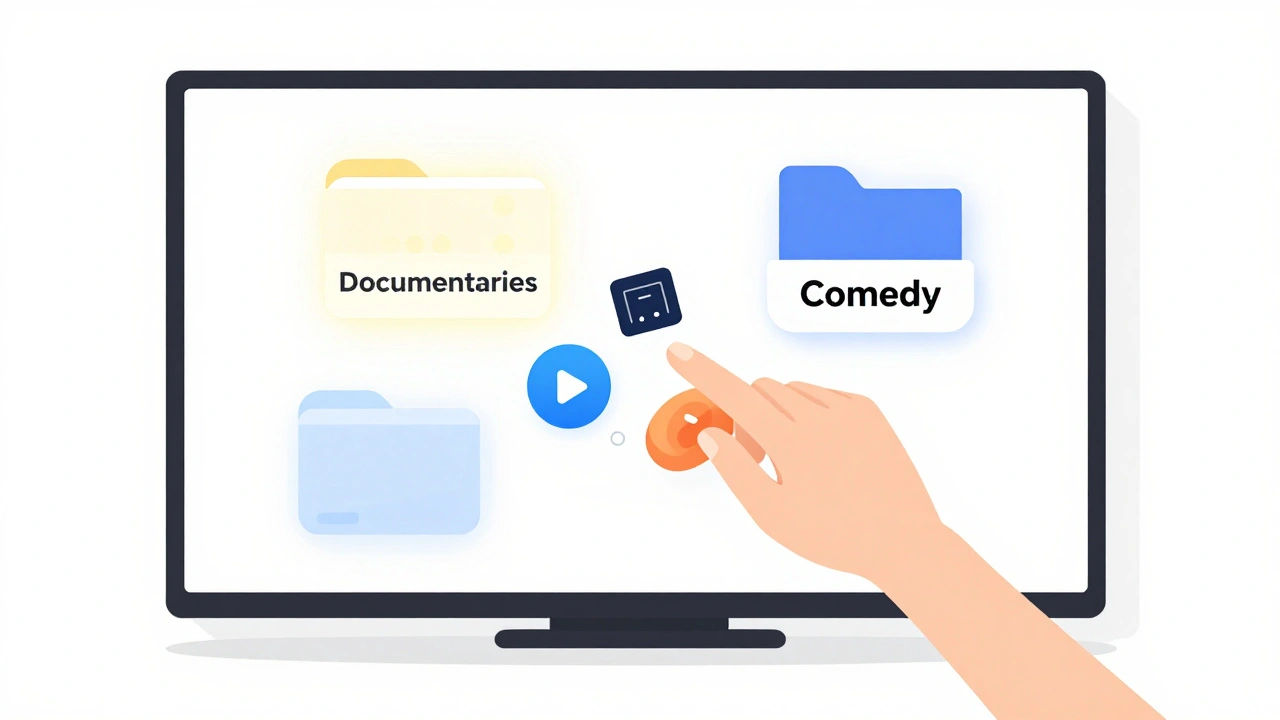
Keep It Fresh, But Not Overwhelming
Don’t create 15 folders. That’s just another kind of chaos. Stick to 4-6. Too many categories defeat the purpose.
Here’s a realistic setup most households can use:
| Genre Group | Typical Services Included | Use Case |
|---|---|---|
| Documentaries & True Crime | Netflix, Apple TV+, Discovery+, CuriosityStream | Evening wind-down, weekend deep dives |
| Sci-Fi & Fantasy | Disney+, HBO Max, Peacock, Amazon Prime | Weekend binges, immersive storytelling |
| Comedy & Light Viewing | Netflix, Apple TV+, YouTube Premium | After work, quick laughs |
| Family & Kids | Disney+, Paramount+, YouTube Kids | Weekends, school holidays |
| Classic & Arthouse | Criterion Channel, MUBI, Kanopy | Quiet nights, film buffs |
Feel free to merge or split based on your habits. If you never watch kids’ content, merge that folder into "Comedy" or delete it. If you watch a lot of international films, create a "World Cinema" folder.
Hide What You Don’t Use
Out of sight, out of mind. If you signed up for a service for one show and never watched it again, don’t let it clutter your screen.
On Apple TV: Go to "Settings > Users and Accounts > Home Screen & Dock," then toggle off unused apps.
On Android TV: Long-press an app icon, select "Unpin from Home," or go to "Settings > Applications > Hide App."
On Samsung Smart TVs: Press the Home button, go to "Settings > General > Home Screen > App Visibility," and turn off services you don’t need.
This isn’t about deleting accounts. It’s about removing temptation. You can always find the app again in the app store if you need it.
Update Every Few Months
Your viewing habits change. Maybe you started watching more true crime. Maybe your kids grew out of cartoons. Maybe you canceled a service you never used.
Every three months, take five minutes to review your layout. Ask:
- Which folder do I open most?
- Which one have I ignored for over 60 days?
- Is there a new show or genre I’m watching that doesn’t fit?
Adjust accordingly. This isn’t a one-time setup. It’s a living system.

What You’ll Notice After Organizing
Within a week, you’ll start to feel the difference:
- You’ll spend less time scrolling and more time watching.
- You’ll rediscover shows you forgot you loved.
- You’ll stop signing up for new services just because you can’t find what you want.
- You’ll feel more in control of your entertainment-not the other way around.
This isn’t about being organized for the sake of it. It’s about reducing friction. Every second you save from hunting for content is a second you can spend actually enjoying it.
Final Tip: Use Labels, Not Just Icons
Icons can be confusing. Is that blue square Netflix? Or Apple TV? Or a movie app you forgot? Add clear, short labels. "True Crime" is clearer than a black-and-white logo. On most systems, you can rename folders to whatever you want. Use words, not symbols.
And if you’re still overwhelmed? Start small. Pick just one genre-say, "Comedy"-and group all your comedy apps into one folder. Do that first. Then add another next week. Progress beats perfection.
Can I organize streaming apps on my smart TV?
Yes. Most smart TVs-Samsung, LG, Sony, and Vizio-let you rearrange apps and create custom folders. Go to the home screen, press and hold an app icon, then select "Edit" or "Customize." You can drag apps into groups and rename the folders to match genres like "Documentaries" or "Family."
Should I delete apps I don’t use?
No. Just hide them. Deleting an app doesn’t cancel your subscription. You can always find it again in the app store. Hiding it removes visual clutter and reduces temptation to open it mindlessly.
How many genre folders should I have?
Stick to 4-6. Too many defeats the purpose. Most households do well with: Documentaries, Sci-Fi/Fantasy, Comedy, Family, and Classic Films. Combine or split based on your habits. The goal is quick access, not complexity.
Do I need a third-party app to organize streaming services?
No. Your TV, phone, or tablet already has the tools. Apple TV, Android TV, and Smart TVs all support grouping and renaming. Third-party apps often add more complexity than value. Use what’s built in.
What if I share my streaming setup with family members?
Create separate profiles. Most services like Netflix, Disney+, and Apple TV+ let you set up individual profiles with their own recommendations. Combine that with a shared folder structure-like "Family" or "Kids"-and everyone gets a clean experience without cluttering each other’s space.
Next Steps
Start tonight. Pick one genre-maybe "Comedy" or "Documentaries"-and group all your apps under that label. Don’t try to fix everything at once. Do one folder. Then another tomorrow. In a week, you’ll wonder how you ever lived without it.
Streaming isn’t about having more. It’s about finding what you love faster. Organize by how you watch-not how the app wants you to.