18
VPN or Proxy Errors on Streaming: How to Resolve Access Blocks
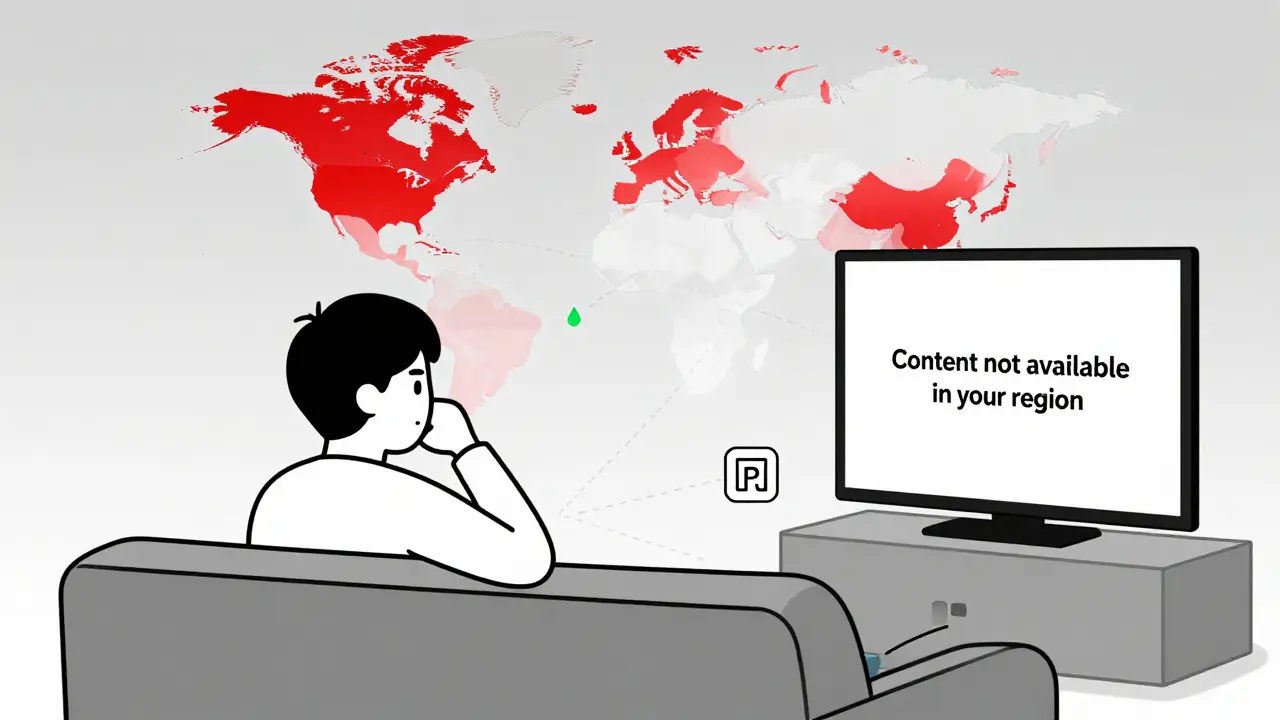
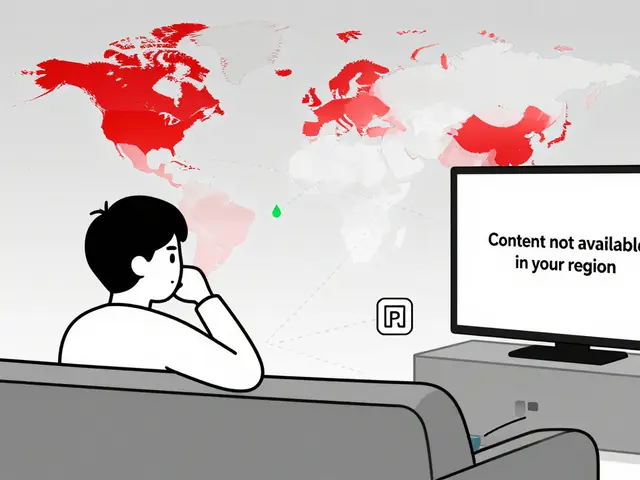
You’ve clicked play on your favorite show, but instead of the opening credits, you get a message: "This content is not available in your region." Or worse-you’re kicked off mid-episode with a proxy error. It’s frustrating, and it happens to millions every day. If you’re using a VPN or proxy to access streaming content from another country, you’re not alone. But you’re also not immune to the growing arms race between streaming services and bypass tools.
Why Streaming Services Block VPNs and Proxies
Streaming platforms like Netflix, Hulu, Disney+, and BBC iPlayer don’t block VPNs because they hate users. They do it because they have licensing deals. These deals say they can only show certain shows in specific countries. If someone in Germany uses a US-based VPN to watch Netflix US, they’re technically breaking the contract Netflix signed with the content owner. That’s why these services invest heavily in detecting and blocking proxy traffic.It’s not just about legal risks. Streaming services also lose money when users in high-paying markets use cheaper regional subscriptions. A US subscription costs $15/month. In India, it’s under $3. That’s a big gap. So platforms use advanced detection methods to catch these patterns.
They don’t just look for IP addresses. They check:
- Multiple accounts logging in from the same IP
- Unusual connection patterns (like switching between countries in minutes)
- DNS leaks or mismatched server locations
- Known data center IPs (used by most free proxies and cheap VPNs)
Most free proxies and low-cost VPNs use shared servers that are already flagged. If 10,000 people are using the same IP to stream, it’s easy to block.
Common Error Messages and What They Mean
Not all blocks look the same. Here’s what you’re likely to see-and what it really means:
- "You appear to be using an unblocking service." → The service detected your VPN’s IP is on their blocklist. This is common with budget VPNs.
- "Proxy detected" → You’re using a proxy, not a full VPN. Proxies don’t encrypt traffic and are easier to spot.
- "Content not available in your region" → Your IP is showing as outside the allowed area. Could be a DNS leak or outdated server.
- "Connection interrupted" → The streaming service dropped your connection mid-stream. Often happens when your VPN’s server is under heavy load.
- "Error code M7111-1331" → Netflix-specific error. Almost always means your IP is flagged.
These aren’t random glitches. They’re deliberate triggers. If you’re seeing any of these, your current setup isn’t working.
How to Fix VPN or Proxy Streaming Errors
There’s no magic fix, but there are proven steps that work for most people.
1. Switch to a Different Server
Not all servers are created equal. Your VPN might have 50 servers in the US-but only 5 of them are still working with Netflix. Try switching to a different city. If you’re on New York and it’s blocked, try Chicago or Los Angeles. Some services let you choose server types labeled "Streaming" or "Optimized for Netflix." Use those.
2. Clear Your Browser Cache and Cookies
Your browser remembers your real location-even if your IP changed. Clear cookies and cache for the streaming site. On Chrome: Ctrl+Shift+Del → Select "Cookies and other site data" → Clear. Then restart the browser.
3. Check for DNS Leaks
A DNS leak means your real location is being exposed even when your VPN is on. Go to dnsleaktest.com (no login needed) and run a test. If it shows your real country instead of your VPN’s location, you’ve got a leak. Fix it by:
- Enabling the "kill switch" in your VPN app
- Switching to a VPN that uses its own DNS servers (like ExpressVPN or NordVPN)
- Disabling IPv6 in your network settings (it often bypasses VPN encryption)
4. Try a Different Protocol
Most VPNs let you choose between protocols: OpenVPN, WireGuard, IKEv2, L2TP. WireGuard is fastest and hardest to detect. OpenVPN is reliable. Avoid L2TP-it’s old and easily blocked. Change your protocol in the VPN settings and reconnect.
5. Use a Dedicated IP (If Available)
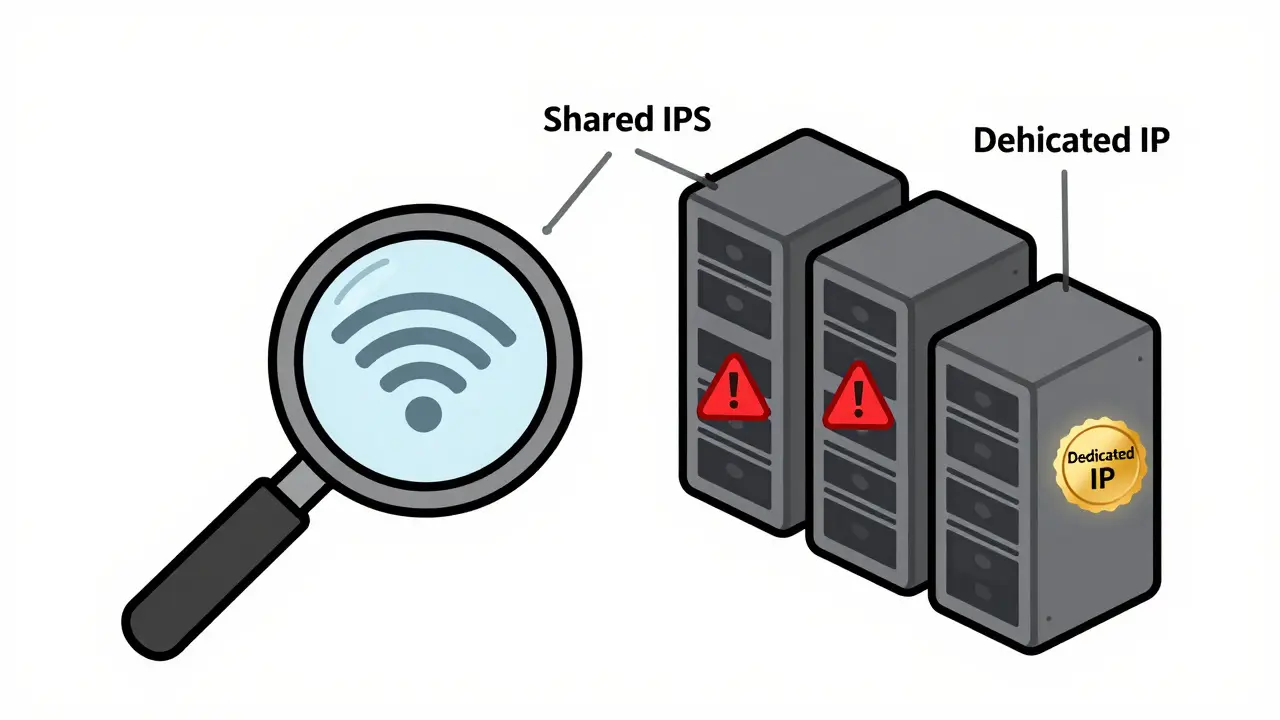
Some premium VPNs offer dedicated IPs-your own private IP address that isn’t shared with others. This reduces the chance of being flagged. It costs extra, but if you’re serious about streaming, it’s worth it. Dedicated IPs aren’t on blocklists because they’re used by just you.
6. Restart Your Router and Device
Old IP addresses can stick around in your network cache. Power-cycle your router (unplug for 30 seconds) and restart your device. This forces your network to get a fresh connection through the VPN.
What Doesn’t Work
Don’t waste time on these:
- Free proxies → They’re fast to get blocked. Often infected with malware.
- Browser extensions labeled "unblocker" → These aren’t full VPNs. They only change your IP for the browser, not your whole device. Streaming apps see right through them.
- Changing your device’s region settings → That only affects app store content, not streaming geo-blocks.
- Switching networks (Wi-Fi to mobile data) → If your phone’s mobile data uses the same ISP, you’re still on the same blocked IP range.
Best VPNs for Streaming in 2026
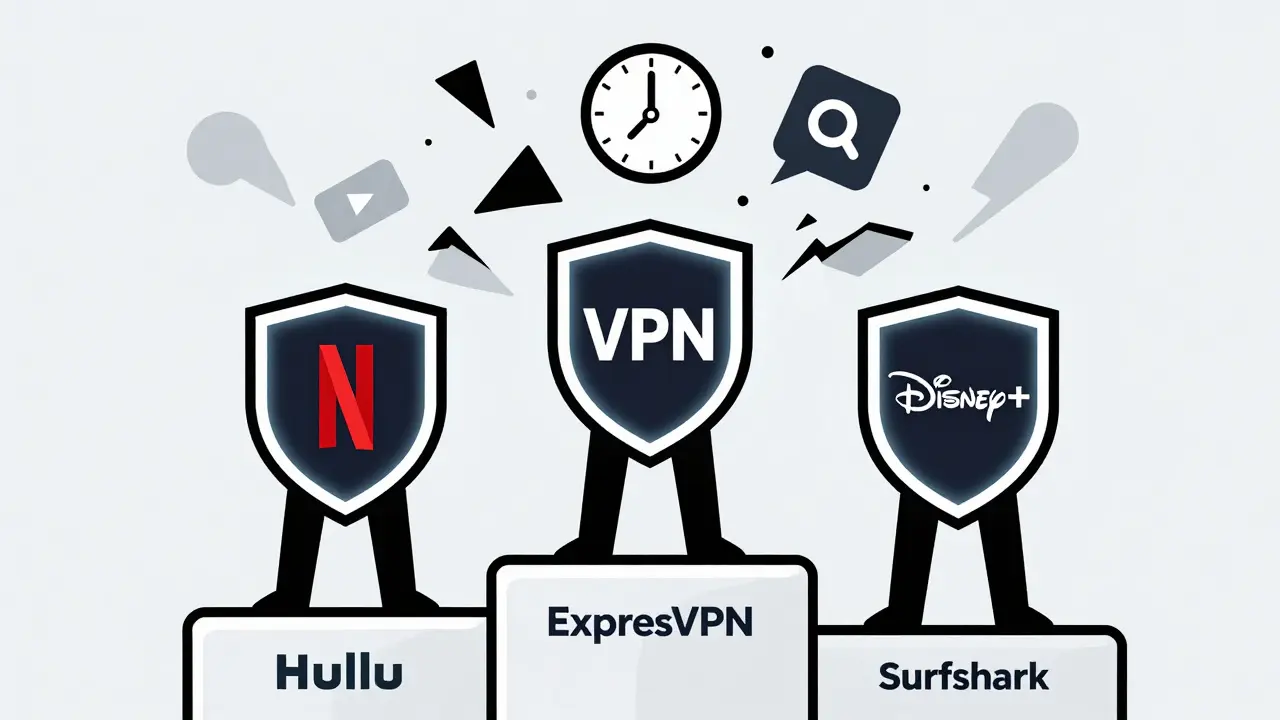
Not all VPNs are built the same. Here are the top three that still work reliably with major streaming services in early 2026:
| VPN | Server Count | Streaming Support | Speed (Avg. Mbps) | Dedicated IP | Price (Monthly) |
|---|---|---|---|---|---|
| ExpressVPN A trusted VPN service with servers optimized for streaming platforms | 3,000+ | Netflix, Hulu, Disney+, BBC iPlayer, HBO Max | 89 | Yes | $12.95 |
| NordVPN A security-focused VPN with specialized streaming servers and strong obfuscation | 5,400+ | Netflix, Hulu, Disney+, Amazon Prime | 78 | Yes (add-on) | $10.79 |
| Surfshark Budget-friendly with unlimited device connections and strong anti-block tech | 3,200+ | Netflix, Hulu, Disney+, YouTube Premium | 72 | No | $3.99 |
These services update their servers weekly to stay ahead of streaming blocks. They also have obfuscation features that hide VPN traffic as regular internet traffic-making it harder to detect.
When to Give Up on a VPN
Some services are nearly impossible to bypass. Apple TV+ and Amazon Prime Video have become especially strict. If you’re trying to access Prime Video from outside the US and your VPN keeps failing, it might be time to consider alternatives:
- Use the official international version of the service (if available)
- Buy a gift card from the region you want to access
- Use a friend’s account with shared login (if allowed by their terms)
Remember: No VPN can guarantee 100% access forever. Streaming services update their detection tools constantly. The goal isn’t to be unblockable-it’s to be reliable enough to watch what you want most of the time.
Prevention Tips for Future Blocks
Stay ahead of the game with these habits:
- Use a VPN before you even open the streaming app-not after you’re already logged in.
- Don’t log into multiple regional accounts on the same device.
- Update your VPN app regularly. Older versions lose compatibility.
- Use a separate device for streaming if you switch regions often.
- Keep a backup VPN. If one stops working, you’ve got a fallback.
Why does my VPN work on YouTube but not Netflix?
YouTube doesn’t enforce geo-blocks as strictly as Netflix. YouTube allows content from any region if you’re logged in, while Netflix has tight licensing rules. Netflix also uses more advanced detection tools like browser fingerprinting and device ID tracking, which most VPNs can’t hide. Your VPN might work on YouTube because it’s not actively blocking traffic there-but Netflix is.
Can I use a free VPN to stream?
Technically, yes-but you’ll rarely succeed. Free VPNs use shared IPs that are already blacklisted by Netflix, Hulu, and others. They also have slow speeds, data caps, and often sell your browsing data. Worse, many free VPNs inject ads or malware. If you’re serious about streaming, invest in a paid service. It’s cheaper than paying for multiple subscriptions.
Why does my VPN keep disconnecting during streaming?
This usually happens when the server is overloaded or your connection is unstable. Try switching to a less crowded server, or one closer to your physical location. Also, check if your VPN has a "kill switch" enabled-if it does, it might cut your connection if the VPN drops. Disable the kill switch temporarily to test. If the problem stops, the issue is server load, not your internet.
Do I need a VPN for every device?
No. Most premium VPNs allow 5-10 simultaneous connections. So you can protect your laptop, phone, smart TV, and tablet all under one subscription. Just install the app on each device and log in with the same account. Some routers even support VPNs, so every device on your home network is covered automatically.
Will using a VPN get me banned from streaming services?
No, you won’t be banned. Streaming services don’t have the legal right to ban your account for using a VPN. They can block your IP or temporarily suspend access, but they can’t delete your account or charge you extra. If you get blocked, just switch servers or try a different VPN. It’s a technical restriction, not a punishment.
Next Steps
If you’re still stuck after trying these fixes, ask yourself: Are you using a service that’s known to work? Are you on the latest version of your VPN? Are you clearing cache and switching servers regularly? If the answer is yes, and you’re still blocked, it’s time to upgrade your VPN or accept that some content is region-locked for good. Streaming rights are complex, and sometimes the easiest solution is to wait until the show comes to your region legally.