18
Netflix Parental Controls: How to Set PINs, Maturity Ratings, and Profile Locks

You press play on a movie that looks harmless enough, only for the screen to fill with content your child definitely shouldn’t see. It happens to almost every parent who shares a streaming account. The good news is that Netflix is a leading subscription video-on-demand service that offers robust parental control features to help families manage viewing habits designed specifically to prevent this. You don’t have to hover over your kid’s shoulder or constantly switch profiles if you know where the settings are.
Setting up these controls isn’t just about blocking one bad movie; it’s about creating a safe digital environment where your kids can explore without you worrying about accidental exposure to violence, strong language, or adult themes. This guide walks you through exactly how to lock down profiles, set age restrictions, and use PINs so you can relax while they watch.
Understanding the Three Layers of Protection
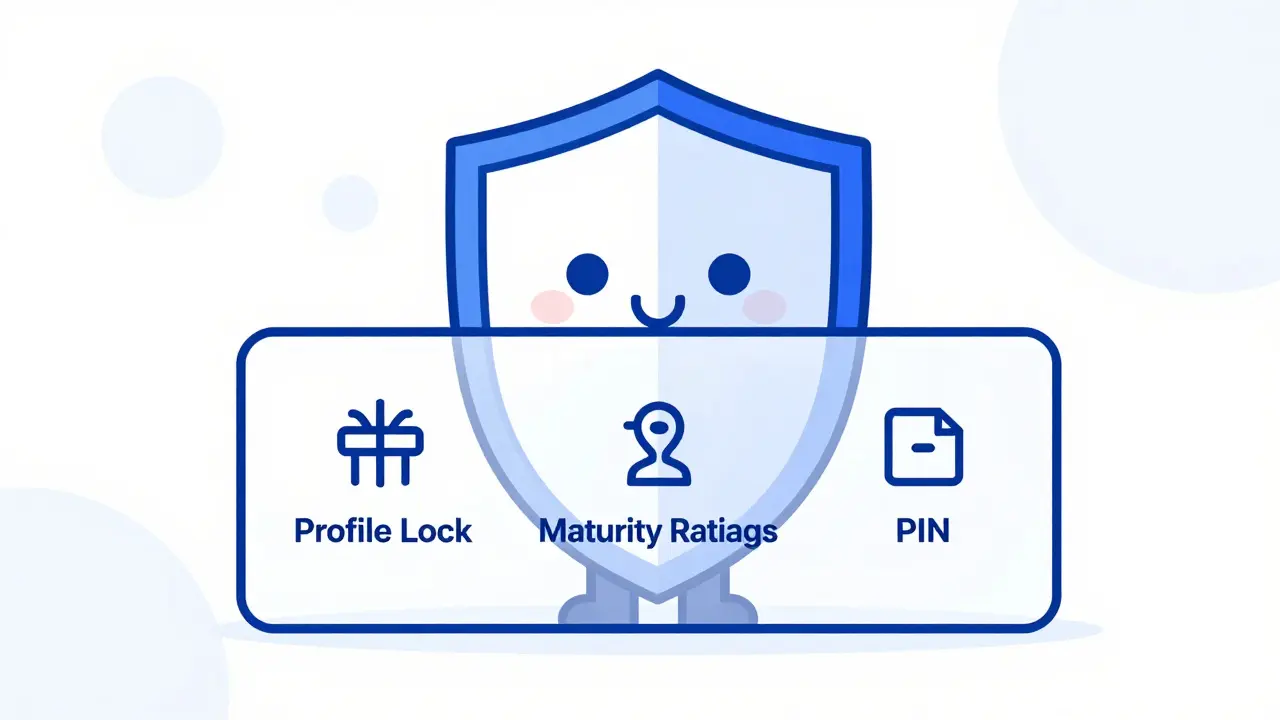
Before you start clicking buttons, it helps to understand that Netflix uses three distinct layers of security. Think of them as a castle with a moat, a gate, and a locked room. Each layer serves a different purpose, and using all three gives you the best protection.
- Profile Locks: This is the first line of defense. It prevents anyone from even accessing a specific profile without a code. If your teenager tries to log into your main profile to watch something mature, they hit a wall immediately.
- Maturity Ratings: Once inside a profile, this setting dictates what titles are visible. It filters the library based on age-appropriate content standards.
- PINs for Specific Actions: These are used for sensitive actions like changing passwords, updating payment info, or watching a title that exceeds the maturity rating limit (if you choose to allow exceptions).
Most parents make the mistake of only setting maturity ratings. That leaves the door open if someone else grabs the remote and switches to an unlocked adult profile. We’ll cover how to secure all three layers below.
How to Create and Secure Profiles
The foundation of Netflix parental controls is the profile itself. When you sign up for Netflix, you’re encouraged to create separate profiles for each household member. This isn’t just for personalized recommendations; it’s critical for safety.
To set up a profile for a child:
- Go to your Netflix account page via a web browser (this is harder to do on the TV app alone).
- Click on "Manage Profiles" at the top of the screen.
- Select "Add Profile" and choose the icon that represents your child.
- Crucially, toggle the switch that says "This is for a kid." This automatically enables stricter default settings and limits the interface to child-friendly options.
Once the profile is created, you need to lock it. Without a lock, any sibling or friend can simply click on the profile and start browsing. To add a PIN:
- In the same "Manage Profiles" section, find the profile you want to protect.
- Click on the profile name to edit its details.
- Look for "Profile Lock" and select "Set Up" or "Change" depending on whether you’ve done this before.
- Create a four-digit PIN. Make sure it’s something your child doesn’t know but isn’t too hard for you to remember under pressure.
Now, whenever anyone tries to access that profile, Netflix will demand the PIN. This stops unauthorized access instantly.
Setting Maturity Ratings for Viewing Limits
Even with a locked profile, you need to define what “appropriate” means for your family. Netflix uses standard motion picture and television ratings to categorize content. These ratings vary slightly by region, but generally follow these guidelines:
| Rating | Target Audience | Content Description |
|---|---|---|
| All Ages | Young Children | No objectionable content. Safe for toddlers and preschoolers. |
| Ages 7+ | Older Children | Mild fantasy violence or comedic peril. No scary scenes. |
| Ages 10+ | Tweens | Moderate violence, mild language, or suggestive themes. |
| Ages 13+ | Teens | Intense violence, stronger language, sexual situations, or drug use. |
| Ages 16+ | Older Teens | Strong violence, explicit sex, or heavy substance abuse themes. |
| Ages 18+ | Adults Only | Explicit content, intense horror, or graphic violence. |
To set these limits:
- Navigate to "Account" > "Profile & Parental Controls".
- Select the specific profile you want to configure.
- Under "Viewing Restrictions," click "Change" next to the current rating.
- You will be asked to enter your Netflix password again for security.
- Select the highest rating you want to allow. For example, if you choose "Ages 10+", nothing rated 13+, 16+, or 18+ will appear in search results or autoplay queues for that profile.
This filter is powerful because it removes temptation entirely. Your child won’t even see the thumbnail for a restricted show, which reduces the chance of them trying to bypass the system.
Using PINs for Sensitive Account Changes
Sometimes, you might want to allow a teen to watch a specific movie that is slightly above their maturity rating, or you might just want extra security on account changes. This is where the general account PIN comes in.
This PIN is required for:
- Changing your Netflix password.
- Updating payment methods or billing information.
- Cancelling your subscription.
- Watching a title that exceeds the maturity rating limit (if you enable this option).
To set or change this PIN:
- Go to "Account" > "Profile & Parental Controls".
- Find the section labeled "Use a PIN".
- Click "Set Up" or "Change".
- Enter your password, then create a new four-digit PIN.
If you decide you want your child to be able to watch a specific higher-rated title occasionally, you can leave the maturity rating low but enable the PIN requirement for exceptions. However, most experts recommend keeping the maturity rating strict and not relying on PINs for daily viewing decisions, as kids often memorize PINs quickly.

Managing Controls Across Devices
One common frustration is realizing that settings changed on your laptop didn’t update on the smart TV or tablet. Netflix syncs these settings across all devices linked to your account, but there can be a slight delay.
If you change a PIN or maturity rating on the web, give it a few minutes to propagate. If it still doesn’t work, try signing out and back in on the device. Most modern apps-whether on iOS, Android, Roku, or Smart TVs-pull the latest configuration from Netflix’s servers upon login.
Keep in mind that some older devices or third-party apps may have limited support for certain parental control features. Always check the app version on your TV or streaming stick to ensure it’s up to date. An outdated app might not enforce the latest security protocols.
Troubleshooting Common Issues
Even with the best setup, things can go wrong. Here are the most frequent hurdles parents face and how to clear them.
I forgot my PIN. This is the most annoying part of parental controls. If you forget the PIN for a profile lock or account changes, you cannot reset it directly. You must contact Netflix Support. They will verify your identity (usually via email or phone) and remove the PIN restriction. After that, you can set a new one. Keep your PIN in a secure place, like a password manager, so this doesn’t happen.
The maturity rating seems inaccurate. Netflix relies on industry-standard ratings, but sometimes a show rated "All Ages" might contain themes you dislike. Unfortunately, you cannot manually adjust individual titles. Your best bet is to lower the overall maturity rating for the profile or use the "My List" feature to curate a specific playlist of approved shows for your child to browse instead of the entire library.
Kids are sharing profiles. If your children share one profile, the maturity rating applies to everyone using it. If one sibling wants to watch a teen show, you have to raise the limit for both. The solution is simple: create separate profiles for each child. Yes, it takes more clicks initially, but it allows you to tailor restrictions to each child’s age and maturity level individually.
Can I set different maturity ratings for different profiles?
Yes, absolutely. Maturity ratings are set per profile. You can have one profile set to "All Ages" for your toddler and another set to "Ages 13+" for your teenager. This ensures each user sees only content appropriate for their specific age group.
What happens if I lose my Netflix PIN?
If you forget your PIN, you cannot reset it yourself. You must contact Netflix Customer Support. They will verify your account ownership and remove the PIN restriction. Afterward, you can create a new PIN. It’s wise to store your PIN in a secure location to avoid this hassle.
Do Netflix parental controls work on all devices?
Parental controls sync across all devices linked to your Netflix account, including smart TVs, tablets, phones, and streaming sticks. However, very old devices or outdated apps may not support the latest features. Ensure your apps are updated for full functionality.
Can my child bypass the maturity rating settings?
Not easily. If the maturity rating is set correctly, restricted content will not appear in search results or autoplay. However, if they know your account password and can access an adult profile with higher limits, they could switch profiles. This is why enabling Profile Locks with a PIN is essential.
Is there a time limit feature for kids on Netflix?
Netflix does not have a built-in timer to stop playback after a certain number of hours. For screen time management, you should use parental control features provided by your device manufacturer, such as Apple Screen Time, Google Family Link, or router-based controls.