21
Apple TV Restrictions: How to Limit Apps, Purchases, and Content Ratings

You hand the remote to your kid, they start playing a game, and ten minutes later you get a notification that $4.99 just vanished from your credit card. Or worse, you walk into the living room and find them watching something rated for adults because the default settings on Apple TV are surprisingly open by design. Apple wants its ecosystem to be seamless and frictionless, which is great for you but dangerous for a five-year-old with a thumb on the clickpad.
The good news? You don't need to hide the remote in a drawer or watch every second of screen time. Apple built robust parental controls, officially called Screen Time, directly into tvOS. These tools let you lock down apps, block explicit content, and stop accidental in-app purchases without turning your smart TV into a brick. Here is exactly how to set up these restrictions so your household stays safe and your wallet stays full.
Why Default Settings Aren't Enough
When you first set up an Apple TV, it assumes you are the only one using it. It remembers your payment info for quick buys and doesn't aggressively filter content unless you tell it to. This convenience creates two main problems for families:
- Accidental Spending: Kids love buying coins, skins, or extra lives in games. Since Apple Pay is often already authenticated via Face ID or Touch ID on your iPhone, the TV might not ask for a password again if you haven't configured specific purchase limits.
- Content Leakage: The App Store allows you to download almost anything. Without filters, a child can easily navigate to YouTube, Twitch, or streaming apps where unfiltered search results can lead to inappropriate videos in seconds.
You aren't being paranoid; you're just managing a device designed for maximum ease of use. Let's fix that.
Setting Up Screen Time on Apple TV
All restrictions live under one roof: Screen Time. Unlike iOS devices where this is found in Settings > Screen Time, the Apple TV interface is slightly different but follows the same logic.
- Go to Settings on your Apple TV home screen.
- Select General.
- Scroll down to Restrictions (on older tvOS versions) or Screen Time (on tvOS 16+).
- Tap Turn On Screen Time.
- You'll be asked if this is a "Child" or "Adult" device. Choose accordingly, though for shared family TVs, selecting "This is my Apple TV" and then manually configuring restrictions gives you more granular control.
Once enabled, you will see options for Content & Privacy Restrictions, App Limits, and Downtime. We are focusing on Content & Privacy here, as that's where the heavy lifting happens.
Locking Down Purchases and Subscriptions
This is the big one for parents worried about their bank account. By default, the Apple TV might allow free downloads without asking, and paid apps might require a password depending on your iCloud settings. But in-app purchases? Those are sneaky.
Navigate to Content & Privacy Restrictions within Screen Time. Look for the section labeled In-App Purchases. Change this setting to Don't Allow. Now, if your kid tries to buy virtual gems in a racing game, the transaction fails immediately. No charge, no surprise bill.
Next, check iTunes & App Store Purchases. You want to ensure three things here:
- Installing Apps: Set this to "Allow" if you want kids to browse, but consider "Don't Allow" if you want total control over what gets installed. If you allow it, make sure "Require Password After Free Download" is active.
- Deleting Apps: Usually fine to leave on "Allow," unless you have a toddler who likes deleting Netflix by accident.
- Buying In-App Items: As mentioned, keep this off.
A pro tip: Use Family Sharing. When you add your children to your Family Sharing group, their purchases go through your approval system. For younger kids, you can turn on "Ask to Buy." This sends a push notification to your iPhone whenever they try to download an app or buy something. You tap "Approve" or "Deny," and nothing happens until you say so.

Filtering Content Ratings and Explicit Material
Money isn't the only concern. What are they watching? Apple TV pulls rating data from the iTunes Store database. This means movies, TV shows, and even some apps respect standard age ratings like G, PG, PG-13, R, and NC-17.
Inside Content & Privacy Restrictions, select Content Restrictions. Here you can set global limits:
| Category | Recommended Setting for Young Kids | Recommended Setting for Teens |
|---|---|---|
| Movies | G or PG | PG-13 |
| TV Shows | TV-Y, TV-Y7, TV-G | TV-PG, TV-14 |
| Music | Clean Only | Clean Only (or Unrestricted) |
| Apps | 4+ | 12+ |
| Web Content | Allowed Websites Only | Limit Adult Websites |
If you choose "Clean Only" for music, any song marked with an "Explicit" tag in the iTunes catalog will be blocked or hidden. This works seamlessly with Apple Music. For movies and TV, if a show is rated TV-MA and you've set the limit to TV-14, the episode simply won't appear in search results or recommendations. It’s invisible.
Managing Third-Party Apps Like YouTube and Netflix
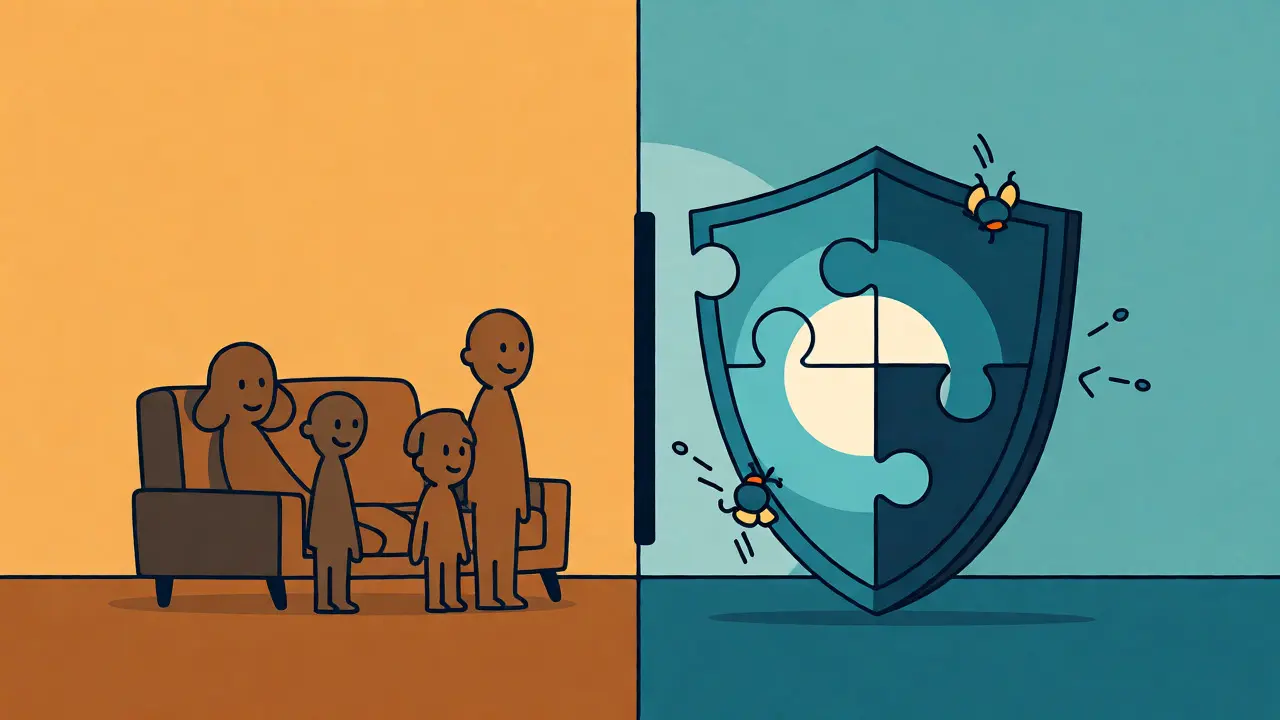
Here is the catch: Apple's native restrictions apply primarily to the Apple TV App Store, Apple Books, Apple Music, and iTunes content. They do not automatically filter third-party apps like YouTube, Disney+, Hulu, or Netflix.
So, how do you keep YouTube safe?
- YouTube: Open the YouTube app on Apple TV. Go to Settings > General > Restricted Mode. Turn this ON. This filters out most mature content based on community guidelines. It’s not perfect, but it’s significantly safer than leaving it off.
- Netflix: Netflix has its own profile system. Create a "Kids" profile. Inside that profile, go to Account > Profile & Parental Controls. Set a PIN for that profile. This prevents kids from switching back to your adult profile or changing settings.
- Disney+: Similar to Netflix, create a separate profile. Disney+ is generally safer by nature, but their library includes Marvel and Star Wars content that might be too intense for very young children. A separate profile lets you curate what appears in their row.
You can also use Screen Time to limit usage time for specific apps. If you notice your teen spends four hours a day on TikTok (via web browser) or YouTube, you can set a daily limit. Once the timer runs out, the app locks until tomorrow or until you enter the passcode.
The Web Browser Trap
Most people forget that Apple TV has a built-in Safari-like browser experience, especially if you use AirPlay or certain web-based apps. If unrestricted, users can type in URLs and visit almost any site.
To secure this, go back to Content Restrictions and look for Web Content. Your options are:
- Unrestricted Access: Everything goes. Not recommended for kids.
- Limit Adult Websites: Blocks known pornographic sites. Good for teens, but easy to bypass if they know a URL that isn't blacklisted.
- Allowed Websites Only: The nuclear option. Only websites you explicitly approve can be visited. This is best for young children who might accidentally wander off a safe link.
Remember, many streaming services now run inside their own apps rather than relying solely on the web browser, but keeping this locked down adds a layer of safety against random redirects.
Troubleshooting Common Issues
Sometimes, restrictions feel too tight. Maybe you can't update an app, or a movie you bought last year suddenly disappeared. Here’s why that happens and how to fix it.
Problem: I can't delete an app. If you set "Deleting Apps" to Don't Allow in Screen Time, you literally cannot remove apps from the home screen. To change this, you must disable Screen Time temporarily or adjust the permission specifically for deletion.
Problem: My kid watched an R-rated movie. Check if the movie was purchased before you turned on restrictions. Existing purchases sometimes remain accessible. Also, verify that the restriction wasn't set to "Unrestricted" for Movies. Sometimes, resetting settings reverts to defaults.
Problem: The passcode keeps popping up. If you enabled "Require Password After Free Download," every single download asks for code. This can be annoying. Consider turning this off if you trust your kids not to install shady apps, or rely on the "Ask to Buy" feature via Family Sharing instead, which is less intrusive during browsing.
Final Thoughts on Balance
Setting up Apple TV restrictions isn't about building a prison; it's about creating guardrails. Start strict. If your child is seven, lock everything down. As they grow, loosen the reins. Let them manage their own Netflix profiles. Allow them to install educational apps without asking. The goal is to teach digital responsibility, not just enforce rules.
Take twenty minutes today to walk through these settings. It’s a small investment of time that saves you from awkward conversations and unexpected bills later. And hey, if all else fails, there’s always the classic trick: hiding the remote behind the couch cushions.
Can I restrict specific apps individually on Apple TV?
Yes, but indirectly. You can use Screen Time to set "App Limits" for specific categories or individual apps. However, unlike iOS, the Apple TV interface for managing per-app permissions is limited. For stricter control, you often need to rely on the app's internal settings (like YouTube's Restricted Mode) combined with global Screen Time restrictions.
Does Apple TV restrictions work for AirPlay content?
Not entirely. Screen Time restrictions on the Apple TV primarily affect content played natively on the device. If you AirPlay a video from an iPhone or iPad, the restrictions on the source device (iPhone/iPad) usually take precedence. However, if the Apple TV itself is restricted, it may prevent starting AirPlay sessions depending on your security settings.
What if my child knows the Screen Time passcode?
If your child knows the passcode, they can disable restrictions. To prevent this, use a complex passcode unrelated to birthdays or common numbers. Additionally, you can enable "Share Across Devices" in Screen Time settings, allowing you to manage the Apple TV's restrictions remotely from your iPhone, making it harder for them to tamper with settings locally.
Do these restrictions apply to guests using the Apple TV?
Yes. Screen Time restrictions are applied at the device level, not the user level (since Apple TV doesn't have multiple distinct user profiles in the same way iOS does). Any guest using the device will encounter the same content filters and purchase blocks unless you temporarily disable Screen Time.
How do I reset Screen Time if I forgot the passcode?
If you forgot the Screen Time passcode, you may need to restore the Apple TV to factory settings. Go to Settings > System > Reset > Reset All Settings. Note that this will erase all apps and preferences, so you'll need to reinstall apps and log back in. There is currently no direct "forgot passcode" recovery link on the Apple TV interface itself.