2
Forgotten Parental PIN on Streaming: Reset and Recovery Steps
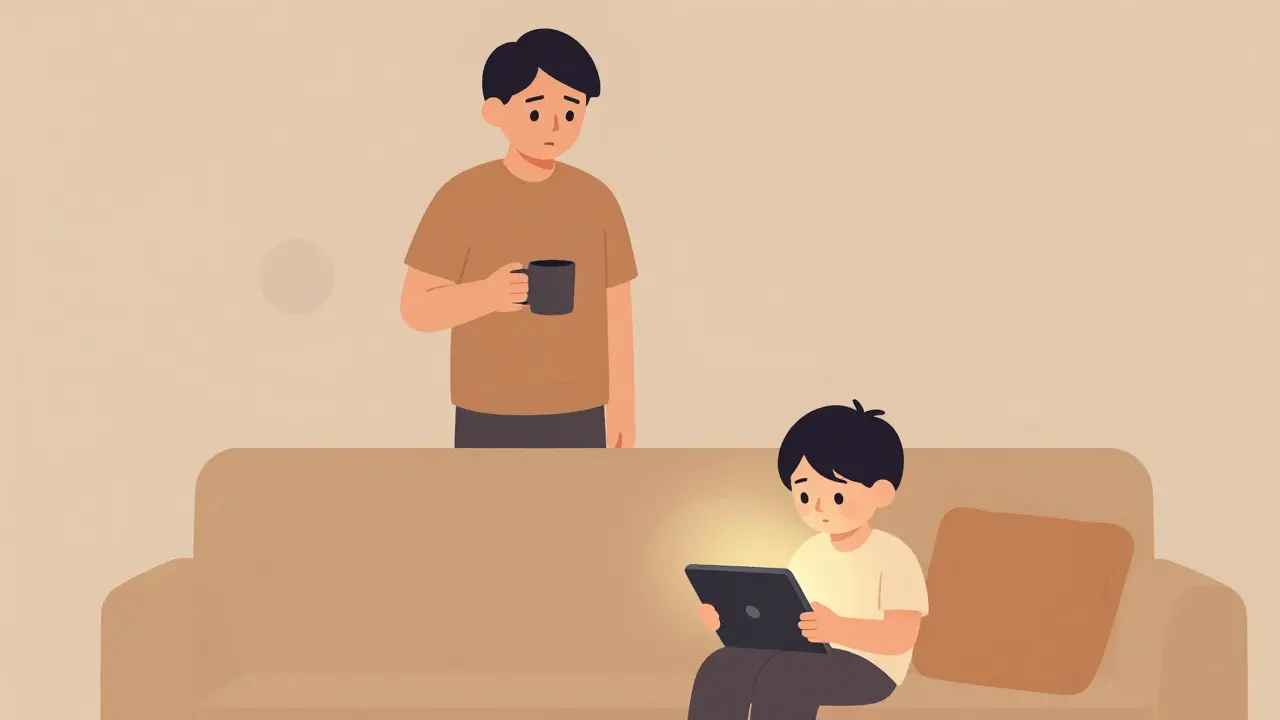
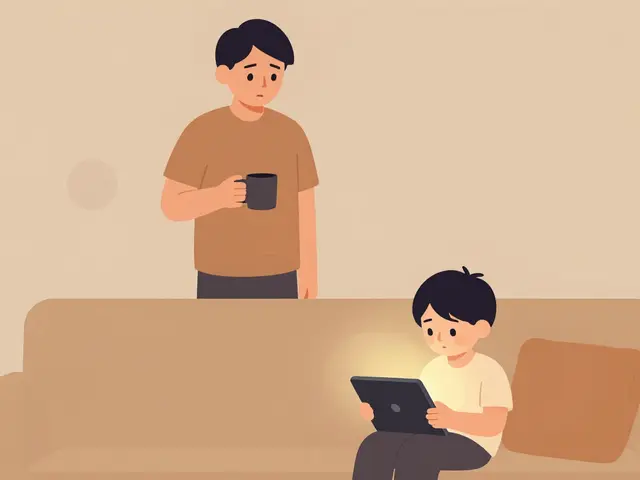
It happens to the best of us. You hand your tablet to a toddler, go to make coffee, and come back to find them deep in a movie they shouldn't be watching-or worse, stuck trying to buy an in-app purchase because you forgot the four-digit code that locks it down. The panic sets in immediately. You know you set up those parental controls, but the Parental PIN is gone from your memory.
The good news? You haven’t lost access forever. Most major streaming platforms have built-in safety nets for exactly this scenario. Whether you use Netflix, Hulu, Disney+, or Amazon Prime Video, recovering your Parental PIN usually involves verifying your account ownership through email or SMS. It’s rarely a permanent lockout, just a minor digital speed bump.
Why Your Streaming Service Uses a PIN
Before we jump into the fixes, it helps to understand why these codes exist. Streaming services don’t just want to keep kids away from R-rated movies; they also want to protect your wallet. Without a PIN, a curious child can easily subscribe to premium channels, rent movies, or buy games within apps linked to your account.
The PIN acts as a gatekeeper for two main things:
- Content Restrictions: Unlocking profiles with mature content settings.
- Purchase Protection: Confirming transactions or new subscriptions.
When you forget it, the system treats you like a potential security risk. That’s why the recovery process always asks for proof that you are the account holder, not just someone who found the remote.
Netflix: How to Reset Your Profile Lock PIN
Netflix is one of the most popular platforms for family sharing, which means PIN issues are common here. If you’ve set a PIN to lock specific profiles or restrict maturity levels, you can reset it without needing the old code.
- Log in to Netflix.com: Use a computer or mobile browser. Logging in via the TV app won’t give you enough menu options.
- Navigate to Account Settings: Click on your profile icon in the top right corner and select "Account."
- Find Profile & Parental Controls: Scroll down to the section labeled "Profile & Parental Controls" and click on the profile you want to adjust.
- Reset the PIN: Look for the "Change" button next to the PIN setting. If you’re locked out, there should be an option to "Forgot PIN?" or simply create a new one directly if you are already logged into the primary account.
- Verify Identity: Netflix may ask for your password again or send a confirmation code to your registered email address.
If you still can’t change it, try logging out of all devices and logging back in. Sometimes, clearing the cache on your device forces the app to re-sync with the latest server settings, allowing the new PIN to take effect.
Hulu: Recovering Your Parental Control Code
Hulu’s interface is slightly different. They often bundle parental controls with their subscription management features. If you’ve forgotten your Hulu PIN, you’ll need to dig into your account details online.
- Go to Hulu.com: Log in with your primary account credentials.
- Access Account Settings: Hover over your name in the bottom left (or tap the menu on mobile) and select "Account."
- Manage Subscriptions & Controls: Look for a section called "Parental Controls" or "Profile Settings."
- Update PIN: Hulu allows you to set a new PIN directly from this page. You won’t need the old one if you are authenticated as the account owner.
Note: If you are using Hulu through a third-party provider like Comcast or Spectrum, the PIN might actually be managed by your cable company’s app, not Hulu itself. In that case, you’ll need to contact your ISP’s support line.
Disney+: Fixing Your PIN Issues
Disney+ is heavily focused on family safety, so their PIN requirements can feel stricter. If you’ve forgotten your Disney+ PIN, the recovery path is straightforward but requires you to be on a web browser.
- Visit DisneyPlus.com: Log in to your account.
- Select Profile: Choose the profile that has the PIN issue.
- Go to Settings: Click the gear icon or "Settings" at the bottom of the screen.
- Privacy & Safety: Navigate to the "Privacy & Safety" tab.
- Reset PIN: There will be an option to "Change PIN." Enter a new four-digit code. If prompted for the old one, look for a "Forgot PIN" link below the entry field.
Disney+ sometimes sends a verification link to your email if the system detects unusual activity during a PIN reset. Check your spam folder if you don’t see it within five minutes.
Amazon Prime Video: Changing Your Household PIN
Amazon Prime Video integrates deeply with your overall Amazon account. This means your streaming PIN might be tied to your general Amazon parental controls or digital content settings.
- Log into Amazon.com: Go to the main Amazon website, not just Prime Video.
- Go to Digital Content: Hover over "Accounts & Lists" and select "Your Content and Devices."
- Devices Tab: Click on the "Devices" tab and then "Preferences."
- Parental Controls: Look for "Parental Controls" or "Household Settings." Here you can manage the PIN used for purchases and content restrictions across all Amazon devices.
If you can’t remember the Amazon PIN, you can usually reset it by answering your security questions or receiving a text message on your registered phone number. This single PIN often controls both Prime Video rentals and Kindle book purchases.
What If the Online Method Fails?
Sometimes, the automated systems glitch. Maybe you changed your email address recently, or the account was transferred to another person. If the standard reset steps don’t work, here is your backup plan.
| Method | Best For | Average Wait Time | Difficulty |
|---|---|---|---|
| Live Chat | Immediate resolution | 5-10 minutes | Low |
| Email Support | Complex account issues | 24-48 hours | Medium |
| Phone Support | Urgent lockouts | 15-30 minutes | High (hold times) |
Live Chat is usually your best bet. Most streaming services offer chat support through their help centers. When you connect, have your account email and billing information ready. They will verify your identity before helping you reset the PIN manually.
Phone Support can be frustrating due to hold times, but it’s effective if you’re locked out completely and can’t access email. Keep your last four digits of the credit card on file handy; this is the universal key to proving ownership.
Preventing Future PIN Lockouts
Once you’ve regained access, don’t leave the new PIN floating in your head. Human memory is fallible, especially when stress is involved. Here are three practical ways to ensure you never get locked out again.
- Use a Password Manager: Apps like LastPass, 1Password, or Bitwarden can store your streaming PINs securely. You only need to remember one master password.
- Write It Down (Safely): Keep a physical notebook in a drawer with your important codes. Just don’t tape it to the TV.
- Choose a Memorable Pattern: Avoid random numbers like 8392. Instead, use a date that matters to you (like a birthday) or a simple sequence you can recall under pressure.
Also, consider enabling two-factor authentication (2FA) on your streaming accounts. While this doesn’t replace the PIN, it adds an extra layer of security that makes it harder for unauthorized users to bypass your controls even if they guess the code.
Common Pitfalls to Avoid
When resetting your PIN, avoid these common mistakes that can prolong the frustration:
- Using the Same PIN Everywhere: If you use the same PIN for Netflix, Hulu, and your bank, hackers can exploit it across all platforms. Keep them distinct.
- Ignoring Email Verification: Many resets require clicking a link in an email. If you don’t do this within 15 minutes, the token expires, and you have to start over.
- Assuming All Devices Sync Instantly: After resetting a PIN on a web browser, you may need to restart the app on your smart TV or tablet for the change to register.
By following these steps, you can quickly recover your access and restore peace to your home entertainment setup. Remember, the goal isn’t just to get past the lock-it’s to keep your content safe while maintaining easy access for the right people.
Can I reset my Netflix PIN without knowing the old one?
Yes. As long as you can log into your Netflix account via a web browser, you can change the PIN directly in the Account Settings under "Profile & Parental Controls." You do not need the previous PIN to set a new one if you are authenticated as the account owner.
What should I do if Hulu says I need the old PIN to change it?
If Hulu prompts for the old PIN, look for a "Forgot PIN" link nearby. If that doesn’t appear, try accessing the settings from a different device or browser. If you’re still stuck, contact Hulu support via live chat, as they can manually reset it after verifying your account details.
Does resetting my Disney+ PIN affect my watch history?
No. Resetting your PIN only changes the security code used to access restricted content or make purchases. Your watch history, recommendations, and saved titles remain intact and unaffected by the PIN change.
Is there a way to disable the PIN entirely on streaming services?
Most services allow you to remove the PIN, but this is generally not recommended if children use the account. To disable it, go to your parental control settings and select "Remove PIN" or "Turn Off Restrictions." Be aware that this will make all content accessible to anyone using that profile.
Why does my Amazon Prime Video PIN not work on my Fire Stick?
This often happens due to a sync delay. After resetting the PIN on the Amazon website, restart your Fire Stick by going to Settings > My Fire TV > Restart. If the issue persists, check if you have multiple household profiles set up, as each may have its own PIN.