15
Mastering Apple TV Up Next: How to Organize Your Watchlist Across All Services
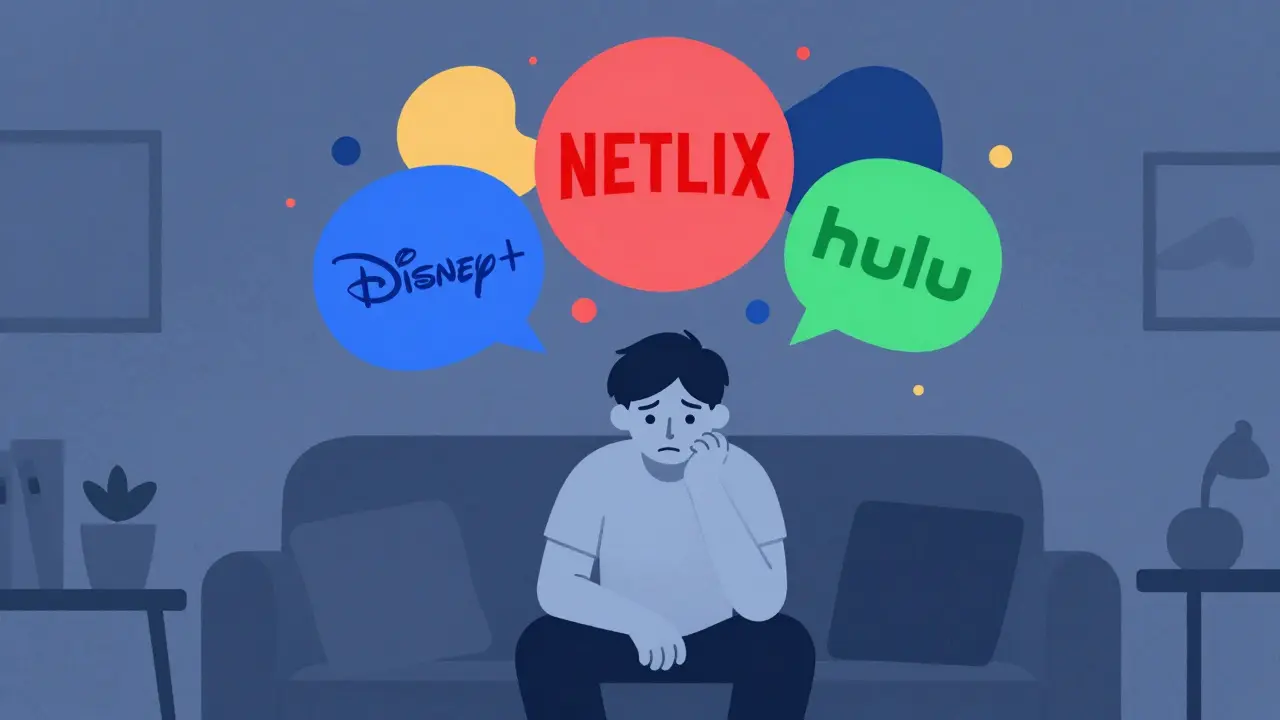
Picture this: you are halfway through a season of a show on Disney+, then you switch to Netflix for a movie, and finally jump onto Hulu to catch up on news. By the time you sit down to relax, your mind is a tangled mess of "what was I watching?" and "which app do I open next?" It is frustrating, it kills your momentum, and it turns relaxation into a chore.
The solution has been sitting in your living room all along, hidden inside the Apple TV app is a universal video aggregation platform that allows users to manage subscriptions, search content, and organize viewing lists across multiple third-party streaming services.. The Up Next queue feature is not just a simple list; it is a powerful command center designed to unify your fragmented streaming life. If you are still treating it as a passive suggestion engine, you are missing out on its most potent capability: manual control over a cross-service watchlist.
Understanding the Mechanics of the Up Next Queue
To use the tool effectively, you first need to understand how it works under the hood. When you add a show or movie to your library within the Apple TV app, it does not just bookmark the title. It creates a persistent entry in your Up Next queue, which is a chronological list of content you intend to watch. This queue aggregates content from every connected service-whether that is Amazon Prime Video, Max, or your personal Apple TV+ subscription.
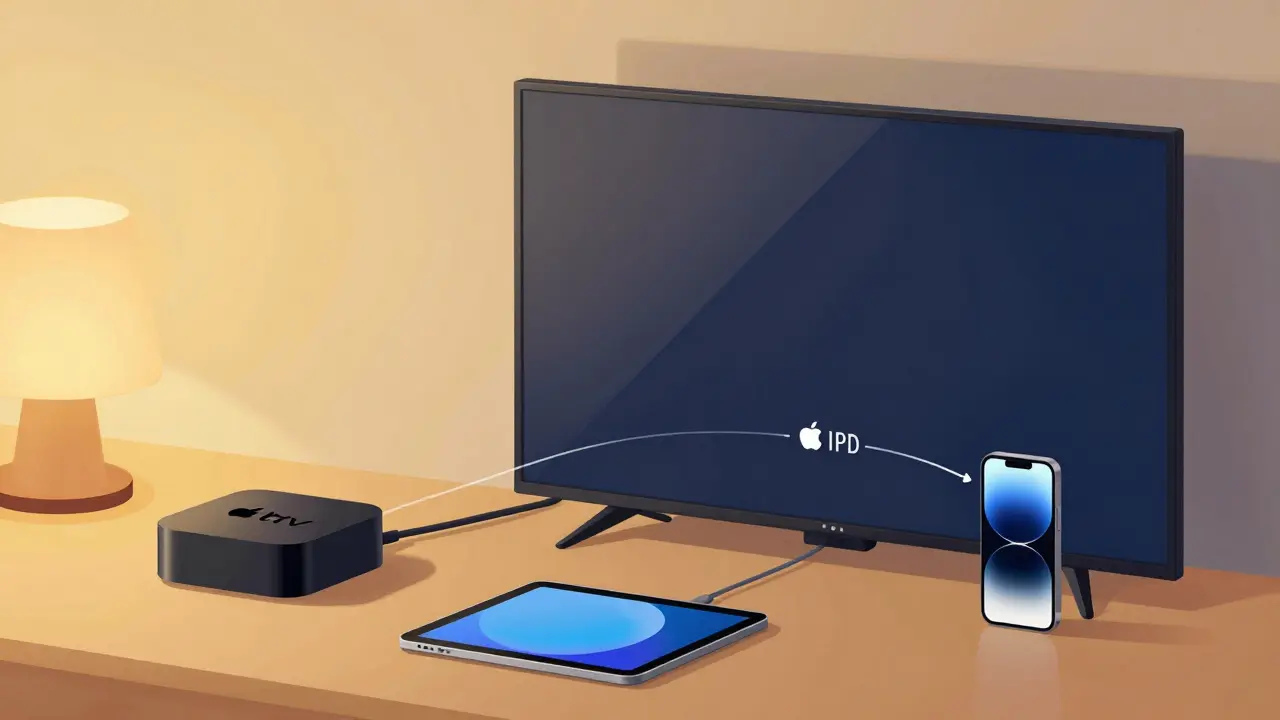
The magic happens because the app syncs this data via your Apple ID. This means your queue lives in the cloud, not just on your device. You can start adding episodes on your iPhone during your commute, move them around on your iPad at lunch, and then play them seamlessly on your Apple TV 4K box in the evening. The synchronization is near-instantaneous, ensuring that the order you set on one screen is exactly what appears on another.
However, there is a common misconception. Many users believe that simply clicking "Add to Library" automatically places the item at the top of their immediate attention. In reality, the default behavior often pushes new additions to the bottom of the queue or groups them by series. Without active management, the queue becomes a graveyard of good intentions rather than a functional schedule.
Step-by-Step: Taking Control of Your Watchlist Order
The core job here is organization. You want to decide what gets watched tonight, not let an algorithm guess based on your viewing history. Here is how you take manual control of the sequence.
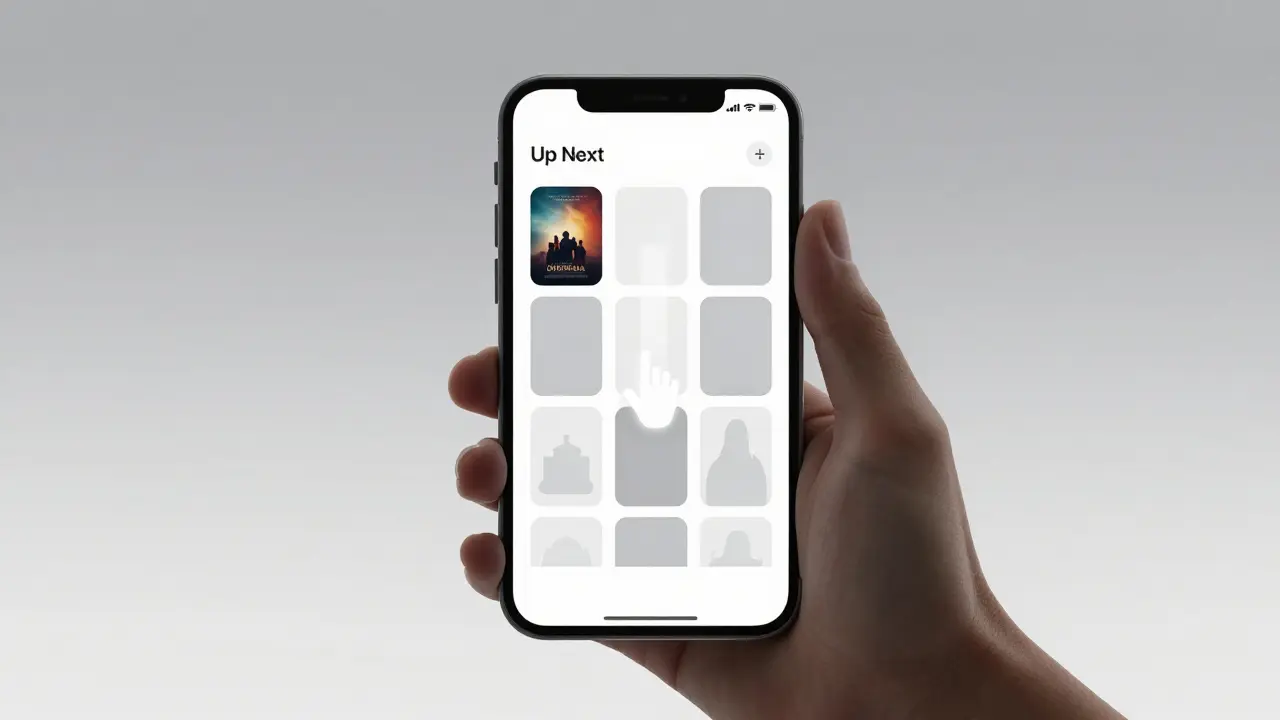
- Open the Apple TV App: Navigate to the "Up Next" tab. This is usually found at the bottom of the screen on mobile devices or in the main menu on the tvOS interface.
- Locate the Content: Find the show or movie you want to prioritize. If it is not there yet, go to the "Search" tab, find the title, and tap the "+" icon to add it to your library.
- Enter Edit Mode: On iOS and iPadOS, long-press on any item in the Up Next list. On the Apple TV 4K, click and hold the play button or select the three-dot menu option next to the episode title.
- Rearrange Items: Once in edit mode, you will see drag handles (usually represented by three horizontal lines) appear next to each item. Drag the episode you want to watch next to the very top of the list.
- Confirm Changes: Release the item. The system saves the new order immediately. The top item is now your designated "next watch."
This simple act of dragging and dropping transforms the queue from a static archive into a dynamic playlist. You can group entire seasons together, place a specific movie before a series finale, or push low-priority documentaries to the end of the line until you have more free time.
Managing Cross-Service Conflicts and Availability
One of the trickiest parts of using a unified hub is dealing with licensing changes. Streaming rights shift constantly. A show might be available on HBO Max today but move exclusively to Peacock next month. Or worse, it might disappear from your subscribed service entirely.
The Apple TV app attempts to handle this gracefully, but it requires vigilance. If an episode in your Up Next queue becomes unavailable, the app typically marks it with a grayed-out status or a notification indicating it is no longer accessible. However, it does not always remove it from the queue automatically. This can lead to gaps in your viewing flow where you try to play the next episode and hit a dead end.
To mitigate this, regularly audit your Up Next list. Look for items that have lost their vibrant artwork or display error messages. Remove these manually to keep your queue clean. Furthermore, if you notice a show moving between services, you may need to re-add the new season or episodes from the correct provider to ensure the playback link remains valid. The app identifies content by its unique metadata ID, so even if the source changes, the visual representation in your queue might remain, but the underlying stream path needs to be refreshed.
Advanced Tactics: Using Playlists and Filters
For power users who consume large volumes of content, simple reordering is not enough. You need segmentation. While the native Up Next queue is a single linear list, you can simulate playlists by leveraging the "Library" view combined with smart sorting.
Consider creating mental or physical categories. For instance, you might want to separate "Must Watch Tonight" from "Weekend Binge." Since the app does not support named sub-playlists within Up Next, use the ordering strategy aggressively. Keep your immediate intent items at the top 1-5 slots. Below that, stack your secondary interests. At the very bottom, park your "Someday" titles.
Additionally, pay attention to the automatic grouping features. The app often clusters episodes by season. If you are jumping between different seasons of the same show (perhaps catching up on Season 1 while waiting for Season 3), you may need to break these clusters apart manually. Dragging an episode from Season 1 out of its block and placing it next to a Season 3 episode forces the player to treat them as independent sequential items, allowing for non-linear viewing without confusion.
| Feature | Apple TV App (Up Next) | Native App Lists (e.g., Netflix My List) |
|---|---|---|
| Cross-Platform Aggregation | Yes (All linked services) | No (Service-specific only) |
| Manual Reordering | Full drag-and-drop control | Limited or alphabetical only |
| Sync Across Devices | Instant via Apple ID | Varies by service speed |
| Playback Continuity | Seamless switching between apps | Requires manual app switching |
Troubleshooting Common Sync Issues
Even with robust infrastructure, things can go wrong. The most frequent complaint is that the Up Next list fails to update across devices. You reorder items on your phone, but when you get home, the TV shows the old order. This is usually a connectivity or cache issue.
First, ensure that all devices are signed into the same Apple ID. It sounds obvious, but family sharing setups often involve multiple accounts, which can fragment libraries. Second, check your internet connection. The sync process requires a stable link to Apple's servers. If you are on a weak Wi-Fi signal, the local database might not push updates.
If the problem persists, try forcing a refresh. On iOS, pull down on the Up Next list to trigger a manual refresh. On the Apple TV 4K, exit the app completely and reopen it. In rare cases, clearing the app cache or reinstalling the application may be necessary to reset the local database alignment with the cloud server. Always remember that the cloud version is the source of truth; if your local device disagrees, it needs to be corrected.
Why This Matters for Your Viewing Experience
In an era where we subscribe to an average of four or five streaming services, cognitive load is a real barrier to enjoyment. Every time you have to remember which app holds the next episode of your favorite drama, you lose a piece of your immersion. The Apple TV app's Up Next feature reduces this friction significantly.
By taking ownership of your watchlist, you transform passive consumption into intentional entertainment. You are no longer victims of algorithms suggesting what they think you like; you are curators of your own leisure time. Whether you are planning a movie night with friends or organizing a week-long binge session, having a single, ordered, cross-service queue ensures that your technology serves you, not the other way around.
Start small. Add your current top three shows to the Up Next queue today. Rearrange them so the one you want to watch first is at the top. Notice how much easier it is to sit down and press play without the hesitation of choice paralysis. That is the power of organized streaming.
Does the Apple TV Up Next queue work with free ad-supported services?
Yes, the Apple TV app supports many free ad-supported television (FAST) services such as Tubi, Pluto TV, and The Roku Channel. As long as the service is integrated into the Apple TV ecosystem, you can add content to your Up Next queue and manage it alongside your paid subscriptions.
Can I share my Up Next queue with family members?
Not directly. The Up Next queue is tied to your individual Apple ID. Even if you use Family Sharing, each member has their own private library and watchlist. This prevents conflicts where one person removes a show another person wants to watch. However, you can manually recommend titles to family members through iMessage or AirDrop links.
What happens if I cancel a streaming subscription?
If you cancel a subscription, the content associated with that service will remain in your Up Next queue visually, but you will likely encounter playback errors when trying to watch it. The app does not automatically purge expired content. You should manually remove these items to keep your queue functional and avoid frustration.
Is there a limit to how many items I can add to Up Next?
There is no hard publicized limit to the number of items you can add to your Up Next queue. However, performance may degrade if the list becomes excessively large (hundreds of episodes). For optimal usability, it is recommended to keep the queue focused on the next 20-50 items you intend to watch, archiving older interests elsewhere if necessary.
How do I remove an item from the Up Next queue without deleting it from my library?
To remove an item from the immediate Up Next queue while keeping it in your broader Library, swipe left on the item (on iOS/iPadOS) or select the trash/delete icon in the context menu (on Apple TV 4K). Choose "Remove from Up Next" rather than "Delete." This keeps the content searchable in your Library but takes it off your active watchlist.