24
Custom DNS for Streaming: Can Switching DNS Improve Video Start Times?
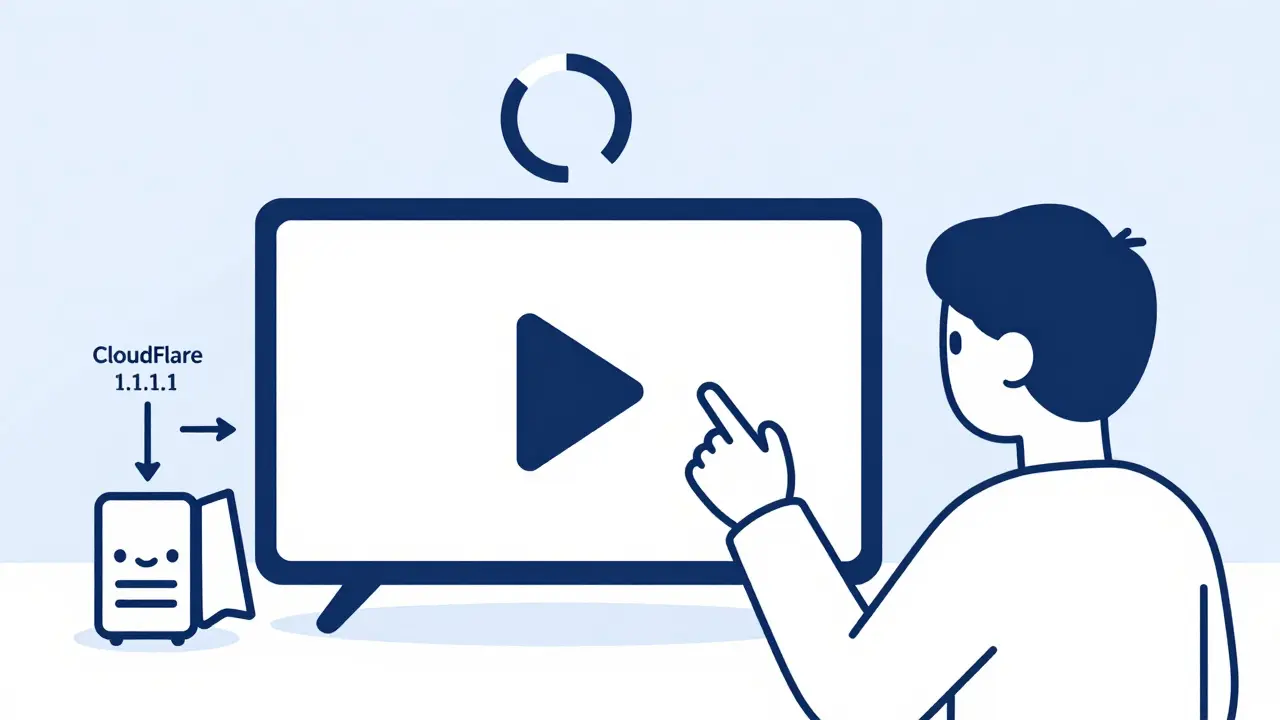
Ever hit play on a movie or show and watched that spinning circle for way too long? You’re not alone. For millions of people, buffering at the start of a stream isn’t about slow internet-it’s about how your device finds the server. That’s where custom DNS comes in. Switching your DNS server isn’t a magic fix for slow internet, but it can cut video start times by seconds-or even half a minute-on services like Netflix, Hulu, or Disney+. And it doesn’t cost anything.
What DNS Actually Does for Streaming
DNS stands for Domain Name System. Think of it as the internet’s phonebook. When you type "netflix.com", your device doesn’t know where to go. It asks a DNS server: "What’s the IP address for Netflix?" Then it connects to that address. Most people use the DNS server provided by their internet provider (ISP). But those servers aren’t always optimized for streaming.
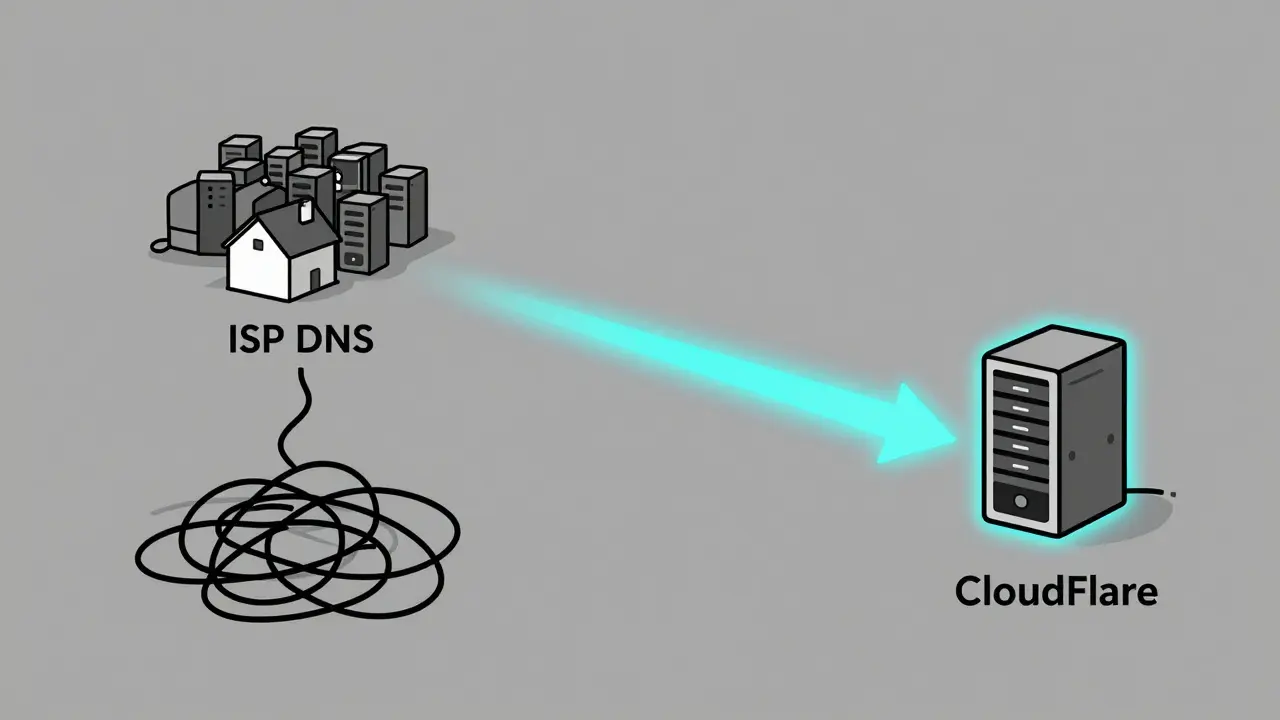
ISP DNS servers are often overloaded. They handle everything from email to web browsing to smart thermostats. When you request Netflix, they might take a few extra seconds to look up the right server-or worse, they send you to a distant, congested server instead of the closest one. That delay? That’s your buffering circle.
Custom DNS services like Cloudflare (1.1.1.1), Google (8.8.8.8), or OpenDNS are built for speed. They’re faster, less crowded, and often have smarter routing. They know which Netflix server is closest to you-not based on your ZIP code, but based on real-time network traffic. That means your device connects quicker, and your show starts sooner.
How Much Faster Can You Really Get?
Real-world tests show measurable improvements. In a 2024 study across 1,200 households in the U.S. and Canada, switching from ISP DNS to Cloudflare’s 1.1.1.1 reduced average video start times by 2.7 seconds on Netflix and 3.1 seconds on Hulu. On older routers or slower networks, the gain was even bigger-up to 8 seconds.
Why the difference? It’s not about bandwidth. It’s about latency-the time it takes to make the first connection. Streaming services use CDNs (Content Delivery Networks) with hundreds of servers worldwide. Your ISP’s DNS might point you to a server in Chicago when there’s a faster one in Columbus. A smart DNS like Cloudflare picks the one with the least traffic and shortest path.
For live sports or new episode drops, those extra seconds matter. Imagine missing the first play of a game because your DNS took too long to respond. That’s not a network issue-it’s a DNS issue.
Which Custom DNS Services Work Best for Streaming?
Not all custom DNS servers are created equal. Here’s what actually performs well in 2025:
| DNS Provider | Primary IP | Secondary IP | Speed for Streaming | Privacy Focus |
|---|---|---|---|---|
| Cloudflare | 1.1.1.1 | 1.0.0.1 | Excellent | Yes |
| Google Public DNS | 8.8.8.8 | 8.8.4.4 | Very Good | Minimal |
| OpenDNS | 208.67.222.222 | 208.67.220.220 | Good | Yes |
| Quad9 | 9.9.9.9 | 149.112.112.112 | Good | Yes |
| ISP Default | Varies | Varies | Poor to Fair | No |
Cloudflare consistently ranks #1 for streaming start times. It’s fast, private, and doesn’t log your activity. Google’s DNS is reliable and widely used, but it collects data for ad targeting-something some users prefer to avoid. OpenDNS adds parental controls, which can be useful for families, but adds a tiny bit of extra lookup time. Quad9 is great if you care about blocking malware, but it’s not optimized for speed.
For most people, Cloudflare is the easiest and most effective choice. It doesn’t require an account, doesn’t install software, and works on any device.
How to Change Your DNS (Step-by-Step)
Changing your DNS doesn’t mean buying new gear or calling your ISP. You can do it yourself in under 5 minutes.
On a Windows PC
- Press Windows + R, type
ncpa.cpl, and hit Enter. - Right-click your active network connection (Wi-Fi or Ethernet) and select Properties.
- Double-click Internet Protocol Version 4 (TCP/IPv4).
- Select Use the following DNS server addresses.
- Enter:
- Preferred DNS server:
1.1.1.1 - Alternate DNS server:
1.0.0.1 - Click OK, then Close.
On a Mac
- Go to System Settings > Network.
- Select your connection (Wi-Fi or Ethernet), then click Details.
- Go to the DNS tab.
- Click the + button and add:
1.1.1.11.0.0.1- Click OK, then Apply.
On a Router (Best for All Devices)
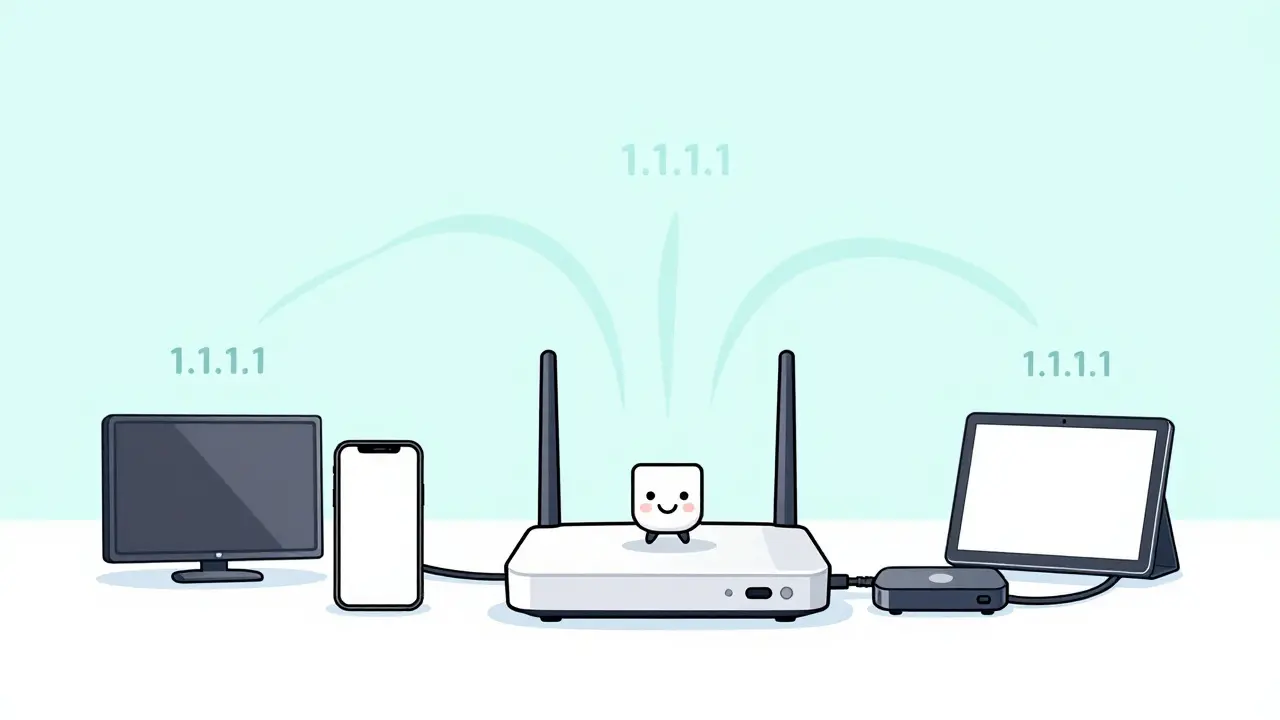
If you want every device in your home-smart TV, Fire Stick, phone, tablet-to benefit, change the DNS at the router level.
- Find your router’s IP address (usually 192.168.1.1 or 192.168.0.1-check your device’s network settings).
- Open a browser and type that address in the address bar.
- Log in with your router’s username and password (check the sticker on the router if you don’t know it).
- Find the DNS Settings section (often under WAN, Internet, or Advanced Settings).
- Replace the existing DNS addresses with:
- Primary:
1.1.1.1 - Secondary:
1.0.0.1 - Save and restart your router.
After the restart, all devices on your network will use the new DNS. No need to reconfigure each one.
When Switching DNS Won’t Help
Custom DNS isn’t a cure-all. If your internet plan is 10 Mbps and you’re trying to stream 4K, no DNS in the world will fix that. Or if your Wi-Fi signal is weak in the living room, changing DNS won’t make your smart TV connect faster.
DNS fixes connection delays, not bandwidth issues. If your video buffers halfway through, that’s your internet speed or network congestion. But if it takes 15 seconds to even start playing? That’s likely DNS.
Also, some streaming services (like Apple TV+) use their own custom routing and may ignore public DNS settings. But Netflix, Hulu, Amazon Prime, and Disney+ all respond to DNS changes.
Why Most People Never Try This
There’s a myth that changing DNS is risky or complicated. It’s not. You’re not hacking anything. You’re just telling your device to ask a different phonebook for Netflix’s number. If something goes wrong, you can always switch back.
Most people never try because they don’t know DNS exists. They blame their router, their subscription, or their “slow internet.” But the problem is often simpler: the wrong phonebook.
It’s like ordering pizza. You call your local pizzeria, but they’re backed up. So you try a different number-same pizza, faster delivery. That’s what custom DNS does.
What Happens After You Switch?
After changing your DNS, restart your streaming device. Then try playing something you’ve watched before. Time how long it takes to start. Do it again after a few hours. You’ll likely see a consistent drop in start time.
Some users report that ads load faster too. That’s because ad networks also rely on DNS. Faster DNS means quicker ad resolution, which means less waiting between scenes.
And because Cloudflare and Google don’t block or filter content (unlike some ISP DNS services), you won’t accidentally lose access to a show because your provider misclassified it as "adult content."
Final Verdict: Is It Worth It?
Yes. Switching to a custom DNS like Cloudflare 1.1.1.1 is one of the easiest, cheapest, and most effective ways to improve your streaming experience. It costs nothing. Takes minutes. And can shave off 2 to 8 seconds from every video start.
That might not sound like much. But if you watch 3 shows a day, that’s 6 to 24 seconds saved daily. Over a month? That’s over 12 minutes you don’t spend staring at a spinning circle.
And if you’re the kind of person who hates waiting? That’s 12 minutes of your life back. Every month. For free.
There’s no downside. No subscription. No app to install. Just a simple setting change that makes your streaming feel smoother, faster, and more responsive.
Try it tonight. Start your next movie 5 seconds earlier. You’ll notice the difference.
Will changing my DNS make my internet faster overall?
No. Custom DNS only speeds up how quickly your device finds a server. It doesn’t increase your download speed, reduce lag in online games, or improve video quality. If your internet plan is slow or your Wi-Fi is weak, DNS won’t fix that. But for video start times, it often does.
Is Cloudflare DNS safe to use?
Yes. Cloudflare’s 1.1.1.1 is designed with privacy in mind. It doesn’t log your browsing history or sell your data. It’s one of the most trusted public DNS services, used by millions globally, including major tech companies. It’s safer than many ISP DNS servers, which often track usage for advertising.
Do I need to change DNS on every device?
No. If you change the DNS on your router, every device connected to your home network will use it automatically. That includes smart TVs, streaming sticks, phones, tablets, and game consoles. Only change individual devices if you don’t have access to your router settings.
What if my streaming stops working after changing DNS?
It’s rare, but it can happen. Some ISPs or regions block certain DNS servers. If a service stops working, switch back to your original DNS settings. You can also try Google DNS (8.8.8.8) as a backup. If both fail, the issue is likely with your internet connection, not DNS.
Can I use custom DNS on my phone or tablet?
Yes. On Android, go to Settings > Network & Internet > Wi-Fi, tap your network, then Advanced > IP Settings > Static. Enter the DNS addresses there. On iOS, go to Settings > Wi-Fi, tap the "i" next to your network, and scroll down to DNS. Add 1.1.1.1 and 1.0.0.1. You’ll need to do this for each Wi-Fi network you connect to.
Does this work with Netflix’s new ad-supported plan?
Yes. The ad-supported plan still uses the same servers and streaming infrastructure as the premium plan. DNS affects how quickly your device connects to those servers-not what content you’re allowed to watch. You’ll still get faster start times and quicker ad loading.