8
How to Cancel Apple TV+: Easy Steps to Stop Your Subscription in 2026
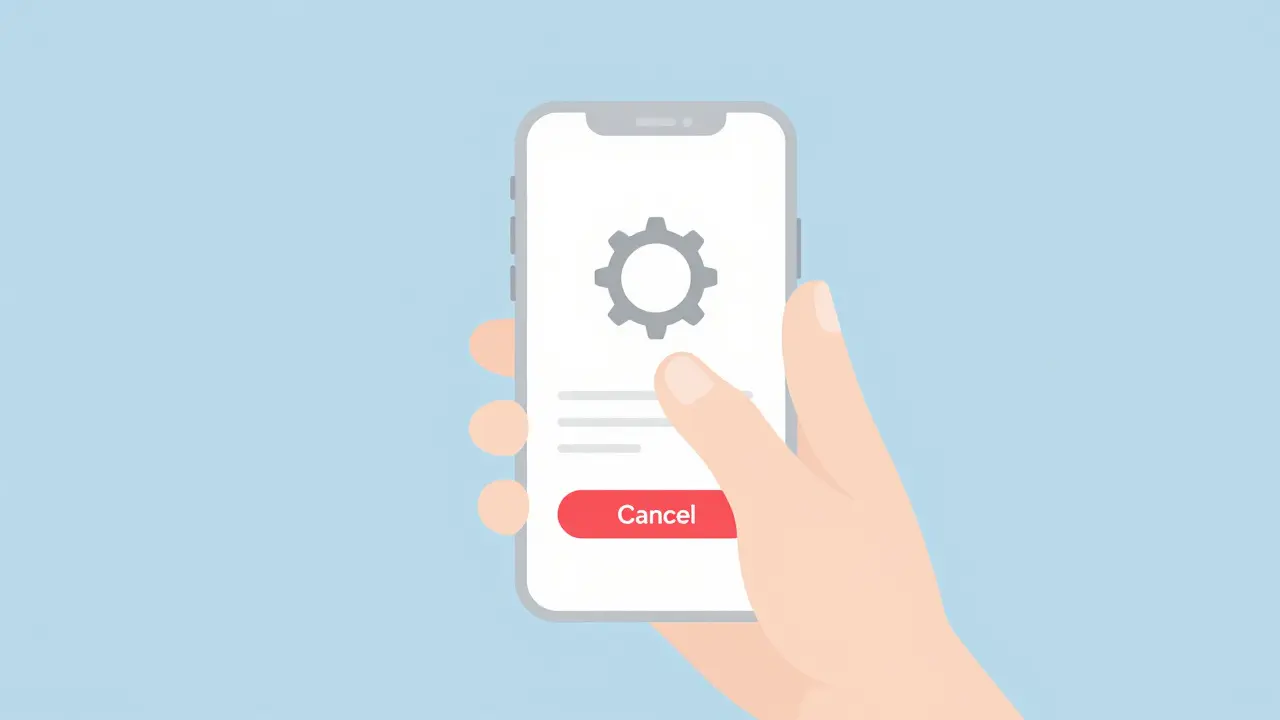
You just want to stop the charges. You don't want to delete your account, lose your data, or call customer support on hold for forty-five minutes. You just want Apple TV+ to go away so you aren't charged next month. The good news is that cancelling is straightforward if you know exactly where to look. It’s not hidden in a secret menu; it’s tucked inside your main device settings.
Whether you signed up through an iPhone, an iPad, a Mac, or directly on the web, the process follows the same logic: you manage subscriptions through your Apple ID. If you skip this step and just uninstall the app, you will still be charged. That’s a common mistake people make. Let’s walk through the exact steps to ensure the cancellation sticks.
Canceling via iPhone or iPad (The Most Common Method)
If you use an iOS device, this is the fastest route. Most users start their subscription here, so the link between your iOS Settings and your billing info is direct. Here is how you do it:
- Open the Settings app on your home screen.
- Tap your name at the very top of the list. This opens your Apple ID profile.
- Tap on Subscriptions.
- You will see two lists: "Active" and "Expired." Tap on the Active list.
- Find Apple TV+ in the list and tap it.
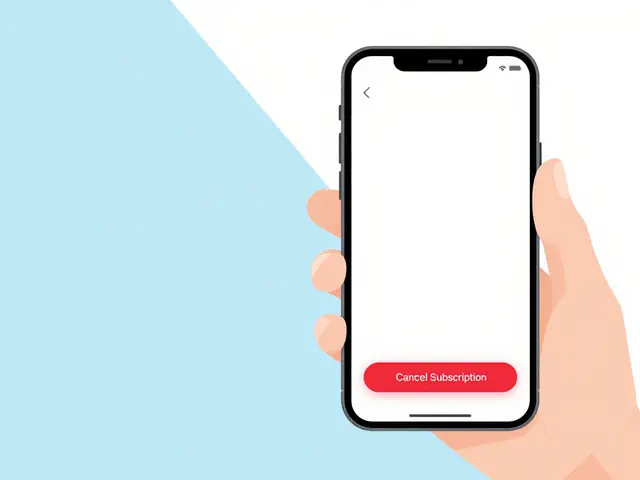
- Select Cancel Subscription at the bottom of the screen.
If you see "Cancel Subscription," you are good to go. Confirm the action when prompted. If you instead see "Manage Free Trial," you haven’t started paying yet. Tapping that will end the trial immediately, preventing any future charge. This is crucial if you signed up for the seven-day or one-month free trial and forgot about it.
Canceling via Mac Computer
The process on macOS is nearly identical to iOS, but the interface looks slightly different depending on whether you are running macOS Ventura, macOS Sonoma, or the latest macOS Sequoia.
- Click the Apple menu (the apple icon) in the top-left corner of your screen.
- Select System Settings (or System Preferences on older versions).
- Click your name at the top left to access your Apple ID settings.
- In the sidebar, click Subscriptions.
- Locate Apple TV+ and click it.
- Click Manage if needed, then select Cancel Subscription.
Once confirmed, the status will change to "Expires [Date]." This date is usually the end of your current billing period. You can keep watching until that date passes.
Canceling via Web Browser (No Device Required)
Sometimes your phone is broken, or you’re using a work computer that doesn’t have your Apple ID logged in. In these cases, you can cancel directly through the browser. This method works because Apple hosts all subscription management on their secure web portal.
- Go to appleid.apple.com in any web browser.
- Sign in with your Apple ID and password. You may need to verify your identity via Two-Factor Authentication.
- Scroll down to the Purchases & Subscriptions section.
- Click on Edit next to Subscriptions.
- Find Apple TV+ and click Cancel.
This method is particularly useful if you suspect your mobile device is having sync issues with your account. The web portal is the source of truth for all Apple services.
What Happens When You Cancel?
It’s important to understand what "cancelling" actually means in Apple’s ecosystem. It does not mean immediate termination of service. Instead, it stops the auto-renewal. Here is the timeline:
- Immediate Access: You retain full access to all shows, movies, and documentaries until the end of your paid period.
- Billing Stop: Apple will not charge your linked payment method (credit card, PayPal, or carrier bill) after the current cycle ends.
- Data Retention: Your watch history, recommendations, and downloaded content remain in your library. If you decide to resubscribe later, everything picks up where you left off.
Many users worry that cancelling will delete their downloaded episodes. It won’t. However, once the subscription expires, those downloads may become unplayable until you renew or purchase the content separately. The files stay on your device, but they lock up.
Why Can’t I Find the Cancel Button?
If you followed the steps above and don’t see "Cancel Subscription," one of three things is happening:
1. You Already Cancelled
If the button says "Expires [Date]," you have already cancelled. The service is simply winding down. No further action is needed.
2. Family Sharing Purchases
This is the most confusing scenario. If someone else in your Family Sharing group purchased the subscription, you cannot cancel it from your own device. Only the Organizer (the person who set up the family group) can cancel shared purchases. Check with your family members to see if they bought it. If so, ask them to follow the steps above on their device.
3. Third-Party Purchase
Did you buy Apple TV+ through a third-party provider like a cable bundle, a telecom plan (like Verizon or T-Mobile promotions), or a smart TV manufacturer? If so, Apple doesn’t control the billing. You must cancel through that specific provider’s website or app. For example, if you got it as part of a Samsung promotion, you might need to adjust settings in the Samsung Smart Things app or contact Samsung support.
Common Mistakes to Avoid
I’ve seen too many people think they’ve cancelled when they haven’t. Here are the pitfalls to avoid:
- Uninstalling the App: Deleting the Apple TV app from your phone does nothing to your billing. It’s just like deleting a game; you still owe money for the in-app purchases or subscriptions unless you explicitly cancel them in settings.
- Removing Payment Methods: You cannot remove your credit card while an active subscription exists. Apple requires a valid payment method on file. Trying to delete the card will result in an error message telling you to cancel the subscription first.
- Ignoring the Confirmation Email: After you cancel, Apple sends an email confirming the cancellation and the expiration date. Save this email. If you get charged unexpectedly, this is your proof that you initiated the cancellation within the grace period.
Can I Get a Refund?
Generally, no. Apple’s policy is strict: once the billing cycle starts, you pay for the full period. Cancelling mid-cycle does not trigger a pro-rated refund. However, there are exceptions:
- Duplicate Charges: If you were charged twice for the same month due to a system glitch, you can request a refund.
- Unauthorized Purchase: If someone else used your account to subscribe without permission, you can dispute the charge.
- Service Issues: If the service was completely unavailable for a significant portion of the billing cycle, you might qualify for a courtesy refund.
To request a refund, go to reportaproblem.apple.com. Sign in, select the transaction, choose a reason (like "I didn’t intend to purchase this"), and submit the request. Apple usually reviews these within 48 hours. Don’t expect a refund just because you changed your mind after watching one episode.
Reactivating Your Subscription Later
Maybe you cancelled to save money during a tight month, but now you want to watch the new season of a show you love. Reactivating is easy:
- Open the Apple TV app on any device.
- Try to play a title that requires a subscription.
- A prompt will appear asking you to subscribe again.
- Follow the prompts to confirm your payment method and start the service.
Your previous watch history and preferences will reappear instantly. There is no penalty for cancelling and resubscribing, though you won’t get another free trial if you’ve already used one.
Will I lose my downloaded shows if I cancel Apple TV+?
No, the files remain on your device, but they will become locked and unplayable once your subscription expires. You can redownload or stream them again if you resubscribe later.
How long does it take for the cancellation to process?
Cancellation is immediate in terms of stopping future renewals. However, you retain access until the end of your current billing period. You should receive a confirmation email within minutes.
Can I cancel Apple TV+ if I subscribed through a family member?
No. If the subscription was purchased by the Family Sharing organizer, only they can cancel it. You must ask them to perform the cancellation on their device.
Does deleting the Apple TV app cancel my subscription?
Absolutely not. Deleting the app only removes the software from your device. Your subscription remains active and will continue to charge your payment method until you manually cancel it in Settings.
What happens to my subscription if I switch from iPhone to Android?
Your subscription stays active. You can still watch Apple TV+ on Android devices via the dedicated app or through a web browser. To cancel, you would use the web method (appleid.apple.com) since you no longer have an iOS device to manage settings.
Can I get a refund for the last month if I cancel early?
Typically, no. Apple does not offer pro-rated refunds for partial months. Refunds are generally reserved for duplicate charges, unauthorized purchases, or significant service outages.