22
Sideloading Apps on Fire TV and Google TV: Guide to Risks and Rewards
Quick Summary: What You Need to Know
- Sideloading allows you to install APK files (Android packages) manually.
- It gives you access to apps not approved by Amazon or Google.
- The biggest risk is malware or unstable apps that can crash your system.
- Both Fire TV and Google TV require you to toggle "Unknown Sources" in settings before you can start.
The Basics of Sideloading
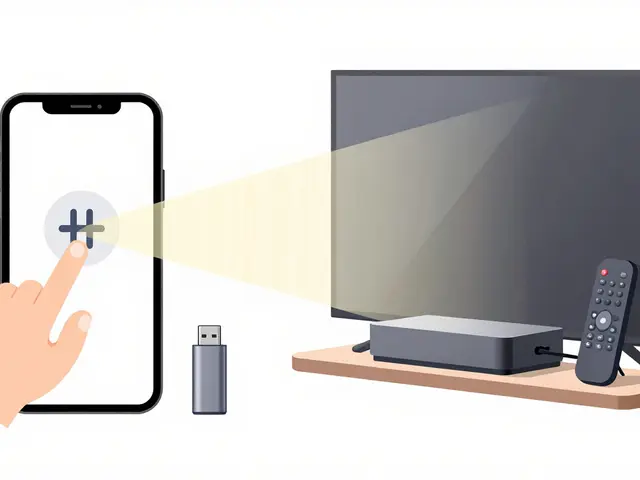
To understand how this works, we first have to talk about the Android Operating System. Both Fire TV (by Amazon) and Google TV (by Google) are built on top of Android. This means they can run files known as APKs. Normally, when you click "Download" in an app store, the store handles the APK installation in the background. Sideloading is simply doing that manually.
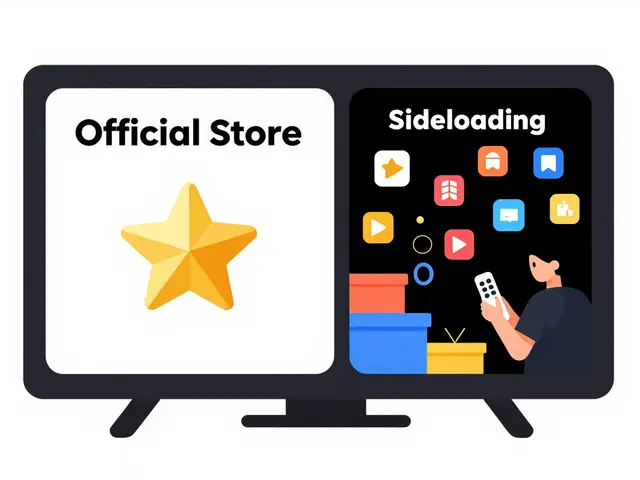
Think of it like buying a piece of furniture. The official app store is like buying from a showroom-it's vetted, guaranteed, and delivered to your door. Sideloading is more like buying a vintage piece from a stranger on the internet. It might be a rare masterpiece that you can't find anywhere else, or it might be full of termites that ruin your living room.
The Rewards: Why Bother Sideloading?
Why would anyone risk their device's stability? For most, it comes down to freedom. There are several specific scenarios where Sideload apps becomes the only viable option:
- Access to Regional Apps: Some apps are only available in the US or EU. If you are in Australia or Asia and want a specific service, you can often find the APK online.
- Custom Media Players: While the official stores have plenty, power users often prefer specialized versions of Kodi or advanced file managers that offer more granular control over local libraries.
- Beta Testing: If you want to try a new feature before it hits the mainstream, developers often distribute beta APKs directly to users.
- Avoiding Restrictions: Some apps are removed from stores due to corporate disputes, even if the app itself is safe and legal.
The Risks: What Could Go Wrong?
It isn't all sunshine and rainbows. When you bypass the official store, you are bypassing a massive security filter. Amazon and Google scan apps for malicious code before they allow them on the platform. When you sideload, you are the security filter.
The most common danger is Malware. A malicious APK can steal your login credentials, track your viewing habits, or even turn your streaming box into a node for a botnet. Then there is the issue of stability. Since these apps aren't optimized for your specific hardware version, they might cause "force close" loops, making your device unusable until you perform a factory reset.
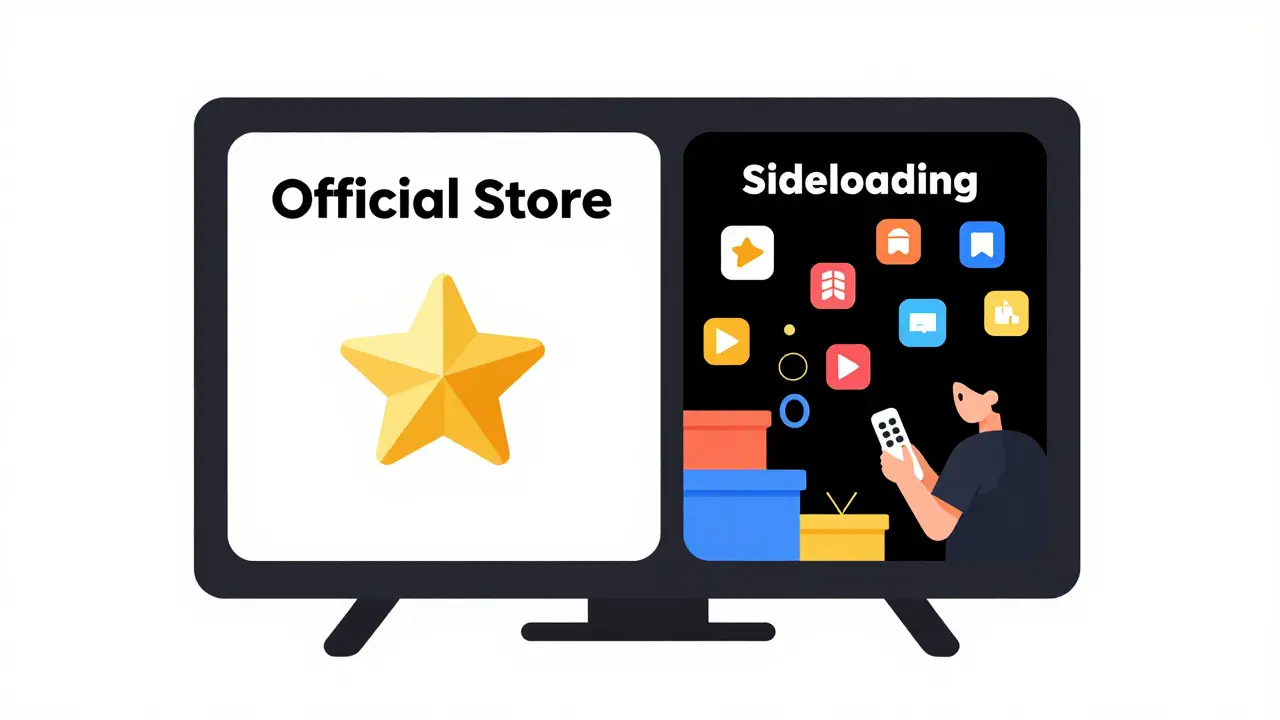
| Feature | Official Store | Sideloading |
|---|---|---|
| Security Vetting | High (Automatic) | None (User-dependent) |
| Installation Ease | One-click | Multi-step process |
| App Variety | Curated/Limited | Virtually Unlimited |
| Automatic Updates | Yes | Manual (usually) |
How to Sideload on Fire TV
Amazon makes this a bit more hidden than Google does, but it is straightforward once you know where to look. You will need a tool to get the APK onto the device-the most popular choice is Downloader, an app available in the official store that lets you browse the web and download files.
- Go to Settings > My Fire TV > Developer Options. (If you don't see Developer Options, go to Settings > My Fire TV > About and click the device name seven times rapidly).
- Turn on Install Unknown Apps for the Downloader app.
- Open Downloader and enter the URL of the APK file you want.
- Confirm the download and click Install when the prompt appears.
How to Sideload on Google TV
Google TV, found on devices like the Chromecast with Google TV, follows a similar logic but uses different menu names. Because it is more "openly" Android, the process feels a bit more natural.
- Enable Developer Mode. This is usually done by going to Settings > System > About and clicking the Android TV OS build seven times.
- Go to Settings > Apps > Security & Restrictions > Unknown Sources.
- Toggle the switch to "On" for your chosen installation app (like Downloader or a file explorer).
- Download the APK via a browser or transfer it from a USB drive using a file manager.
- Run the file and follow the on-screen prompts to finish the installation.
Pro Tips for a Safe Experience
If you are determined to expand your app library, don't just download the first APK you find on a random forum. Use a systematic approach to keep your device healthy.
First, use a VirusTotal scan. This is a free online service where you can upload an APK file or paste the download link, and it will scan the file using dozens of different antivirus engines. If more than two or three flag it as "Trojan" or "Malware," delete it immediately.
Second, stick to reputable APK mirrors. While no third-party site is 100% safe, some have community-driven verification systems that make them far more reliable than a random blog post. Always check the version number; an outdated APK from 2022 might not work on a 2026 OS update.
Third, manage your permissions. When you launch a sideloaded app for the first time, it will ask for permissions. Ask yourself: why does this simple calculator app need access to my microphone and contacts? If the request seems weird, deny it. If the app refuses to run without it, it's probably a spy tool.
Troubleshooting Common Sideloading Issues
Not every installation goes smoothly. You might run into a "Parse Error," which usually means the APK file is corrupted or is not compatible with your version of Android. In this case, try downloading the file again or look for a different version of the app.
Another common issue is that sideloaded apps don't appear in your main app launcher. This happens because some APKs are designed for phones (touchscreens) rather than TVs (remotes). To find these, go to Settings > Apps > See all apps and launch them from there. You may need a Mouse Toggle app to actually navigate the app's interface if it requires a cursor.
Will sideloading void my device warranty?
Generally, no. Simply installing a third-party app doesn't void your hardware warranty. However, if you use a tool to "root" your device (changing the core system files), that is when you risk losing your warranty and support from Amazon or Google.
Do sideloaded apps update automatically?
No. Since they aren't linked to the official store, they won't update on their own. You will have to manually download and install the newer version of the APK over the old one to get the latest features and security patches.
Why does my remote not work in some sideloaded apps?
Many APKs are built for Android phones. They expect a touch screen, not a D-pad remote. To fix this, you can sideload a "Mouse Toggle" app or connect a Bluetooth mouse to your TV to navigate the menus.
Is sideloading legal?
The act of sideloading itself is legal. However, using it to install apps that allow you to stream copyrighted content for free is often a violation of copyright laws. Always be aware of what the app is actually doing with your data and content.
How do I remove a sideloaded app if it crashes my TV?
If the app is just slow, uninstall it via the Settings menu. If the app has caused a "boot loop" where the TV won't start, you will need to use the physical reset button on the device or the remote's specific factory reset key combination to wipe the device.
Next Steps for Your Streaming Setup
Once you have mastered the art of the APK, you might want to explore more advanced ways to manage your media. For those who find a single device limiting, looking into a dedicated media server like Plex or Jellyfin can provide a more stable, centralized way to handle your content without needing to sideload individual files on every single TV in your house.
If you are still nervous about security, start by sideloading a well-known open-source app first. This lets you get comfortable with the process of enabling developer options and using a downloader tool before you move on to more obscure software.