28
Stream Deck and Macropad Setup: Faster Live Streaming Controls
There is a specific kind of panic that hits every streamer when they are in the middle of a high-energy moment. You are laughing with your chat, the game is intense, and suddenly you realize you need to mute your microphone because your dog just started barking. If you have to alt-tab out of your game, click through three menus in your broadcasting software, and hope you don’t accidentally end the stream, you have already lost the viewer’s attention.
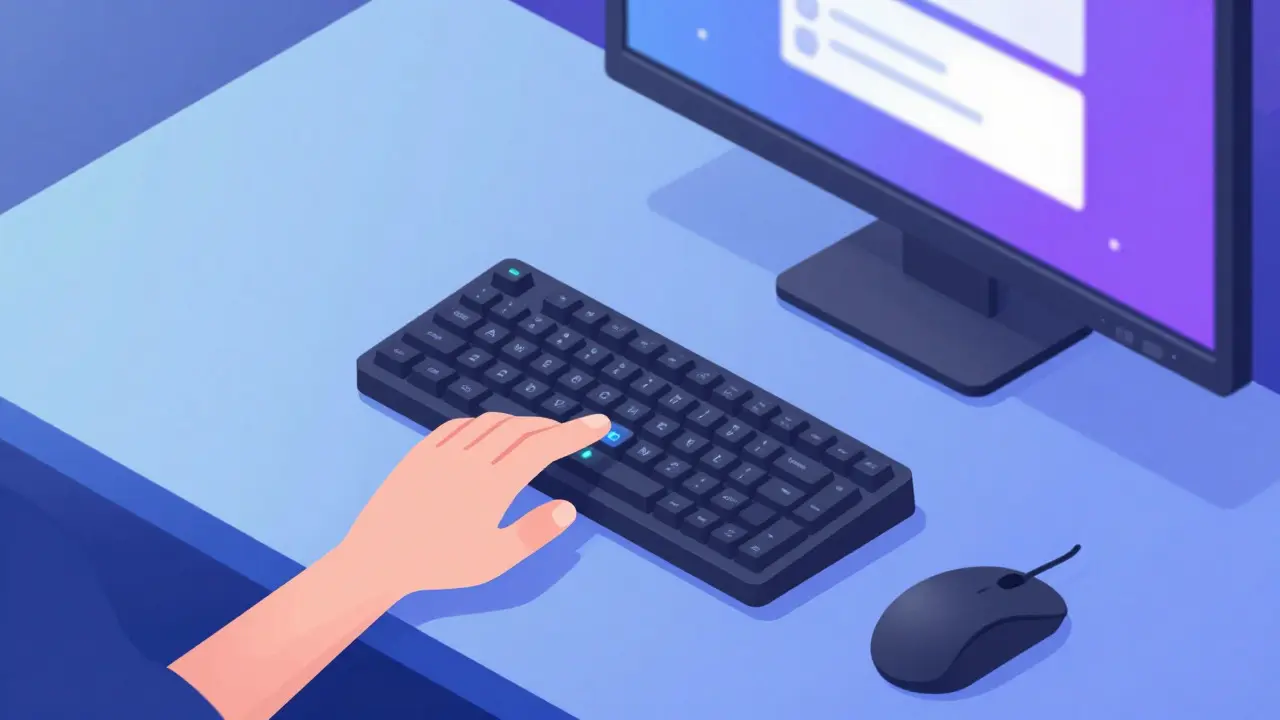
This is where hardware control changes everything. Moving from mouse-and-keyboard inputs to dedicated physical buttons bridges the gap between thinking an action and executing it. Whether you are using a dedicated Elgato Stream Deck or a custom-built mechanical keyboard, the goal is the same: reduce friction. We will look at how to set up these tools to make your broadcast flow smoother, covering the differences between the two approaches, the best software configurations, and the exact macros that save time.
The Core Difference: Screen vs. Key
Before buying anything, you need to understand what you are actually getting. These two devices solve the same problem but offer very different user experiences.
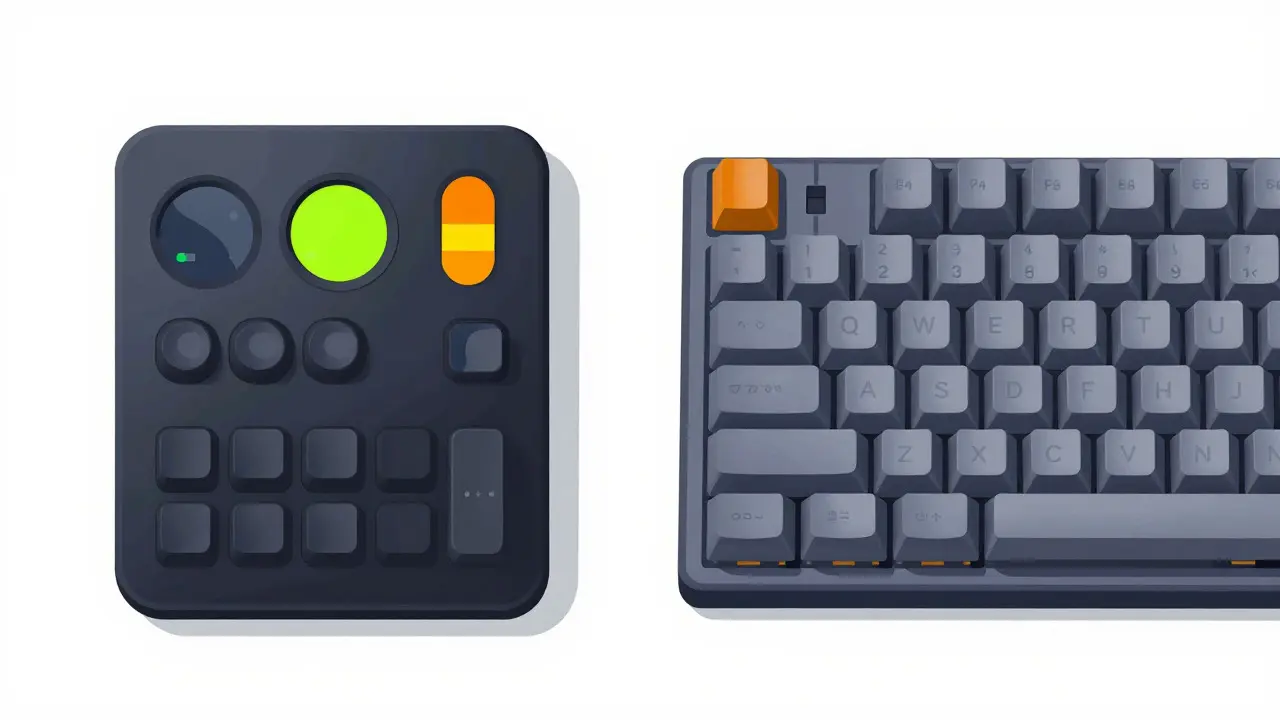
The Stream Deck uses LCD keys. This means every button can display a unique image, icon, or even video preview. It looks professional on camera and makes it incredibly easy to identify which button does what without looking down. However, the tactile feel is often described as mushy by people who prefer mechanical switches. The buttons are rubber-like and lack the satisfying "click" of a traditional keyboard.
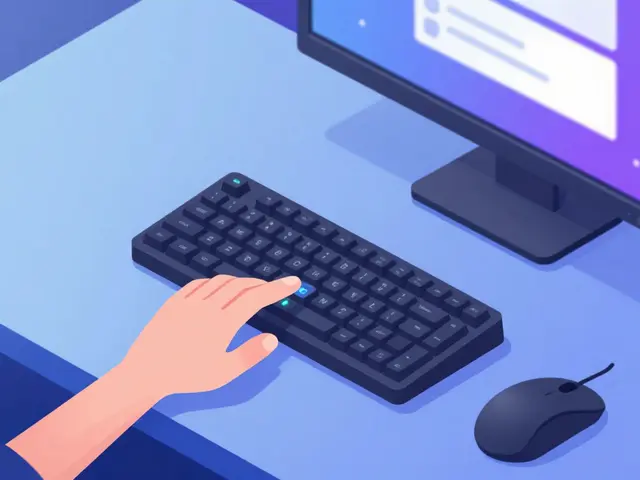
A Macropad, on the other hand, is essentially a small mechanical keyboard. It usually has fewer keys (3 to 12), but those keys are full-sized mechanical switches. You get the tactile feedback, the audible click, and the durability of a gaming keyboard. The downside? The keys are blank. You either stick labels on them or memorize their positions. For some streamers, this minimalist aesthetic fits their desk better than a glowing grid of screens.
| Feature | Elgato Stream Deck | Custom Macropad |
|---|---|---|
| Tactile Feel | Rubber membrane, soft press | Mechanical switch, crisp click |
| Visual Feedback | Dynamic LCD icons per key | Static LED backlighting (usually) |
| Setup Complexity | Plug and play with app | Requires driver configuration (QMK/VIA) |
| On-Camera Look | Professional, branded | Minimalist, customizable |
| Cost Range | $140 - $250 USD | $50 - $150 USD (DIY kits) |
Choosing Your Software Ecosystem
Hardware is useless without the right brain behind it. Most streamers use OBS Studio or Streamlabs Desktop. Both support hotkeys, but they handle them differently.
If you choose the Stream Deck, you are locked into the Elgato Control Center software. This is a double-edged sword. On one side, it offers pre-built plugins for almost every major platform-Twitch, YouTube, Discord, and Spotify. You can drag and drop a "Follow Alert" plugin onto a key, and it works instantly. On the other side, the software can be resource-heavy. On older machines, opening the Control Center might cause frame drops in your game.
For macropads, you have more freedom. You can use generic macro software like AutoHotkey (Windows) or Karabiner-Elements (macOS). Alternatively, if you build a DIY macropad using QMK firmware, you can program complex sequences directly into the device’s memory. This means the macros work even if your computer crashes or the USB cable wiggles loose. For reliability, a locally stored macro is superior to software-dependent triggers.
Essential Macros for Live Streaming
Having buttons is not enough; you need to know what to put on them. Here are the most critical functions that justify having a dedicated controller on your desk.
- Mute/Unmute Microphone: This should be your thumb button. In OBS, go to Settings > Hotkeys and assign a unique key combination to "Mute Mic." Assign this to the most accessible key on your device. There is no excuse for talking over yourself during a donation readout.
- Scene Switching: Don’t rely on the mouse to switch from "Just Chatting" to "Gameplay." Create a row of buttons for your top four scenes. Use the Stream Deck’s "Scenes" feature or OBS profiles to group these logically.
- Alerts Trigger: If you use services like Streamelements or Streamlabs, they offer webhooks. You can create a button that sends a webhook request to trigger a "Hype Train" start or a custom sound effect. This adds interactivity without needing another person in chat to type commands.
- Browser Refresh: Overlays powered by browser sources often freeze. A dedicated "Refresh Browser Sources" macro saves you from digging through the OBS source tree. It keeps your overlay fresh and prevents graphical glitches.
- Chat Commands: Map common responses to text inputs. If you answer the same question about your setup every hour, map a button to paste that text into your chat box. Tools like ChatGPT integrations for Stream Deck can also generate quick replies based on context.
Physical Setup and Ergonomics
Where you place the device matters as much as what it does. A common mistake is placing the Stream Deck or macropad too far away. If you have to reach for it, you won’t use it. It needs to be within thumb’s reach of your primary input method.
If you game with a mouse and keyboard, place the controller to the right of your keyboard, aligned with your number pad area. This allows your right hand to stay near the mouse while your pinky or ring finger can tap the edge keys. For console streamers using a controller, a vertical stand for the Stream Deck placed next to the couch armrest works best.
Cable management is also part of the setup. Use short USB cables (under 6 inches) to keep the device close to your PC. Long cables create slack that can get caught on your mouse movements. If you are using a wireless macropad, ensure the receiver is plugged into a hub close to your PC to minimize latency. Latency in a mute button is unacceptable; you want instant response.
Advanced Configuration Tips
Once the basics are working, you can optimize for speed. One powerful technique is using "Profiles." In the Elgato Control Center, you can create different profiles for different applications. When you launch your game, the Stream Deck automatically switches to a profile with game-specific macros (like reloading weapons or using items). When you switch to OBS, it switches to broadcasting controls.
For macropad users, layer switching is the equivalent. You can hold a modifier key (like Ctrl) to access a second layer of functions on the same physical keys. This effectively doubles the number of actions you can perform on a 6-key device. For example, pressing "Key 1" mutes the mic, but holding "Layer Shift" and pressing "Key 1" could start a recording.
Another pro tip involves audio routing. Many streamers struggle with hearing themselves versus their game. You can map a button to toggle your headphones’ volume independently of your master volume. Using software like Voicemeeter, you can create a macro that boosts your voice monitoring level temporarily so you can check if your mic is picking up background noise.
Troubleshooting Common Issues
Even with the best setup, things break. Here are the most frequent problems and how to fix them quickly.
- Buttons Not Responding: Check if the software is running in the background. Some antivirus programs block macro inputs. Add your streaming software and macro tool to the whitelist.
- Laggy Icons: If your Stream Deck icons flicker or load slowly, reduce the resolution of the images you upload. High-res PNGs take longer to render on the device’s processor. Stick to 72dpi images.
- Double Inputs: Sometimes a single press registers as two clicks. This is often a hardware issue with cheap membranes. Clean the contacts under the keys with compressed air or replace the membrane sheet if it is old.
- OBS Crashes: If clicking a scene change button crashes OBS, you likely have a corrupted scene transition file. Reset your transitions to default and re-import your custom ones one by one.
Final Thoughts on Workflow Efficiency
The ultimate goal of adding a Stream Deck or macropad is not to look cool-it is to remove cognitive load. Every second you spend hunting for a menu option is a second you are not engaging with your audience. By automating repetitive tasks and bringing critical controls to your fingertips, you free up mental energy to focus on content creation.
Start simple. Map your mute button and your main scene switch. Once those become muscle memory, add alerts and chat commands. Gradually build your workflow until the hardware feels like an extension of your hands rather than a separate tool. Your viewers will notice the difference in professionalism, even if they never see the buttons themselves.
Can I use a Stream Deck with a Mac?
Yes, the Elgato Stream Deck works seamlessly with macOS. The Control Center software is fully compatible with Mac operating systems, including the latest versions. You may need to grant accessibility permissions in System Settings for the macros to interact with other applications properly.
Is a macropad better than a Stream Deck for gaming?
It depends on your preference. Macropads offer faster actuation and tactile feedback, which gamers often prefer. However, Stream Decks provide visual cues that help identify complex combos or abilities without memorizing layouts. For pure speed, a mechanical macropad wins. For versatility and visual aid, the Stream Deck is superior.
Do I need a Stream Deck to use OBS?
No, OBS Studio is completely free and works perfectly with standard keyboard shortcuts. A Stream Deck or macropad is an accessory that enhances convenience and speed. It is not required to broadcast, but it significantly improves the user experience for regular streamers.
How do I update my Stream Deck firmware?
Open the Elgato Control Center application. Click on the settings icon (gear) in the top right corner. If a firmware update is available, a notification will appear prompting you to download and install it. Ensure your device is connected via USB during the process.
Can I share my Stream Deck layout with others?
Yes, you can export your profiles as .elgato files. These files can be shared via email or cloud storage. Other users can import the file into their Control Center to replicate your exact button layout and macro settings, provided they have the same plugins installed.