31
4K Streaming Explained: A Practical Guide to Ultra HD Video
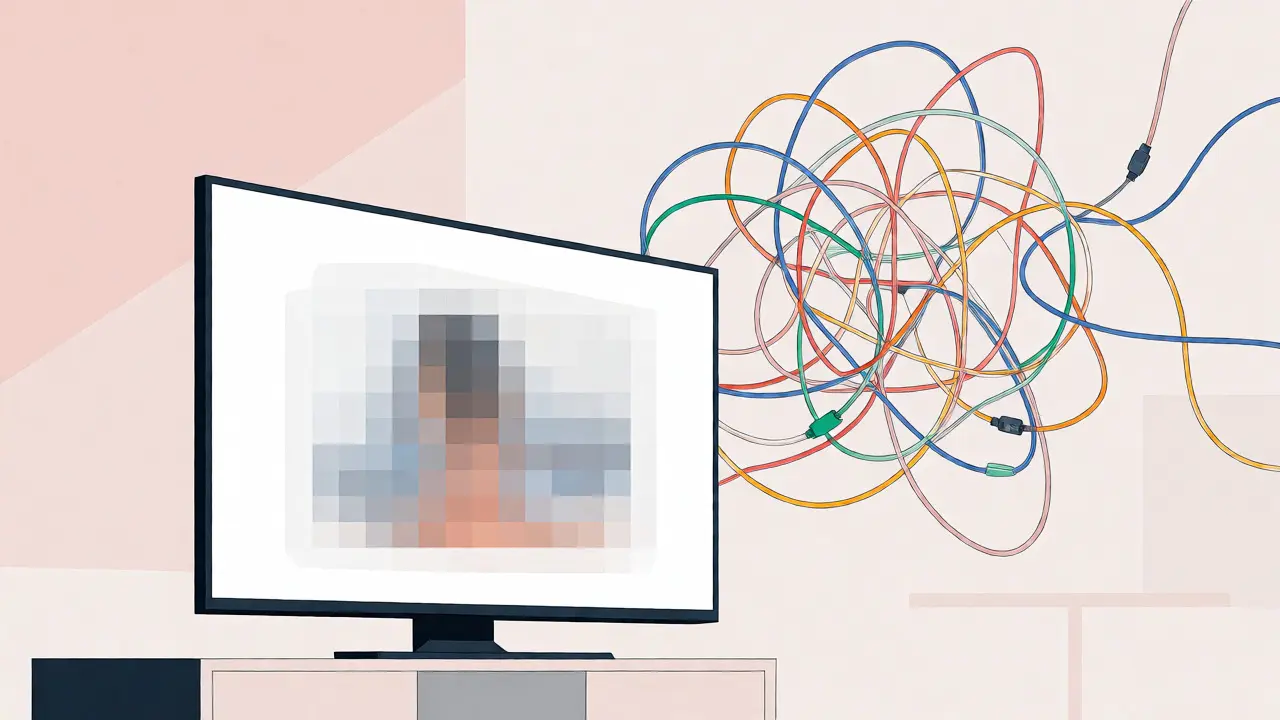
You bought a shiny new 65-inch 4K TV. You plugged it in, opened Netflix, and hit play on that blockbuster movie you’ve been waiting for. But instead of the crystal-clear, life-like image you were promised, everything looks... okay. Maybe a bit soft? Or maybe the colors just don’t pop like they did at the electronics store demo. If this sounds familiar, you’re not alone. The gap between owning a 4K screen and actually experiencing true Ultra HD is surprisingly wide, and most people fall into it without realizing why.
The truth is, 4K isn’t just about pixels. It’s a whole ecosystem involving your internet speed, your streaming device, your HDMI cables, and even how your TV handles color data. If one link in that chain breaks, you’re watching upscaled 1080p content, no matter what the label says. This guide cuts through the marketing jargon. We’ll look at exactly what 4K streaming requires, why HDR matters more than resolution for many viewers, and how to troubleshoot those annoying buffering issues or dull images. By the end, you’ll know exactly what to tweak to get the picture quality you paid for.
What Actually Counts as 4K Streaming?
Let’s clear up a common misconception first. "4K" is a loose term. Technically, there are two standards: DCI 4K (used in cinema) and UHD (Ultra High Definition), which is what consumer TVs use. When we talk about streaming, we mean UHD. That’s a resolution of 3840 x 2160 pixels, totaling roughly 8.3 million pixels. Compare that to standard Full HD (1920 x 1080), which has only 2 million pixels. Four times the detail sounds great, but does it matter on your couch?
Here’s the reality check: if you sit more than six feet away from a 55-inch screen, your eyes might struggle to distinguish 4K from 1080p. However, if you sit closer-say, three to four feet-the difference becomes obvious. Text becomes sharper, textures in fabrics look real, and hair strands separate clearly. But resolution is just the foundation. Without proper compression and high bitrate, 4K can look worse than a well-encoded 1080p file.
Most streaming services use H.265 (HEVC) or AV1 codecs to squeeze these massive files down to sizes your Wi-Fi can handle. AV1 is newer and more efficient, offering better quality at lower bitrates, but it demands more processing power from your streaming stick or smart TV. If your device is older, it might rely on H.264, which struggles with 4K efficiency, leading to blocky artifacts in dark scenes.
The Bandwidth Myth: How Much Internet Do You Really Need?
You’ve probably seen claims like "You need 100 Mbps for 4K." That’s often marketing fluff designed to sell you premium fiber plans. In practice, major providers have different actual requirements. Let’s look at the real numbers based on current 2026 standards:
| Service | Recommended Speed | Actual Average Usage | Notes |
|---|---|---|---|
| Netflix | 15 Mbps | 12-15 Mbps | Uses HEVC; stable connection preferred |
| Disney+ | 25 Mbps | 18-22 Mbps | Often streams at lower bitrates during peak hours |
| YouTube | 20 Mbps | Varies widely (10-40 Mbps) | Depends heavily on source upload quality |
| Apple TV+ | 25 Mbps | 20-25 Mbps | Generally higher bitrate than competitors |
| Amazon Prime Video | 15 Mbps | 10-14 Mbps | Aggressive compression saves bandwidth |
Notice anything? None of them actually require 100 Mbps. So why do people buffer? It’s rarely about total download speed. It’s about latency and consistency. If your Wi-Fi signal drops to 5 Mbps for ten seconds because your neighbor started downloading a game update, your stream will stutter. Ethernet is always king here. If you can plug your streaming box directly into your router, do it. It eliminates interference and packet loss, which are the real enemies of smooth playback.
If you must use Wi-Fi, aim for the 5GHz band. The 2.4GHz band is crowded with microwaves, baby monitors, and Bluetooth devices. It penetrates walls better but chokes under heavy data loads. Place your router within line-of-sight of your TV if possible. Also, check your router’s QoS (Quality of Service) settings. Prioritizing your streaming device ensures it gets bandwidth priority when other family members are gaming or video calling.

HDR: The Secret Sauce You’re Probably Missing
Here’s a controversial take: HDR (High Dynamic Range) makes a bigger visual impact than 4K resolution for most people. While 4K gives you more pixels, HDR gives you better light and color. Standard dynamic range (SDR) limits brightness and contrast. HDR allows for brighter highlights-think sun glinting off water-and deeper blacks without losing detail in shadows.
But HDR isn’t one thing. There are competing formats, and your TV needs to support the right one to work with your streaming service.
- HDR10: The baseline open standard. Supported by all 4K TVs and streaming services. It uses static metadata, meaning the brightness settings apply to the entire movie scene-by-scene, not shot-by-shot.
- Dolby Vision: A proprietary format used by Disney+, Apple TV+, and some Netflix originals. It uses dynamic metadata, adjusting brightness and color for every single frame. This results in much more realistic lighting transitions. Note: Dolby Vision requires specific hardware licensing, so not all 4K TVs support it.
- HDR10+: Samsung and Amazon’s answer to Dolby Vision. It also uses dynamic metadata but is royalty-free. Amazon Prime Video supports this heavily. If you have a Samsung TV, this is likely your best option.
If your TV doesn’t display an HDR badge or icon while playing content, you aren’t getting HDR. Check your HDMI cable. Old "High Speed" cables might not carry the necessary bandwidth for HDR metadata. Look for "Premium High Speed" or "Ultra High Speed" HDMI 2.1 cables. They cost slightly more but ensure the handshake between your player and TV works correctly.
Device Compatibility: Is Your Stick Too Old?
Owning a 4K TV doesn’t mean your old Roku or Chromecast can feed it properly. Many devices sold in 2018 or earlier claimed "4K ready" but lacked support for modern codecs like HEVC or HDR10+. If your interface feels sluggish or videos take forever to start, your device might be struggling to decode the stream.
Check your device specs against these minimums for a smooth 2026 experience:
- Processor: Quad-core CPU capable of hardware decoding HEVC/H.265.
- RAM: At least 2GB. Less than that causes apps to crash or reload constantly.
- HDMI Output: Must be HDMI 2.0a or higher for HDR10; HDMI 2.1 for full Dolby Vision and high refresh rates.
- App Support: Ensure the specific app version installed supports 4K. Sometimes updates break features, requiring a factory reset.
If you use a Smart TV built-in OS (like Tizen, webOS, or Android TV), you’re usually safe, provided the firmware is updated. However, external boxes like the Apple TV 4K or Nvidia Shield often offer superior upscaling algorithms. These boxes take lower-resolution content and sharpen it intelligently, making non-4K sources look significantly better on large screens.
Troubleshooting: Why Does My Picture Look Weird?
You’ve checked the internet, the cables, and the settings. Yet, the image still looks wrong. Here are the three most common culprits:
1. The "Soap Opera Effect": Your TV’s motion smoothing feature is too aggressive. It inserts fake frames to make motion look smoother, but it creates a hyper-realistic, unnatural look that ruins cinematic intent. Go into your TV’s picture settings and turn off "Motion Smoothing," "Auto Motion Plus," or "TruMotion." Set it to zero or low.
2. Oversaturation: HDR content can look neon-bright if your TV isn’t calibrated. Manufacturers push vivid presets to stand out in stores. Switch your picture mode to "Filmmaker Mode" or "Cinema." These modes disable post-processing and adhere strictly to the director’s intended color grading.
3. Black Crush: Dark scenes look like black blobs with no detail. This happens when the TV’s local dimming zones are poorly managed or the gamma setting is off. Adjust the "Black Level" or "Gamma" slightly upward until you can see details in shadowed areas without the blacks turning gray.
Is 4K Worth It in 2026?
Absolutely, but manage your expectations. 4K streaming is no longer a luxury; it’s the standard for new content. However, the library isn’t 100% native 4K. Many shows are filmed in 4K but distributed in 1080p due to storage costs. Always check the info button on your remote. If it says "HD" or "1080p," you’re not getting Ultra HD, regardless of your TV’s capability.
For gamers, 4K is transformative, especially with PS5 or Xbox Series X supporting variable refresh rate (VRR). For movie buffs, HDR is the real upgrade. For casual news watchers or sports fans, the jump from 720p to 1080p was huge, but 1080p to 4K is subtle unless you’re sitting close.
Ultimately, 4K streaming works best when the whole chain is optimized. Don’t blame your TV if your Wi-Fi is weak. Don’t blame your internet if your HDMI cable is ancient. Audit your setup piece by piece. Once everything aligns, you’ll finally see the difference you were promised.
Do I need a special subscription for 4K streaming?
Yes, on most platforms. Netflix requires the Premium plan, Hulu needs the No Ads plan plus an add-on, and Amazon Prime Video includes it with membership but requires compatible devices. YouTube offers 4K for free, but only on select high-quality uploads.
Why is my 4K stream buffering even with fast internet?
Buffering is often caused by Wi-Fi interference rather than lack of speed. Try using an Ethernet cable, switching to the 5GHz Wi-Fi band, or moving your router closer to the device. Also, ensure no other devices are hogging bandwidth with large downloads.
Can I watch 4K content on a 1080p TV?
No, a 1080p TV cannot display 4K resolution. It will downscale the image to fit its native resolution. While the source file is 4K, you won't see the extra detail. However, some players allow you to output 1080p from a 4K source, which can sometimes look slightly sharper due to supersampling techniques.
What is the difference between HDR10 and Dolby Vision?
HDR10 is a static format where brightness settings apply to the whole scene. Dolby Vision uses dynamic metadata to adjust brightness and color for each individual frame, resulting in more accurate lighting and contrast. Dolby Vision generally offers superior picture quality but requires specific TV hardware support.
Does 4K use a lot of data?
Yes. Streaming 4K video consumes approximately 7 GB per hour, compared to about 1.5 GB for HD (1080p). If you have a data cap, monitor your usage closely. Watching 4K movies nightly could quickly exceed typical monthly caps of 500 GB to 1 TB.