9
Prime Video Channels Cancellation: How to Add and Remove Subscriptions
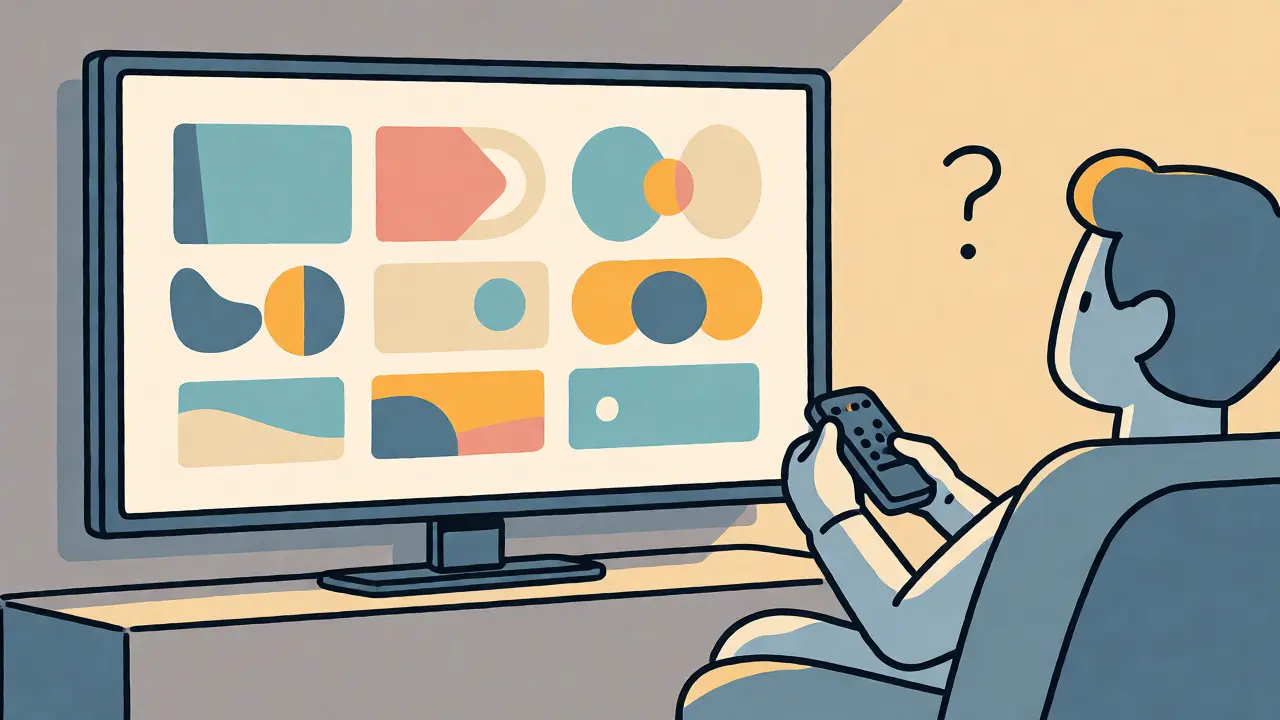
You’re three episodes into a gripping thriller on Max or a niche documentary service, only to realize you’ve been paying for it through Amazon Prime Video for six months without watching a single thing. It’s a common trap. Adding a Prime Video Channel takes about ten seconds. Remembering where the "unsubscribe" button lives? That’s often the hard part.
If you are reading this, you likely want one of two things: either you want to stop bleeding money on services you barely use, or you’re trying to figure out how to stack your streaming apps under one roof without losing your mind. This guide cuts through the clutter. We’ll cover exactly how to add and remove these add-on subscriptions across different devices, why some methods work better than others, and how to ensure you don’t get charged again next month.
Key Takeaways
- The App vs. The Browser: You cannot easily cancel most Prime Video Channels directly within the mobile app interface; using a web browser is usually faster and more reliable.
- Billing Cycle Matters: Cancelling today doesn’t mean access stops today. You keep access until the end of your current billing period.
- Third-Party Billing: If you subscribed via Apple TV or Roku, you might need to cancel through those specific device settings, not just Amazon.
- Free Trials Are Tricky: Always check the expiration date immediately after signing up for a free trial to avoid surprise charges.
Understanding Prime Video Channels
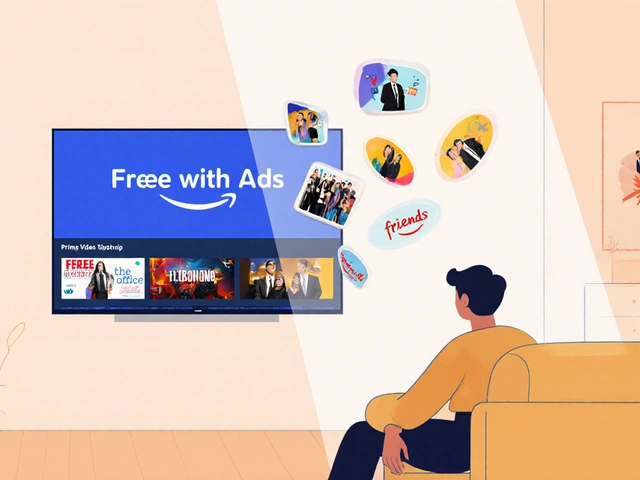
Think of Amazon Prime Video as a digital cable provider. Your standard Prime membership gets you the basic package-movies, original series like The Boys or Reacher, and some licensed content. But if you want HBO Max (now just Max), Showtime, or Starz, you buy them as add-ons. These are called Prime Video Channels.
Why bother with this instead of downloading the standalone Max app? Convenience. One login, one bill, and a unified search bar that pulls results from all your connected services. For many people, especially those who hate juggling five different passwords, this integration is worth the slight markup in price. However, this convenience creates a management headache when you decide you’ve had enough.
| Method | Best For | Difficulty | Visibility of Charges |
|---|---|---|---|
| Amazon Website (Desktop) | Full control & history review | Low | High - Shows all details |
| Mobile App (iOS/Android) | Quick browsing | Medium | Low - Often redirects to web |
| Roku / Fire TV Stick | TV-only users | Medium | Medium - Device specific |
| Apple TV / iOS Settings | Subscribers via Apple ID | Low | High - Grouped with other apps |
How to Add Prime Video Channels
Adding a channel is straightforward, but there is a critical step most people skip: checking the trial terms. When you click "Add Channel," Amazon often offers a seven-day free trial. Sounds great, right? Until you forget about it and get hit with a $15 monthly charge.
To add a channel properly:
- Open the Prime Video app on any device or go to primevideo.com.
- Navigate to the "Store" or "Channels" tab. Here you will see a curated list of available partners like MGM+, Paramount+ Premium, and BritBox.
- Select the channel you want. Read the fine print regarding the trial period length and the recurring cost.
- Confirm the purchase. You will receive an email receipt immediately. Keep this. It contains the exact cancellation deadline if you are on a trial.
Once added, the channel’s content appears alongside your regular Prime videos. If you have multiple profiles set up in your household, remember that adding a channel usually applies to the entire account, not just your profile. Unless you set up parental controls, everyone can watch-and everyone’s viewing habits contribute to the algorithm.
The Right Way to Cancel Prime Video Channels
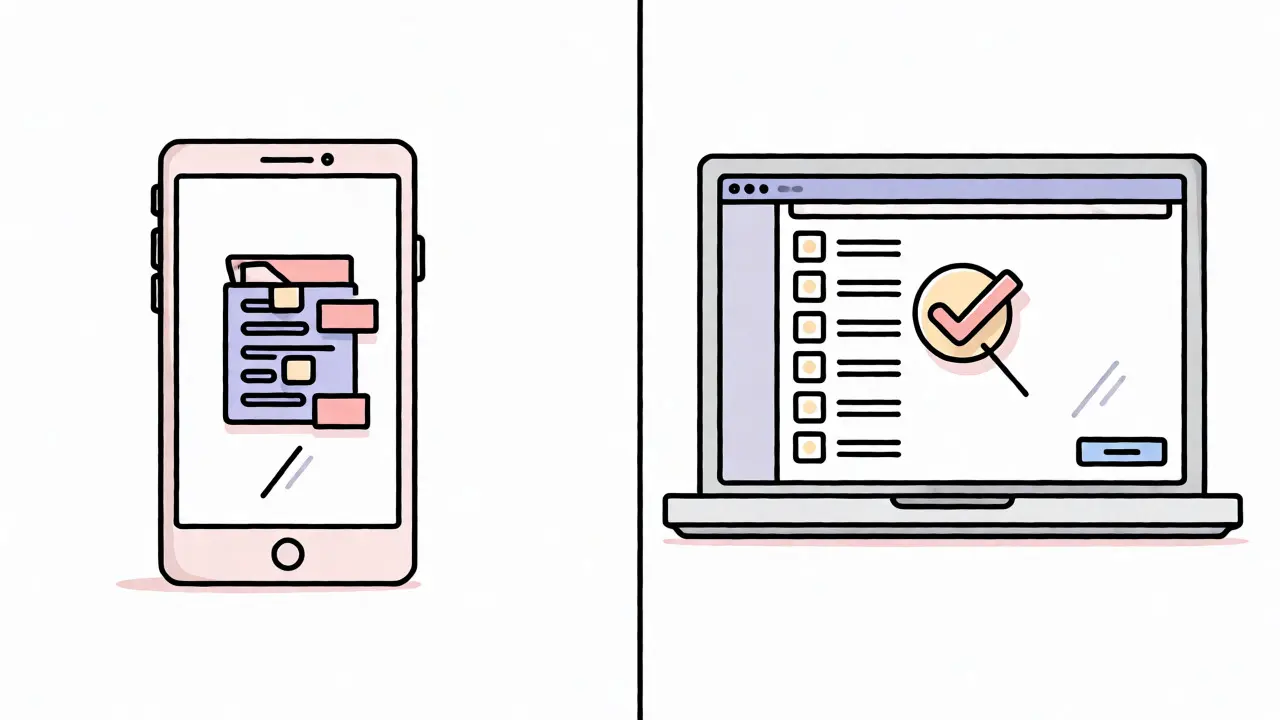
Here is the friction point: You cannot reliably cancel a channel inside the mobile app. If you try, you’ll often find yourself redirected to a browser anyway. The most robust method is using a desktop or laptop computer.
Follow these steps to ensure the subscription actually ends:
- Log in to your Amazon account at amazon.com (or your regional site like amazon.com.au).
- Hover over "Accounts & Lists" in the top right corner and select "Memberships & Subscriptions." Alternatively, search for "Your Memberships and Subscriptions" in the search bar.
- You will see a dashboard listing all active subscriptions. Look for the section labeled "Other Subscriptions" or specifically "Prime Video Channels." Note that your main Prime membership is listed separately.
- Find the specific channel you want to drop. Click "Cancel Channel" or "Manage Subscription."
- Amazon will ask for feedback. Be honest, but do not let the retention offers distract you unless you genuinely want to stay. Click "Confirm Cancellation."
A crucial detail here: After confirming, look for the status change. It should say "Cancelled" with an expiration date. Do not assume it is done because the page closed. Refresh the page to verify the status updated.
Cancelling via Mobile Devices and Smart TVs
If you don’t have a computer handy, you can still cancel, but the path varies by hardware.
On Fire TV Stick: Go to Settings > My Fire TV > Prime Video Channels. Select the channel and choose "Unsubscribe." This works well because Fire OS integrates deeply with Amazon’s backend.
On Roku: If you subscribed through the Roku interface, you might need to go to "Settings" > "Account" > "Subscription Manager" on your Roku home screen. However, if you subscribed via the Amazon website, it is safer to use the browser method mentioned above to avoid double-billing issues.
On Apple Devices (iPhone/iPad/Apple TV): This is the exception. If you signed up for a channel using FaceID or TouchID while in the app, Amazon might process this as an In-App Purchase. To cancel, you must go to your iPhone Settings > [Your Name] > Subscriptions. Find the channel there and cancel it. If you don’t see it in Apple Subscriptions, it was likely billed directly by Amazon, so revert to the web browser method.
Troubleshooting Common Cancellation Issues
Sometimes, despite your best efforts, you get charged again. Why does this happen?
Timing Errors: You cancelled after the renewal date. If your billing cycle renews on the 1st, and you cancel on the 3rd, you pay for that month. You won’t be refunded, but you won’t be charged the following month. Always aim to cancel at least 48 hours before the renewal date.
Multiple Accounts: Do you share a Prime account with family? Someone else might have re-added the channel. Check the "Order History" in your Amazon account to see who made the purchase.
Ghost Subscriptions: Occasionally, a channel shows as "Active" even after cancellation due to server lag. Wait 24 hours. If it persists, contact Amazon Customer Service via chat. They can manually wipe the subscription flag. Be polite but firm; tell them you received no confirmation email.
Smart Strategies for Managing Streaming Costs
Streaming fatigue is real. With dozens of channels available, it’s easy to spend more on add-ons than on a traditional cable bundle. Here is how to keep costs down:
- The Rotation Method: Don’t subscribe to everything forever. Subscribe to HBO Max for one month to binge a specific show, then cancel. Rotate to Starz the next month. This keeps your library fresh and your wallet intact.
- Calendar Alerts: As soon as you start a free trial, open your phone calendar. Create an event titled "CANCEL [Channel Name]" for two days before the trial ends. Set it to repeat yearly if you plan to resubscribe later.
- Review Quarterly: Every three months, log into your Amazon account and review the "Memberships & Subscriptions" page. Ask yourself: "Did I watch anything from this channel in the last 90 days?" If the answer is no, cut it.
Remember, Prime Video Channels are designed to be flexible. Unlike annual contracts, they are month-to-month commitments. Use that flexibility to your advantage. You aren’t locked in, so don’t act like you are.
Frequently Asked Questions
Can I cancel my Prime Video Channel instantly?
No, you cannot cancel it "instantly" in the sense of immediate loss of access. When you cancel, the subscription status changes to "Cancelled," but you retain full access to the channel’s content until the end of your current billing cycle. For example, if you pay on the 1st of every month and cancel on the 15th, you can still watch until the end of that month.
Will I get a refund if I cancel early?
Generally, no. Amazon’s policy for Prime Video Channels is that cancellations take effect at the end of the current billing period. You will not receive a pro-rated refund for the unused portion of the month. However, if you are within a free trial period and cancel before it converts to a paid subscription, you will not be charged at all.
Why can’t I find the cancel button in the app?
The Prime Video mobile app is primarily designed for consumption, not account management. Many administrative features, including detailed subscription management, are hidden or require redirection to a web browser. Using a desktop browser provides the most comprehensive view of your subscriptions and avoids the limitations of the app interface.
Does cancelling a channel affect my main Prime membership?
No. Prime Video Channels are separate add-on subscriptions. Cancelling a channel like Showtime has zero impact on your core Amazon Prime benefits, such as free shipping, Prime Music, or access to Prime Originals.
What happens to my downloaded content from a cancelled channel?
Any movies or shows you downloaded for offline viewing from a cancelled channel will become unplayable once your subscription expires. Even if the file remains on your device, the DRM license will expire, and you will lose access to that content until you resubscribe.