29
Fix Bluetooth Audio Delay: Pairing Headphones with Streaming Devices and Lip-Sync Solutions
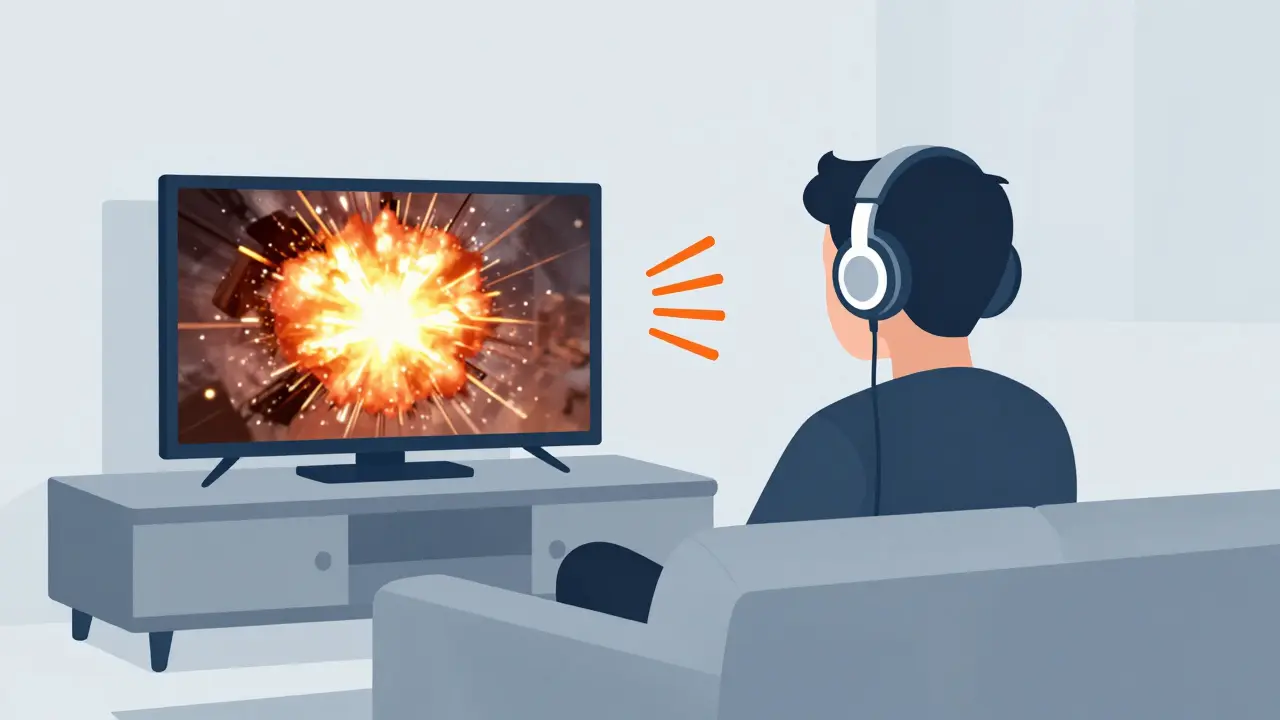
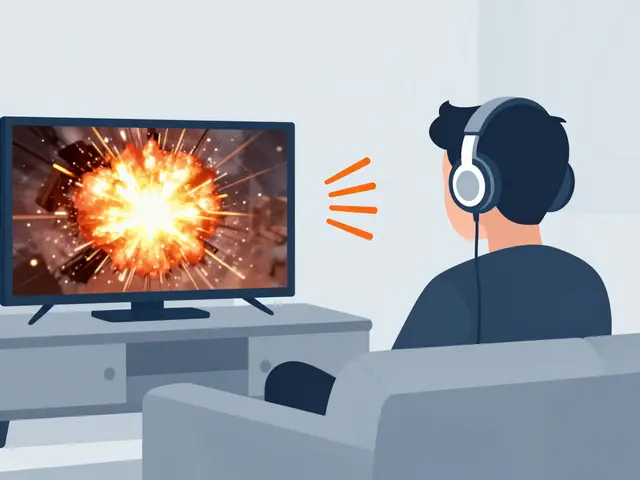
There is nothing quite as frustrating as watching a high-budget action movie or a live sports match on your big screen TV, only to hear the explosion half a second after you see it. Or worse, hearing the referee blow the whistle before he even lifts it to his mouth. If you have ever tried to connect Bluetooth headphones are wireless audio devices that connect to sources via radio frequency signals to a modern streaming device like an Apple TV, Roku, or Amazon Fire Stick, you likely know this pain well. The disconnect between what you see and what you hear is called lip-sync error, and it ruins immersion instantly.
This isn't just a minor annoyance; it's a technical conflict between how wireless audio works and how video streams are processed. By 2026, most TVs and streaming boxes support advanced codecs like Dolby Atmos and DTS:X, which sound incredible but add processing time. When you mix in the inherent latency of Bluetooth transmission, the gap widens. This guide will walk you through exactly why this happens, how to pair your gear correctly from the start, and the specific settings tweaks needed to get your audio and video back in perfect harmony.
Why Your Audio Is Lagging Behind the Video
To fix the problem, you first need to understand the culprit. It’s not usually a broken headphone or a faulty streaming stick. It’s a combination of three factors: codec compression, transmission protocol, and source processing.
First, let’s talk about codecs. A codec is the language your device uses to compress and decompress audio data. Older Bluetooth standards used SBC, which is basic but slow to process. Modern devices use aptX, AAC, or LDAC. While these offer better quality, some introduce slight delays during encoding. For example, if your streaming device outputs high-bitrate multi-channel audio in Dolby Digital Plus, it has to decode that signal before sending it to your headphones. That decoding takes milliseconds. Multiply that by the number of channels, and you’ve got a delay.
Second, there is the Bluetooth handshake itself. Bluetooth isn’t designed for real-time, zero-latency transmission like wired connections. It prioritizes connection stability and battery life over speed. Even with the latest Bluetooth 5.4 standard common in 2026 hardware, there is still a physical limit to how fast data packets can travel and be reassembled. This is known as "round-trip latency." Most consumer Bluetooth headphones sit somewhere between 100ms and 300ms of latency. To the human ear, anything over 40ms starts to feel "off" when synced with video.
Third, consider your TV or streaming box. Many modern smart TVs apply post-processing effects like motion smoothing (often called TruMotion or MotionFlow) or noise reduction. These features analyze video frames to create new ones, adding significant delay to the video output while the audio might bypass some of this processing or take a different path entirely. The result? The video gets held up, and the audio races ahead-or vice versa, depending on where the bottleneck is.
The Right Way to Pair Your Gear
Before diving into software fixes, ensure your hardware is paired optimally. A poor initial connection can increase interference and jitter, worsening latency. Here is the best practice for pairing Bluetooth headphones with streaming media players.
- Clear the Environment: Turn off other Bluetooth devices nearby. Wi-Fi routers operating on 2.4GHz can interfere with Bluetooth signals. If possible, keep your streaming device away from large metal objects or microwaves.
- Use the Native App: Don’t rely solely on the TV’s Bluetooth menu. Use the dedicated app for your streaming device (e.g., the Roku app, Apple Remote app, or Fire TV app) on your phone. These apps often have more robust discovery protocols and can force a fresh handshake.
- Forget and Re-pair: If you’ve had issues before, go into your device settings, find "Bluetooth Devices," select your headphones, and choose "Forget" or "Remove." Then, put your headphones into pairing mode (usually by holding the power button until the LED flashes blue/red) and search again.
- Check for Updates: Firmware updates for both your headphones and your streaming device often include latency optimizations. Check the manufacturer’s website or the device settings for any pending updates.
If you are using a dongle-based system (like a USB-C Bluetooth transmitter plugged into your TV), make sure it supports low-latency codecs like aptX Low Latency or LC3plus. Standard transmitters will always struggle with sync.
Software Fixes: Adjusting Settings on Your Device
Once your hardware is solid, you need to adjust the software. Every major streaming platform and device offers some form of audio delay compensation. You just need to know where to look.
Apple TV 4K (tvOS 19+)
Apple TV handles Bluetooth audio quite well, especially with AirPods due to their optimized W1/H1 chips. However, third-party headphones may lag. Go to Settings > Remotes and Devices > Audio. Look for the "Audio Delay" slider. Start at 0ms and adjust in 10ms increments while watching a scene with clear dialogue. You want the lips to match the voice perfectly. Note that tvOS automatically adjusts this for some content types, so manual tweaking is sometimes overridden. If that happens, try disabling "Adaptive Audio" temporarily to see if stability improves.
Amazon Fire TV (Fire OS 8+)
Fire TV sticks are popular but notorious for audio bugs. Navigate to Settings > Display & Sounds > Audio > Audio Calibration. Select "Run Now" to let the device test your setup. Afterward, go to Advanced Settings > Audio Delay. Here you can manually set the delay. A positive value delays the audio further; a negative value speeds it up relative to the video. Most users find a setting between -50ms and +50ms resolves the issue.
Roku Streaming Sticks (Roku OS 2026)
Roku devices vary by model. On newer 4K models, go to Settings > Audio > Advanced Audio Settings. Look for "Audio Delay Compensation." Enable it. Roku uses a proprietary algorithm to detect sync errors and correct them on the fly. If the auto-correction fails, check if your TV is also applying its own delay. Sometimes, turning off the TV’s internal audio delay feature helps because the Roku is already handling it.
Google Chromecast with Google TV
Go to Settings > Preferences > Accessibility > Captions-yes, captions! There is often an "Audio Delay" option hidden here for accessibility reasons. Alternatively, under Settings > Preferences > Sound, look for "Sync Audio." Some Android-based apps like Netflix or Disney+ also have their own internal audio delay sliders within the app settings. Always check the app-specific settings first, as they override system-wide settings.
TV Settings: The Hidden Culprit
Often, the problem isn’t the streaming device or the headphones-it’s the TV itself. Smart TVs are powerful computers, and they love to process everything. Here is what to change on your TV’s picture and sound menus:
- Turn Off Motion Smoothing: This is the #1 cause of lip-sync issues. Features like Sony’s Motionflow, Samsung’s Auto Motion Plus, or LG’s TruMotion add artificial frames to make 24fps movies look smoother. They do this by analyzing previous and next frames, which introduces a buffer delay. Switch your Picture Mode to "Film," "Movie," or "Cinema" mode. These modes disable motion interpolation and preserve the original timing.
- Disable Game Mode for Movies: Conversely, "Game Mode" disables almost all processing to reduce input lag for gaming. While great for games, it might strip away necessary audio processing buffers. Test both modes. Sometimes, leaving Game Mode ON actually helps sync because it removes video delay, forcing the audio to catch up naturally.
- Check HDMI-CEC Settings: Ensure HDMI-CEC (called Anynet+, Bravia Sync, or Simplink depending on brand) is enabled. This allows the streaming device and TV to communicate status changes. If CEC is off, the TV might not know when the stream starts, leading to initialization delays.
- Sound Output Format: In your TV’s audio settings, set the digital output to "Bitstream" or "Auto" rather than "PCM." PCM converts everything to stereo uncompressed audio, which can overload older Bluetooth stacks. Bitstream passes the encoded audio directly, which is more efficient for wireless transmission.
| Device | Setting Name | Location | Recommended Action | ||||
|---|---|---|---|---|---|---|---|
| Apple TV 4K | Audio Delay | Settings > Remotes & Devices > Audio | Adjust manually in 10ms steps | ||||
| Amazon Fire TV | Audio Calibration / Delay | Settings > Display & Sounds > Audio | Run calibration, then fine-tune | Roku Ultra/Stream+ | Audio Delay Compensation | Settings > Audio > Advanced | Enable automatic correction |
| Chromecast w/ Google TV | Sync Audio / Caption Delay | Settings > Preferences > Accessibility/Sound | Use app-specific settings if available |
Hardware Alternatives When Software Fails
Sometimes, no amount of tweaking will fix the lag. This usually happens with older Bluetooth headphones that lack modern low-latency codecs, or with budget streaming sticks that have weak processors. If you’re stuck, consider these hardware upgrades:
Low-Latency Bluetooth Transmitter: Instead of relying on the TV’s built-in Bluetooth, buy a dedicated USB or optical Bluetooth transmitter. Look for one that explicitly supports aptX Low Latency or LHDC. Brands like Avantree and Zexmton make models that claim sub-40ms latency. Plug this into your TV’s optical out or HDMI ARC port, and pair your headphones to the transmitter, not the TV.
Wired Connection: It sounds old-fashioned, but a 3.5mm aux cable or a USB-C to 3.5mm adapter provides zero latency. If your headphones have a wired mode, use it for critical viewing sessions like concerts or movies with heavy dialogue.
Dedicated Soundbar with Bluetooth: Connect your streaming device to a soundbar via HDMI eARC. Then, connect your Bluetooth headphones to the soundbar. High-end soundbars often have better DSP (Digital Signal Processing) chips that can manage the sync between the incoming video signal and the outgoing Bluetooth audio more effectively than a small streaming stick.
Troubleshooting Specific Scenarios
Not all lag is created equal. Here is how to diagnose based on when the problem occurs:
Only on Netflix/Disney+: These apps use their own DRM-protected audio pipelines. They often ignore system-wide audio settings. Check the app’s internal settings for an "Audio Delay" or "Lip Sync" option. If none exists, try lowering the audio quality in the app settings from "High" to "Standard." Lower bitrate means less data to process, which can reduce delay.
Only on YouTube: YouTube streams are highly compressed and variable. If lag happens here, it’s likely a buffering issue. Clear the cache of the YouTube app on your streaming device. Also, ensure your internet connection is stable. Packet loss can cause the audio stream to stall momentarily, creating a perceived delay.
Lag Starts After 10 Minutes: This suggests overheating or memory leak. Your streaming device might be throttling its CPU to cool down, slowing down audio processing. Ensure the device has ventilation. Restart the device completely (unplug from power) to clear memory leaks.
Lag Only on Live TV: Live broadcasts have higher inherent latency due to broadcast towers and encoders. Bluetooth adds to this. Unfortunately, there is little you can do except accept the delay or switch to a wired solution. Some IPTV apps allow you to adjust the buffer size, which might help.
Pro Tips for the Best Experience
To minimize future headaches, follow these rules of thumb:
- Buy Headphones with Gaming Mode: Many modern Bluetooth headphones (especially those marketed for gaming) have a "Gaming Mode" button. This switches the codec to a lower-quality but faster-transmitting profile. Use this mode for watching movies if you notice lag.
- Keep Distance Short: Bluetooth range is technically up to 30 feet, but signal strength drops significantly with walls. Keep your streaming device and headphones within 10 feet and in line of sight if possible.
- Update Regularly: Set a reminder to check for firmware updates on your headphones and streaming device every quarter. Manufacturers frequently release patches for audio sync issues.
- Use Optical Out for Critical Listening: If you have an optical-to-BT transmitter, use it for movies. Use the TV’s built-in BT for casual listening. Optical carries a cleaner, less processed signal.
Getting your audio and video in sync doesn’t have to be a guessing game. By understanding the flow of data from the streaming service to your ears, you can pinpoint where the delay is happening and eliminate it. Whether it’s a simple toggle in your TV’s picture settings or investing in a low-latency transmitter, the goal is the same: seamless immersion. Next time you hit play, you should hear every word exactly when it’s spoken.
Why does my audio lag only on certain apps?
Different apps use different audio codecs and DRM protections. Apps like Netflix and Disney+ often prioritize high-quality, encrypted audio streams that require more processing time to decode. This extra processing step can introduce latency that doesn't occur in simpler apps like YouTube or local file players. Checking the app's internal settings for audio delay adjustments is the best first step.
Does turning off motion smoothing really help lip-sync?
Yes, absolutely. Motion smoothing (or frame interpolation) forces the TV to analyze multiple frames to create new ones, which adds a significant buffer delay to the video output. Since the audio often bypasses this visual processing, it arrives earlier than the video, causing the lip-sync error. Switching to "Movie" or "Cinema" mode disables this effect and restores natural timing.
What is the best Bluetooth codec for low latency?
For the lowest latency, look for headphones and transmitters that support aptX Low Latency or LC3plus. Standard aptX and AAC offer good quality but higher delay. LDAC is excellent for high fidelity but can have variable latency depending on the device implementation. SBC is the baseline and generally has higher latency than the specialized low-latency codecs.
Can I fix lip-sync issues without buying new equipment?
In most cases, yes. Start by adjusting the audio delay settings on your streaming device (Apple TV, Fire TV, etc.) and your TV. Disable motion smoothing on the TV. Update your firmware. If these software tweaks don't resolve it, the issue may be hardware limitations, specifically older Bluetooth versions lacking low-latency codec support.
Why does my audio lag get worse over time?
This is often caused by thermal throttling or memory leaks in the streaming device. As the device heats up during long viewing sessions, it may slow down its processor to prevent damage, which increases audio processing time. Additionally, background processes can accumulate, consuming resources. A full restart (unplugging from power) usually resets these conditions.
Should I use HDMI ARC or Optical for Bluetooth headsets?
If you are using a dedicated Bluetooth transmitter, Optical (Toslink) is often preferred because it carries a pure digital bitstream without the complex handshake of HDMI. However, if your TV has built-in Bluetooth, HDMI ARC/eARC allows the TV to manage the audio pipeline more intelligently, potentially offering better sync control through the TV's settings menu.