3
How to Cancel Paramount+: Step-by-Step Guide
If you signed up for Paramount+ and now you’re wondering how to cancel, you’re not alone. People cancel for all kinds of reasons - maybe you’re not watching enough to justify the price, or you found a better deal elsewhere, or you just need a break from the endless stream of reality TV and Star Trek reruns. Whatever your reason, canceling Paramount+ is straightforward - if you know where to look. This guide walks you through exactly how to cancel on every device and platform, so you won’t get charged again.
Cancel Paramount+ on the Web
The easiest and most reliable way to cancel Paramount+ is through a web browser. Go to paramountplus.com and sign in with your account. Once you’re logged in, click your profile icon in the top-right corner. From the dropdown menu, select Account.
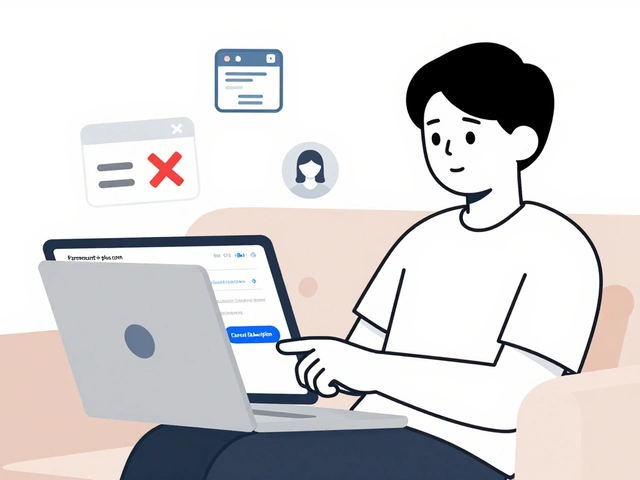
On the Account page, scroll down until you see Subscription. Click on it. You’ll see your current plan - either Paramount+ with Showtime or the basic Paramount+ plan. Below that, there’s a button labeled Cancel Subscription. Click it.
You’ll be asked to confirm your decision. Paramount+ will remind you that you’ll still have access until the end of your current billing period. That’s normal. You won’t lose access immediately. Once you confirm, your subscription will end automatically when the period runs out. No further charges will appear on your card.
Cancel Paramount+ on iPhone or iPad
If you signed up through the App Store, you can’t cancel directly in the Paramount+ app. Apple handles billing, so you have to go through Apple’s system.
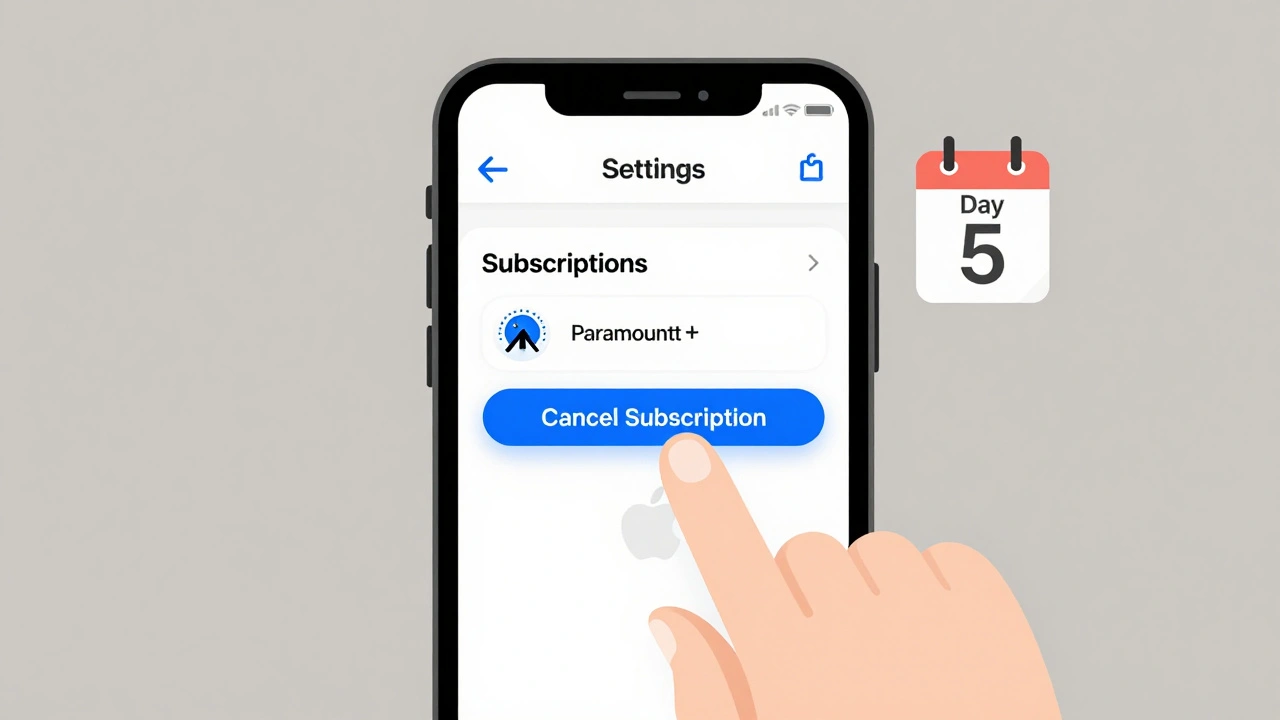
Open the Settings app on your iPhone or iPad. Tap your name at the top. Then tap Subscriptions. Find Paramount+ in the list and tap it. You’ll see your plan details and a button that says Cancel Subscription. Tap that, then confirm when asked.
Important: If you cancel through Apple, you’ll still have access until your current billing cycle ends. You won’t be charged again after that. But if you don’t cancel here, Apple will keep billing you every month - even if you delete the app.
Cancel Paramount+ on Android
Android users who subscribed through the Google Play Store need to cancel through Google, not the Paramount+ app.
Open the Google Play Store app. Tap the three horizontal lines in the top-left corner to open the menu. Select Subscriptions. Find Paramount+ in the list and tap it. Then tap CANCEL SUBSCRIPTION. Confirm your choice.
Just like with Apple, your access continues until the end of your current billing period. Google won’t charge you again after that. If you’re unsure whether you signed up through Google, check your email for a receipt from play.google.com - that’s your clue.
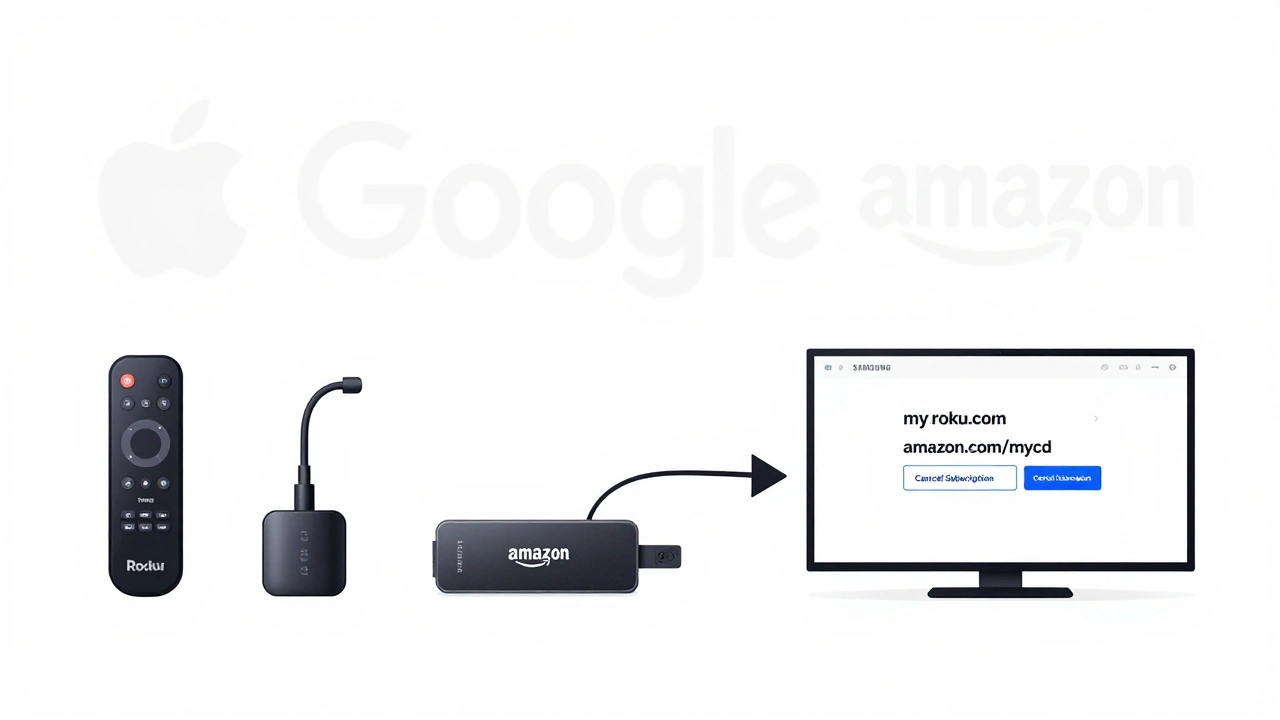
Cancel Paramount+ on Roku, Fire TV, or Smart TV
If you subscribed through your Roku, Amazon Fire TV, Samsung Smart TV, or LG TV, you need to cancel through the device’s account portal - not the app.
For Roku: Go to my.roku.com on your computer or phone. Sign in, then go to Manage your subscriptions. Find Paramount+ and click Cancel Subscription.
For Amazon Fire TV: Visit amazon.com/mycd. Sign in, go to Subscriptions, find Paramount+, and click Cancel Subscription.
For Samsung, LG, or other Smart TVs: Check the manufacturer’s account page. Most use either Google or Apple billing, even if you signed up on the TV. If you’re not sure, look at your bank statement - the charge will show as coming from Apple, Google, or Amazon. Cancel through that provider.
What Happens After You Cancel?
Canceling doesn’t delete your account. You’ll still be able to log in and watch until your current billing period ends. That’s usually the same day your next payment was due. For example, if you paid on the 15th of this month, you’ll have access until the 14th of next month.
You won’t get a refund for the time you’ve already paid for. Paramount+ doesn’t offer prorated refunds - it’s an all-or-nothing deal. But you won’t be charged again, and you can always re-subscribe later if you change your mind.
After your access ends, you’ll see a message when you try to log in: Your subscription has expired. At that point, you can sign up again anytime - your watch history and profiles will still be there.
Common Mistakes to Avoid
Most people who struggle to cancel Paramount+ make one of these three mistakes:
- Deleting the app - That doesn’t cancel your subscription. You’ll still get charged.
- Trying to cancel in the app - The Paramount+ app doesn’t have a cancel button. You have to go through Apple, Google, or Amazon.
- Waiting too long - If you wait until after your billing date, you’ll be charged again. Cancel at least a day before your next payment is due.
Pro tip: Set a calendar reminder for 24 hours before your next billing date. That way, you won’t forget.
Still Seeing Charges After Canceling?
If you’ve canceled but still see a charge on your bank statement, don’t panic. It can take up to 5 business days for the cancellation to fully process. Check your email for a confirmation from Paramount+ or your payment provider.
If you see a charge after the end of your billing period, contact support. For Apple users, go to reportaproblem.apple.com. For Google, visit pay.google.com. For Amazon, go to amazon.com/help. Provide your account email and the transaction ID from your statement.
Most of the time, these are just pending charges that clear out in a few days. But if it’s a new charge, you’ll need to escalate it.
Can You Pause Instead of Cancel?
Paramount+ doesn’t offer a pause feature. You can’t freeze your subscription for a month and come back. The only option is to cancel and re-subscribe later. That’s different from services like Hulu or Disney+, which let you pause. So if you’re taking a vacation or just need a break, canceling and restarting is your only choice.
It’s not ideal, but it’s simple. Your account stays active, your watchlist stays saved, and you can sign back in anytime without re-entering payment details.
What About the Free Trial?
If you’re still in your 7-day free trial, canceling before it ends means you won’t be charged at all. You can use the full trial period without risk. But if you don’t cancel before day 7, you’ll be billed automatically.
Set a reminder for day 5 of your trial. That gives you two full days to cancel if you decide not to continue. Don’t wait until the last minute - automated systems don’t care about your schedule.
Can I cancel Paramount+ anytime?
Yes, you can cancel Paramount+ at any time. But you’ll keep access until the end of your current billing period. You won’t get a refund for unused time, and you won’t be charged again after cancellation.
Will I lose my watch history if I cancel?
No. Your watch history, profiles, and saved shows stay saved even after you cancel. If you sign up again later, everything will be right where you left it.
Why can’t I cancel inside the Paramount+ app?
Paramount+ uses third-party billing for mobile and TV apps - Apple, Google, or Amazon. Those platforms control the payment process, so they also control cancellation. That’s why you have to cancel through their systems, not the app.
How do I know if I signed up through Apple, Google, or Amazon?
Check your email for a receipt. If it says "Apple" or "App Store," you signed up through iOS. If it says "Google Play," you used Android. If it says "Amazon," you signed up via Fire TV or the Amazon website. Your bank statement will also show the billing name.
Can I get a refund after canceling?
Paramount+ does not issue refunds for partial months. Once you’re billed, the money is non-refundable. But if you were charged after canceling, contact Apple, Google, or Amazon - they can reverse the charge if it was processed in error.
Next Steps
Once you’ve canceled, make sure to delete the Paramount+ app from your devices if you don’t plan to use it again. It’s not required, but it helps avoid accidental re-subscriptions. Also, check your email for a confirmation message from Paramount+ - it should arrive within minutes.
If you’re thinking about switching to another service, consider alternatives like Hulu + Live TV, Peacock, or Netflix. Many of them offer free trials too - just remember to cancel those before they charge you, too.