18
How to Cancel Paramount+: Step-by-Step Guide for All Devices (2026)

It happens to the best of us. You sign up for a streaming service to watch one specific show, binge it in two days, and then forget about it. Suddenly, you get an email notification that your credit card has been charged again. That sinking feeling is real, especially when you realize you haven’t opened the app in weeks.
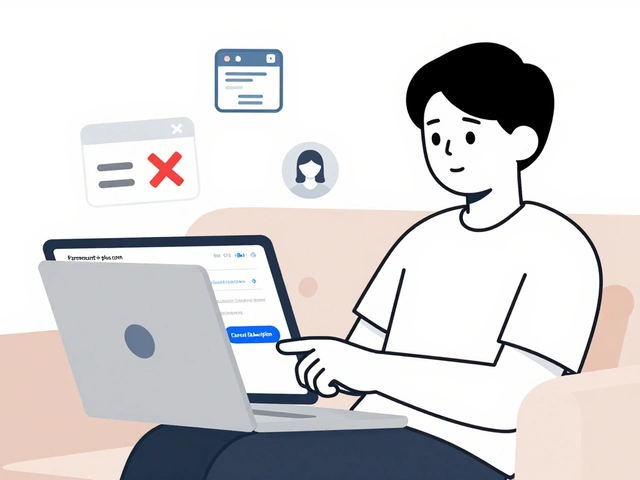
If you are looking to cut costs or just clean up your digital clutter, learning how to cancel Paramount+ is essential. The good news? It’s straightforward, but the method changes depending on how you signed up. Did you use the website, an iPhone, an Android phone, or maybe even a cable provider like Xfinity?
This guide covers every single scenario so you don’t have to hunt through menus. We’ll walk you through the exact steps to stop the bleeding immediately, check if you’re eligible for a refund, and answer those nagging questions about what happens to your watchlist after you leave.
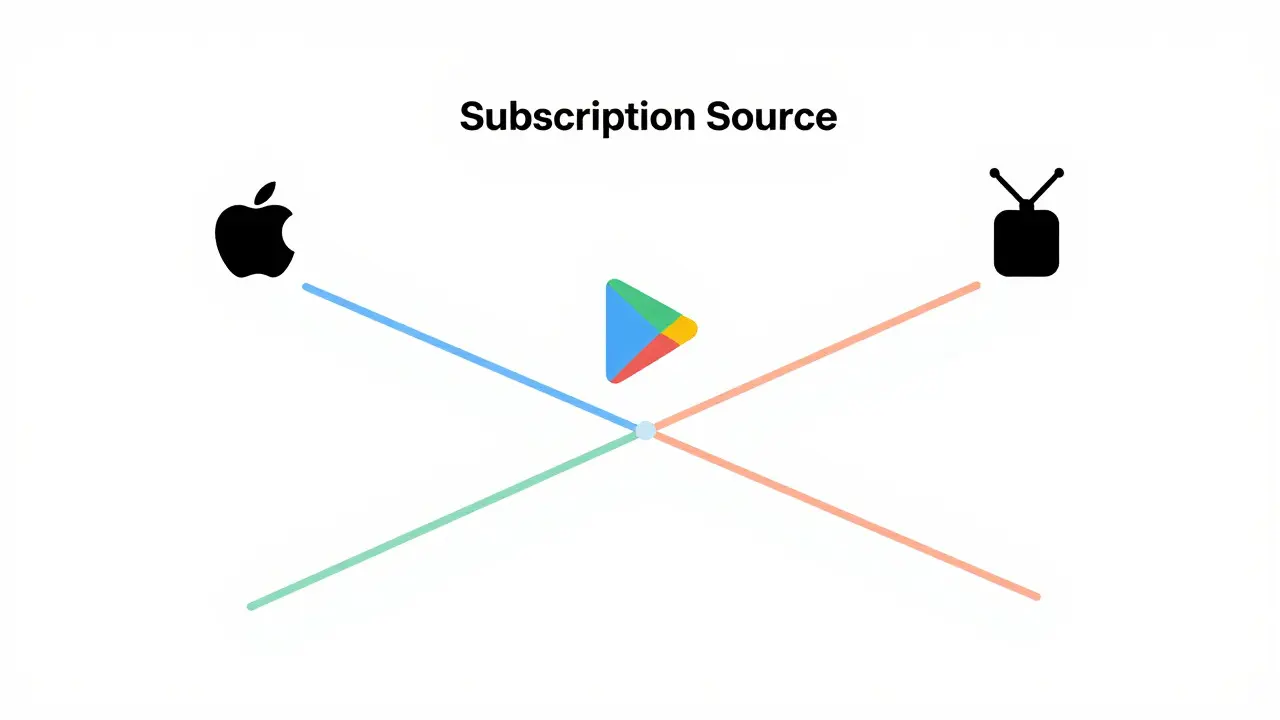
Before You Click: Check Your Subscription Source
The biggest mistake people make when trying to cancel a streaming service is going to the wrong place. If you subscribed via Apple’s App Store, cancelling on the Paramount+ website won’t work. If you got it through your TV provider, cancelling on the app might just pause access without stopping the bill from your cable company.
Take a moment to look at your bank statement or email confirmation. Where did the charge come from?
- Apple (iOS/iPadOS): Charges will say “Apple” or “App Store.”
- Google Play (Android): Charges will say “Google Play” or “Google Services.”
- Paramount+ Direct: Charges will explicitly mention “Paramount Global” or “CBS Interactive.”
- Cable/Satellite Provider: Included in your monthly TV bill (e.g., Comcast/Xfinity, Spectrum).
- Roku/Amazon Fire TV: Sometimes billed directly by these platforms if you subscribed through their channels.
Identifying this source is crucial because each platform manages its own subscriptions. Let’s break down the steps for each.
How to Cancel on iOS (iPhone and iPad)
If you downloaded the app on an Apple device and paid through your Apple ID, you need to manage this within Apple’s settings, not inside the Paramount+ app itself.
- Open the Settings app on your iPhone or iPad.
- Tap your Name at the very top of the screen.
- Select Subscriptions. This list shows every active recurring payment linked to your Apple ID.
- Find Paramount+ in your list of active subscriptions.
- Tap on it, then select Cancel Subscription.
- Confirm your choice when prompted.
If you see “Subscribe Again” instead of “Cancel Subscription,” it means you’ve already cancelled, and you won’t be charged again. Note that Apple does not offer refunds for partial months, so timing matters here.
How to Cancel on Android (Google Play)
For Android users who subscribed through the Google Play Store, the process is similarly handled within the Google Play ecosystem.
- Open the Google Play Store app.
- Tap your Profile Icon in the top right corner.
- Select Payments & subscriptions, then tap Subscriptions.
- Locate Paramount+ in your subscription list.
- Tap Manage, then choose Cancel subscription.
- Follow the prompts to confirm. Google may ask why you’re leaving; you can skip this or provide feedback.
Once cancelled, you retain access until the end of your current billing cycle. After that date, your account will downgrade to the free tier if available, or simply expire.
How to Cancel Directly on the Paramount+ Website
If you signed up directly on paramountplus.com using a credit card or PayPal, you must cancel through their official site. This is the most common method for desktop users.
- Go to the Paramount+ official website and log into your account.
- Click on your Profile Icon in the top right corner.
- Select Account Settings from the dropdown menu.
- Under the “Subscription” section, click Manage Subscription.
- Look for the Cancel Membership button. It might be small or located near the bottom of the page.
- You’ll likely encounter a few screens asking you to stay, offering discounts or highlighting upcoming content. Keep clicking Continue or Yes, Cancel until you reach the final confirmation.
After confirming, you should receive an email confirmation. Save this email. It’s your proof that the cancellation was processed correctly.
How to Cancel Through Cable or Satellite Providers
Many people get Paramount+ bundled with their TV service. In this case, the streaming service isn’t billing you directly-your cable company is.
- Xfinity (Comcast): Log into your Xfinity account online or call customer service. Navigate to “Services” > “Manage” > “Add-ons” and remove Paramount+.
- Spectrum: Call Spectrum support or use the MySpectrum app to remove the add-on from your package.
- Dish/Sling: Use the provider’s website or app to manage channel packages and remove the streaming add-on.
Note that cancelling through a provider might take effect immediately or at the next billing cycle, depending on their terms. Always verify when the service stops.
What Happens After You Cancel?
Understanding the aftermath helps avoid surprises. Here’s what you need to know about data, access, and refunds.
Access Duration
You keep full access to Premium content until the end of your current paid period. If you cancel on July 1st and were billed on June 15th, you still have access until July 15th. Don’t wait until the last minute if there’s something you really want to finish watching.
Your Watchlist and Profile Data
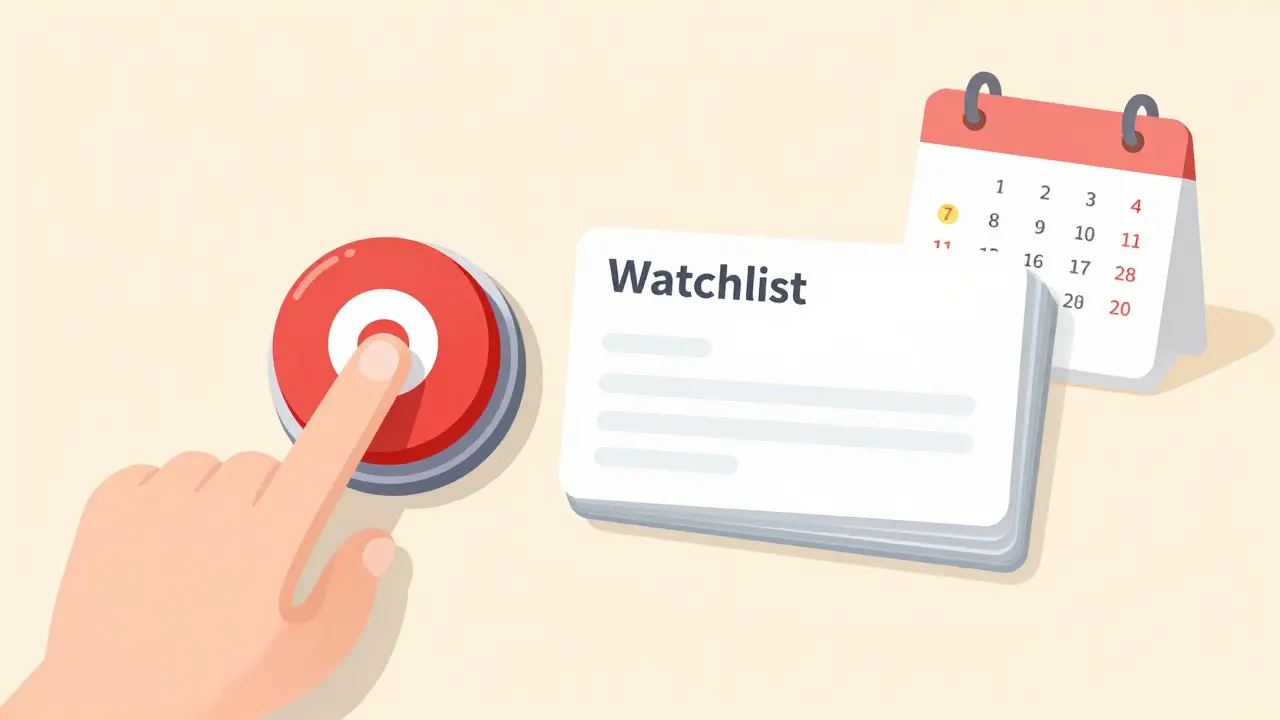
This is a point of contention for many users. When you cancel, your account doesn’t disappear immediately. However, if you let the account lapse for too long (usually several months), Paramount+ may delete your profile data, including your watchlist, ratings, and viewing history. If you think you might return, consider keeping the account active as a free user if possible, or screenshot your watchlist before cancelling.
Refund Policy
Generally, streaming services operate on a no-refund basis for partial months. If you cancel mid-cycle, you pay for the whole month. However, there are exceptions:
- Free Trials: If you cancel during a free trial, you owe nothing.
- Billing Errors: If you were charged twice or charged after cancelling, contact customer support immediately. They can often reverse unauthorized charges.
- Promotional Offers: Some annual plans offer prorated refunds if you cancel early, but this is rare. Check your specific plan terms.
| Platform | Where to Cancel | Immediate Effect? | Refund Likelihood |
|---|---|---|---|
| iOS (Apple) | Settings > Subscriptions | No (End of Cycle) | Low (Apple Policy) |
| Android (Google) | Play Store > Subscriptions | No (End of Cycle) | Low (Google Policy) |
| Direct (Web) | Paramount+ Account Settings | No (End of Cycle) | Medium (Case-by-Case) |
| Cable Provider | Provider’s Website/App | Varies | Low |
Troubleshooting Common Issues
Sometimes things don’t go smoothly. Here are solutions to frequent problems.
I can’t find the cancel button. Make sure you’re logged into the correct account. If you used a social login (Facebook/Google), ensure you’re using the same credentials. On the web, try clearing your browser cache or using an incognito window.
I’m still being charged. If you cancelled more than 48 hours ago and still see a charge, contact your payment provider first. For direct subscriptions, reach out to Paramount+ support with your cancellation confirmation email. For Apple/Google, dispute the charge through their respective support pages.
I want to pause, not cancel. As of 2026, Paramount+ does not offer a formal “pause” feature for monthly subscribers. Your best bet is to cancel now and resubscribe later. Keep in mind that prices may change, and promotional rates might not be available upon return.
Will I lose my watchlist if I cancel Paramount+?
Not immediately. Your account remains active until the end of your billing cycle. However, if you do not resubscribe within a certain period (often 6-12 months), Paramount+ may delete your profile data, including your watchlist and ratings. To be safe, take screenshots of your watchlist before cancelling.
Can I get a refund for the current month?
Typically, no. Streaming services rarely refund partial months. You will retain access until the end of the period you already paid for. Refunds are usually only granted for billing errors, duplicate charges, or if you cancel within a free trial period.
Does cancelling delete my account immediately?
No. Cancelling stops future payments, but your account stays open until the current billing cycle ends. You can still log in and watch content during this grace period. The account may eventually become dormant or deleted if unused for a long time.
How do I cancel Paramount+ on Roku?
If you subscribed directly through the Roku Channel Store, go to my.roku.com, log in, select “Subscriptions,” find Paramount+, and click “Cancel Subscription.” If you subscribed via the Paramount+ website or app, you must cancel there, not on Roku.
Is there a penalty for cancelling early?
There are no financial penalties or fees for cancelling a standard monthly subscription. You simply lose access to Premium features at the end of your billing cycle. Annual plans may have different terms, so check your specific agreement.