20
How to Change Payment Methods on Netflix, Spotify, Disney+, and Hulu
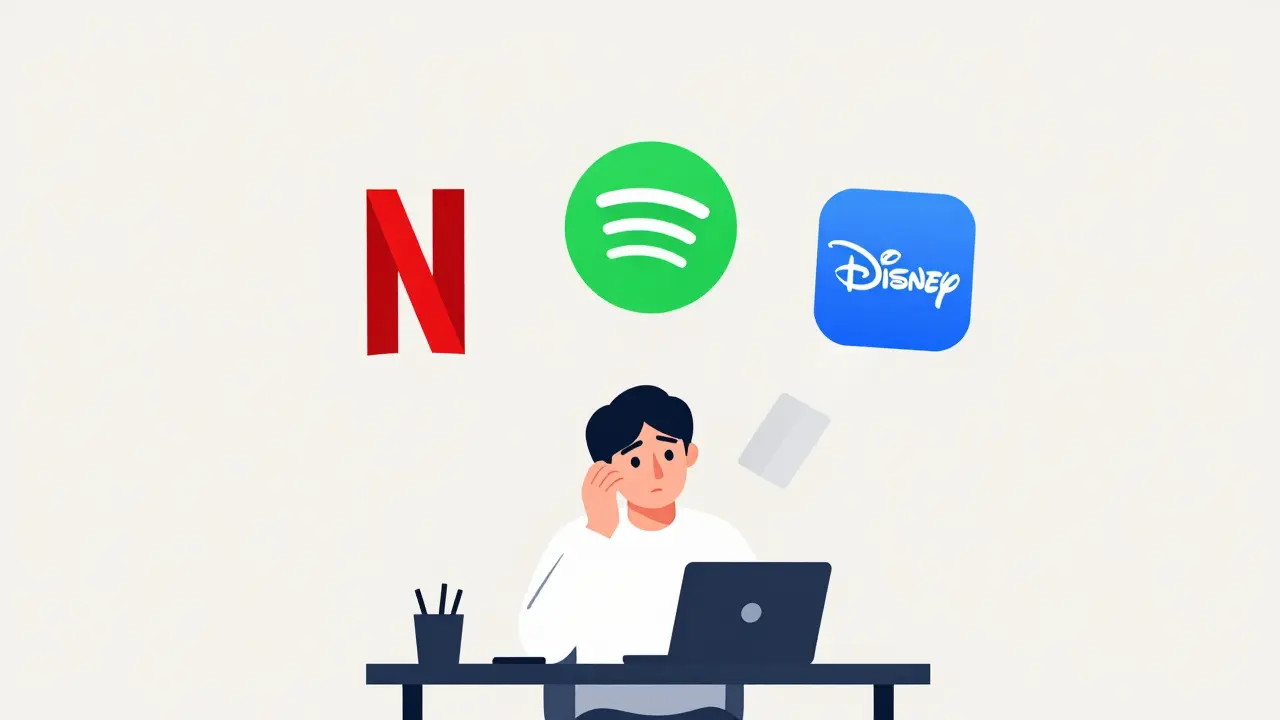
You just got a new credit card. Or maybe your old one expired. Either way, you need to update the payment details for your streaming subscriptions before they pause your access. It sounds simple enough-go to settings, swap the numbers, done. But if you have tried this recently, you know it is rarely that smooth. Some apps hide the button behind three layers of menus. Others force you to log in via email verification every time. And some services simply refuse to let you change the method until the current billing cycle ends.
Managing these accounts is part of modern digital life. We juggle Netflix, Spotify, Disney+, and perhaps a few niche services like Crunchyroll or Peacock. Each has its own rules for billing. Understanding how each platform handles payment updates saves you from awkward interruptions in your entertainment schedule. Let’s look at exactly how to do this on the major platforms, where the traps are, and what to do when things go wrong.
The Big Three: Netflix, Spotify, and Disney+
These three services dominate most people’s subscription lists. They also have the most polished interfaces, which usually means easier navigation. However, their approaches differ slightly.
Netflix keeps things straightforward. You can change your payment method directly from the website without needing the TV app. Log into Netflix.com is a streaming service that allows users to manage account settings including billing preferences. Click on your profile icon in the top right corner. Select "Account" from the dropdown menu. Scroll down to the "Membership & Billing" section. Here you will see your current plan and payment info. Click "Update payment methods." You can add a new card, PayPal, or even gift cards. Once added, set it as the primary method. The system processes this immediately. No waiting period. If you use a mobile device, the process is similar but requires tapping the menu icon instead of hovering over icons.
Spotify operates similarly but adds a layer of security checks. Go to Spotify Account Settings is the web portal for managing user profiles, playlists, and billing details. Under the "Plan" tab, click "Change payment method." Spotify accepts Visa, Mastercard, American Express, and PayPal. A key detail here: if you are on a free tier and upgrading to Premium, you must enter payment info before the upgrade activates. For existing subscribers, swapping cards is instant. However, if your last payment failed, Spotify may block changes until the outstanding balance is cleared. This is a common frustration. Pay the overdue amount first, then update the card.
Disney+ integrates closely with its parent company’s ecosystem. If you signed up through an Apple ID or Google Play Store, you cannot change the payment method inside the Disney+ app itself. You must go to the store where you purchased it. This trips up many users. Check your receipt email. If it says "Apple Services," go to your iPhone’s Settings > [Your Name] > Payments & Shipping. If it says "Google Play," open the Play Store app, tap your profile picture, select "Payments & subscriptions," and edit there. If you subscribed directly via the Disney+ website, log in at DisneyPlus.com is a direct-to-consumer streaming platform offering movies and series from Disney, Pixar, Marvel, Star Wars, and National Geographic. Go to "Account" > "Billing" > "Manage Payment Method." Direct subscriptions allow adding new cards instantly. Bundle subscriptions (like Disney+/Hulu/ESPN+) require updating the primary payment source linked to the bundle account.
Navigating the Tricky Ones: Hulu, Amazon Prime Video, and HBO Max
Some services make payment management more complex due to bundling or third-party integrations.
Hulu often comes bundled with Disney+ or ESPN+. If you have a standalone Hulu subscription, visit Hulu Help Center is the support portal for troubleshooting account issues including billing and login problems. Log in and go to "Account" > "Payment Info." You can add a new card or remove an old one. Note: Hulu does not allow you to have multiple active payment methods simultaneously. You must replace the old one entirely. If you have a bundle, changing the payment method affects all services in the bundle. Be careful here. Updating the card for Hulu might inadvertently change the billing source for Disney+ if they share the same account structure. Verify which service is the "primary" holder of the bundle.
Amazon Prime Video ties payments to your broader Amazon account. This is both a convenience and a headache. To change the payment method, go to Amazon Manage Your Prime Membership is the dedicated page for controlling Prime benefits, shipping options, and video subscriptions. Select "Manage Payment Options." You can add a new credit card, debit card, or Amazon Gift Card balance. Set the new card as default. Important: Amazon uses the default payment method for all purchases, not just Prime Video. If you only want to change it for Prime, ensure other recurring charges (like Subscribe & Save) are still covered by your preferred card. Also, if you use Amazon Family Sharing, the primary account holder controls the payment method. Secondary members cannot change billing details.
HBO Max (now rebranded as Max is a streaming service combining HBO content with Warner Bros. Discovery libraries) follows a standard path. Log in to max.com. Go to "Profile" > "Account" > "Billing." Click "Edit" next to your payment method. Enter the new card details. Max supports major credit cards and PayPal. If you subscribed through a cable provider or mobile carrier (like Verizon), you cannot change the payment method online. You must contact the provider directly. This is a critical distinction. Many users assume they can manage everything on the Max website, but carrier-billed subscriptions are locked to the phone bill.
Why Changes Fail: Common Errors and Fixes
Even when you follow the steps correctly, errors occur. Here are the most frequent roadblocks and how to clear them.
- Expired Card Not Removed: Some platforms do not automatically delete expired cards. If you try to add a new card while an expired one is still listed as primary, the system may reject the new entry. Solution: Delete the expired card first, then add the new one.
- Billing Address Mismatch: Credit card companies verify the billing address during transactions. If the address on file with the streaming service differs from your bank’s records, the transaction fails. Solution: Update your address in the streaming service’s account settings before adding the new card. Match it exactly with your bank statement.
- Insufficient Funds on New Card: When you switch cards, the service may place a small hold or charge immediately to verify validity. If the new card has a low limit or insufficient funds, the switch fails. Solution: Ensure the new card has available credit or funds. Check with your bank if holds are causing issues.
- Region Locks: Streaming services restrict accounts to specific countries. If you moved internationally, your payment method must match the region of the account. A US Netflix account cannot accept a UK credit card. Solution: Contact customer support to migrate your account to the new region, or create a new local account.
- Pending Charges: If a charge is currently processing, you cannot change the payment method. Solution: Wait for the transaction to complete (usually 1-3 business days). Then retry the update.
Using Digital Wallets and Alternative Payments
Credit cards are not the only option. Many services now support digital wallets, which offer faster checkout and enhanced security.
PayPal is widely accepted across Netflix, Spotify, Disney+, and Hulu. Linking your PayPal account acts as a buffer. The streaming service charges PayPal, and PayPal draws from your linked bank account or card. This hides your actual card number from the streaming provider. To set this up, choose "PayPal" as the payment method during the update process. You will be redirected to log in to PayPal and authorize the connection. Once linked, future charges go through PayPal automatically.
Apple Pay and Google Pay work primarily if you subscribed through the respective app stores. If you signed up via iOS App Store, you can switch to Apple Pay by going to Settings > [Your Name] > Payment & Shipping. Add a new card there, and it becomes the default for all Apple-related subscriptions, including Spotify and Disney+ if billed through Apple. Similarly, Google Pay manages payments for Android-based subscriptions. These digital wallets tokenize your card data, making them more secure than entering raw card numbers repeatedly.
Gift Cards are another alternative. Most major services sell gift cards redeemable for account credit. You can buy a $50 Netflix gift card, redeem it, and pay for five months without using a credit card. This is useful for those who want to avoid recurring charges or prefer prepaid options. Just remember: gift cards do not auto-renew. You must manually add more credit before the balance runs out, or your service will pause.
| Service | Update Location | Supported Methods | Instant Switch? | Third-Party Restrictions |
|---|---|---|---|---|
| Netflix | Account Page | Credit Card, PayPal, Gift Card | Yes | None |
| Spotify | Account Settings | Credit Card, PayPal | Yes (if no debt) | Blocked if unpaid balance exists |
| Disney+ | Website or App Store | Credit Card, PayPal | Yes | Must use original purchase channel |
| Hulu | Help Center | Credit Card, Debit Card | Yes | Bundles affect all linked services |
| Amazon Prime | Prime Management | Credit Card, Debit, Gift Card | Yes | Affects all Amazon purchases |
| Max (HBO) | Profile Settings | Credit Card, PayPal | Yes | Carrier bills require provider contact |
Security Tips for Managing Billing Info
Sharing financial details online carries risks. Protect yourself with these practices.
Always verify the URL. Phishing sites mimic login pages for Netflix or Spotify. Ensure the address bar shows https://www.netflix.com or https://www.spotify.com. Never enter payment info on links sent via email or text messages. Bookmark the official account pages to avoid typosquatting domains.
Use strong, unique passwords for each streaming account. If one service suffers a breach, hackers cannot access your others. Enable two-factor authentication (2FA) wherever available. This adds a layer of protection against unauthorized account changes.
Monitor your statements regularly. Set up alerts with your bank for any transaction over $10. If you see a charge from a streaming service you don’t recognize, dispute it immediately. Some services allow you to view transaction history in the account settings. Cross-reference this with your bank statement monthly.
Consider using virtual credit cards. Some banks offer disposable card numbers for online purchases. These numbers expire after a single use or a set period. If a streaming service leaks your data, the virtual card is useless to thieves. Services like Privacy.com or certain banking apps provide this feature.
What Happens If You Forget to Update?
If your card expires and you forget to update it, the service will attempt to charge the old number. The charge will fail. Most services give you a grace period of 7 to 30 days. During this time, you can still stream content. However, once the grace period ends, your access pauses. You lose offline downloads, and sometimes your watchlist or recommendations reset depending on the service.
To reactivate, you must update the payment method and pay any accrued fees. Some services charge a late fee or require you to start a new trial period. Always check the terms of service for your specific plan. Proactive updates prevent these disruptions. Set a calendar reminder for two weeks before your card expiration date.
Can I change my payment method on Netflix using the TV app?
No, Netflix does not allow payment changes directly through the TV app interface. You must use a web browser on a computer or mobile device to log into your account and update billing details. The TV app is designed for playback, not account management.
Why can't I change my Disney+ payment method in the app?
If you subscribed through the Apple App Store or Google Play Store, billing is managed by those platforms, not Disney+. You must update the payment method in your iPhone Settings or Google Play account settings. Only direct subscriptions via DisneyPlus.com allow in-app payment changes.
Will changing my credit card cancel my subscription?
No, updating your payment method does not cancel your subscription. Your service continues uninterrupted as long as the new payment method is valid and authorized. Cancellation is a separate action found in the account settings under "Cancel Plan" or "Pause Subscription."
How do I remove an old payment method from Spotify?
Go to your Spotify Account Settings, navigate to the Plan tab, and click "Change payment method." Add the new card first. Once added, you can remove the old card by clicking the trash icon next to it. Ensure the new card is set as the primary source before deleting the old one to avoid billing failures.
Can I use a different currency for my streaming subscription?
Generally, no. Streaming services bill in the currency of the country associated with your account. If you have a US account, you must pay in USD. Using a foreign card may result in conversion fees from your bank, but the service itself will not charge in euros or pounds unless you migrate your account to a European region.