1
Prime Video Watch Party: How to Stream Together with Friends
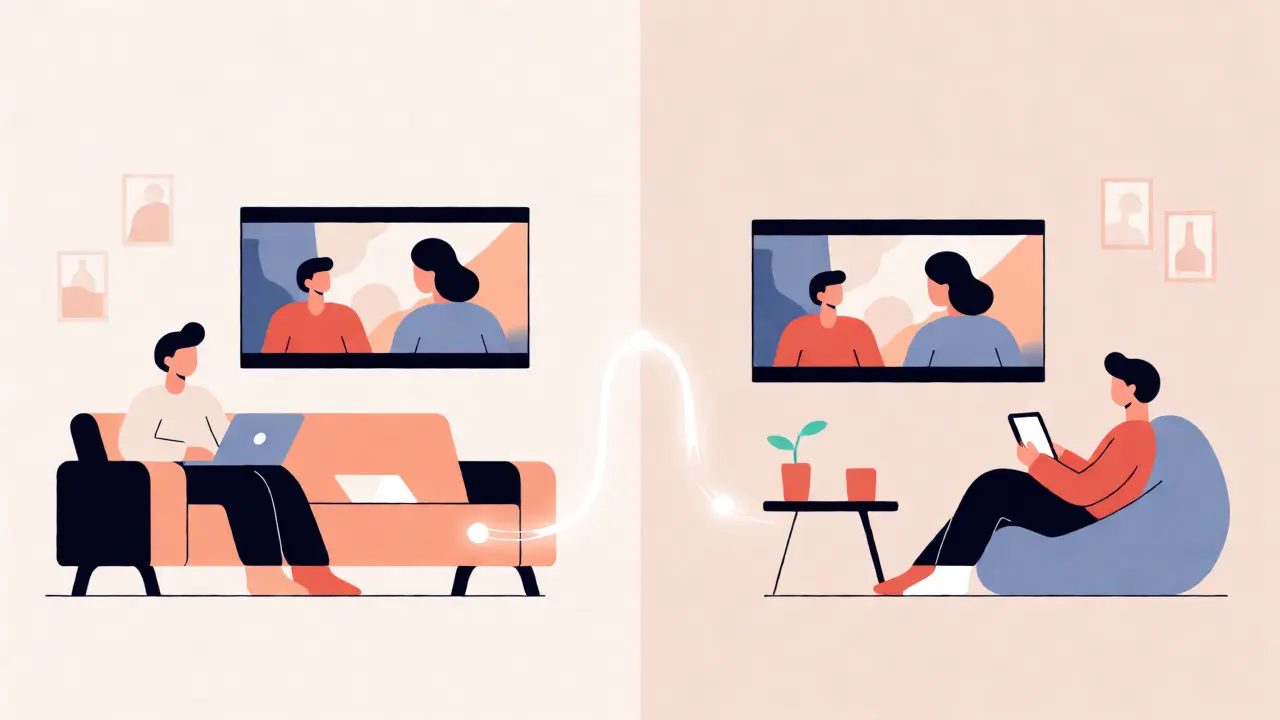
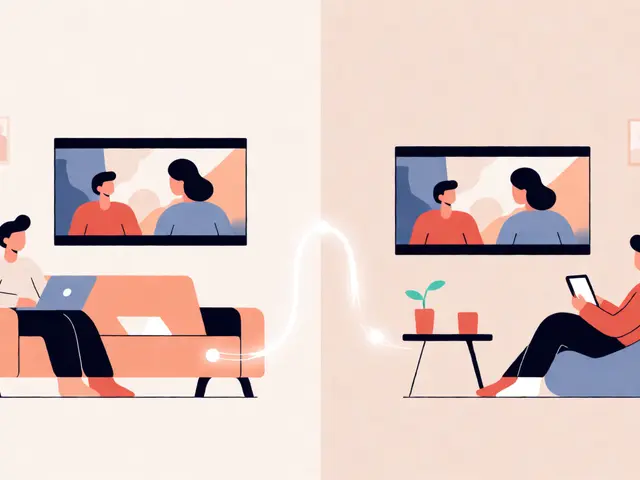
Remember the last time you tried to coordinate a movie night over text? The endless "Did you start?" messages, the lagging audio, and the inevitable "Wait, rewind!" when someone misses a joke because their Wi-Fi hiccuped. It’s frustrating. But what if you could hit play once, and everyone’s screen synced perfectly? That’s exactly what Prime Video Watch Party is designed to do. It turns your solitary viewing into a shared social event, complete with chat and synchronized playback.
This feature isn’t just for couples in long-distance relationships, though they’re big fans of it. It’s for friend groups spread across different cities, families who can’t meet up on weekends, or even coworkers looking for a low-effort team-building activity. If you have an active Amazon Prime subscription, you already have access to this tool. You don’t need extra apps, plugins, or subscriptions. Here’s how to make it work smoothly without the tech headaches.
What Exactly Is a Prime Video Watch Party?
Think of it as a digital living room. When you start a Watch Party, you create a private link that invites others to join your stream. The core magic lies in synchronization. If you pause, everyone pauses. If you skip ahead ten minutes, their screens jump too. This eliminates the awkwardness of trying to sync timestamps manually.
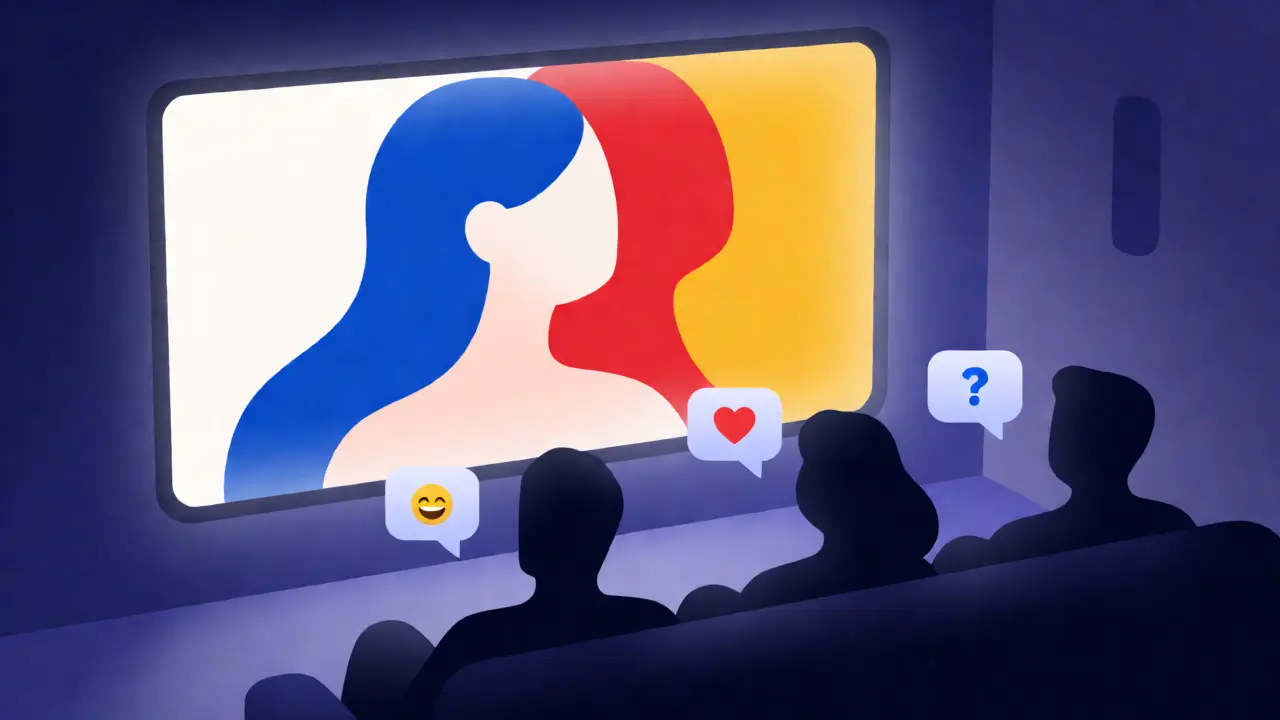
The feature also includes a built-in chat box. You can type reactions, share links, or just trash-talk the plot twists while watching. It supports voice chat on some devices, but the text chat is universal and reliable. Importantly, this works for most content available on Prime Video, including original series like The Boys or Reacher, as well as licensed movies. However, not every title is eligible. Live sports events and certain rental purchases often lack this feature due to licensing restrictions.
Who Can Join Your Watch Party?
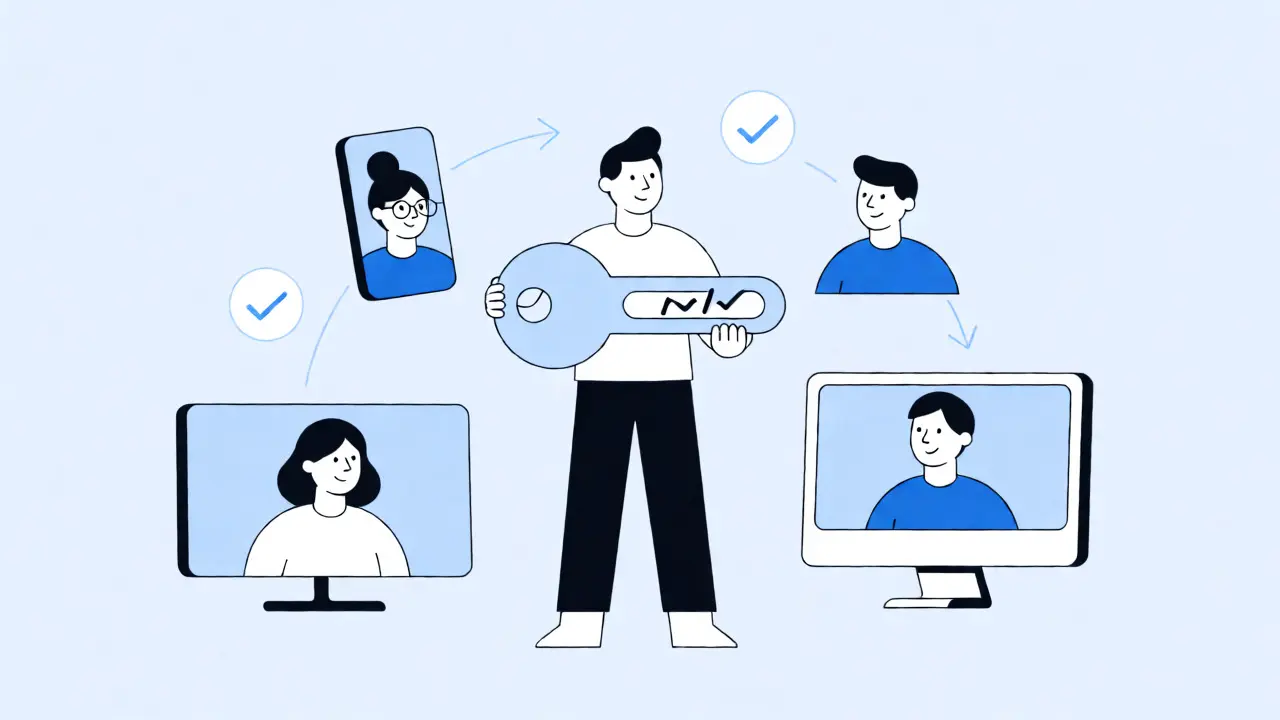
You might assume everyone needs a paid Prime membership to join. Good news: they don’t. Only the host-the person starting the party-needs an active Prime subscription. Guests can join with a free account or even no account at all, depending on the device they’re using. This lowers the barrier to entry significantly. You’re not forcing your friends to pay $14.99 a month just to watch one episode of The Marvelous Mrs. Maisel.
However, there are limits. A single Watch Party can support up to 100 participants. For most friend groups, that’s plenty. But if you’re planning a massive virtual premiere for 500 people, you’ll need to split them into multiple parties or use a different platform. Also, keep in mind that guests must be located in countries where Prime Video is available. If your friend is traveling in a region without service, they won’t be able to connect, regardless of their internet speed.
Step-by-Step: Setting Up Your First Watch Party
Starting a party is straightforward, but the interface varies slightly by device. Here’s the most common method using a web browser or mobile app:
- Select Eligible Content: Browse Prime Video for a movie or show. Look for the "Watch Party" button near the play controls. If you don’t see it, the title doesn’t support the feature.
- Create the Party: Click "Create Watch Party." You’ll be prompted to name your party (e.g., "Friday Night Thrillers") and choose privacy settings. Most hosts prefer "Private," which means only people with the direct link can join.
- Invite Guests: Once created, you’ll get a unique URL. Copy this link and send it via WhatsApp, email, or Slack. Guests click the link, and they’re dropped directly into the lobby waiting for you to hit play.
- Start Streaming: Press play. Everyone’s screens will sync within seconds. Use the chat sidebar to greet everyone and confirm they’re seeing the same scene.
If you’re using a smart TV or streaming stick, the process is similar but relies more on remote navigation. You’ll typically find the option under the "Share" menu or directly on the detail page of the title. Some older TV models may require updating the Prime Video app to the latest version to see the button.
Troubleshooting Common Sync Issues
Even with good intentions, tech glitches happen. The most common complaint is desynchronization. This usually happens when one guest has a slow connection or switches between apps. If the video lags behind the host, ask the guest to refresh their browser or restart the app. In many cases, rejoining the party fixes the offset immediately.
Another frequent issue is audio mismatch. Sometimes, a guest’s device might mute itself automatically when switching focus. Remind participants to check their volume levels before starting. If you’re using external speakers or soundbars, ensure they’re connected properly. Bluetooth headphones can sometimes introduce latency, so wired connections are safer for critical timing moments, like punchlines or jump scares.
Here’s a quick reference table for common problems:
| Issue | Likely Cause | Quick Fix |
|---|---|---|
| Video out of sync | Poor Wi-Fi stability | Refresh page or rejoin party |
| No "Watch Party" button | Title ineligible or app outdated | Check title eligibility; update app |
| Guest cannot join | Expired link or regional block | Generate new link; check location |
| Chat not working | Browser extension conflict | Disable ad-blockers temporarily |
Pro Tips for a Better Virtual Movie Night
Technical setup is half the battle. The other half is creating the right vibe. Since you’re not physically together, you need to compensate for the lack of shared snacks and body language. Here are a few tricks I’ve picked up from hosting dozens of these sessions:
- Set a Hard Start Time: Unlike casual hangouts, virtual parties die quickly if people trickle in late. Send the link 15 minutes early and tell everyone to be seated by the top of the hour.
- Use the Chat for Context: Encourage guests to use the chat for reactions rather than talking over each other. This keeps the audio clear for the movie while still allowing banter.
- Prepare a Backup Plan: If the main title fails to load for half the group, have a shorter, widely supported alternative ready. Something like a classic sitcom episode usually works better than a niche indie film.
- Test Beforehand: Run a five-minute test with one trusted friend to ensure your internet upload speed is stable. Prime Video recommends at least 5 Mbps for HD streaming, but higher is better for syncing reliability.
Also, consider the content choice carefully. Action-packed movies with fast cuts can feel disjointed if there’s any lag. Dramas or comedies with slower pacing tend to hold up better in a distributed environment. And remember, the host controls the pace. If you want to pause for a bathroom break, do it. Just communicate it clearly in the chat so nobody thinks the stream crashed.
Alternatives to Prime Video Watch Party
While Prime Video’s native tool is convenient, it’s not the only option. If you’re struggling with compatibility or want more interactive features, you might look at third-party extensions. Tools like Teleparty (formerly Netflix Party) started on Chrome but now support Disney+ and Hulu. They offer similar sync features but require everyone to install a browser extension, which can be a hurdle for non-tech-savvy guests.
Discord Screen Share is another popular route, especially for gamers. It allows high-quality sharing with voice chat, but it consumes more bandwidth and doesn’t always handle DRM-protected content well. Prime Video Watch Party wins on simplicity because it requires zero installs for guests. Unless you specifically need advanced moderation tools or custom overlays, sticking to the native feature is usually the path of least resistance.
Do my friends need an Amazon Prime subscription to join?
No, only the host needs an active Prime subscription. Guests can join with a free Amazon account or sometimes even without logging in, depending on the device they are using. However, they will need an internet connection capable of streaming video.
Why can't I see the Watch Party button for a specific movie?
Not all titles on Prime Video support Watch Parties. Licensing agreements with studios often exclude live sports, certain rentals, or newly released films from this feature. Additionally, if your app or browser is outdated, the button might not appear. Updating your software usually resolves visibility issues.
Can I use Prime Video Watch Party on my Smart TV?
Yes, most modern Smart TVs and streaming devices like Roku, Fire TV Stick, and Apple TV support Watch Parties. You navigate to the title details page and select the Watch Party option. Note that the chat feature may be limited or unavailable on some TV interfaces, requiring guests to use their phones for chatting.
How many people can join a single Watch Party?
A single Prime Video Watch Party supports up to 100 participants. This limit applies to the number of simultaneous viewers connected to the stream. If you have a larger group, you will need to create multiple separate parties.
Is the video quality affected by having multiple users?
Generally, no. Each user streams the content individually from Amazon's servers, so the quality depends on each individual's internet speed, not the total number of users. However, if the host's upload bandwidth is extremely constrained, it might affect initial sync times, but not the actual resolution of the stream for guests.