19
How to Expand Storage on Fire TV with USB Drives and Manage Apps Better
Your Fire TV keeps saying "storage full" even after you’ve deleted a few apps. You can’t install new ones. Your favorite shows buffer. You’re stuck scrolling through the same few apps because the system won’t let you add more. This isn’t a glitch-it’s a design limitation. Fire TV sticks and boxes come with barely enough storage to run the OS and a handful of apps. But you don’t need to buy a new device. You can fix this with a simple USB drive and smarter app management.
Why Fire TV Runs Out of Space So Fast
Most Fire TV sticks come with 8GB or 16GB of internal storage. After the operating system, pre-installed apps, and system updates, you’re left with maybe 4GB to work with. That’s not much when you’re installing Netflix, Disney+, YouTube, Hulu, Prime Video, and a few games. Each app takes up space, but the real killer is cache and temporary files. Apps like YouTube and Netflix store hours of preview data, thumbnails, and offline content. Over time, this builds up silently.
Amazon doesn’t make it easy to see what’s eating your storage. You can’t just open a file manager and delete junk. You have to dig into settings, guess which apps are bloated, and hope you don’t delete something important. That’s where USB storage comes in-not to replace internal memory, but to offload apps and free up room.
How USB Drives Work with Fire TV
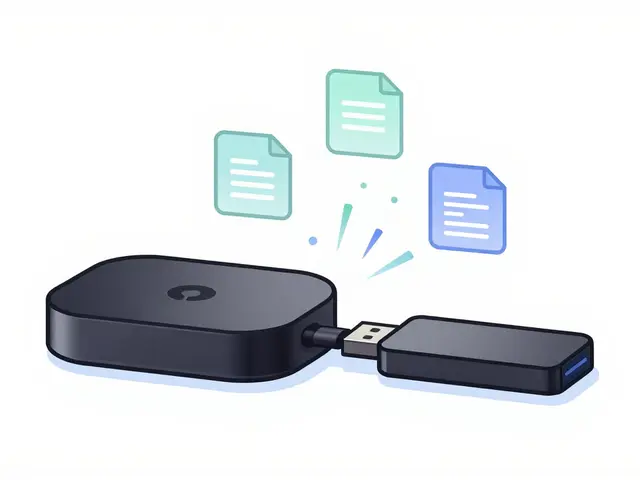
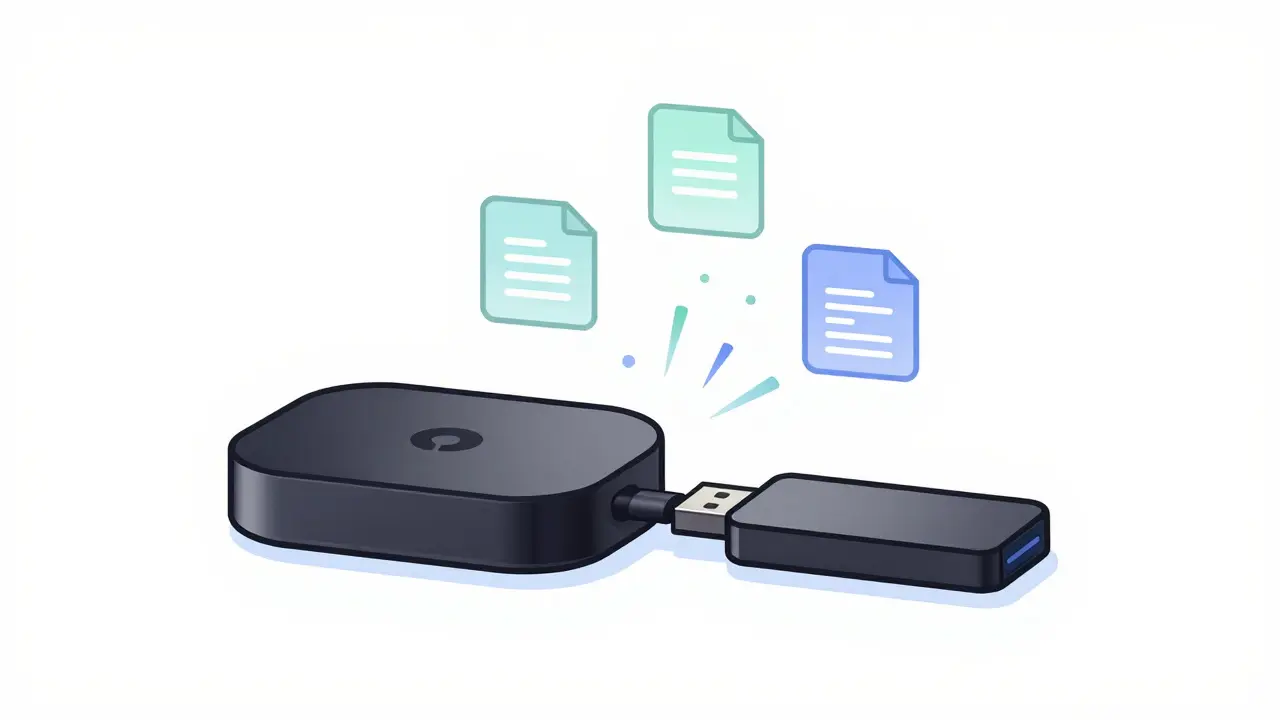
Fire TV supports USB storage devices, but only for moving apps-not for media playback or backups. This is a common misunderstanding. You can’t plug in a USB drive and watch movies from it directly. But you can move supported apps from internal storage to the USB drive. This frees up space without losing functionality.
Not every app can be moved. Only apps that Amazon has specifically enabled for storage relocation will show the "Move to USB Drive" option. Most major streaming apps like Netflix, Prime Video, and Hulu are locked to internal storage. But games, utility apps, and smaller streaming services like Pluto TV, Tubi, or FuboTV often support it.
To check if an app can be moved:
- Go to Settings > Applications > Manage Installed Applications
- Select an app
- If you see Move to USB Drive, it’s supported
- If you only see Uninstall or Clear Cache, it’s locked
You’ll need a USB drive with at least 16GB of space. Use a USB 3.0 drive with a fast read/write speed (look for 480MB/s or higher). Slower drives cause lag when launching moved apps. Avoid flash drives with metal casings-they can overheat. Stick with plastic or rubber-coated drives. Brands like SanDisk Ultra, Samsung BAR Plus, or Kingston DataTraveler work reliably.
Step-by-Step: Move Apps to USB Drive
Here’s how to actually do it:
- Plug your USB drive into the Fire TV’s USB port. If you’re using a Fire TV Stick, you might need a USB OTG adapter if the port is too tight.
- Wait for the Fire TV to recognize it. You’ll see a notification: "USB storage detected"
- Go to Settings > My Fire TV > Storage
- Under "USB Storage," you’ll see available space
- Go back to Manage Installed Applications
- Select an app that supports moving
- Tap Move to USB Drive
- Wait for the transfer to finish. This can take 30 seconds to 2 minutes depending on app size
- Repeat for other supported apps
Once moved, the app icon stays on your home screen. It works exactly the same. The only difference? It’s now running from the USB drive. Launch times might be slightly slower, but not noticeably so with a good drive.
What Apps Can You Move?
Not all apps are created equal. Here’s a quick list of apps that commonly support USB storage:
- Pluto TV
- Tubi
- Crunchyroll
- Peacock (sometimes)
- Stadia (if still installed)
- GameStick
- EmulationStation (for retro games)
- Side-loaded apps like Kodi or VLC (if installed manually)
Apps that cannot be moved:
- Netflix
- Prime Video
- Disney+
- Hulu
- YouTube
- Apple TV+
- Spotify
- Amazon Music
Amazon locks these because they’re core to their ecosystem. They want you to use their internal storage for their own services. But you can still free up space by clearing their cache.

Clear Cache to Free Up Immediate Space
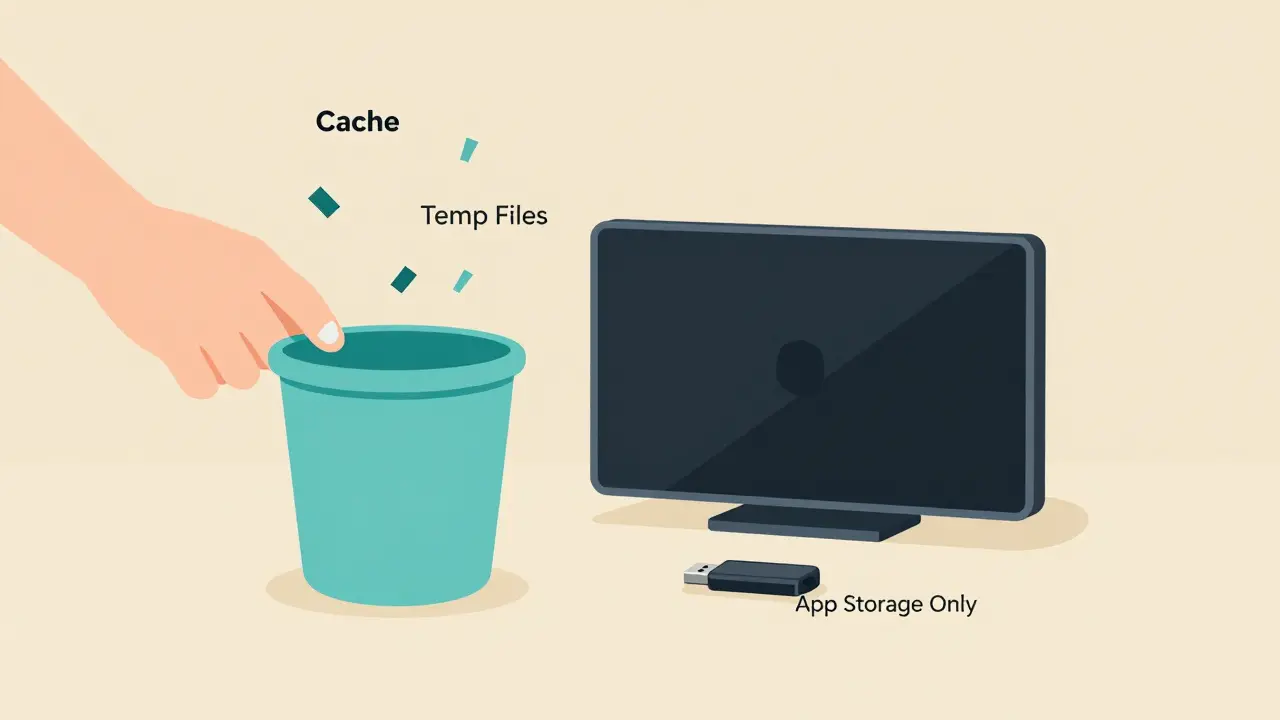
Even if you can’t move an app, you can still reclaim space. Cache files are temporary and safe to delete. They’ll rebuild the next time you use the app.
Here’s how to clear cache for any app:
- Go to Settings > Applications > Manage Installed Applications
- Select the app
- Tap Clear Cache
- Confirm
Do this for Netflix, YouTube, Prime Video, and Disney+. Each can easily hold 1-3GB of cache. Clearing all of them can give you back 5-10GB in minutes. You don’t lose any preferences, login info, or watch history. It’s like hitting a reset button for temporary junk.
Uninstall Apps You Don’t Use
How many apps do you actually open every month? Probably not more than 10. Fire TV comes preloaded with a dozen apps you’ll never touch-Amazon Channels, IMDb TV, Freevee, X-Ray, and more. These take up space and clutter your home screen.
Go through your installed apps and uninstall anything you haven’t used in the last 60 days. You can always reinstall later if you change your mind. This is the fastest way to free up space without buying anything.
Use a USB Drive for App Storage Only-Not Media
Some people think they can plug in a USB drive and watch movies from it. That won’t work on Fire TV. Unlike Roku or Android TV, Fire TV doesn’t have a built-in media player that reads external drives. You can install third-party apps like VLC or Kodi to do it, but that’s not what this is for.
Stick to using the USB drive for app relocation. It’s reliable, supported, and safe. Don’t risk corrupting your Fire TV by trying to play media from it. If you want to watch local videos, use a media server like Plex or Emby on your home network.
What If Your USB Drive Isn’t Recognized?
If your Fire TV doesn’t detect the USB drive:
- Try a different USB port
- Use a different USB drive (some brands just don’t play nice)
- Format the drive as FAT32 or exFAT (NTFS won’t work)
- Make sure the drive isn’t encrypted or password protected
- Try a powered USB hub if you’re using a high-draw drive
Most issues are solved by using a known-good drive and formatting it correctly. Avoid drives over 2TB unless you’re sure they’re compatible. Stick to 16GB-128GB for best results.
When to Consider Upgrading Your Fire TV
If you’ve tried all this and still run out of space, it might be time to upgrade. The Fire TV Stick 4K Max (2023) comes with 16GB of storage and a faster processor. The Fire TV Cube (2022) has 16GB and built-in voice control for your whole home theater. These models handle apps better and support more background processes.
But if you’re on a Fire TV Stick (2021) or older, USB storage and cache cleaning will extend its life by 1-2 years. You don’t need to upgrade unless you want 4K HDR streaming or Alexa voice control for your TV.
Final Tips for Long-Term Storage Management
- Check storage usage every 3 months in Settings > Storage
- Clear cache on big apps every 2 months
- Use a 32GB or 64GB USB drive-plenty of room for future apps
- Label your USB drive so you don’t accidentally unplug it
- Never unplug the USB drive while apps are moving or updating
With these steps, your Fire TV will stop nagging you about storage. You’ll be able to install new apps, play games, and stream without interruption. It’s not about buying more hardware-it’s about using what you have smarter.
Can I use any USB drive with my Fire TV?
Yes, but not all work well. Use a USB 3.0 drive with at least 16GB storage, formatted as FAT32 or exFAT. Avoid drives with metal casings that overheat. SanDisk, Samsung, and Kingston drives are known to work reliably.
Will moving apps to USB slow them down?
Slightly, but not noticeably. With a fast USB 3.0 drive, launch times are within 1-2 seconds of internal storage. Slower drives (USB 2.0 or cheap flash drives) may cause delays. Stick to drives rated 480MB/s or higher.
Can I watch movies from a USB drive on Fire TV?
Not natively. Fire TV doesn’t have a built-in media player for USB drives. You can install Kodi or VLC to play videos from USB, but that’s not recommended unless you’re comfortable with sideloading apps. For media, use Plex or Emby over your home network instead.
Why can’t I move Netflix or Disney+ to USB?
Amazon locks core streaming apps like Netflix, Disney+, and Prime Video to internal storage for performance and licensing reasons. These apps need fast, direct access to data and DRM systems. They’re not designed to run from external drives, even if the hardware supports it.
How often should I clear app cache on Fire TV?
Every 2 months is ideal. Apps like YouTube, Netflix, and Prime Video build up cache quickly-sometimes over 2GB each. Clearing it doesn’t delete your watch history or login info. It just removes temporary files that slow things down.