19
Maximize Your Stream: Best Settings for 4K and HDR Quality on Top Platforms
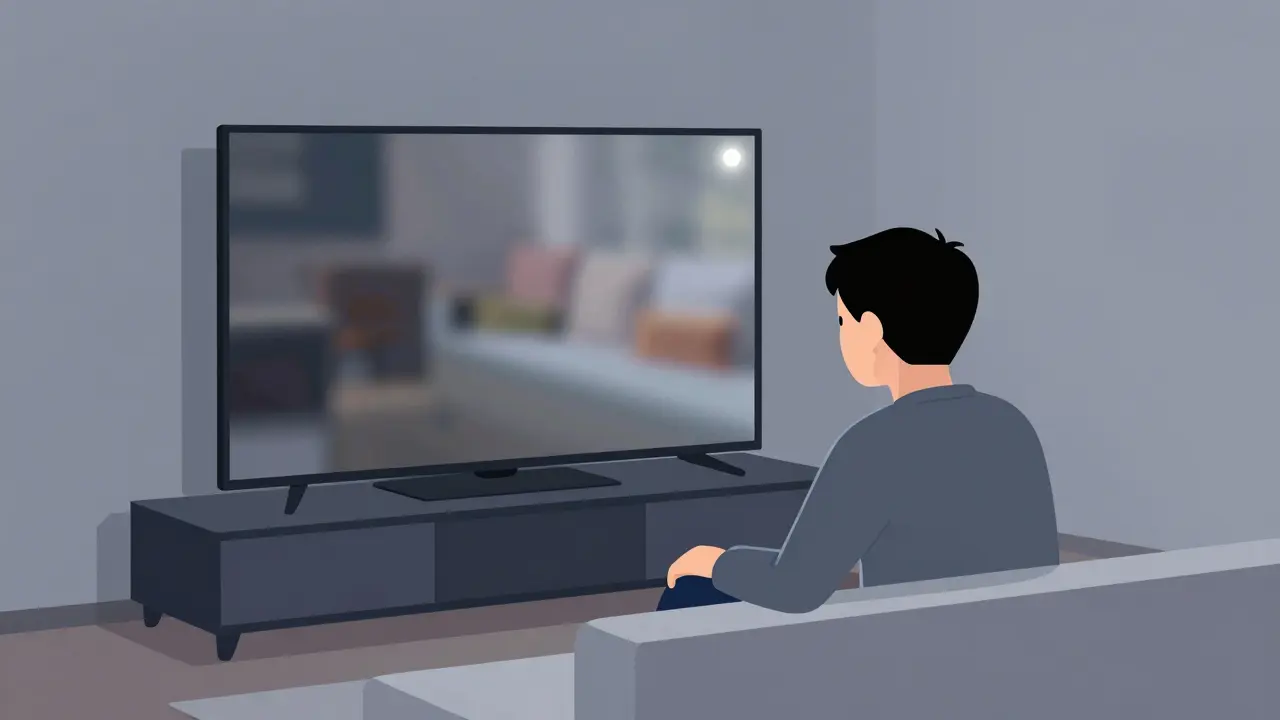
You've spent a fortune on a gorgeous OLED TV or a high-end 4K monitor, but the picture looks soft, the colors feel washed out, or the video keeps jumping between crystal clear and blurry blocks. It's a frustrating experience. The truth is that most streaming apps don't actually give you a "Make it look amazing" button. Instead, they hide the streaming quality settings behind vague menus or leave them on "Auto," which often prioritizes a stable connection over the best possible picture.
The Quick Cheat Sheet for Maximum Quality
If you're in a rush, here is the baseline for hitting that sweet spot of 4K and HDR across the big players. To get these to work, you need a minimum stable internet speed of 25 Mbps, though 50 Mbps is the safer bet for 4K.
| Service | Quality Setting | HDR Format | Crucial Requirement |
|---|---|---|---|
| Netflix | High (Data Usage) | Dolby Vision / HDR10 | Premium Plan |
| YouTube | 2160p (4K) / Manual | HDR | AVC/VP9 Codec support |
| Disney+ | High / Auto | IMAX Enhanced / Dolby Vision | HDMI 2.0+ Cable |
| Amazon Prime | Best / Ultra HD | HDR10+ | Compatible Hardware |
Mastering Netflix: Moving Beyond "Auto"
Netflix is a bit sneaky. They don't let you pick "4K" from a dropdown menu in the app. Instead, they use a data usage setting. If you leave it on Auto, Netflix will drop your resolution the second your Wi-Fi fluctuates, even if the drop isn't noticeable to your eyes but ruins the 4K is a display standard with a horizontal resolution of 3840 pixels by a vertical resolution of 2160 pixels experience.
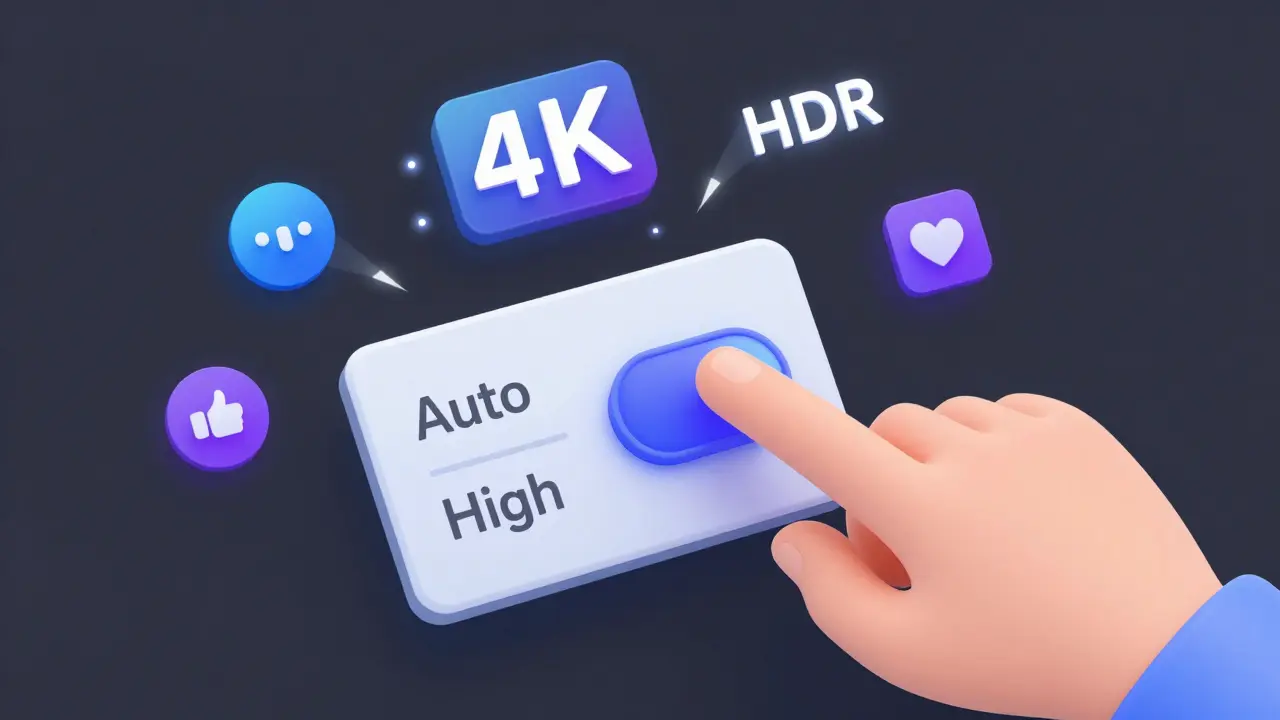
To fix this, go to your account settings on a web browser. Under "Profile & Parental Controls," find the "Playback Settings" for your specific profile. Switch the data usage from "Auto" to "High." This forces the app to request the highest bitrate available. If you're seeing a "HD" badge instead of "UHD," check your subscription; you must be on the Premium plan to unlock the Ultra High Definition tier.
For those with high-end displays, ensure Dolby Vision is an advanced HDR format that optimizes image quality frame-by-frame is enabled. If your TV supports it, Netflix will automatically trigger it, but if the colors look too contrasty or "blown out," check if your TV's "Cinema" or "Filmmaker Mode" is active to prevent the TV from over-processing the HDR signal.
YouTube: The Manual Control Powerhouse
Unlike the cinematic apps, YouTube is the world's largest video sharing platform and a primary source for 4K user-generated content gives you direct control, but only if you look for it. On a smart TV, the app usually defaults to the best available, but on a browser or mobile device, it often defaults to 1080p to save data.
- Click the gear icon (Settings) on the video player.
- Select "Quality."
- Pick "2160p" or "4K."
Here is the pro tip: look for the "HDR" badge next to the resolution. Not every 4K video is HDR. If you see "2160p HDR," you're getting the full range of brightness and color. If you're using a Chrome browser and notice a lag in 4K playback, it's often because the browser is struggling with the VP9 codec. Try switching to an app-based player or ensuring your GPU hardware acceleration is turned on in the browser settings.
Disney+ and the IMAX Experience
Disney+ is fantastic for visual spectacle, especially with their IMAX Enhanced is a format that expands the field of view to show more of the movie on a 4K screen content. Most of the time, Disney+ manages quality well, but if you're seeing buffering or a sudden drop to 1080p, the culprit is usually the "App Settings."
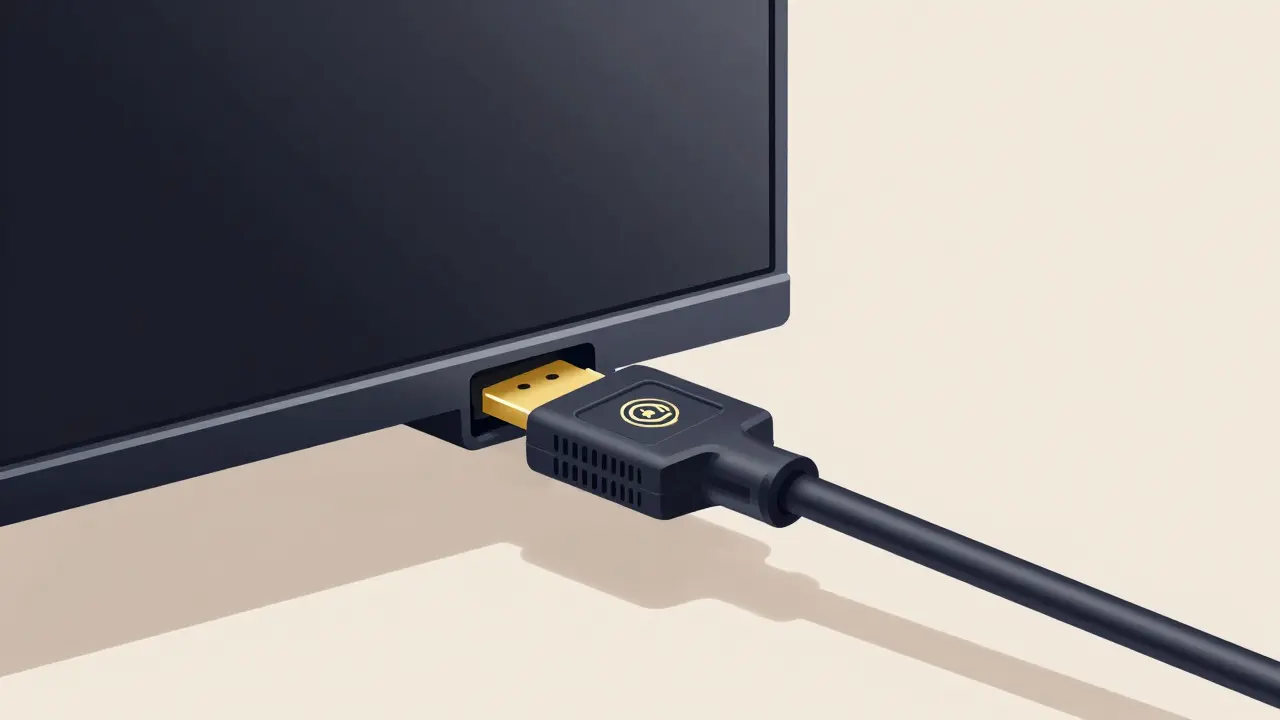
In the app settings, ensure that the "Data Saving" mode is turned off. If you have this enabled, the app will aggressively throttle the bitrate to save bandwidth, which kills the HDR metadata. This results in a picture that looks flat and lacks that "pop" in the highlights. To truly see the difference, make sure you are using an HDMI 2.0 or HDMI 2.1 cable. Older cables can't handle the bandwidth required for 4K at 60Hz with HDR enabled, which often leads to a black screen or flickering.
Amazon Prime Video: Navigating the HDR10+ Maze
Amazon Prime is unique because it heavily utilizes HDR10+ is a dynamic HDR standard that provides metadata for every frame of a video. This is a bit different from the static HDR10 standard. If your TV (like many Samsung models) supports HDR10+, Prime Video is where you'll see it shine.
To get the best quality, go to the "Settings" menu within the Prime Video app and ensure the playback quality is set to "Best." If you're streaming on a PC, be warned: Prime Video's browser support for 4K is notoriously limited. You'll often find that the browser restricts you to 1080p. To bypass this, use the dedicated Windows app or a 4K-capable streaming stick like a Shield TV or Apple TV 4K.
Hardware Bottlenecks: When Settings Aren't Enough
You can tweak every setting in the app, but if your hardware is the bottleneck, it's all for nothing. One common mistake is plugging a 4K streaming device into a non-HDCP 2.2 compliant port. HDCP 2.2 is a digital copy protection standard required for 4K content to play. If your TV has four HDMI ports, usually only two of them support this standard. If you're getting 1080p and can't find a setting to change it, try switching the cable to a different port on the back of your TV.
Another issue is the "Motion Smoothing" or "Interpolation" setting on your TV. While not a streaming service setting, it ruins the intent of HDR cinema. Turn off "TruMotion," "MotionFlow," or "Auto Motion Plus." These settings add fake frames to make movement smoother, but they create a "soap opera effect" that clashes with the high-quality 4K grain of a real movie.
Common Pitfalls and How to Avoid Them
A lot of people blame their internet when the quality is actually a setting mismatch. Here are three real-world scenarios and how to fix them:
- The "Greyish" HDR Look: This usually happens when you have HDR enabled on the app but your TV is in "Standard" or "Eco" mode. Switch your TV to "HDR Cinema" or "Movie" mode. The TV needs to know it's receiving an HDR signal to map the brightness correctly.
- The Constant Buffering: If you've set everything to "High" but the video keeps pausing, your router might be the problem. 4K streaming over 2.4GHz Wi-Fi is a gamble. Switch to 5GHz Wi-Fi or, better yet, use an Ethernet cable. A wired connection provides the steady bitrate required to maintain a 4K HDR stream without dipping.
- The "Low Res" App Experience: If you're using an old smart TV app from 2017, it might not support the latest 4K codecs. The software on the TV often stops getting updated. In this case, buying a modern external streaming box is the only way to unlock the best quality.
Why does my 4K TV only show 1080p on Netflix?
This usually happens for one of three reasons: you are not on the Premium subscription plan, your playback settings are set to "Auto" or "Low," or your device/cable does not support HDCP 2.2. Ensure you have the correct plan and check your HDMI port compatibility.
What is the difference between HDR10 and Dolby Vision?
HDR10 is a static format, meaning the brightness and color settings are the same for the entire movie. Dolby Vision is dynamic, meaning it adjusts those settings frame-by-frame for a more precise and lifelike image. Both are great, but Dolby Vision is technically superior.
Do I need a special cable for 4K HDR streaming?
Yes, you need a High-Speed HDMI cable (HDMI 2.0 or 2.1). Older HDMI 1.4 cables cannot carry the amount of data required for 4K at 60 frames per second with HDR, which will either cause the image to flicker or limit the resolution to 1080p.
Does a faster internet connection always mean better picture quality?
Up to a point, yes. However, once you hit the maximum bitrate the service offers (usually around 25-50 Mbps for 4K), more speed won't improve the image. The limiting factor then becomes the service's compression and your device's ability to decode the video.
Why does YouTube look better at 4K than other services?
YouTube allows users to upload content at very high bitrates and offers manual resolution selection. Other services use adaptive bitrate streaming, which constantly shifts quality based on your network, often playing it safe and staying at a lower resolution than your hardware can actually handle.
Next Steps for the Ultimate Setup
If you've dialed in your app settings and your hardware is up to date, the final step is calibrating your display. Most TVs come with a "Vivid" mode that makes colors look neon and unnatural. Turn that off. Use the "Calibrated" or "Filmmaker" mode to see the movie as the director intended.
If you're still experiencing drops in quality, consider a network audit. Use a tool like Fast.com or Speedtest.net specifically on the device you use for streaming (not your phone) to see if the speed matches what you're paying for. If you see a huge gap, it's time to upgrade your router or move it closer to your TV.