2
Why Subtitles Aren't Working: Fix Common Video Text Issues

You’ve spent hours editing your video. The lighting’s perfect, the audio’s clean, and the pacing feels right. But when you hit play, the subtitles don’t show up. Or worse-they appear late, overlap, or vanish halfway through. It’s frustrating, and it’s more common than you think. Subtitles aren’t just an afterthought. They’re critical for accessibility, engagement, and reach-especially on platforms like YouTube, Instagram, and TikTok. If your captions aren’t working, you’re losing viewers, and possibly violating accessibility laws. Let’s fix this, step by step.
Check Your File Format First
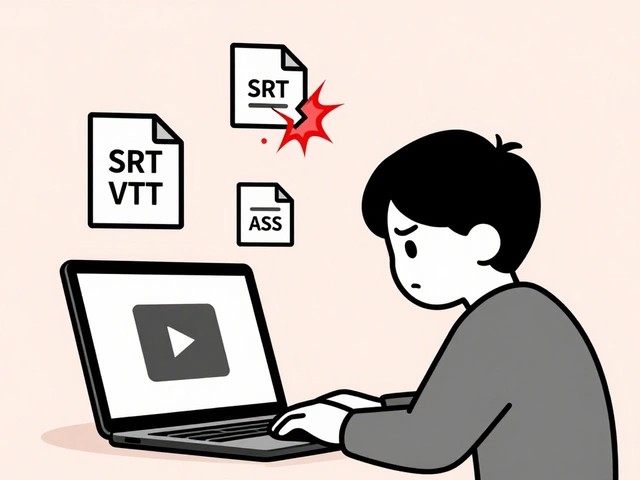
Not all subtitle files are created equal. The most common formats are SRT, VTT, and ASS. Each works differently, and not every player supports them all. SRT (SubRip) is the most widely accepted. It’s plain text, simple, and looks like this:1 00:00:04,500 --> 00:00:07,200 Welcome to our channelVTT (WebVTT) is required for HTML5 video players and YouTube. It starts with
WEBVTT and allows styling. If you’re uploading to YouTube and your subtitles don’t appear, you might be using an SRT file with unsupported characters or formatting. YouTube prefers VTT. Rename your file from subtitles.srt to subtitles.vtt, and make sure the first line says WEBVTT. No extra spaces, no BOM encoding.
Timing Is Everything
Subtitles that appear too early or too late ruin the experience. A delay of even half a second feels off. This usually happens when the audio track was re-encoded or trimmed after the subtitles were created. If you edited your video in Premiere Pro or DaVinci Resolve and then exported a new version, your original subtitle file is now out of sync. To fix this, open your SRT or VTT file in a free tool like Subtitle Edit (Windows) or Aegisub (cross-platform). Load both the video and the subtitle file. Play the video and pause when a line of text appears. Check the timestamp. If it’s off by 1.2 seconds, use the “Shift all times” function. Enter -1.200 to move everything earlier. Test it. If it’s still wrong, adjust again. Most people fix sync issues in under 5 minutes this way.Encoding Problems: The Invisible Killer
Ever opened a subtitle file and saw weird symbols likeé instead of é? That’s encoding. Subtitle files must be saved as UTF-8. If you edited your SRT file in Notepad on Windows and saved it without specifying encoding, it likely defaulted to ANSI or UTF-16. YouTube and most players can’t read those.
Open your file in Notepad++ (free). Go to Encoding > Convert to UTF-8. Save it. Upload again. If you’re using a Mac, use TextEdit in plain text mode (not rich text) and make sure “Plain Text” is selected. Avoid Google Docs for editing subtitles-they often add invisible formatting. Stick to plain text editors.
Platform-Specific Rules
Each platform has its own quirks. YouTube requires VTT files with no extra headers beyondWEBVTT. Instagram only accepts burned-in captions-you can’t upload separate subtitle files. TikTok lets you upload SRTs, but they must be under 1000 lines and under 5MB. If you’re using CapCut or Canva, make sure you’re using their built-in caption generator, not an imported file. Imported files often get ignored if they don’t match the video’s exact length.
For Vimeo, you need to upload subtitles as a separate track under the “Subtitles & Captions” section. Don’t just drag the file into the video editor. That won’t work. And don’t rely on auto-generated captions-they’re inaccurate 30% of the time, according to a 2024 study by the World Association of Sign Language Interpreters.
Browser and Player Compatibility
If subtitles work on your computer but not on your phone, the issue might be the player. Safari on iOS doesn’t support SRT files embedded in MP4s. It only reads WebVTT embedded in HLS streams or uploaded separately. Android’s default video player is even less consistent. Use a third-party app like VLC to test your file. If it works in VLC but not in your app, the app doesn’t support external subtitles. For websites, make sure your HTML5 video tag includes the<track> element correctly:
<video controls>
  <source src="video.mp4" type="video/mp4">
  <track kind="subtitles" src="subtitles.vtt" srclang="en" label="English">
</video>
If the
kind is set to “captions” instead of “subtitles,” some browsers won’t display them by default. And never use relative paths like ./subtitles.vtt-use absolute URLs or files in the same directory as the HTML.
Font and Style Conflicts
Sometimes subtitles are there-you just can’t see them. This happens when the font color matches the background. VTT files allow custom styling:WEBVTT
00:00:05.000 --> 00:00:08.000
This text has a black background
If you’re using a dark video clip, make sure your text isn’t black. Use white or yellow. Avoid thin fonts. Arial or Helvetica are safer than script fonts. And never use all caps-it’s harder to read and triggers accessibility warnings.
File Naming and Upload Errors
Don’t name your filesubtitles (final).srt. Spaces and parentheses break uploads on many platforms. Use underscores: subtitles_final.srt. Also, avoid special characters like &, @, or #. Even a trailing space at the end of the filename can cause the upload to silently fail.
YouTube sometimes says “Subtitles uploaded successfully” but doesn’t display them. Refresh the page. Wait 10 minutes. Clear your cache. If it still doesn’t show, delete the file and re-upload. YouTube’s backend can glitch when processing multiple files at once.
What to Do When Nothing Works
If you’ve checked the format, timing, encoding, platform rules, and player compatibility-and subtitles still won’t show-try this: burn them in. Use a free tool like HandBrake or Shotcut to overlay the text directly onto the video. It’s not ideal for accessibility (viewers can’t turn them off), but it guarantees visibility. Burned-in captions work everywhere: Instagram, Facebook, TikTok, email, even old TVs. You can also use AI tools like Descript or Otter.ai to auto-generate captions from your audio, then manually correct them. They’re 90% accurate for clear speech. For interviews or multi-speaker content, you’ll still need to edit-but it’s faster than typing from scratch.Pro Tip: Always Test Before Publishing
Never assume your subtitles work. Test them on three things: your phone, a tablet, and a desktop browser. Use different players: YouTube, VLC, and your website. Watch the first 30 seconds and the last 30 seconds. That’s where most sync issues show up. If you’re creating content for clients, include subtitle testing as part of your delivery checklist. One client in Brisbane lost 40% of their viewers because their captions vanished on mobile. They didn’t test.Why do my subtitles disappear on YouTube after uploading?
YouTube sometimes fails to process subtitles if the file has encoding errors, unsupported characters, or incorrect formatting. Make sure your file is in VTT format, starts with WEBVTT, and doesn’t contain tabs or non-UTF-8 characters. Clear your browser cache and wait 10-15 minutes. If it still doesn’t appear, delete the file and re-upload. Avoid editing the file in Word or Google Docs-use Notepad++ or Subtitle Edit instead.
Can I use SRT files on Instagram?
No, Instagram doesn’t support external subtitle files. You must burn captions directly into the video using apps like CapCut, Canva, or Premiere Rush. Upload the video with text already overlaid. Instagram’s auto-caption feature is unreliable and only works for audio recorded in-app.
Why do subtitles look blurry on mobile?
Blurry subtitles are usually caused by low-resolution video or font scaling issues. Use bold, sans-serif fonts like Arial or Helvetica. Avoid thin fonts or italic styles. Make sure your video is exported at 1080p or higher. Subtitles rendered at 720p on a 4K screen will appear pixelated. Also, avoid using custom fonts in VTT files-stick to system defaults for better compatibility.
Do subtitles need to be in English?
No, subtitles can be in any language. Just make sure the srclang attribute in your VTT file matches the language (e.g., srclang="es" for Spanish). Platforms like YouTube let viewers choose the language. But if you’re targeting global audiences, include English as a fallback-even if the video is in another language. Many viewers use subtitles to understand context, not just for hearing impairment.
How do I fix subtitles that overlap or appear too fast?
Subtitles should stay on screen for at least 1.5 seconds, and no more than 7 seconds. Use a subtitle editor like Aegisub or Subtitle Edit to adjust duration. Split long lines into two. Never let more than two lines appear at once. If a sentence is too long, break it into natural pauses. Viewers can’t read faster than 150 words per minute-so aim for 3-5 words per second.