19
Paramount+ Accessibility: Captions, Dubbing, and Audio Description
Streaming services promise endless entertainment, but not everyone can enjoy them the same way. If you’re deaf or hard of hearing, blind or have low vision, or just prefer watching shows in your native language, Paramount+ has tools built in to make that possible. This isn’t just about checkboxes on a settings menu-it’s about real access. Let’s break down exactly how captions, dubbing, and audio description work on Paramount+, so you know how to turn on what you need and why it matters.
Captions: More Than Just Text on Screen
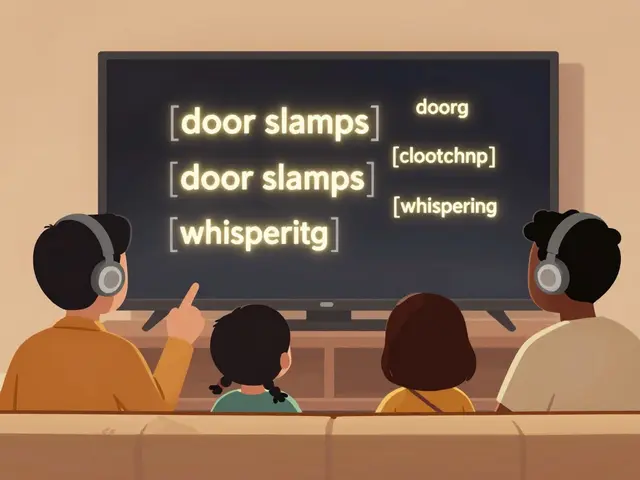
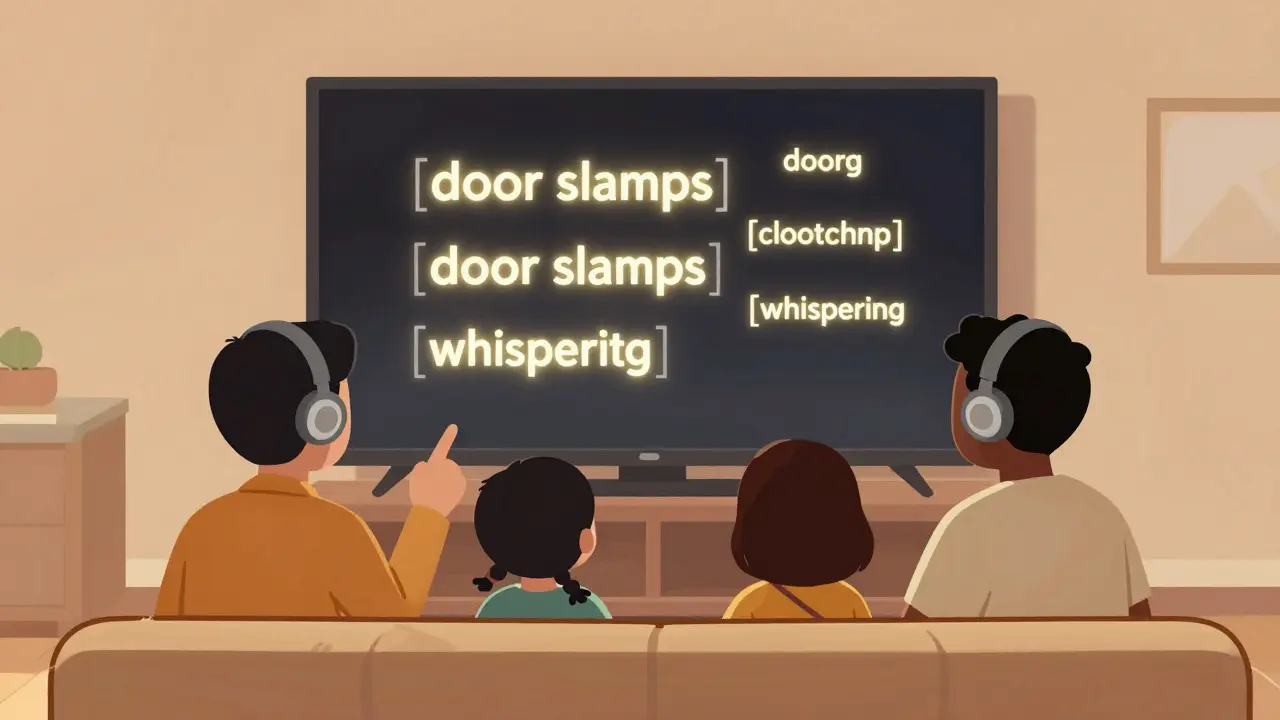
Captions on Paramount+ aren’t just a copy of the dialogue. They’re carefully timed, properly formatted, and include sound cues. For example, if a door slams in the background or a character whispers, you’ll see [door slams] or [whispering]. This isn’t optional detail-it’s context. Without it, you miss half the story.
Paramount+ offers two types of captions: closed captions (CC) and subtitles. Closed captions include non-speech audio information and are designed for viewers who are deaf or hard of hearing. Subtitles are for people who can hear but don’t understand the language. They only show spoken words. Make sure you pick the right one. On the web, mobile, or TV app, go to Settings > Accessibility > Captions. You can choose font size, color, background, and even position on screen. Some shows even offer bilingual captions-like English and Spanish-so you can toggle between them.
Not every show has captions. But Paramount+ requires all new original content to be captioned within 72 hours of release. Older titles? Around 92% of the library has captions as of early 2026. If you find one without, use the feedback button in the app. They track those reports and fix them.
Dubbing: Watch in Your Language, Not Just English
Ever tried watching a show in a language you don’t speak? It’s frustrating. Paramount+ offers dubbed versions for over 15 languages, including Spanish, French, German, Portuguese, Italian, and Japanese. The dubbing isn’t robotic either. They hire professional voice actors, match lip movements where possible, and even adapt cultural references. For example, in the dubbed version of Star Trek: Strange New Worlds, a reference to a U.S. fast-food chain was changed to match a local equivalent in Germany.
To switch dubs, go to Settings > Audio & Subtitles > Audio Language. You’ll see a list of available options. If you don’t see your language, it means the show hasn’t been dubbed yet. Not all titles have every language-newer originals are more likely to be fully dubbed. Older series like Law & Order or MTV Cribs may only have English and Spanish. But Paramount+ is expanding dubbing every quarter. In 2025, they added 47 new dubbed titles across Latin America and Europe.
Pro tip: If you’re watching with kids, try turning on both dubbing and captions. You’ll get the spoken audio in your language and the text to reinforce understanding. It’s a game-changer for language learners.
Audio Description: Hearing the Visuals
Audio description is the unsung hero of accessibility. It’s a second audio track that describes what’s happening on screen during natural pauses in dialogue. Think: “The woman in the red coat walks into the dimly lit room and picks up a photo frame. Her eyes widen as she recognizes the face.” Without it, blind or low-vision viewers are left guessing who’s in the room, what they’re wearing, or whether someone just fell down.
Paramount+ supports audio description on all major platforms: iOS, Android, Roku, Apple TV, Fire TV, and web browsers. Look for the AD icon next to the audio language option. Not every show has it, though. Originals like 1923, Star Trek: Strange New Worlds, and The Offer all include full audio description. But older catalog titles? Only about 68% of them do. The reason? Audio description requires extra production work-scripting, recording, syncing. It’s expensive.
Here’s the good news: Paramount+ now prioritizes audio description for all new originals before launch. They’ve also started retroactively adding it to popular older shows based on user demand. If you request it through the app’s accessibility feedback form, they log it. Last year, over 12,000 users requested AD for CSI: Miami. It was added in November 2025.
How to Set It All Up
Setting up accessibility features is simple, but it’s easy to miss. Here’s the fastest way:
- Open the Paramount+ app on your device.
- Start playing any show or movie.
- Tap the screen to bring up the playback controls.
- Find the Accessibility icon-it looks like a person with a speech bubble and an ear.
- Select Captions, then choose your preferred style.
- Go to Audio and pick your language.
- If available, toggle on Audio Description.
Once you set your preferences, they save for everything you watch. You won’t have to reconfigure each time. On smart TVs, you can also set this as a default in the TV’s accessibility menu, which overrides the app settings.
What’s Missing and What’s Coming
Paramount+ isn’t perfect. Some users report lag between the audio description and the visuals on older Roku models. Others say the caption font is too small on 4K TVs. These aren’t deal-breakers-they’re fixes in progress.
In 2026, Paramount+ announced a new initiative called Access All Areas. By the end of the year, they plan to add:
- Audio description for all 500+ original titles
- Sign language overlays for select originals (like Yellowstone)
- AI-powered auto-captions for live events (like WWE and college sports)
- Customizable caption styles for colorblind users
They’re also testing a feature called Context Mode-where audio description doesn’t just describe actions, but adds emotional context. For example: “She stares at the photo, tears welling up-this is the last picture she took before her son disappeared.” It’s not standard yet, but early testers say it changes how they connect with stories.
Why This Matters
Accessibility isn’t charity. It’s a legal requirement in the U.S., Canada, Australia, and the EU. But beyond compliance, it’s about inclusion. One in four adults in the U.S. lives with a disability. That’s over 70 million people. Many of them are streaming fans who just need the right tools to join the conversation.
When you turn on audio description for Star Trek, you’re not just helping someone hear the scene-you’re letting them feel the tension, the hope, the awe. When you use Spanish dubbing, you’re not just changing the language-you’re inviting a whole family to watch together. Captions? They let someone with tinnitus finally enjoy a quiet moment without background noise drowning out the dialogue.
Paramount+ doesn’t advertise these features loudly. But they’re there. And they’re getting better. All you have to do is look for the accessibility icon.
Common Issues and Fixes
Still having trouble? Here’s what to check:
- Captions not showing? Make sure you’re not using a browser extension that blocks overlays. Try incognito mode.
- Audio description not available? Some shows only have it on certain platforms. Try switching from Roku to Apple TV.
- Dubbing sounds off? Audio sync issues happen on older devices. Update your app and reboot your TV.
- Can’t find the accessibility icon? On some Android tablets, it’s hidden under the three-dot menu. Look for “Accessibility Options.”
If nothing works, contact Paramount+ Support directly through the app. They respond within 24 hours and can manually enable features for your account.
Do all Paramount+ shows have captions?
No, but nearly all new originals do. Around 92% of the library has captions as of early 2026. Older catalog titles may lack them, but Paramount+ adds captions to popular shows on request. If you find one without, use the feedback tool in the app.
Can I use audio description on my Roku TV?
Yes, audio description works on Roku devices from model 3000 and newer. Go to Settings > Accessibility > Audio Description and turn it on. Make sure your Paramount+ app is updated to version 4.8 or later. Some users report delays on older models-try switching to a different device if it’s not syncing properly.
Is Spanish dubbing available for all shows?
No. Spanish dubbing is available for most originals and popular series like Yellowstone, Star Trek, and Law & Order. But older or niche titles may only have English. Paramount+ adds dubs quarterly, based on viewer demand. You can request a specific title through the app’s accessibility feedback form.
Can I change caption appearance on my phone?
Yes. In the Paramount+ app, go to Settings > Accessibility > Captions. You can adjust font size, color, background, and even the border around text. Some users prefer yellow text on black for better contrast. The app saves your preferences across all devices linked to your account.
Why doesn’t Paramount+ offer sign language on screen?
As of early 2026, Paramount+ hasn’t rolled out in-video sign language yet. But they’re testing it for select originals like Yellowstone and 1923 in 2026. The challenge is fitting a sign language window without blocking dialogue or visuals. If successful, it will be available as an optional toggle, similar to audio description.
If you’ve tried everything and still can’t get captions, audio description, or dubbing to work, your best move is to reach out to Paramount+ Support through the app. They can manually enable features for your account. Accessibility matters-not just because it’s required, but because stories should be for everyone.