26
Netflix vs. Disney+ vs. Max: Which Has the Best Download Feature for Offline Viewing?
Imagine you are stuck in a long-haul flight or a remote cabin with zero signal. You open your streaming app, only to find that your favorite show is unavailable for download, or worse, the quality is so low it looks like a potato. This is where the battle between offline viewing capabilities on major platforms becomes critical. It’s not just about having an internet connection; it’s about how much control you have over what you watch when the Wi-Fi dies.
The landscape of streaming has shifted significantly by 2026. While all three giants-Netflix, Disney+, and Max-offer download features, they handle them very differently. One might prioritize quantity, another quality, and the third flexibility. Choosing the wrong platform for your specific offline needs can mean hours of boredom or buffering frustration.
Key Takeaways
- Netflix offers the most granular control over video quality (SD, HD, 4K) but limits downloads to 50 titles per device.
- Disney+ allows unlimited downloads on mobile devices but restricts the feature to phones and tablets, excluding smart TVs and consoles.
- Max provides a balanced approach with high-quality defaults but lacks the fine-tuned quality settings found in Netflix.
- All three services require an active subscription check every 30 days, meaning your downloaded content expires if you don’t reconnect.
Understanding the Core Differences in Download Limits
When we talk about downloading content, the first thing that trips people up is the cap on how many files you can save. This isn't just about storage space on your phone; it's a strategic decision by each platform regarding how they want you to use their service offline.
Netflix sets a hard ceiling of 50 titles per device. If you binge-watch a series with 10 episodes, that’s five slots gone. For families sharing a single tablet, this limit can be restrictive. However, Netflix compensates for this by allowing you to choose the resolution before you hit the download button. You can select Standard Definition (SD), High Definition (HD), or Ultra High Definition (UHD/4K). This is crucial because 4K files take up significantly more space-often 2-3 times larger than SD versions. By letting you choose, Netflix gives you power over your device’s storage budget.
In contrast, Disney+ takes a different route. On mobile devices (iOS and Android), there is no strict numerical limit on the number of titles you can download. You could theoretically fill your entire phone with Marvel movies and Pixar shorts. The catch? The file size is determined automatically based on available space and network speed at the time of download. You don’t get a menu to pick "Low" or "High" quality. This means if you have plenty of storage, you’ll likely get higher quality files, but you have less predictability.
Max sits in the middle. It doesn’t advertise a specific title cap like Netflix, but practical limits depend heavily on your device’s storage. More importantly, Max typically downloads in the highest quality available for that title without giving users a manual toggle to downgrade to SD to save space. This is great for quality enthusiasts but risky for those with older phones or smaller storage capacities.
Device Compatibility: Where Can You Actually Watch?
This is often the biggest pain point. Just because you can download a movie on your phone doesn’t mean you can watch it on your TV when you’re camping. Let’s break down the device support for each service.
| Platform | Mobile (iOS/Android) | Tablets | Smart TVs | Gaming Consoles | Laptops/Desktops |
|---|---|---|---|---|---|
| Netflix | Yes | Yes | No (App only for casting) | No | Yes (Windows/Mac App) |
| Disney+ | Yes | Yes | No | No | No (Web browser only) |
| Max | Yes | Yes | No | No | Yes (Windows/Mac App) |
Notice a pattern? None of these services allow you to download content directly to a Smart TV or a gaming console like PlayStation or Xbox. This is a common misconception. If you want to watch offline on a big screen, you usually have to download to a laptop or tablet and cast it, which defeats the purpose of being offline unless you have a portable monitor setup.
Disney+ is the most restrictive here. It does not offer a dedicated desktop application for Windows or Mac that supports downloads. You can stream in a web browser, but if you close the browser or lose internet, the download function is effectively inaccessible on a computer. This makes Disney+ purely a mobile-first offline solution. If you travel with a laptop and prefer watching on a bigger screen while offline, Disney+ is not your friend.
On the other hand, both Netflix and Max offer robust desktop applications. This means you can pre-load your MacBook or Windows laptop with content before a road trip. This is a significant advantage for commuters or travelers who rely on laptops as their primary entertainment hub.
Video Quality and File Size Management
Quality isn't just about pixels; it’s about bandwidth and storage efficiency. When you download a file, you are trading disk space for convenience. How well each platform manages this trade-off varies.
Netflix remains the leader in user control. In its settings, you can explicitly set the default download quality. If you know your phone has 64GB of storage and you plan to download 20 episodes, you can force everything to SD. This ensures you maximize the number of shows you can carry. Conversely, if you have a 512GB iPhone, you can lock it to 4K for crisp visuals. This level of granularity is rare in the streaming world.
Disney+ uses an adaptive algorithm. It checks your available storage and current network speed to decide the bitrate. While this prevents you from accidentally filling your phone with 4K files when you only have 10GB free, it also means you might end up with inconsistent quality across different titles. One movie might be in stunning HD, while the next is slightly compressed. There is no way to override this behavior manually.
Max generally prioritizes quality over user choice. Most downloads will be in the highest available resolution for that title. For newer releases, this often means 1080p or even 4K HDR. While this looks fantastic, it eats through storage quickly. A two-hour movie in 4K can consume upwards of 4-5GB of space. If you are planning to download a full season of a weekly show, you need to calculate your storage needs carefully, as there is no "economy mode" to switch to.
Expiration Rules and Subscription Checks
Here is a detail that surprises many users: downloaded content is not permanent. All three services require your device to connect to the internet periodically to verify that your subscription is still active. If you ignore this, your library will gray out, and you won’t be able to play the videos until you reconnect.
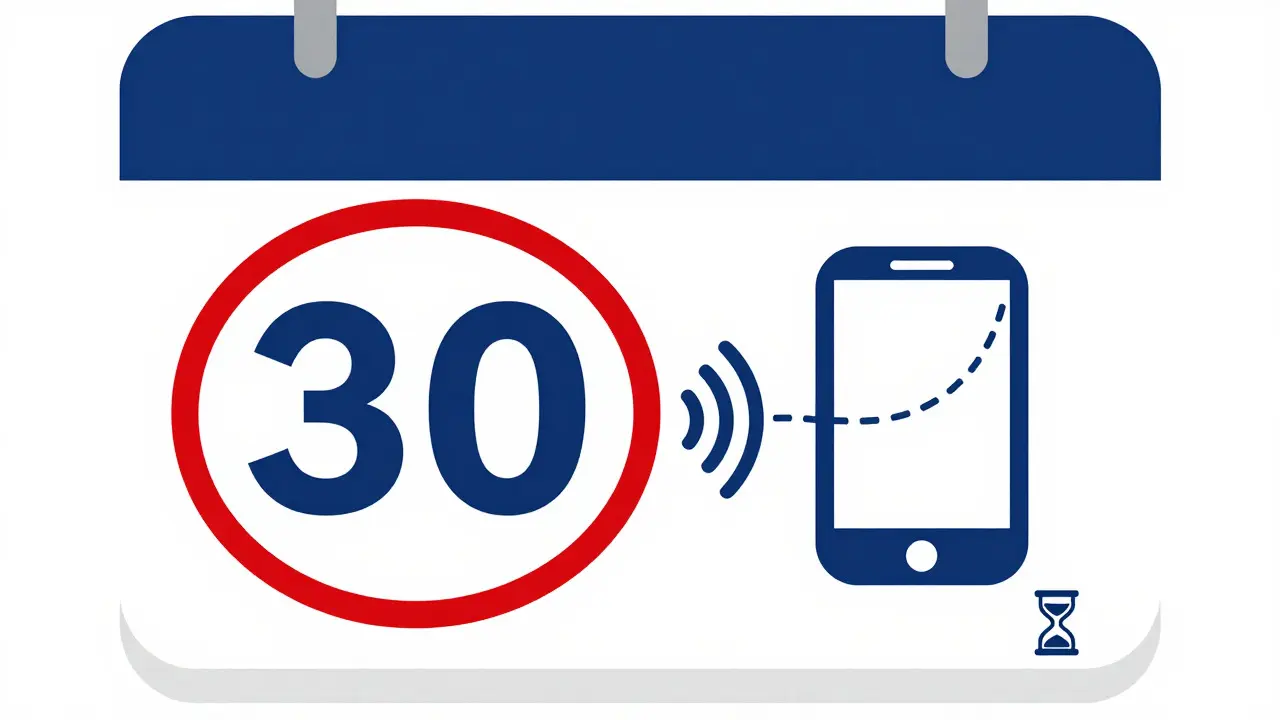
The standard rule across Netflix, Disney+, and Max is a 30-day window. You must connect your device to Wi-Fi or cellular data within 30 days of downloading the content. Once connected, the clock resets. This is designed to prevent users from keeping old seasons forever after canceling their subscription.
However, there is a nuance with playback duration. Once you start playing a downloaded title, you typically have a limited window to finish it. For example, on Netflix, you usually have 7 days to complete a download once you press play. If you haven’t finished by then, the file expires, even if you are still offline. This is important for long movies or miniseries. If you start a 4-hour movie and only watch for 30 minutes, you have 6.5 days left to finish it. Miss that deadline, and you’re back to square one.
Practical Scenarios: Who Wins?
Let’s apply this knowledge to real-life situations. Which platform should you choose based on your lifestyle?
The Frequent Flyer: If you travel internationally often and rely on your phone for entertainment, Disney+ might be appealing due to the lack of a hard title cap. You can load up on family-friendly content without worrying about hitting a 50-title limit. However, if you prefer watching on a laptop during layovers, Netflix or Max are better choices because of their desktop apps.
The Storage-Conscious User: If you have an older smartphone with limited storage, Netflix is the clear winner. The ability to manually set downloads to SD saves precious gigabytes. You can fit twice as many shows on your device compared to using Max’s automatic high-quality downloads.
The Quality Enthusiast: If you have a modern device with ample storage and care deeply about visual fidelity, Max offers some of the best default download qualities, especially for its original programming. Netflix can match this if you manually select 4K, but you have to remember to do so for each title or change your global setting.
Frequently Asked Questions
Can I download Netflix content to my Smart TV?
No. Netflix downloads are exclusive to mobile devices (phones/tablets) and desktop/laptop computers via the official app. Smart TVs and streaming sticks do not support local storage for offline viewing. You can only cast from a device that has the download capability.
What happens if I cancel my subscription while I have downloads?
Your downloaded content will remain playable until the expiration date (usually 30 days from download or 7 days from starting playback). After that, the files will become unplayable and may be deleted from your device to free up space. You cannot keep them indefinitely.
Does Disney+ allow downloads on iPad?
Yes. Unlike some competitors that restrict downloads to phones only, Disney+ fully supports downloads on iPads. This makes it a strong option for families traveling with tablets, as you can store multiple movies for different children.
Which service has the best 4K download quality?
All three services offer 4K downloads for eligible titles. However, Netflix allows you to explicitly select 4K, ensuring you get the highest bitrate version. Max and Disney+ determine quality automatically, which is usually high but not always guaranteed to be the absolute top-tier bitrate for every title.
Can I transfer downloads from one phone to another?
Generally, no. Downloads are tied to the specific device and account. If you switch phones, you usually need to delete the downloads from the old device and re-download them on the new one, provided you have an internet connection. Some users report success with cloud backup restores, but it is not officially supported and can fail.