18
Prime Video on Roku, Fire TV, Apple TV, and Smart TVs: Step-by-Step Setup Guide
Getting Prime Video working on your TV shouldn’t be a hassle. Whether you’re using a Roku, a Fire TV stick, an Apple TV, or a built-in smart TV system, the process is usually straightforward-if you know where to look. Too many people give up after a few failed attempts, thinking they’re doing something wrong. The truth? It’s rarely user error. It’s usually a missing step, a forgotten account, or an outdated app. Let’s fix that.
What You Need Before You Start
You don’t need fancy gear. Just three things:
- Your Amazon account (the same one you use for shopping or Prime membership)
- A stable internet connection (at least 5 Mbps for HD, 15 Mbps for 4K)
- The streaming device itself-Roku, Fire TV, Apple TV, or a smart TV with Prime Video built-in
If you don’t have an Amazon Prime account, you can still use Prime Video. You’ll pay $9.99 per month for the standalone video subscription. No shipping, no music, just movies and shows.
Setting Up Prime Video on Roku
On Roku, the Prime Video app is easy to find. Turn on your Roku, go to the home screen, and scroll to the Streaming Channels section. Look for Prime Video. If you don’t see it, press the Home button, then select Streaming Channels > Search Channels. Type Prime Video and press Add Channel.
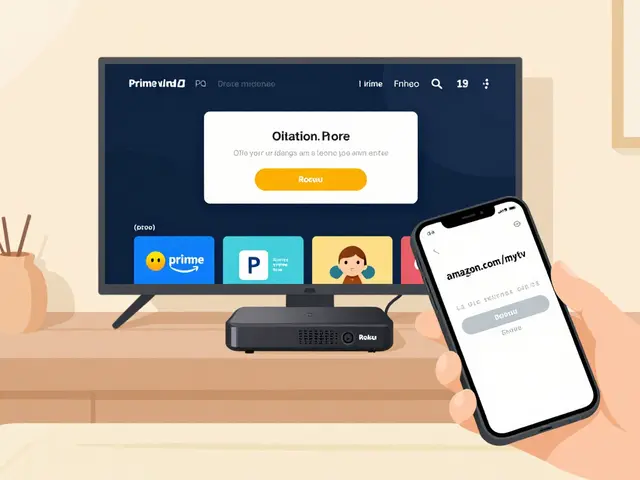
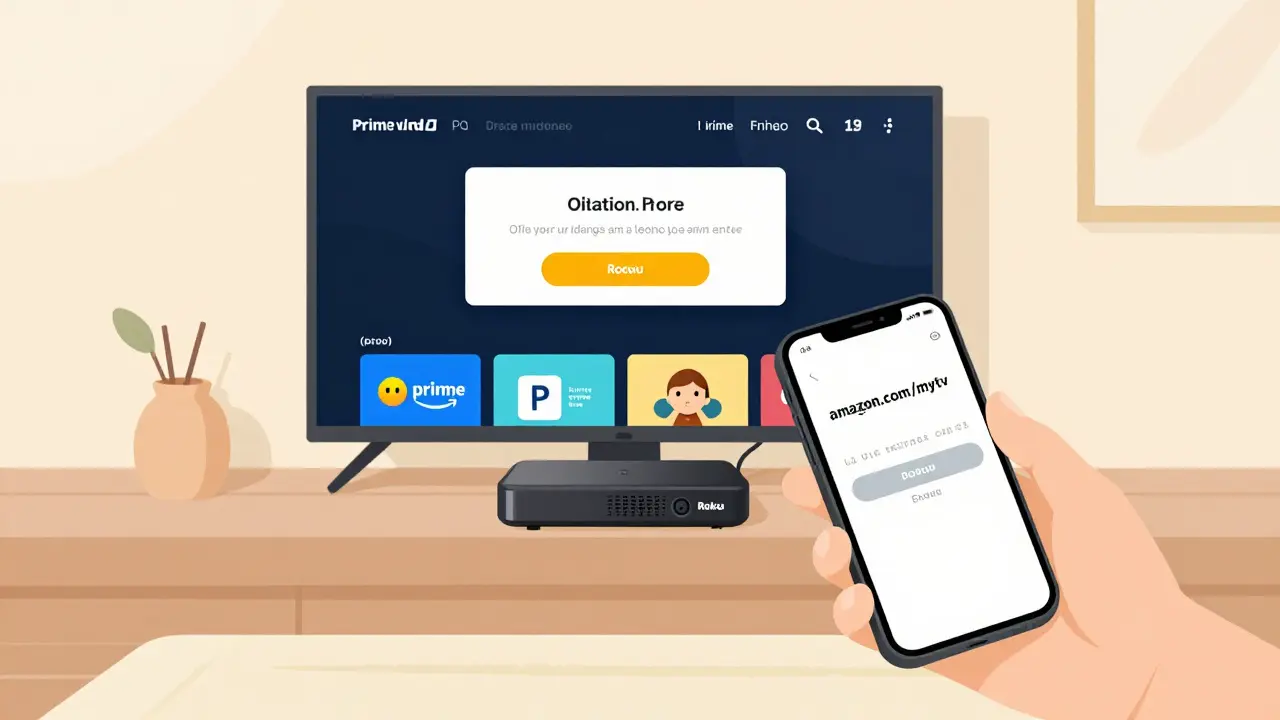
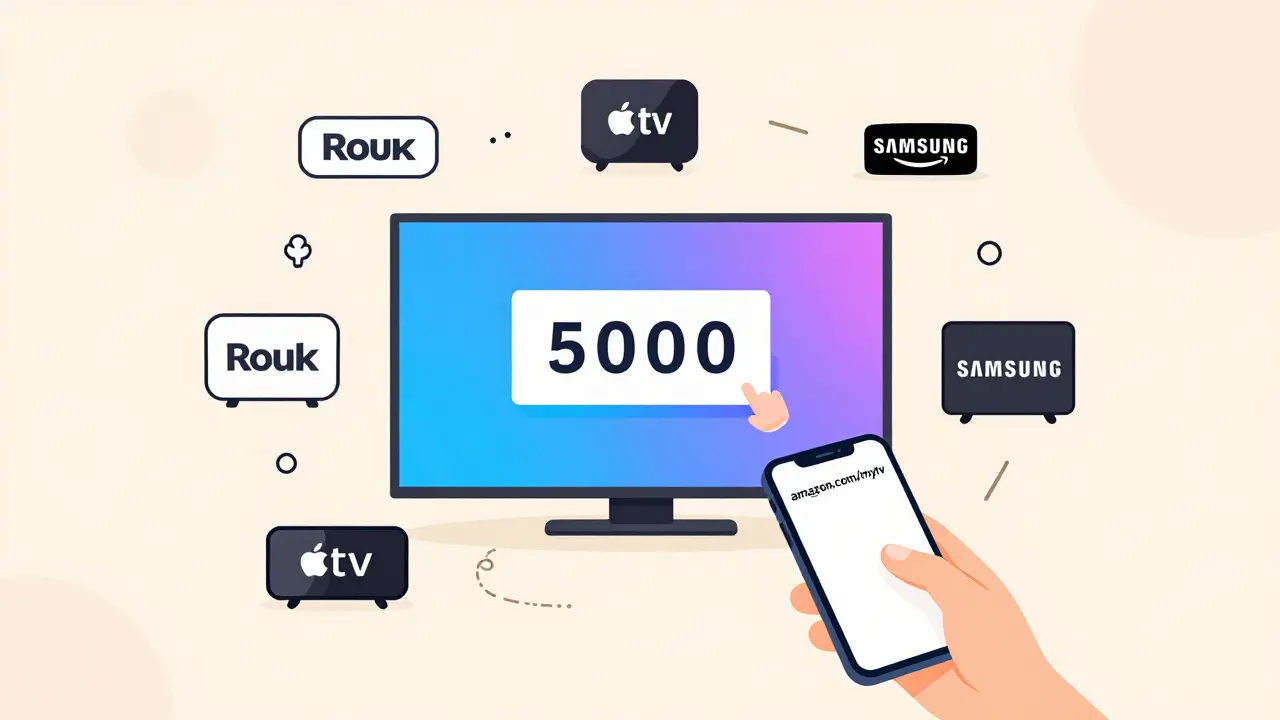
Once installed, open the app. It’ll ask you to sign in. If you’re already logged into your Amazon account on another device, you might see a message saying Activate Your Device. That’s normal. You’ll see a 5-character code on screen. Go to amazon.com/mytv on your phone or computer. Sign in, enter that code, and hit Continue. Your Roku will refresh and show your Prime Video library.
Pro tip: If the app crashes or freezes, go to Settings > System > System Update to make sure your Roku is running the latest software. Outdated firmware causes 60% of Roku app issues.
Prime Video on Fire TV
Fire TV devices come with Prime Video pre-installed. That’s because Amazon owns both. If you see the Prime Video app on the home screen, great. If it’s missing, go to the Search icon (magnifying glass), type Prime Video, and select Download.
Open the app. It’ll likely ask you to sign in. If you’re already signed into your Fire TV with your Amazon account, it should auto-login. If not, you’ll see a message: Sign in with your Amazon account. Click Register. A code will appear. Go to amazon.com/mytv on another device, sign in, enter the code, and confirm.
Some Fire TV users get stuck because they’re using a child profile or a different Amazon account. Check the top-right corner of the Fire TV home screen. Tap it. Make sure it says your name-not Guest or Child. Switch to your main account if needed.
Apple TV Setup
Apple TV doesn’t have a native Prime Video app like Roku or Fire TV. Instead, you’ll find Prime Video in the App Store. Open the App Store, search for Prime Video, and install it.
Once installed, open the app. You’ll be prompted to sign in. If you’ve used Prime Video on your iPhone or iPad, you might already be logged in thanks to Apple’s sign-in sync. If not, enter your Amazon email and password.
Apple TV users often run into issues with AirPlay. If you’re trying to mirror content from your iPhone to Apple TV and it’s not working, make sure both devices are on the same Wi-Fi network. Also, disable Screen Mirroring in Control Center and open the Prime Video app directly on the Apple TV instead.
Prime Video on Smart TVs
Smart TVs from Samsung, LG, Sony, Vizio, and others all support Prime Video. The setup varies slightly by brand, but the process is nearly identical.
- Samsung: Press the Home button, go to Apps, find Prime Video, and open it. If it’s not there, search the Samsung App Store.
- LG: Press the Home button, select LG Content Store, search Prime Video, and install.
- Sony: Go to the Google Play Store (if Android-based), search Prime Video, and install.
- Vizio: Use the SmartCast app or go to Apps > Prime Video.
After installation, open the app. You’ll see the same activation screen: a 5-digit code. Go to amazon.com/mytv, sign in, enter the code, and you’re done.
One common mistake: people try to use their TV’s voice assistant (like Bixby or Google Assistant) to launch Prime Video. That rarely works. Always open the app manually the first time.
Why Prime Video Won’t Load (And How to Fix It)
Even after setup, problems can pop up. Here are the top 3 reasons and fixes:
- Blank screen or spinning wheel - Your internet is too slow. Run a speed test. If you’re under 5 Mbps, pause other devices (phones, laptops, smart thermostats) and try again. Switch from Wi-Fi to Ethernet if possible.
- "This content isn’t available in your region" - Prime Video’s library changes by country. If you’re traveling or using a VPN, turn it off. You can’t access US content from Australia unless you’re a registered user in the US.
- App crashes on startup - Uninstall and reinstall the Prime Video app. Go to your device’s app settings, find Prime Video, select Uninstall, then reinstall it from the app store. This fixes 80% of persistent crashes.
Managing Your Prime Video Profile
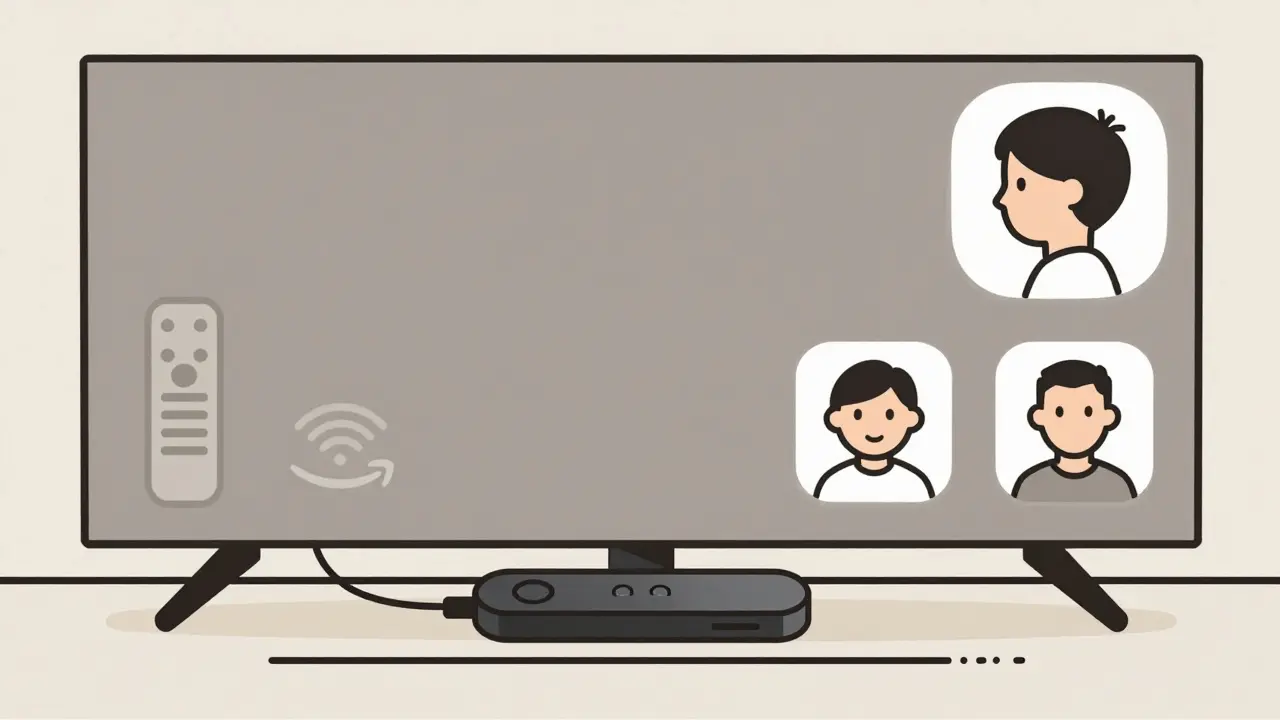
Amazon lets you create up to six profiles per account. That’s useful if you have kids, partners, or roommates. Go to amazon.com/profile on a computer. Click Edit Profiles. You can set parental controls, recommend content, or limit viewing hours.
On your streaming device, you can switch profiles from the home screen of the Prime Video app. Look for the profile icon in the top-right corner. Tap it, then select the right name. This keeps your watch history separate.
Streaming Quality: HD, 4K, or HDR?
Prime Video supports up to 4K Ultra HD with Dolby Vision and HDR10-but only if your device and TV support it. Check your device specs:
- HD (1080p): Works on all devices from 2015 onward
- 4K HDR: Requires Roku Premiere+, Fire TV Stick 4K, Apple TV 4K, or a 2017+ smart TV
- Dolby Atmos: Only available on Apple TV 4K, Fire TV Stick 4K, and select Roku models
To check what quality you’re getting, press the Info button on your remote during playback. A small overlay will show resolution and audio format. If it says SD, your internet or device doesn’t support higher quality.
What to Do If You Still Can’t Get It Working
If you’ve tried everything and Prime Video still won’t play:
- Restart your router. Unplug it for 30 seconds, then plug it back in.
- Update your TV’s firmware. Go to Settings > System > Software Update.
- Try the Prime Video app on your phone. If it works there, the issue is with your TV or streaming device-not your account.
- Contact Amazon Support. They’ll ask for your device model and activation code. Have those ready.
Most issues are resolved in under 10 minutes. Don’t assume it’s broken. It’s almost always a simple setting you missed.