13
Apple TV Not Signing In? Fix iCloud & App Store Login Issues
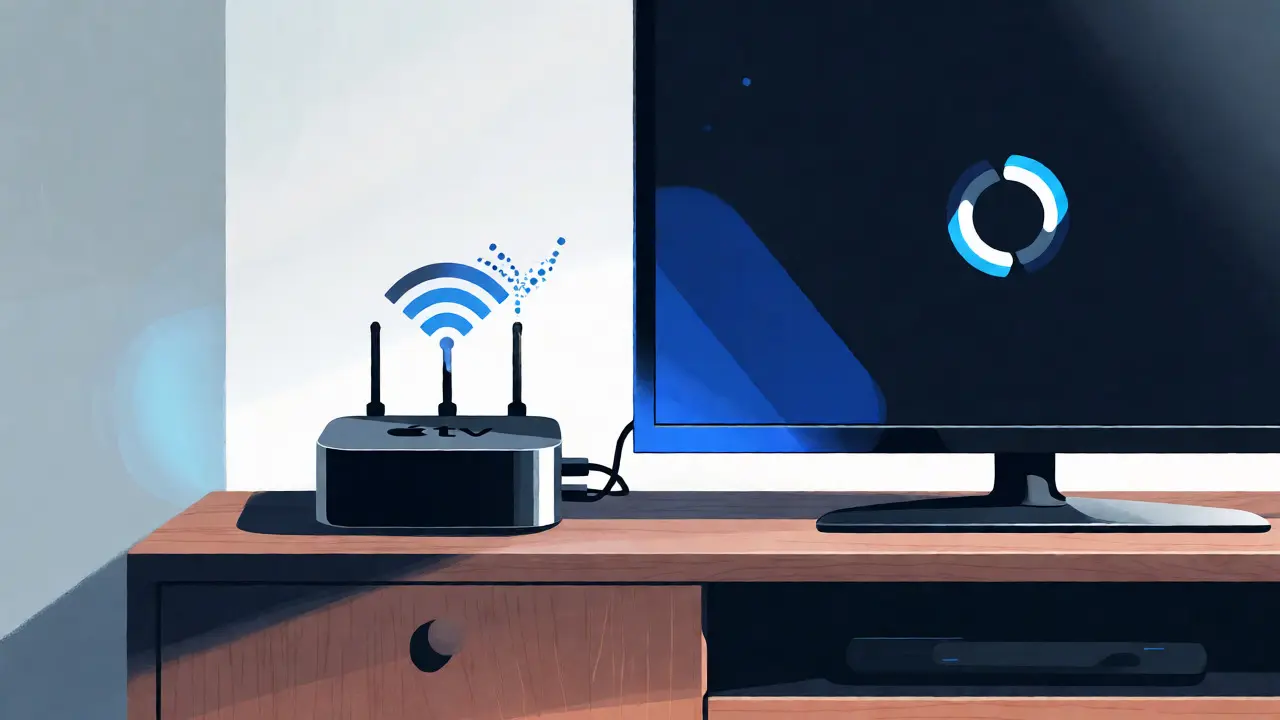
You’re ready to watch the latest season of your favorite show, but your Apple TV stuck on the "Signing In" screen or throws a vague "Unable to Connect to Apple ID" error. It’s frustrating, especially when everything else in your home works fine. This isn’t usually a broken device; it’s almost always a handshake failure between your Apple TV and iCloud. Whether you have an Apple TV 4K running tvOS 17 or an older HD model, the fixes are surprisingly consistent.
Before you reset your entire setup, let’s walk through the specific steps that actually resolve these login loops. We’ll cover network quirks, two-factor authentication hiccups, and server-side issues that Apple doesn’t advertise.
Check Your Network Before Touching Settings
Most people assume their Wi-Fi is fine because Netflix loads on their phone. But Apple TV handles connections differently. It requires stable, low-latency access to specific Apple servers for authentication. If your router uses WPA3 encryption but hasn’t been rebooted in months, the security handshake might fail silently.
Start with the easiest fix: power cycle your router and modem. Unplug them for 30 seconds, then plug them back in. Wait for the lights to stabilize before turning on your Apple TV. This clears stale IP assignments that often block secure logins. If you’re using Wi-Fi, try moving the device closer to the router or, better yet, use an Ethernet adapter if your model supports it. Wired connections eliminate 90% of intermittent signing-in errors.
The Two-Factor Authentication Trap
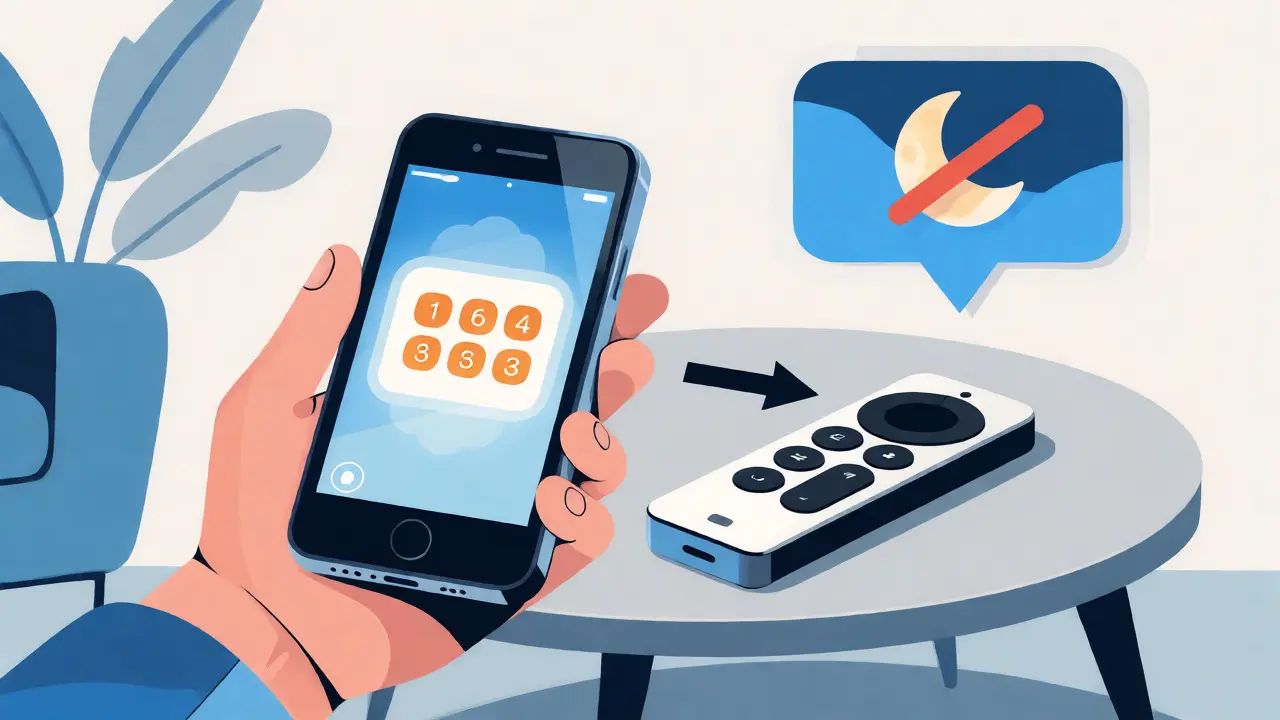
Here’s where most users get stuck. When you enter your password, iCloud sends a verification code to your trusted devices (like your iPhone or Mac). But if those devices aren’t nearby or don’t have internet, the code never arrives. You end up staring at a spinner forever.
To bypass this, ensure your primary Apple device is unlocked and connected to the same Wi-Fi network. Sometimes, the push notification gets delayed by Do Not Disturb modes. Check your iPhone’s Control Center to disable DND temporarily. If the code still doesn’t appear, go to Settings > [Your Name] > Sign-In & Security on your iPhone and manually generate a verification code. Enter that six-digit number into the Apple TV prompt. This manual override forces the authentication process to complete without relying on real-time push notifications.
Update tvOS Manually
Outdated software is a common culprit for login failures. Apple frequently patches authentication bugs in minor updates. If your Apple TV can’t sign in, it might also be unable to check for updates automatically. You need to force a check.
- Navigate to Settings on your Apple TV.
- Select System > Software Updates.
- Click Update Software. Even if it says "Up to Date," click it again to verify against Apple’s servers.
If the update fails, download the tvOS file on a computer and restore it via iTunes or Finder using USB-C (for newer models) or HDMI/USB methods for older ones. A fresh OS install often resets corrupted authentication tokens stored locally.
Reset Apple ID Credentials
Sometimes the issue isn’t the device-it’s the account itself. If you recently changed your password on another device, the old token might still be cached on your Apple TV. The quickest way to clear this is to sign out completely, not just restart.
| Error Message | Likely Cause | Quick Fix |
|---|---|---|
| "Cannot Connect to Apple ID" | DNS or Firewall Block | Change DNS to 8.8.8.8 |
| "Verification Code Not Received" | Push Notification Delay | Generate Manual Code |
| "Incorrect Password" (even when correct) | Cached Token Conflict | Sign Out and Restart |
| "App Store Connection Failed" | iTunes Server Down | Check System Status Page |
To sign out, go to Settings > Accounts > Media & Apps. Select your account and choose Sign Out. Confirm the action. Once signed out, wait ten seconds, then sign back in with your current credentials. This forces the device to fetch a new authentication ticket from iCloud.
Verify Apple System Status
It sounds obvious, but we’ve all forgotten to check if Apple’s servers are down. If multiple services like App Store, iMessage, and iCloud Drive are failing simultaneously across different devices, the problem is on Apple’s end. Visit the official Apple System Status page. Look for red dots next to "Apple ID," "App Store," or "iTunes Store." If there’s an outage, no amount of resetting will help until they patch it. Typically, these outages last less than four hours.
Advanced Troubleshooting: DNS and Regional Settings
If standard fixes fail, dig deeper into your network configuration. Some ISPs block specific ports used by Apple’s authentication servers. Changing your DNS settings on the Apple TV can bypass these restrictions.
- Go to Settings > Network > Wi-Fi (or Ethernet).
- Select Configure DNS > Manual.
- Add
8.8.8.8(Google DNS) and1.1.1.1(Cloudflare DNS). - Save and retry the sign-in process.
Also, check your region settings. If your Apple ID is set to one country but your device thinks it’s in another, App Store connections may drop. Ensure your location matches your billing address in Settings > General > Language & Region.
Factory Reset as a Last Resort
If nothing else works, a factory reset wipes local data and restores default configurations. Note that this removes installed apps and saved preferences, so you’ll need to re-download everything. Go to Settings > System > Reset > Reset All Settings. This option keeps your media library intact but clears network and account settings. After the reset, set up the device as new rather than restoring from backup, as backups sometimes carry over corrupted login states.
By methodically ruling out network issues, forcing manual authentication, and clearing cached tokens, you’ll likely regain access within minutes. Remember, Apple TV login issues are rarely hardware faults-they’re digital misunderstandings between your device and iCloud. Fix the communication, and you’re back to streaming.
Why does my Apple TV keep asking for my password even after I enter it correctly?
This usually happens due to a cached authentication token conflict. The device holds onto an old session key that no longer matches your current password. Signing out completely from Settings > Accounts > Media & Apps, waiting a few seconds, and signing back in forces the device to request a fresh token from iCloud.
Can I use a different email address to sign in to Apple TV?
Yes, you can use any valid Apple ID email. However, if you switch accounts, you’ll lose access to purchases and subscriptions tied to the original account unless you share family groups. Ensure the new Apple ID has payment methods configured if you plan to rent movies.
Does changing DNS really fix Apple TV login issues?
It can. Some Internet Service Providers use proprietary DNS servers that occasionally misroute requests to Apple’s authentication servers. Switching to public DNS like Google (8.8.8.8) or Cloudflare (1.1.1.1) provides a more direct and reliable path to Apple’s infrastructure.
What if my two-factor authentication code never arrives?
First, check that your trusted devices have internet access. If push notifications fail, go to Settings > [Your Name] > Sign-In & Security on your iPhone or iPad and select "Get Verification Code." This generates a static code you can type directly into the Apple TV interface, bypassing the need for real-time delivery.
Is a factory reset safe for my downloaded content?
A "Reset All Settings" keeps your apps and data but clears configurations. A full "Erase All Content and Settings" deletes everything. For login issues, start with "Reset All Settings." Only erase fully if you suspect deep system corruption, as you’ll need to re-download every app and re-sign in.