6
Data Management: DIT, Backups, and Archival Best Practices for Video Teams
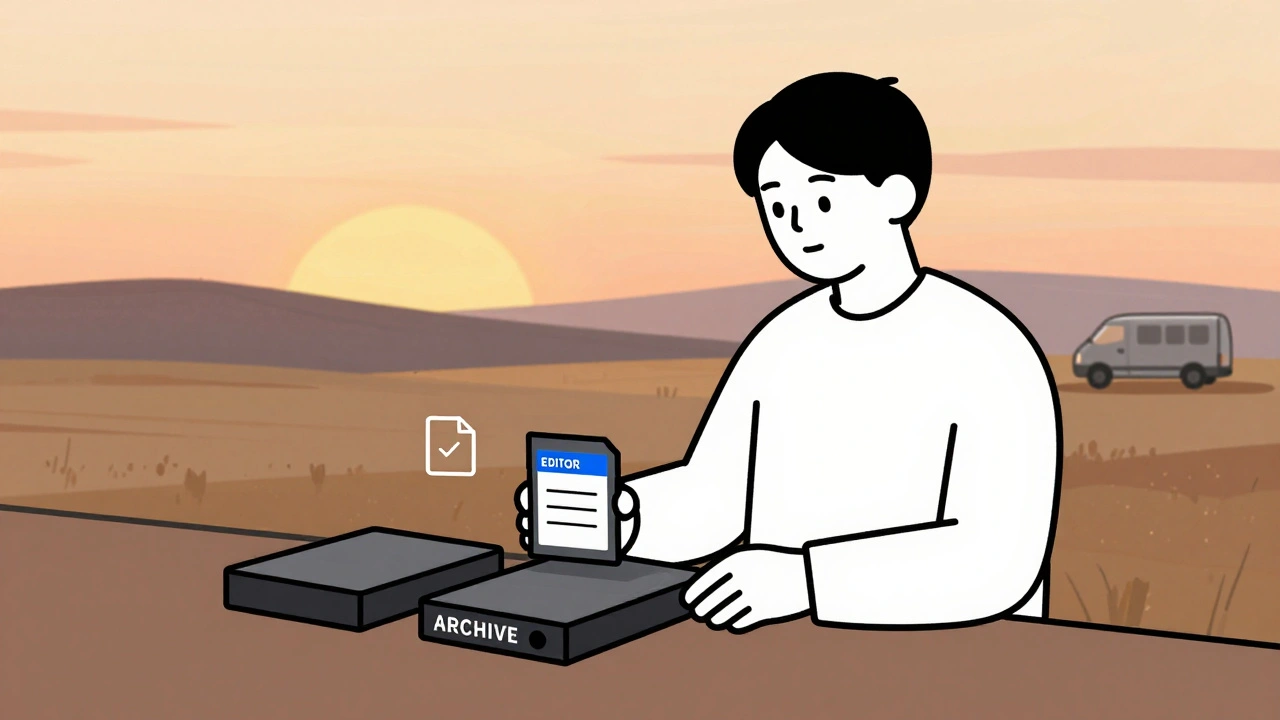
On a shoot in rural Montana, a camera card crashes right before sunset. The assistant director panics. The DIT (Digital Imaging Technician) stays calm. In under ten minutes, they’ve copied the card to two external drives, labeled them with shoot date and take number, and sent a checksum file to the editor. No data lost. No panic. Just good data management.
This isn’t luck. It’s routine. Every professional video team that’s been around for more than a year has learned the hard way: if you don’t manage your data like a pro, you lose it forever. And when you lose footage from a paid shoot, you don’t just lose files-you lose trust, money, and reputation.
What Is a DIT and Why Does It Matter?
DIT stands for Digital Imaging Technician. They’re not just the person who swaps memory cards. They’re the gatekeeper of your entire digital workflow. A DIT handles ingest, metadata tagging, quality control, and backup creation-all before the camera rolls even stop.
On indie films, the DIT might be the director or DP doubling up. On big productions, they’re a full-time role with their own laptop, drives, and software stack. Either way, their job is simple: make sure every frame you shoot is safe, organized, and ready to edit.
Here’s what a good DIT does on day one:
- Checks camera settings and codec compatibility with the edit system
- Uses a validated ingest tool like ShotPut Pro or Assimilate Sync to copy files
- Generates checksums (MD5 or SHA-256) for every file to detect corruption
- Tags files with metadata: shoot date, scene, take, camera model, timecode
- Duplicates footage onto at least two separate drives before erasing cards
That last step is non-negotiable. Never delete a card until you have two verified copies. One copy for the editor. One copy for archive. And never, ever store both on the same physical device.
Backup Strategy: The 3-2-1 Rule Is Still King
Everyone’s heard of the 3-2-1 backup rule. But most teams don’t follow it right.
Here’s what it actually means in practice:
- 3 copies of your data: original footage, one backup, one secondary backup
- 2 different media types: SSDs for active work, HDDs for cold storage, LTO tapes for long-term
- 1 offsite copy: stored in a different building, cloud, or secure vault
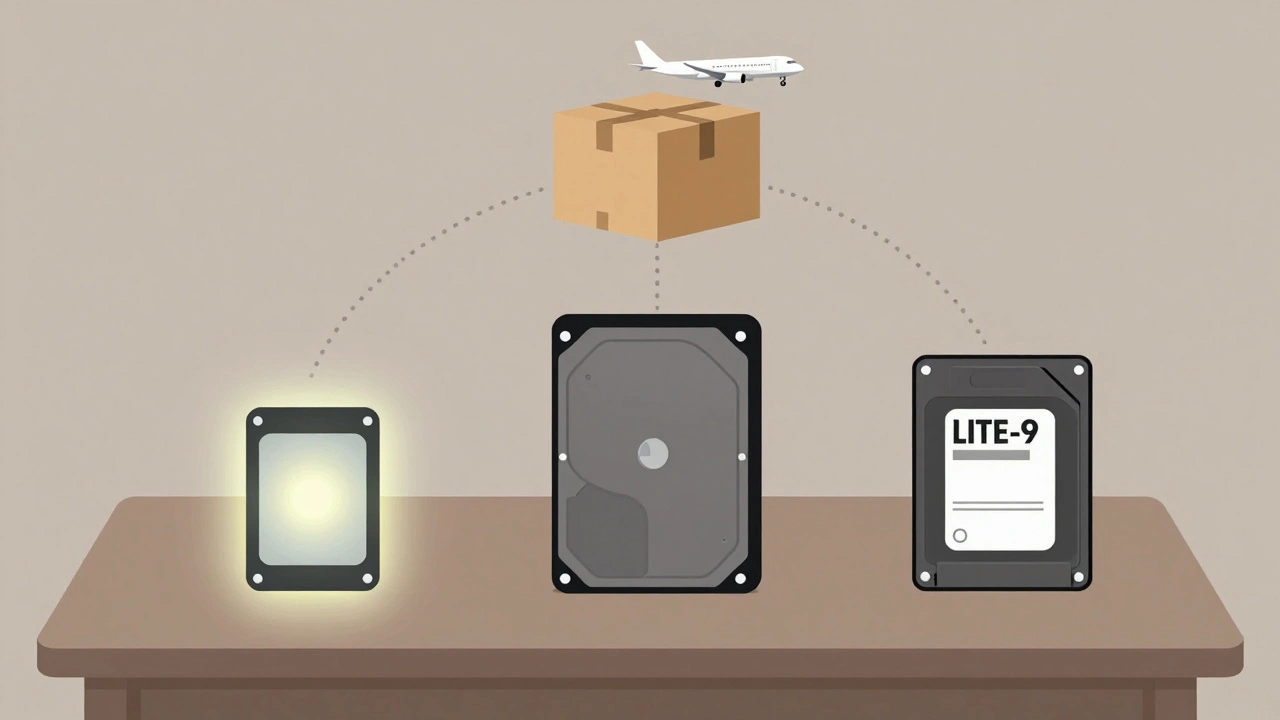
For a commercial shoot with 2TB of raw footage, this looks like:
- Copy 1: 2TB SSD (on-set DIT laptop, used for quick review)
- Copy 2: 4TB HDD (in a locked case at the studio, labeled with barcode)
- Copy 3: 4TB LTO-9 tape (shipped to a climate-controlled storage facility)
Why LTO? Because it lasts 30+ years when stored properly. SSDs degrade after 3-5 years of frequent use. HDDs fail randomly. LTO doesn’t need power to hold data. It’s the only storage that can survive a fire, flood, or hard drive crash without a single bit lost.
And yes, LTO drives cost more upfront. But compared to paying a client $50,000 in damages because you lost their wedding footage? It’s cheap.
Archival Best Practices: Don’t Just Store-Organize
Storing files is easy. Finding them in five years? That’s the real challenge.
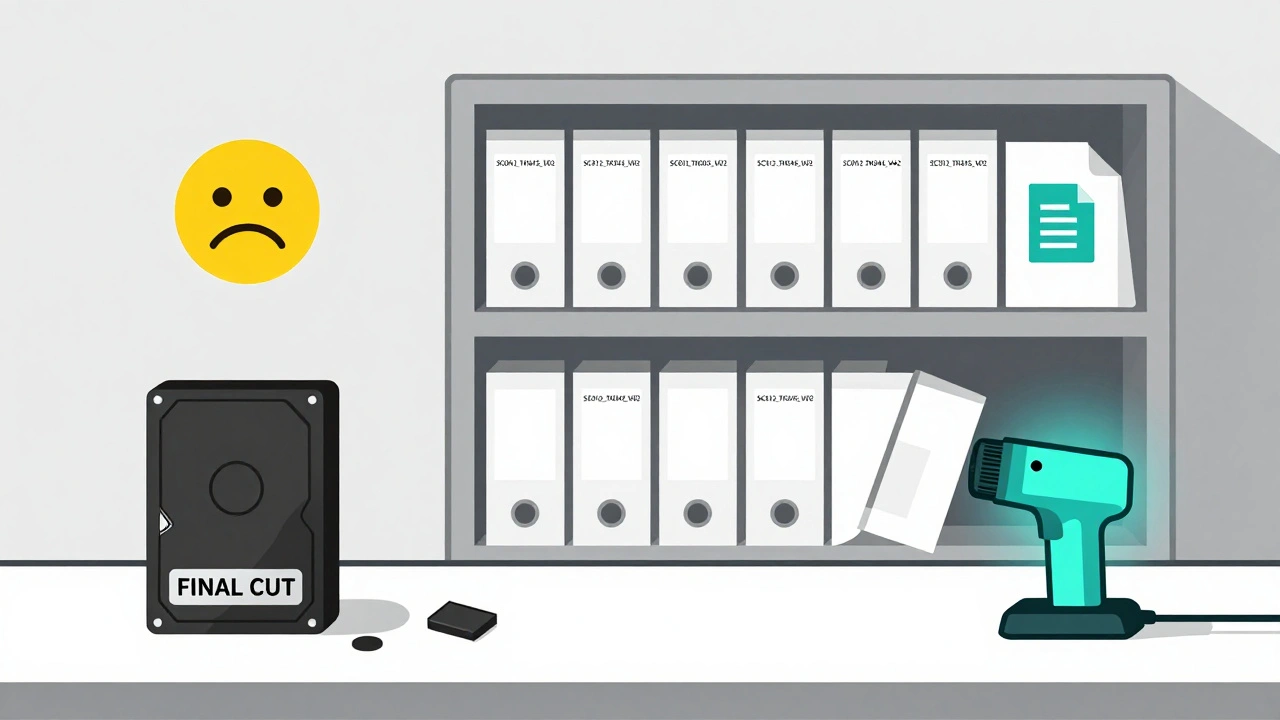
Most teams archive by dumping folders into a drive labeled “FINAL CUT.” Then they forget about it. Until someone asks for the 2023 holiday campaign and can’t find the 4K master.
Here’s how the pros do it:
- Use a consistent folder structure:
/ProjectName/Year/Season/Scene_Take/ - Include a README.txt in every project folder with: camera model, codec, frame rate, color profile, and who handled the ingest
- Never use spaces or special characters in filenames. Use underscores:
SC012_TK045_V02.mov - Archive in open, non-proprietary formats: ProRes 422, DNxHR, or uncompressed TIFF sequences
- Keep an inventory spreadsheet with file hashes, storage location, and expiration date
One post-production house in Atlanta tracks over 12,000 archive folders. They use a simple Airtable database with barcode scanning. Every tape gets scanned in and out. No guesswork. No lost drives.
And here’s the kicker: they never delete anything. Not even the outtakes. Why? Because a client might come back in 2027 wanting to reuse a 2023 B-roll clip. Or a documentary filmmaker might need it for context. Archival isn’t about saving space-it’s about saving possibility.
Common Mistakes That Cost Teams Thousands
Here are the five most common data management failures we’ve seen:
- Using one drive for ingest and backup-if it dies, you lose everything.
- Not verifying checksums-corrupted files look fine until you open them in Premiere.
- Storing backups in the same room as the main drive-a fire or flood takes out both.
- Using consumer-grade drives for long-term storage-WD Elements and Seagate Backup Plus aren’t built for decades.
- Not documenting anything-if no one knows what’s on the drive or how to access it, it’s useless.
One team lost 80 hours of drone footage because they copied it to a single external drive, left it in a hot van, and assumed the files were fine. The drive was physically intact. But the data? Gone. No checksums. No backups. No recovery.
That mistake cost them $22,000 in reshoots and a lawsuit.
Tools That Actually Work in 2025
You don’t need fancy software. You need reliable tools that do one thing well.
- Ingest & Verify: ShotPut Pro (Mac/Win), Assimilate Sync, or even free tools like rsync with checksum flags
- Backup & Sync: FreeFileSync (for local duplication), Syncthing (for encrypted sync across devices)
- Archival Storage: LTO-9 tapes (with a compatible drive like Quantum Scalar i6), enterprise-grade HDDs like WD Gold or Seagate Exos
- Metadata & Tracking: Airtable, Excel (yes, still), or dedicated tools like CatDV or Frame.io for cloud-linked metadata
Some teams use cloud storage like AWS S3 Glacier for offsite backups. It’s fine for non-critical files, but never trust it for primary footage. Cloud storage can be slow to restore, and you’re at the mercy of their infrastructure. Physical drives you control are still the gold standard.
What Happens When You Skip This?
Let’s say you’re a freelance editor. You get a job from a local nonprofit. You shoot for three days. You copy files to your laptop. You delete the cards. Two weeks later, the client asks for a 10-second clip from Day 2. You can’t find it. You search your drive. Nothing. You check your backup drive-same folder structure, but the files are corrupted.
You call the client. They’re furious. They paid you $5,000. They need the clip for a grant application due in 48 hours.
You pay a data recovery service $3,000. They recover 60% of the files. The clip you needed? Still gone.
You lose the client. You lose your reputation. And you realize-you could’ve prevented all of this with $200 in drives and 20 minutes of discipline.
Data management isn’t glamorous. It doesn’t show up in the final cut. But it’s the invisible foundation of every professional video project. Skip it, and you’re not just risking files-you’re risking your career.
Start Today: Your 5-Minute Data Health Check
Here’s what you do right now:
- Find your last three shoots. Do you have at least two copies of the raw footage?
- Open one of those folders. Is the filename clean? Does it have a README?
- Where is your offsite backup? Is it in a different building?
- Do you know the checksum of any file on that drive? If not, generate one now.
- Write down one thing you’ll change in your next shoot.
That’s it. No software to buy. No training to take. Just one question: Are you protecting your work-or just hoping it’ll be fine?
What’s the difference between backup and archival?
Backup is for short-term safety-copying files so you can recover them if something goes wrong today or next week. Archival is for long-term preservation-organizing and storing files so you can find and use them years later. Backups are active; archives are passive. You need both.
Can I just use cloud storage for everything?
No. Cloud storage is great for collaboration and sharing, but it’s not reliable for primary archival. Upload speeds are slow, restoration can take days, and you’re vulnerable to service outages or price hikes. Use cloud for access, not as your only copy. Always keep physical backups.
How often should I check my backups?
Test your backups at least once a year. Pull a drive, plug it in, and open a random file. If it won’t play or the checksum doesn’t match, your backup failed. Don’t wait until you need it to find out.
Is it okay to reuse memory cards after backing up?
Yes-but only after you’ve verified the backup is perfect and you’ve written-protected the card. Never erase a card in-camera. Always format it using the camera’s built-in format tool after copying. This prevents file system errors.
What’s the cheapest way to start a good backup system?
Buy two 4TB external HDDs (like WD Elements or Seagate Expansion) for $80 each. Use one for active work, one for backup. Copy files manually after every shoot. Write labels on the drives. Store one in a different room. That’s it. You’ve just done better than 90% of indie teams.
Good data management isn’t about being perfect. It’s about being consistent. One wrong move can cost you everything. But one good habit-like verifying checksums or labeling drives-can save your career. Start small. Stay sharp. And never, ever assume your files are safe just because they’re on a drive.