7
How to Cancel Apple TV+ Subscription on iPhone, Mac, and Web
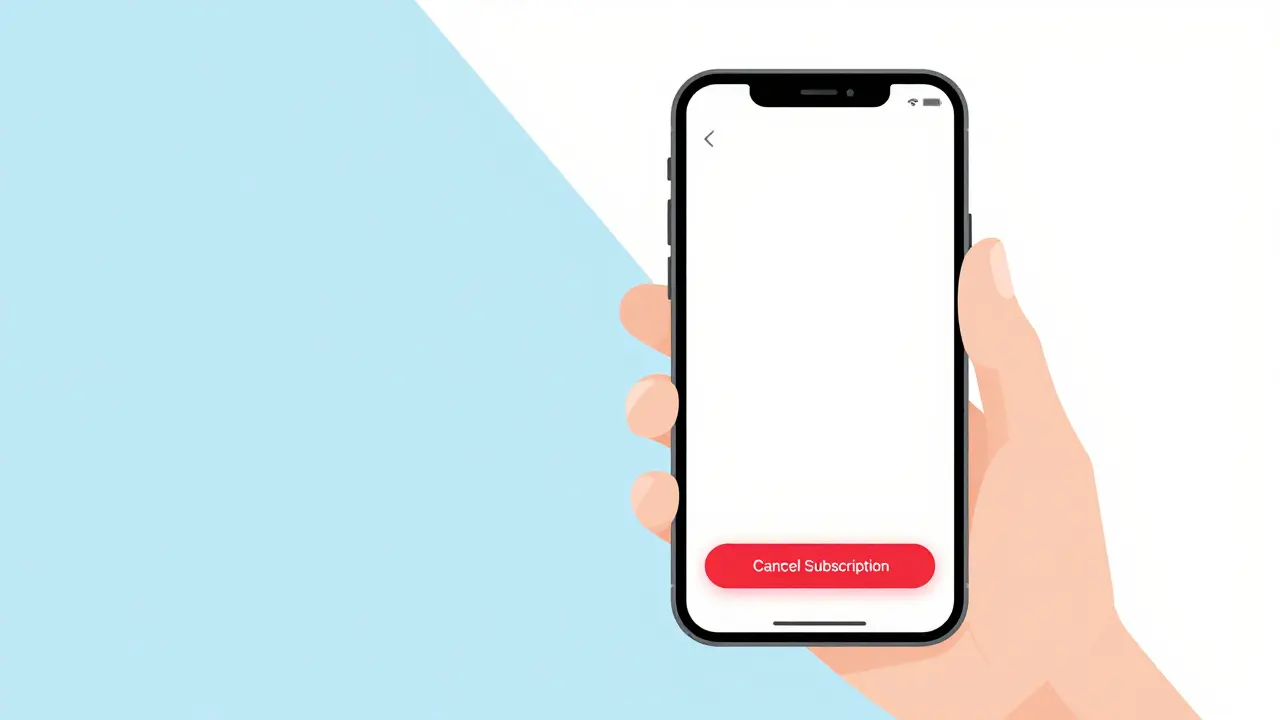
You signed up for the free trial, or maybe you just wanted to watch one specific show. Now that it’s over, you want to make sure you aren’t paying $9.99 a month for something you don't use. It is frustrating when hidden subscriptions drain your bank account. The good news is that canceling Apple TV+ is a straightforward process that stops future billing immediately. You do not need to call support, send an email, or wait for a human agent to approve your request.
Whether you are using an iPhone, a Mac, or a web browser on Windows or Linux, the steps are nearly identical because everything ties back to your Apple ID is your unique account identifier across all Apple services. Once you hit the confirm button, your access continues until the end of your current billing period. After that date, the service shuts off, and no more charges appear on your statement.
Canceling Apple TV+ on iPhone or iPad
Most people use their iOS devices as their primary remote control for digital purchases. If you are holding your phone in your hand right now, this is the fastest route. You do not need to open the Apple TV app itself; the setting lives inside the main Settings menu.
- Unlock your device and tap the Settings app (the gray gear icon).
- Tap your name at the very top of the screen. This opens your Apple ID profile.
- Select Subscriptions. You will see a list of active and expired subscriptions.
- Find Apple TV+ in the list and tap it.
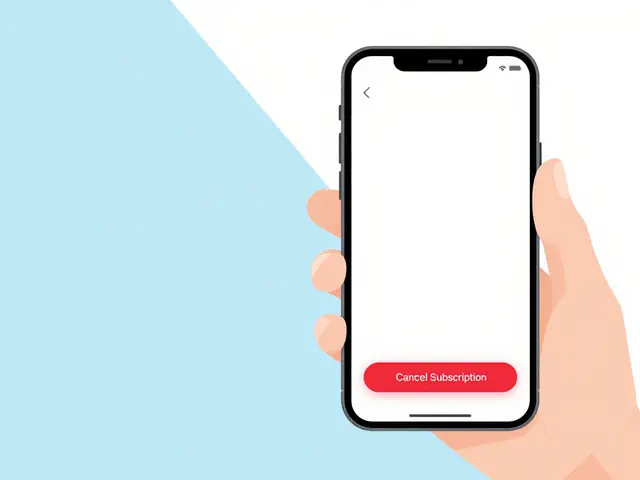
- Tap the red text that says Cancel Subscription.
- Confirm by tapping Cancel Free Trial or Cancel Subscription again.
If you do not see "Cancel Subscription" but only "Resubscribe," you have already canceled it. Do not worry if you still see the Apple TV+ app on your home screen. The app does not disappear. It simply becomes a portal for content you can no longer stream unless you pay again.
Stopping the Charge on Mac
If you prefer working on a desktop, macOS handles subscriptions through the App Store application. Even though Apple TV+ is a streaming service, its billing is managed under the same umbrella as apps and games you download from the store.
- Open the App Store application on your Mac.
- Click your name or profile picture at the bottom left of the sidebar. If you do not see it, click your name at the top right of the window.
- In the account page that loads, look for the Manage button next to "Subscriptions" in the right-hand column.
- Locate Apple TV+ in the list.
- Click the Edit button next to it.
- Select Cancel Subscription and confirm your choice.
This method works on any Mac running macOS Big Sur or later. Older versions of macOS might require you to go to System Preferences > Apple ID > iTunes & App Store, but most users are on newer systems now.
Canceling via the Web Browser
Maybe you do not own an Apple device, or perhaps your iPhone is lost. No problem. You can manage your subscription directly through Safari, Chrome, Firefox, or Edge. This is often the best option for families where one person manages the household's digital accounts.
- Go to appleid.apple.com in your browser.
- Sign in with your Apple ID and password. You may need to verify your identity with two-factor authentication.
- Scroll down to the Purchases and Subscriptions section.
- Click Edit next to "Subscriptions."
- Find Apple TV+ and click Edit again.
- Choose Cancel Subscription.
This web interface gives you a clear view of all your recurring payments. It is also useful if you suspect unauthorized activity on your account, as you can review payment history here.
What Happens After You Cancel?
Understanding the timeline prevents panic. When you cancel, you do not lose access instantly. Apple allows you to keep watching until the day they would have charged you next. For example, if you cancel on July 5th, but your billing cycle ends on July 15th, you can stream every movie and show until midnight on July 15th.
Your downloaded content behaves differently. If you have saved episodes for offline viewing, those files remain on your device. However, you cannot start new downloads. Existing downloads usually expire shortly after your subscription lapses, so plan your offline viewing accordingly.
| Method | Speed | Best For |
|---|---|---|
| iPhone/iPad | Fastest | Mobile users, quick fixes |
| Mac | Medium | Desktop users, detailed review |
| Web Browser | Slowest | Non-Apple devices, shared accounts |
Can You Get a Refund?
This is the most common question. Generally, Apple does not issue refunds for partial months of service. Their policy states that once the billing period starts, the fee is non-refundable. There are exceptions, however. If you were charged twice by mistake, or if you subscribed without realizing it due to a technical glitch, you can request a refund.
To ask for money back:
- Visit reportaproblem.apple.com.
- Sign in with your Apple ID.
- Select "I would like to" and choose "Request a refund."
- Choose the reason, such as "I didn't mean to buy this" or "I was charged incorrectly."
- Select the Apple TV+ charge from the list and submit.
Apple reviews these requests manually. Approval is not guaranteed, but it happens frequently for accidental renewals. Do not expect a refund if you simply changed your mind halfway through the month.
Troubleshooting Common Issues
Sometimes the buttons do not work as expected. Here is how to handle the usual roadblocks.
I do not see the Cancel button. This usually means the subscription is already inactive. Check the status line below the subscription name. If it says "Expired" or "Canceled," you are done. You will not be charged again.
The subscription keeps reappearing. This suggests you might have multiple Apple IDs. Many people have one personal ID and one family or work ID. Log out of your current account and check the other one. Also, ensure Family Sharing is not managing the purchase. If a family organizer paid for it, only they can cancel it.
I am still being charged. Bank statements can lag behind. A cancellation made on Monday might not reflect on your credit card statement until the next billing cycle closes. Wait 48 hours after cancellation before panicking. If the charge persists after a full billing cycle, contact Apple Support immediately with screenshots of your cancellation confirmation.
Should You Pause Instead?
Apple does not currently offer a "pause" feature for Apple TV+ subscriptions. You must cancel fully to stop payments. Some users worry about losing their place in a series. Rest assured, your watch history and library selections are tied to your Apple ID, not your active subscription status. If you resubscribe six months later, your progress remains intact.
Consider whether you truly need to cancel. If you only watch occasionally, the annual plan might be cheaper than monthly fees. But if you rarely open the app, cutting the cord saves you nearly $100 a year. That money buys a lot of coffee in Brisbane.
Does canceling Apple TV+ delete my downloaded shows?
No, the files remain on your device temporarily. However, you cannot play them indefinitely. They will likely become unplayable within a few days after your subscription expires. You cannot download new content once canceled.
Will I lose my watch history if I cancel?
No. Your watch history, favorites, and library are stored in the cloud associated with your Apple ID. If you resubscribe later, your data will still be there.
Can I cancel Apple TV+ if I bought it through a third party like Roku or Amazon Fire TV?
Yes, but you must cancel through that specific platform, not your Apple ID. If you subscribed via Roku, go to your Roku channel store. If via Amazon, use your Amazon Prime Video channels settings. Only cancel via Apple ID if you originally signed up through an Apple device.
How long does it take for the cancellation to process?
The cancellation is immediate in Apple's system. You will receive an email confirmation right away. However, your bank statement may not update until the next billing cycle. Keep the confirmation email as proof.
Is there a penalty for canceling early?
No. Apple TV+ is a monthly or annual subscription with no contracts. You can cancel anytime without fees or penalties. You simply lose access at the end of the current paid period.