3
How to Report and Block on Streaming Apps: A Guide to Safer Chats
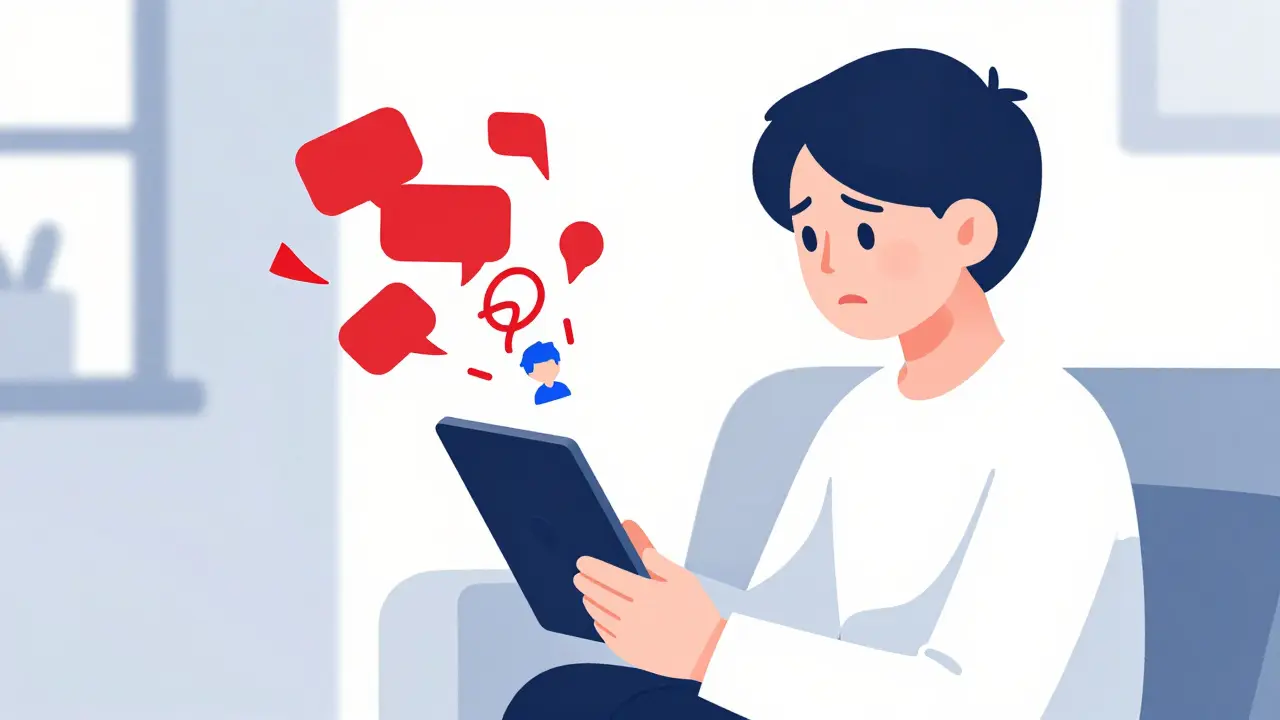
Imagine this: you hand your teenager their tablet for a quiet hour of streaming. You expect them to watch a show or play a game. Instead, they are scrolling through a live stream where strangers in the chat are shouting insults, sharing inappropriate links, or trying to move the conversation to private messages. It happens faster than you can blink. The rise of interactive streaming apps is platforms that allow real-time video broadcasting with live audience interaction via text chat has changed how we consume media, but it has also opened the door to new risks. Keeping chats and comments safe isn't just about being paranoid; it's about knowing which buttons to press before trouble starts.
The good news? Most major platforms have built-in tools to help you take control. Whether you are a parent setting up boundaries for a child or a user wanting to curate your own experience, understanding how to report and block effectively is your first line of defense. Let’s look at exactly how these mechanisms work across different services and what you can do right now to lock things down.
Understanding the Threat Landscape in Live Chat
Before we jump into the settings, it helps to know what we are fighting against. Live chat on platforms like Twitch, YouTube, TikTok, and Kick is anonymous by default. This anonymity encourages freedom of expression, but it also emboldens bad actors. The most common issues include cyberbullying, hate speech, spam bots, and predatory behavior aimed at younger users.
Cyberbullying often escalates quickly because the feedback loop is instant. An insult gets immediate reactions from others, creating a pile-on effect. Predators, on the other hand, use chat to build rapport slowly, moving victims to private direct messages (DMs) where moderation is weaker or non-existent. Understanding these patterns helps you recognize when to intervene. If you see rapid-fire negative comments or anyone asking a minor to leave the platform for a private chat, that is your red flag.
Blocking Users: Your First Line of Defense
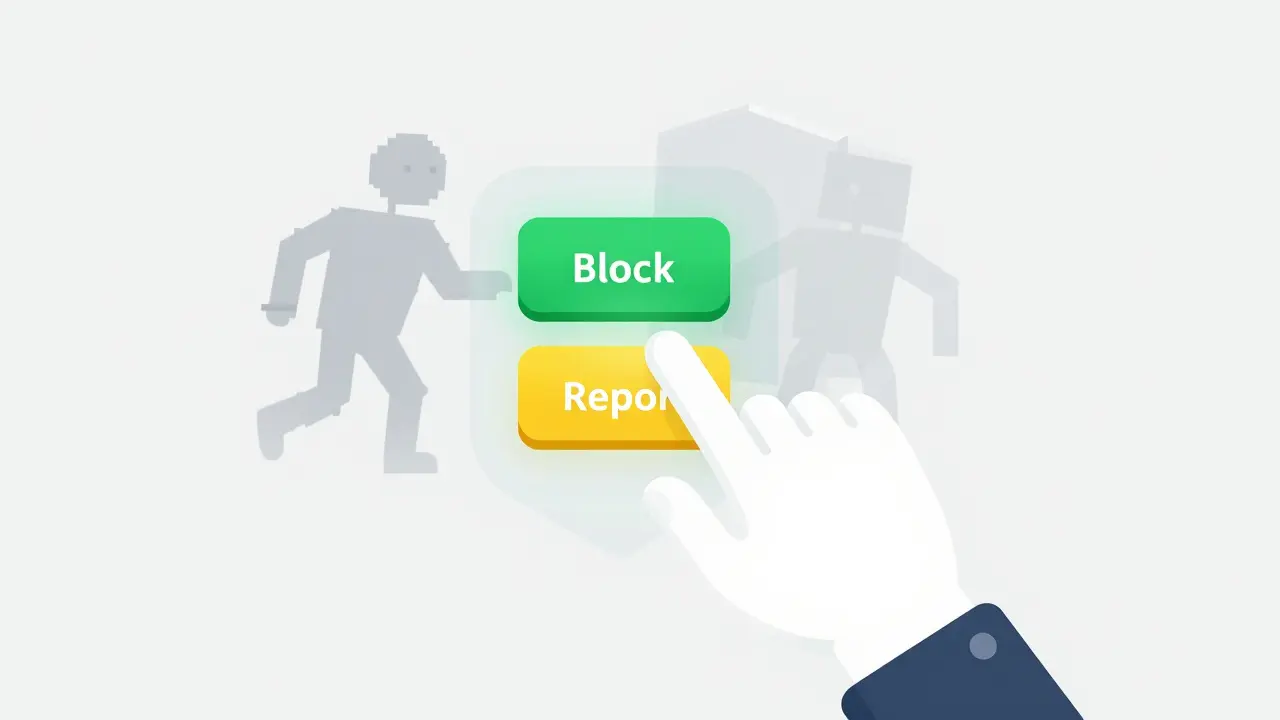
Blocking is the simplest tool in your arsenal. When you block someone, they cannot interact with you directly. On most parental controls are software features that allow guardians to restrict access to content, monitor activity, and manage time limits on devices, blocking prevents them from commenting on your streams, sending you DMs, or following you. However, it does not stop them from watching your content or commenting on other people's streams.
Here is how blocking generally works across major platforms:
- Twitch: Click the three dots next to a username in the chat panel. Select "Block." They will be removed from your current chat view and cannot message you again. If you are a streamer, you can also ban them entirely from your channel.
- YouTube: In the live chat sidebar, click the three vertical dots next to the comment. Choose "Block [username]." Their future comments will be hidden from you automatically.
- TikTok: Tap and hold a comment, then select "Block." This stops them from seeing your profile or interacting with your videos.
- Kick: Similar to Twitch, use the user menu in the chat interface to select "Block User."
Pro tip: Don't engage. Blocking is silent. Arguing with a troll gives them the attention they crave. Hit block, hit ignore, and move on.
Reporting Abuse: Making Platforms Accountable
Blocking protects you, but reporting protects everyone else. When you report a user or a comment, you are flagging it for human review by the platform's trust and safety team. This is crucial for removing accounts that violate community guidelines, such as those promoting self-harm, sexual exploitation, or severe harassment.
To report content, look for the same three-dot menu used for blocking. Select "Report" and choose the specific reason. Be precise. If someone is using hate speech, select "Hate Speech." If they are spamming links, select "Spam." Specific reports are processed faster than vague ones. Most platforms provide an option to add a brief description, which can help moderators understand context if the violation isn't immediately obvious.
Remember, reporting does not notify the person you reported. It is anonymous. However, you might receive a follow-up email if the platform takes action, such as suspending the account. This closure can be satisfying, but don't wait for it to feel safe. Assume the report is filed and continue protecting yourself.
Advanced Filtering: Automating Safety
Manual blocking and reporting are reactive. What if you could prevent bad words from ever appearing in your chat? That is where automated filtering comes in. Most streaming apps offer keyword filters that hide comments containing specific words or phrases.
| Platform | Keyword Filter Type | Auto-Mod Level | Custom Banned Words |
|---|---|---|---|
| Twitch | Chat Moderation Settings | 0-5 Scale (AI-driven) | Yes, unlimited list |
| YouTube | Held for Review / Blocked Words | Basic AI filtering | Yes, custom list |
| TikTok | Filter Keywords | Low/Medium/High | Yes, up to 100 keywords |
| Kick | Banned Words List | Basic | Yes, manual entry |
For parents, this is a goldmine. You can create a list of banned words that includes not just profanity, but also names of dangerous trends, drug slang, or any term you want to keep out of your home. On Twitch, the "AutoMod" feature uses artificial intelligence to catch slurs and harassment before they even appear in public chat. Setting AutoMod to level 3 or higher catches most offensive language while allowing normal conversation to flow. Combine this with a custom banned word list for maximum protection.
Parental Controls: Locking Down the Device
App-level settings are great, but savvy teens can change them. To truly secure the environment, you need to look at device-level digital wellbeing tools are operating system features designed to help users manage screen time, app usage, and content restrictions. Both iOS and Android offer robust parental control suites.
On iOS, use Screen Time. Go to Settings > Screen Time > Content & Privacy Restrictions. Here, you can restrict explicit content, limit web searches, and prevent app installations without a passcode. Crucially, you can set "Allowed Apps" to disable social media features within certain contexts, though this doesn't always stop in-app chat. For better control, use the "Ask to Buy" feature to require approval for any in-app purchases, preventing impulsive spending on virtual gifts during streams.
On Android, Family Link allows you to approve or block apps, set daily time limits, and remotely lock the device when bedtime arrives. You can also filter YouTube content to "Approved Content Only," meaning your child only sees channels you explicitly whitelist. This eliminates the algorithmic rabbit hole entirely.
For households with multiple devices, consider network-level controls. Routers like those from Eero or Netgear offer family profiles that pause internet access for specific devices at certain times. This ensures that no matter what app your child tries to use, the connection is cut off when you say so.
Educating Your Family: The Human Firewall
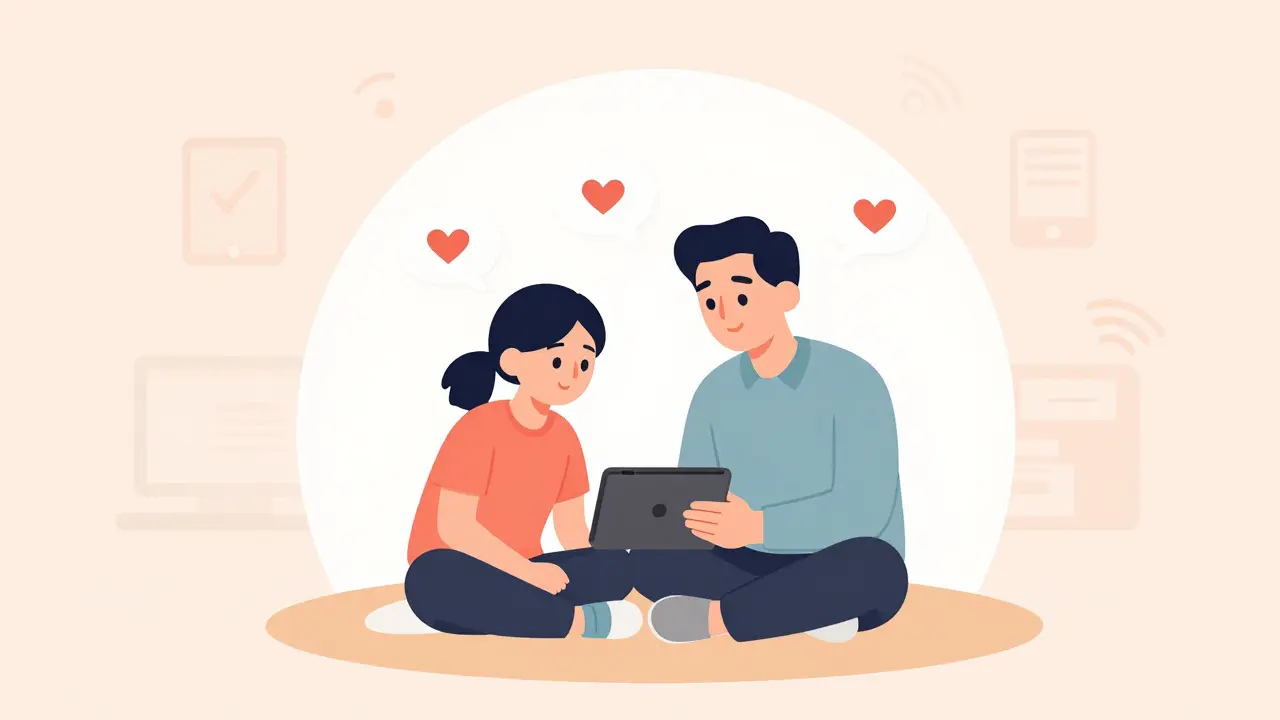
Technology fails. Filters miss context. New slang emerges every week. The most effective safety tool is communication. Sit down with your children or roommates and discuss what online safety looks like in practice. Explain why certain behaviors are harmful. Teach them the difference between playful teasing and bullying. Encourage them to come to you if something makes them uncomfortable, promising not to confiscate their device as punishment for reporting.
Create a household rule: "If it feels weird, tell me." This lowers the barrier to seeking help. Many young users stay silent because they fear losing their phone or being embarrassed. By positioning yourself as a supportive ally rather than a strict enforcer, you increase the likelihood that they will alert you to serious threats early.
What to Do If Something Goes Wrong
Despite your best efforts, incidents happen. If your child encounters severe harassment, threats, or illegal content, act quickly. First, document everything. Take screenshots of the chat, the user's profile, and any messages. Include timestamps. This evidence is vital if you need to involve law enforcement or file a formal complaint with the platform.
Next, report the incident to the platform using their dedicated crisis or abuse reporting channels. Many platforms have priority queues for reports involving minors or imminent danger. Finally, if there is a threat of physical harm or sexual exploitation, contact local authorities immediately. In Australia, you can reach eSafety Commissioner for advice and support. They provide free resources and can assist in taking down harmful material.
Don't let one bad experience make you abandon streaming entirely. Instead, treat it as a learning opportunity. Adjust your filters, tighten your blocks, and reinforce your conversations. Digital safety is an ongoing process, not a one-time setup.
Staying Updated: The Evolving Nature of Safety
Streaming platforms update their algorithms and policies regularly. New features like AI-generated avatars or voice changers introduce new vectors for abuse. Stay informed by following official blog posts from Twitch, YouTube, and TikTok regarding safety updates. Join parent-focused communities online where experiences are shared. Knowledge is power, and staying current ensures your defenses remain effective against emerging threats.
By combining technical tools like blocking, filtering, and parental controls with open communication and education, you create a layered defense strategy. This approach empowers users to enjoy the benefits of interactive streaming while minimizing the risks. Safe streaming starts with you.
Can I see who my child is chatting with on streaming apps?
Most streaming apps do not provide a detailed log of all chat interactions for privacy reasons. However, you can monitor activity indirectly by reviewing recent search history, installed apps, and screen time reports on the device itself. Some parental control software offers more granular monitoring, including keylogging or screenshot capture, but this should be used transparently and ethically, ideally with the knowledge of older children.
Does blocking a user remove their past comments?
Generally, no. Blocking a user prevents them from interacting with you in the future, but it does not delete their previous comments from public chats. If a specific comment is offensive, you must report it individually for removal by moderators. As a streamer or channel owner, you may have additional tools to delete past messages from your own chat logs.
How effective are automatic keyword filters?
Automatic filters are highly effective against common profanity and known slurs, especially when combined with AI-based moderation like Twitch's AutoMod. However, they struggle with context, sarcasm, and evolving slang. Users often bypass filters by using leetspeak (e.g., replacing 'a' with '@') or phonetic spellings. Regularly updating your custom banned word list with new terms is essential for maintaining effectiveness.
What should I do if my child receives a threatening message?
First, reassure your child that they did nothing wrong and that you are there to help. Do not delete the messages immediately. Take clear screenshots including the sender's username and timestamp. Report the user through the app's safety center. If the threat involves physical harm, location stalking, or sexual exploitation, contact local law enforcement and consider reporting to national cybercrime units like the eSafety Commissioner in Australia.
Can I restrict live chat entirely on streaming apps?
Yes, many platforms allow viewers to disable chat or switch to "Slow Mode" which limits the rate of messages. As a streamer, you can turn off chat completely or restrict it to subscribers/followers only. For parents, disabling chat at the app level is difficult, so focusing on device-level restrictions and supervised viewing sessions is often more practical.