15
YouTube Kids App: Safe Streaming for Children - Complete Guide
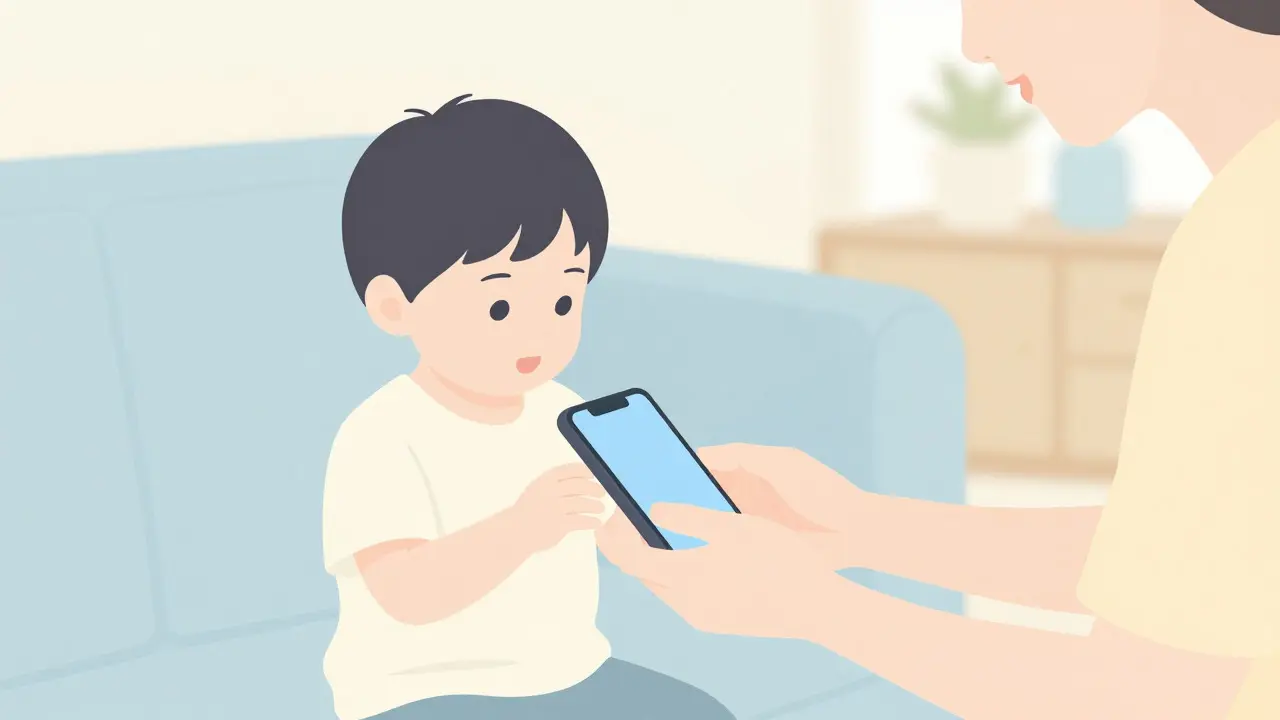
Handing your smartphone to a toddler used to mean watching them accidentally order furniture or drain your data plan. Today, it means navigating the complex world of digital childhood. The YouTube Kids is a free video app designed specifically for children that provides a curated experience with robust parental controls. It acts as a walled garden within the vast ocean of YouTube, filtering out explicit content and giving parents the tools to manage screen time. But does it actually work? And more importantly, how do you set it up so it doesn't become a source of frustration rather than peace of mind?
The promise of YouTube Kids App is simple: safe entertainment. However, "safe" is a moving target. Algorithms evolve, new trends emerge, and what was acceptable yesterday might be questionable today. This guide cuts through the marketing fluff to show you exactly how to configure the app for maximum safety, whether you have a curious three-year-old or a tech-savvy ten-year-old.
Understanding the Core Safety Mechanisms
Before you start tapping buttons, it helps to understand what is happening under the hood. Parental Controls are software features that allow guardians to restrict access to content, limit usage time, and monitor activity on devices and apps. In the context of YouTube Kids, these controls operate on three distinct levels: Content Filtering, Time Limits, and Search Restrictions.
The most critical component is the Content Filter, which categorizes videos into different age-appropriate tiers based on metadata, user reports, and algorithmic analysis. YouTube divides content into four categories:
- Preschool: Content strictly for ages 0-5. Think nursery rhymes, educational basics, and gentle animation.
- Gently Curated: For ages 4-8. Includes popular kids' channels like Cocomelon or Blippi, but vetted by human reviewers.
- General: For ages 9+. Broader range of content, including gaming and DIY crafts, but still filtered for maturity.
- All YouTube (Filtered): This is the trickiest setting. It shows content from the main YouTube platform but attempts to filter out mature tags. It is generally recommended only for older children who need broader access but still require some protection.
It is important to note that no filter is perfect. Human error in tagging and the sheer volume of uploads mean that occasional inappropriate content can slip through. This is why active supervision remains part of the equation, even with the best technology.
Step-by-Step Setup for Maximum Security
Setting up the app correctly is the difference between a helpful tool and a security loophole. Many parents skip this step, leading to issues later. Here is how to lock it down properly.
- Download and Install: Get the app from the Apple App Store or Google Play Store. Ensure you are downloading the official "YouTube Kids" app, not third-party clones.
- Create a Profile: Open the app. You will be prompted to create a profile for each child. Enter their name and approximate birth year. This determines the default content level.
- Select Content Level: Choose the appropriate category from the list above. For most young children, start with "Preschool" or "Gently Curated." You can always adjust this later.
- Approve Specific Channels: If you want total control, select "Approved Content Only." This allows you to hand-pick every single channel your child can see. It requires more work upfront but offers the highest safety guarantee.
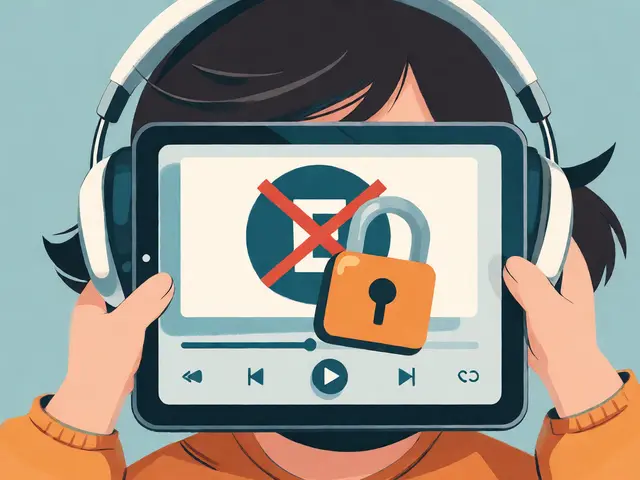
- Set Up Parental Passcode: This is the most crucial step. When prompted, create a passcode. Do not use something obvious like 1234. Use a random sequence or a math problem (e.g., "What is 7 times 8?"). Your child must solve this to change settings or exit the app.
Once the passcode is set, test it. Pretend to be your child. Try to change the content level or search for a restricted term. If you get locked out, you did it right.
Managing Screen Time and Breaks
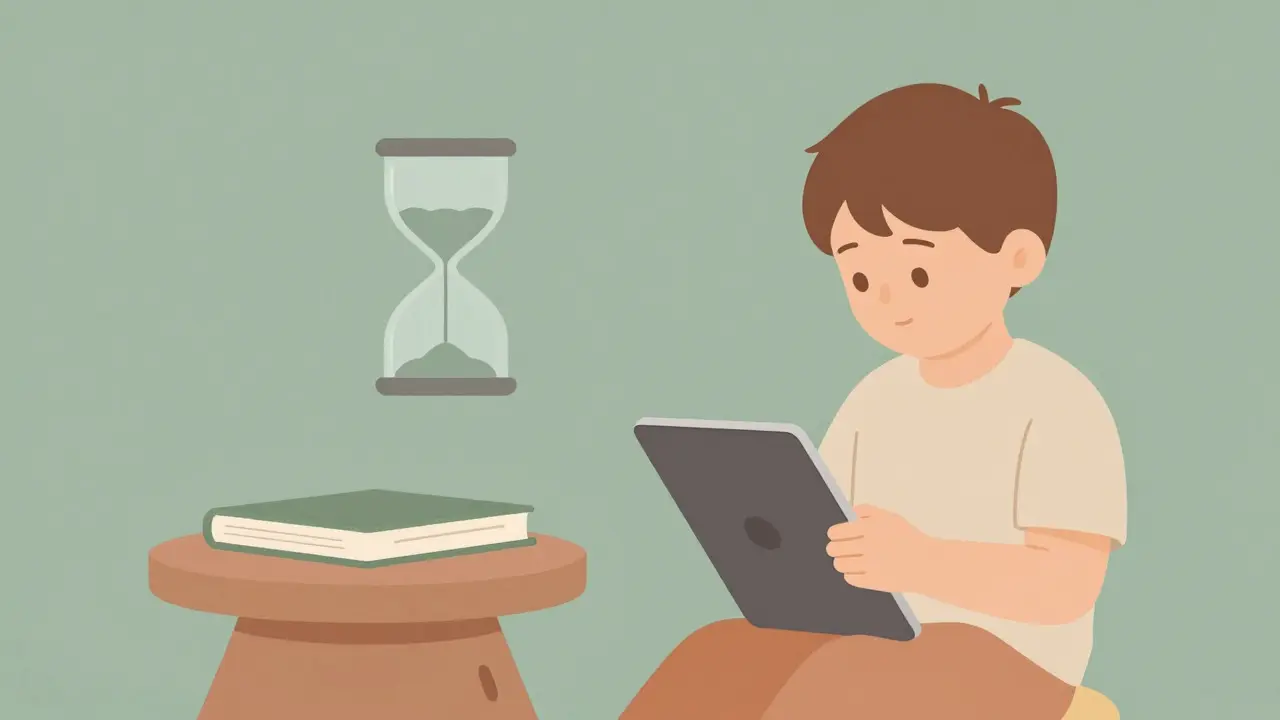
Safety isn't just about what they watch; it's about how long they watch. Excessive screen time has been linked to sleep disturbances and reduced attention spans in young children. The Timer Feature in YouTube Kids allows parents to set daily limits or specific session durations after which the app locks itself.
To activate this, tap the lock icon in the bottom right corner, enter your passcode, and select "Time Limit." You can set a daily cap (e.g., one hour) or a timer for the current session. When the time runs out, the app displays a friendly message and locks until the next day or until you unlock it manually.
Pro Tip: Combine the timer with real-world routines. "You can watch until the timer goes off, then we read a book." This creates a predictable structure that reduces tantrums when screen time ends.
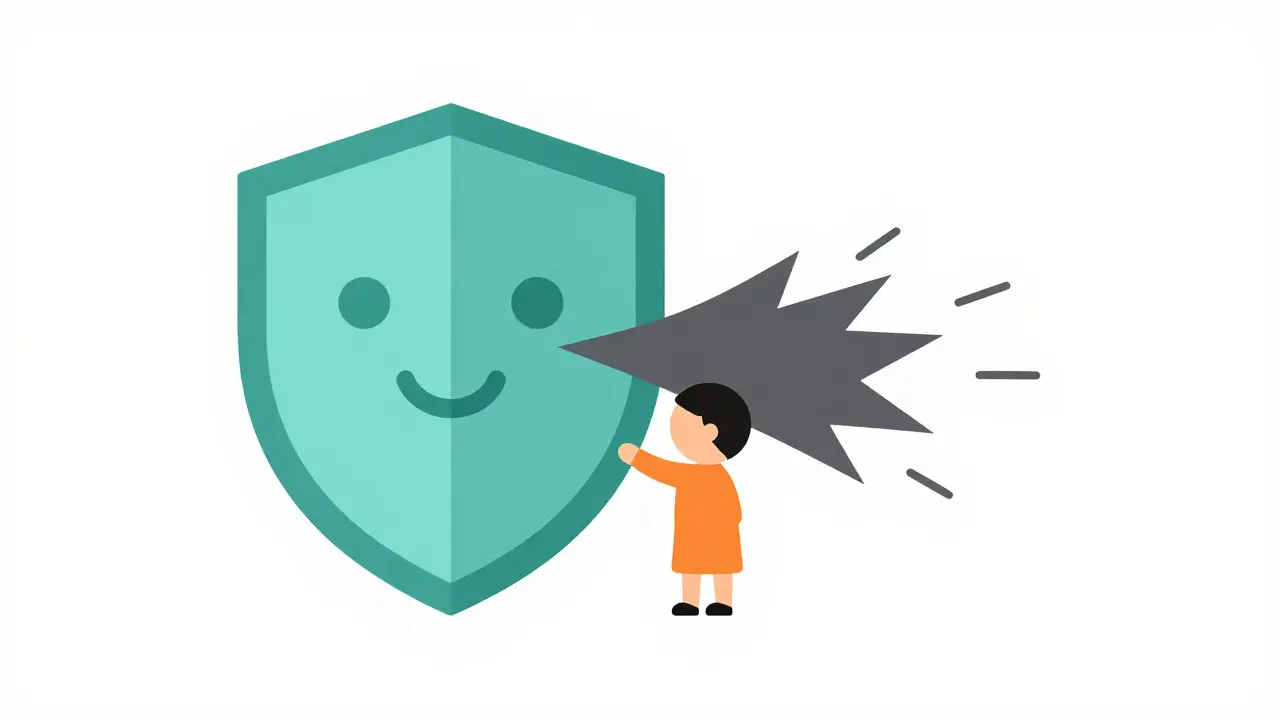
Comparison: YouTube Kids vs. Main YouTube Restricted Mode
Many parents wonder if they should just use the main YouTube app with "Restricted Mode" turned on. While convenient, it is significantly less secure. Here is a breakdown of why dedicated apps matter.
| Feature | YouTube Kids App | Main YouTube (Restricted Mode) |
|---|---|---|
| Interface Design | Kid-friendly, large icons, no ads for products | Standard interface, includes product ads and suggestions |
| Search Functionality | Can be disabled entirely or limited to approved channels | Always enabled, filters are less strict |
| Comments Section | Hidden completely | Visible unless manually hidden per video |
| Passcode Protection | Required to exit app or change settings | No built-in passcode to prevent switching modes |
| Content Curation | Human-reviewed options available | Algorithm-only filtering |
The table clearly shows that while Restricted Mode is a good first line of defense, it lacks the structural barriers needed for unsupervised viewing. The ability to hide comments and disable search is a game-changer for younger users.
Common Pitfalls and How to Avoid Them
Even with the best setup, challenges arise. Here are the most common issues parents face and how to solve them.
The "Recommended" Rabbit Hole: Even in curated modes, the algorithm may suggest videos that are slightly off-topic or overly stimulating. To combat this, regularly check the "History" tab. Tap the trash icon to delete unwanted videos. This trains the algorithm to stop suggesting similar content. Think of it as teaching the app what your family values are.
Forgotten Passcodes: If you forget your passcode, you cannot reset it without reinstalling the app. This wipes all saved preferences and history. Write your passcode down in a secure place, such as a password manager or a physical notebook kept away from the device.
Cross-Device Confusion: YouTube Kids syncs across devices via your Google account. If you set strict limits on your phone, those same limits apply on your tablet. This is usually a benefit, but ensure you are logged into the correct parent account on all devices to maintain consistency.
Alternatives to YouTube Kids
While YouTube Kids is the market leader, it is not the only option. Depending on your needs, other platforms might offer better value.
- Hulu Kids: Offers a library of licensed shows from networks like Disney and Nickelodeon. No user-generated content, which means higher quality control. Requires a Hulu subscription.
- Amazon Freevee Kids: Ad-supported but curated. Good for families already in the Amazon ecosystem.
- Netflix Kids: Part of the standard Netflix subscription. Completely ad-free and highly curated, though the library is smaller than YouTube's.
If your primary concern is avoiding user-generated content entirely, a paid streaming service with a dedicated kids' section is often safer than any free app. However, for educational content and variety, YouTube Kids remains unmatched.
Final Thoughts on Digital Parenting
Technology is a tool, not a babysitter. The YouTube Kids App provides an excellent foundation for safe streaming, but it works best when combined with open communication. Talk to your children about what they watch. Ask them why they like certain videos. Involve them in the process of approving channels. This builds media literacy skills that will serve them well as they grow older and gain access to less restricted platforms.
Regularly review your settings. As your child grows, their needs change. What works for a preschooler will frustrate a pre-teen. Stay engaged, stay informed, and use these tools to empower your family, not replace your presence.
Is YouTube Kids truly safe for toddlers?
YouTube Kids is designed with safety as a priority, using filters and human curation to block inappropriate content. However, no system is 100% perfect. For toddlers, the "Preschool" or "Approved Content Only" settings provide the highest level of safety. Always supervise young children and regularly check their watch history to ensure the recommendations align with your family's values.
How do I change the parental passcode on YouTube Kids?
Tap the lock icon in the bottom right corner of the app. Enter your current passcode. Then, select "Settings" and look for "Change Passcode." Follow the prompts to enter your new code. If you have forgotten your current passcode, you must uninstall and reinstall the app, which will reset all settings.
Does YouTube Kids have ads?
Yes, the free version of YouTube Kids contains ads. These ads are reviewed to ensure they are appropriate for children and do not include interactive elements that could lead to accidental purchases. However, they can still be distracting. For an ad-free experience, consider subscribing to YouTube Premium, which removes ads across all YouTube properties.
Can I approve specific videos instead of whole channels?
Currently, YouTube Kids allows you to approve entire channels, not individual videos. This means if you approve a channel, your child can access all videos uploaded by that creator. This is why choosing reputable, consistent creators is essential when using the "Approved Content Only" mode.
What happens if my child solves the math passcode?
If your child knows the answer to the math problem, they can bypass the parental controls. To mitigate this, choose a problem that is challenging for their age group, such as multiplication or division, rather than simple addition. Alternatively, use a random numeric code that is difficult to guess, like 8492, rather than a pattern like 1234.
Is YouTube Kids available on smart TVs?
Yes, YouTube Kids is available on many smart TV platforms, including Android TV, Roku, and Fire TV. The interface is adapted for remote control navigation, making it easier for children to browse content on a larger screen. The parental controls and passcode settings sync with your mobile app, ensuring consistent restrictions across devices.