17
Change DNS for Streaming: When It Helps and When It Hurts

You’re trying to watch the latest episode of your favorite show, but instead of smooth playback, you get a spinning wheel that mocks you for thirty seconds. You switch from Wi-Fi to data, restart the router, and maybe even yell at the TV. But have you ever considered changing your DNS (Domain Name System) settings? For many streamers, this tiny tweak is the magic bullet that fixes buffering issues overnight. But here’s the catch: it’s not always the hero of the story. Sometimes, changing your DNS can actually make things worse, adding latency or breaking specific apps.
So, when does swapping your DNS server help your Netflix, Hulu, or Disney+ experience, and when should you leave well enough alone? Let’s break down exactly how DNS affects streaming, which servers are worth trying, and how to test if it’s actually solving your problem or just masking a bigger issue.
What DNS Actually Does for Your Stream
To understand why DNS matters, you first need to know what it is. Think of DNS as the internet's phone book. It translates human-readable website names like netflix.com into IP addresses that computers use to communicate.
When you click play on a video, your device doesn't know where the video files live. It asks a DNS server, "Where is netflix.com?" The server replies with an IP address, like 192.0.2.1. Your device then connects to that IP to start downloading the video chunks.
Here’s the critical part: DNS resolution happens before the video starts. If your DNS server is slow to respond, there’s a delay between clicking play and the video starting. This is called lookup latency. However, once the connection is established, DNS usually steps out of the way. The actual video data flows through a different path, often via Content Delivery Networks (CDNs). So, if your video buffers *after* it has started playing, DNS is rarely the culprit. If it stalls during the initial load, DNS might be involved.
The Myth of Speed vs. Reality of Routing
A lot of people think changing DNS makes their internet faster. It doesn’t increase your bandwidth. If your plan is 50 Mbps, changing from your ISP’s default DNS to Cloudflare won’t turn that into 100 Mbps.
However, it can improve perceived speed in two ways:
- Faster Lookups: Public DNS providers like Google or Cloudflare often have massive, optimized infrastructure. They answer queries in milliseconds compared to some sluggish ISP resolvers. This reduces the time it takes to launch an app or load a webpage within a smart TV interface.
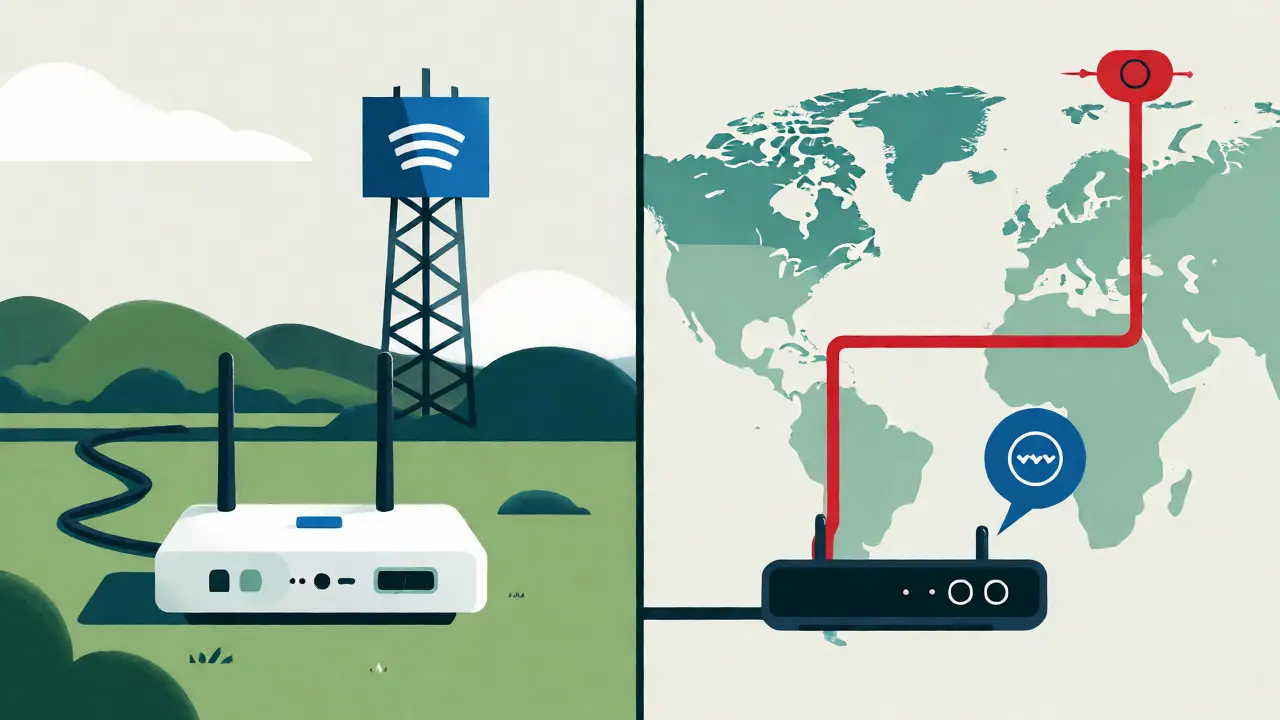
- Better CDN Selection: Some streaming services use DNS-based routing to send you to the nearest server. If your ISP’s DNS is poorly configured, it might route you to a distant server. A better DNS resolver might guide you to a closer one, reducing buffering caused by long-distance hops.
But beware: this second point is tricky. If the public DNS routes you to a server that isn’t optimized for your specific ISP peering arrangements, you could end up with a longer, slower path. It’s a gamble that depends heavily on your local network topology.
When Changing DNS Helps Streaming
There are specific scenarios where tweaking your DNS is a genuine fix. If you recognize any of these situations, give it a shot.
You Experience Long App Launch Times: If opening YouTube or Prime Video on your Smart TV feels like waiting for dial-up to connect, your DNS lookups are likely timing out or taking too long. Switching to a fast resolver like Google Public DNS (8.8.8.8) can shave seconds off that startup time.
Your ISP Throttles Specific Services: Internet Service Providers sometimes throttle traffic to competitors or heavy users. While DNS changes don’t stop bandwidth throttling directly, they can sometimes bypass DNS-based blocking or redirection mechanisms ISPs use to manage traffic. For example, if your ISP redirects failed lookups to their own ad-filled search page, using a clean DNS like Quad9 stops that annoyance.
You Are Traveling or Using Geo-Restricted Content: Sometimes, regional restrictions rely on DNS checks. While true geo-blocking uses IP geolocation, some older systems or specific apps check the DNS response origin. Changing DNS can occasionally help resolve access issues, though it’s not a substitute for a VPN.

When Changing DNS Hurts Streaming
Conversely, there are times when changing DNS actively degrades your experience. Here’s why you might want to revert to your ISP’s defaults.
Increased Latency Due to Geographical Distance: Most public DNS servers are global. If you are in Brisbane, Australia, and you use a US-centric DNS server, every query has to travel across the Pacific Ocean and back. That adds 100-200ms of latency per lookup. While this doesn’t affect sustained video flow, it makes navigating menus and loading new episodes feel sluggish.
Broken Split-Horizon DNS: Some corporate networks or complex home setups use split-horizon DNS, where internal names resolve differently than external ones. If you force a public DNS, you might lose access to local media servers like Plex or Jellyfin because the device can no longer find them by name.
ISP-Specific Optimizations: Many modern ISPs partner with CDNs like Akamai or Cloudflare. They configure their DNS to route users to the most efficient cache node based on deep knowledge of their network’s peering points. A generic public DNS lacks this visibility and might route you to a suboptimal server, causing more buffering than necessary.
Top DNS Providers for Streamers Compared
Not all DNS servers are created equal. Here is a breakdown of the most popular options and how they typically behave for streaming users.
| Provider | Primary IPs | Best For | Potential Drawback |
|---|---|---|---|
| Cloudflare | 1.1.1.1 | Speed and Privacy | May miss ISP-specific CDN optimizations |
| Google DNS | 8.8.8.8 / 8.8.4.4 | Reliability and Global Reach | Data logging concerns; potential latency outside US hubs |
| OpenDNS | 208.67.222.222 | Parental Controls & Filtering | Filtering might block niche streaming domains |
| Quad9 | 9.9.9.9 | Security & Malware Blocking | Slightly higher latency due to security checks |
| ISP Default | Varies | Local Network Optimization | Slow lookups; aggressive ad injection |
For most Australian users, Cloudflare tends to offer the best balance of speed and neutrality. Their network is extensive in APAC regions, meaning lower latency than US-based alternatives. Google DNS is also solid but can sometimes suffer from congestion during peak hours depending on your location.
How to Test If DNS Is Your Bottleneck
Don’t just change settings blindly. Follow this simple diagnostic process to see if DNS is actually helping.
- Baseline Test: Keep your current DNS (usually automatic/ISP). Open a command prompt or terminal. Type
nslookup netflix.com. Note the time it takes for the answer to appear. Try opening a streaming app and note the load time. - Switch DNS: Change your device or router DNS to Cloudflare (1.1.1.1). Flush your DNS cache (on Windows, use
ipconfig /flushdns; on Mac,sudo dscacheutil -flushcache). - Retest: Run the same
nslookupcommand. Did the response time drop significantly? Did the app open faster? - Monitor Buffering: Watch a 10-minute clip. Did buffering events decrease? Remember, if the video plays smoothly but stalls only at the very beginning, DNS helped. If it still buffers mid-stream, DNS didn’t fix the core issue.
If the results are negligible, revert to your original settings. There is no harm in sticking with your ISP’s DNS if it works.
Troubleshooting Other Causes of Buffering
If changing DNS didn’t solve your streaming woes, the problem lies elsewhere. Here are the usual suspects:
- Wi-Fi Interference: In dense apartments, 2.4GHz bands are crowded. Switch your streaming device to the 5GHz band for cleaner throughput.
- Bandwidth Saturation: If someone else is gaming or downloading large files, your available bandwidth drops. Pause other high-bandwidth activities.
- Device Performance: Older Smart TVs or Fire Sticks may struggle to decode high-bitrate 4K streams. Lower the quality setting in the app to 1080p to see if buffering stops.
- Router QoS Settings: Enable Quality of Service (QoS) on your router to prioritize streaming traffic over background updates.
Final Verdict: To Change or Not to Change?
Changing your DNS is a low-risk, high-reward experiment for streamers experiencing slow app launches or weird redirect errors. It won’t magically boost your download speed, but it can streamline the connection process. Start with Cloudflare or Google DNS. If you notice faster menu navigation and quicker video starts, keep it. If you experience laggy interfaces or increased buffering, switch back to automatic. Your internet service provider knows your local network best, so their default DNS is often the safest bet for pure stability.
Does changing DNS reduce ping for streaming?
No, changing DNS does not reduce ping to the game or video server. Ping measures the round-trip time to the destination IP. DNS only affects the time it takes to find that IP address. Once the connection is made, ping remains determined by your physical distance to the server and network congestion.
Will changing DNS unlock geo-blocked content?
Rarely. Most modern streaming services determine your location by checking your public IP address, not your DNS resolver. While DNS can sometimes influence which CDN node you connect to, it generally cannot spoof your geographic location. You would need a VPN for that.
Is Cloudflare DNS safe for privacy?
Yes, Cloudflare promises not to log user IP addresses permanently and deletes logs after 24 hours. They also do not sell your browsing history. However, they do collect aggregate data for analytics. If absolute anonymity is your goal, consider encrypted DNS protocols like DoH (DNS over HTTPS).
Why did my streaming stop working after changing DNS?
This usually happens if the new DNS server blocks certain domains or fails to resolve them correctly. It can also occur if your device cached the old IP addresses. Try flushing your DNS cache or restarting the device. If problems persist, revert to your previous DNS settings immediately.
Should I change DNS on my router or individual devices?
Changing it on the router applies the setting to all connected devices, which is convenient but risky if one device relies on specific local DNS features. Changing it on individual devices (like your TV or laptop) allows you to test the impact without affecting your entire home network. Start with one device to isolate the variable.