28
Eco Modes and 4K Streaming: How Power Saving Hurts HDR Quality
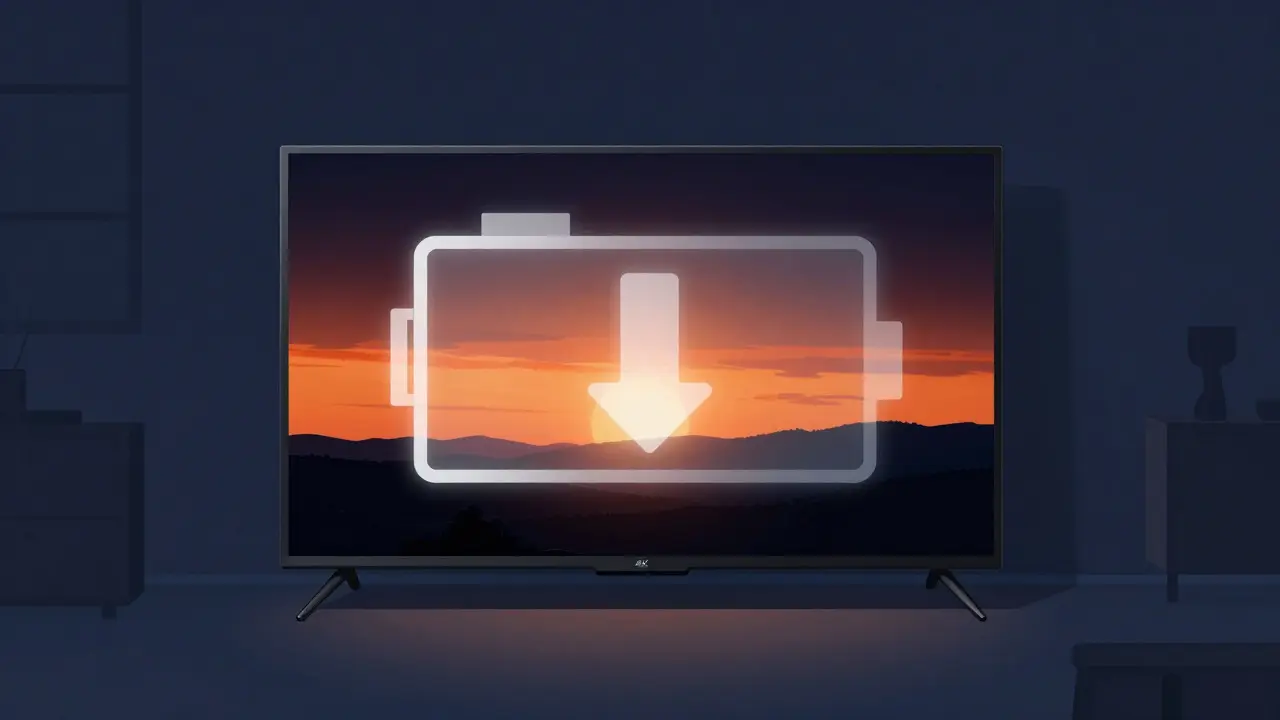
You paid extra for a 4K TV or monitor to get crisp details and vibrant colors. You set up your streaming service correctly. Yet, when you hit play on that blockbuster movie, the blacks look washed out, the highlights are dim, and the image feels flat. The culprit might not be your internet speed or the source file. It could be the eco mode setting quietly running in the background of your display.
Modern displays use aggressive power management to reduce energy consumption. While this saves electricity, it often does so by throttling the performance of the very components needed to render high-fidelity video. Understanding how these settings interact with 4K and HDR content is essential for anyone who wants their hardware to perform as advertised.
What Eco Mode Actually Does to Your Display
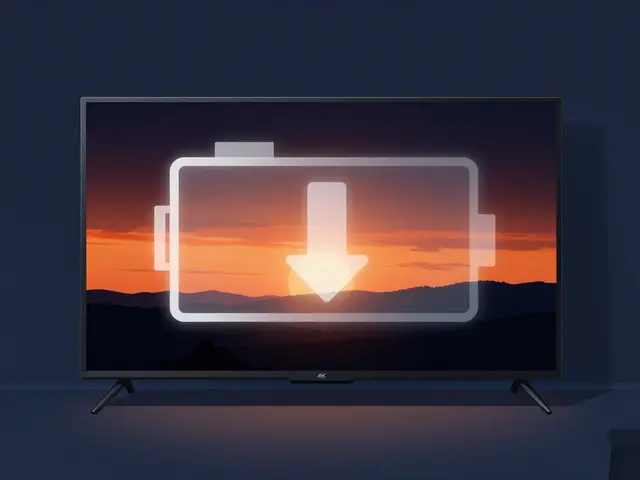
Eco Mode is a power-saving feature found in TVs, monitors, and laptops that reduces brightness, limits processing speed, and restricts dynamic range to lower energy usage. In many devices, this isn't just a simple brightness slider. It engages a complex set of firmware rules that cap the maximum output of the backlight or LED array. For standard SDR (Standard Dynamic Range) content, this reduction is barely noticeable because the content itself has a limited color and brightness ceiling.
However, 4K and HDR (High Dynamic Range) content relies on a much wider canvas. When Eco Mode kicks in, it effectively shrinks that canvas. The display might still technically output 4K resolution, but the 'quality' defined by contrast, peak brightness, and color volume is compromised. This is where the disconnect between marketing specs and real-world viewing experience happens.
The Conflict Between HDR and Power Limits
HDR is a video format that supports a wider range of luminance levels than SDR, allowing for deeper blacks and brighter highlights simultaneously. To display HDR properly, a screen needs to reach specific peak brightness levels, often measured in nits. Many modern OLED and Mini-LED panels can hit 1,000 to 2,000 nits in small windowed areas. But if Eco Mode caps the global brightness at 50% or 60%, those peaks are never reached.
This creates a visual artifact known as 'tone mapping compression.' The video processor tries to fit the bright parts of the scene into the reduced brightness limit. The result? Highlights that should shine like sunlight look gray. Shadows that should be pitch black lift up into dark gray. You lose the depth and immersion that makes 4K HDR special. It’s like trying to paint a sunset using only three shades of orange instead of twenty.
Why Laptops Are Especially Susceptible
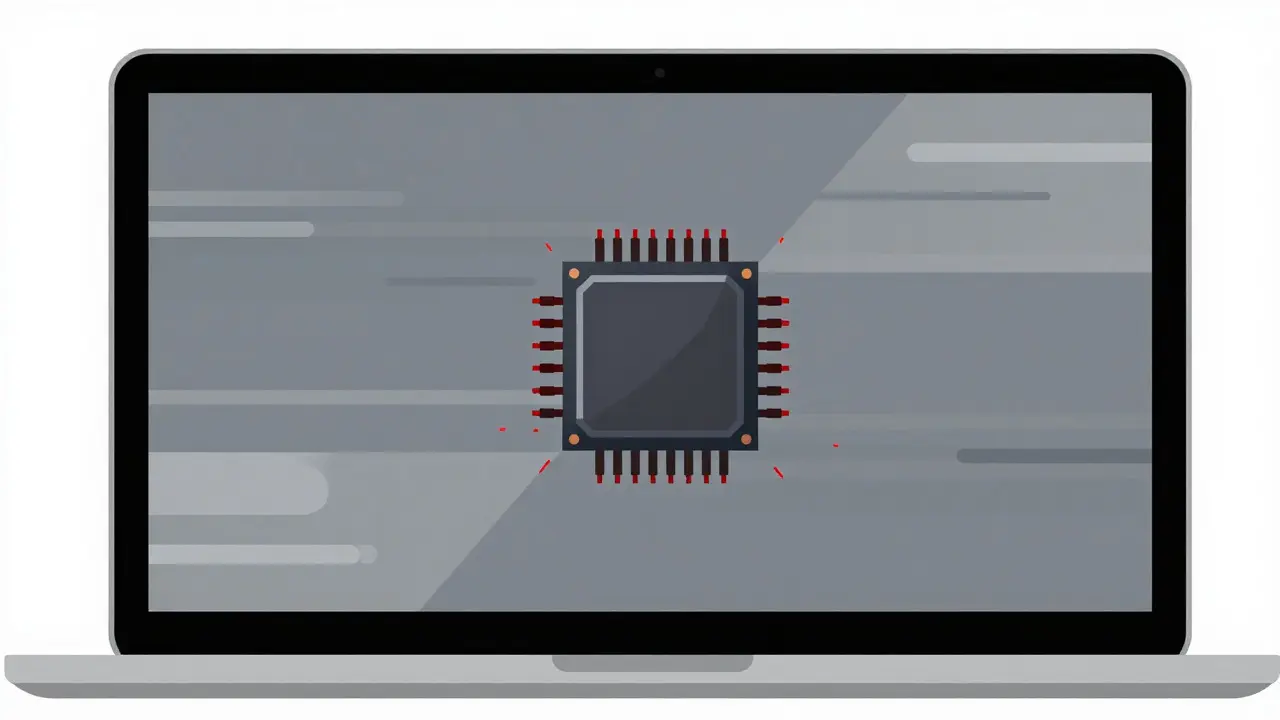
If you stream on a laptop, the problem is often worse than on a dedicated TV. Laptop batteries have limited capacity, and manufacturers prioritize battery life above all else. When plugged in, some laptops disable certain power-saving features, but others keep them active to extend battery longevity even when charging.
Furthermore, laptops often use integrated graphics processors rather than discrete GPUs. Integrated graphics share memory with the system RAM and rely heavily on CPU resources for video decoding. If the operating system puts the CPU into a low-power state to save energy, the video decoding pipeline can stutter or drop frames. This manifests as micro-stutters during fast-paced action scenes in 4K movies, which is far more distracting than a slight reduction in brightness.
Identifying the Symptoms of Throttled Streaming
How do you know if Eco Mode is hurting your view? It’s not always obvious. Here are the common signs that your display is being held back:
- Washed-out Blacks: Dark scenes in movies look murky or grayish instead of deep and opaque.
- Dim Highlights: Explosions, sunsets, or fire effects lack 'pop' and feel flat.
- Inconsistent Brightness: Some scenes seem too bright while others are too dark, indicating the tone mapper is struggling to balance the limited range.
- Color Banding: Gradients in skies or skin tones show visible steps rather than smooth transitions, a side effect of reduced bit-depth processing under load.
- Audio-Video Sync Issues: On laptops, audio may lag slightly behind video if the CPU is throttled during decoding.
How to Fix the Quality Drop
Fixing this issue requires digging into your device's settings. The exact path varies by manufacturer, but the principles remain the same. You need to ensure the display is operating in its full performance envelope.
- Disable Eco/Energy Saving Mode: Go to your display settings or OSD (On-Screen Display) menu. Look for options labeled 'Eco,' 'Energy Saver,' 'Power Save,' or 'Low Power.' Turn them off completely, not just to a lower level.
- Set Picture Mode to 'Cinema' or 'Expert': Avoid 'Dynamic' or 'Vivid' modes, which boost saturation artificially. Use 'Cinema' or 'Movie' mode for accurate color reproduction. Ensure 'HDR Tone Mapping' is set to 'Native' or 'Peak' if available.
- Check Operating System Power Plans: On Windows, go to Control Panel > Power Options. Select 'High Performance' or create a custom plan that sets the minimum processor state to 100%. On macOS, check Energy Saver settings and ensure 'Prevent automatic sleeping on power adapter' is enabled.
- Update Firmware and Drivers: Outdated display drivers or TV firmware can cause bugs where Eco Mode overrides user settings. Check for updates from your manufacturer's support page.
- Use High-Bandwidth Cables: Ensure you are using an HDMI 2.1 or DisplayPort 1.4 cable rated for 4K at 60Hz or higher. A cheap cable might force the display into a lower bandwidth mode, which sometimes triggers fallback power-saving behaviors.
Comparison: Standard vs. Optimized Settings
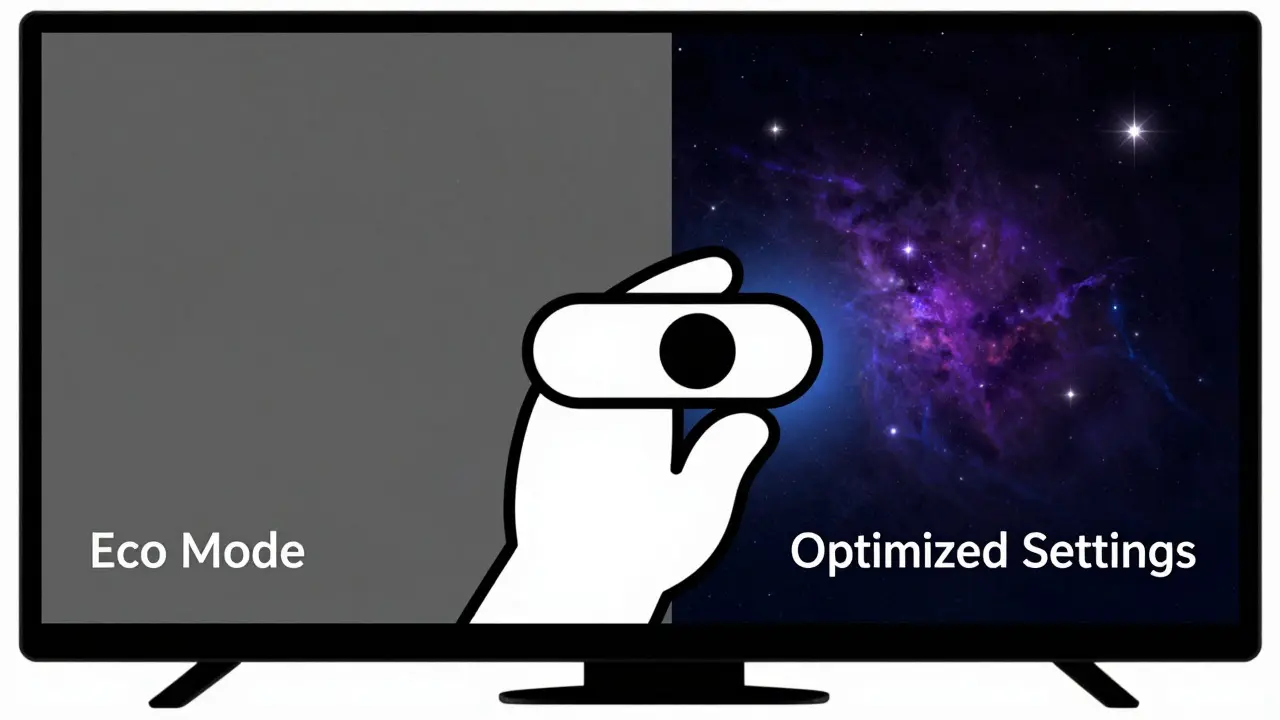
To visualize the impact, consider the difference between a default setup and an optimized one for 4K HDR streaming.
| Setting | Default (Eco On) | Optimized (Eco Off) | Visual Impact |
|---|---|---|---|
| Peak Brightness | Capped at ~500 nits | Full capability (e.g., 1000+ nits) | Highlights appear dull vs. vibrant |
| Black Level | Lifted due to backlight bleed control | True blacks (OLED) or deep contrast (LED) | Loss of shadow detail and depth |
| Color Volume | Reduced gamut coverage | Full DCI-P3 or BT.2020 coverage | Colors look less saturated and natural |
| Frame Rate Stability | Potential drops due to CPU throttling | Stable 60fps/120fps | Smooth motion vs. micro-stutters |
Common Misconceptions About Power Saving
A lot of people assume that turning off Eco Mode will significantly increase their electricity bill. In reality, the difference is minimal for most households. Running a TV at full brightness versus 70% brightness might add a few cents to your monthly bill, depending on local rates. The cost of losing the intended cinematic experience, however, is subjective but significant for enthusiasts.
Another misconception is that only OLED screens suffer from this. While OLEDs don't have a backlight to dim, they still use pixel-level dimming algorithms controlled by the main board. If Eco Mode limits the maximum current allowed per pixel, the peak brightness is capped regardless of panel type. LCD and Mini-LED screens are even more affected because they rely on a global or local backlight that gets restricted by power limits.
When Eco Mode Might Be Acceptable
Is there ever a time when you should leave Eco Mode on? Yes. If you are watching casual content like news broadcasts or sports on a daytime setting, the loss of dynamic range is negligible. The ambient light in the room washes out subtle shadows anyway. Also, if you are using a battery-powered device and need to last through a long flight, accepting a slight quality drop for extended runtime is a valid trade-off.
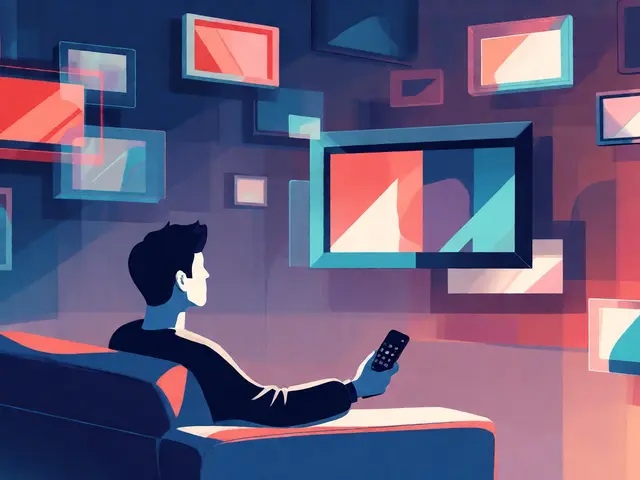
But for critical viewing-like watching a new release on Netflix, Disney+, or Amazon Prime Video in 4K HDR-you want every ounce of performance your hardware offers. The content creators spent hours grading the lighting and color specifically for high-dynamic-range displays. Letting your TV throttle that work defeats the purpose of upgrading your equipment.
Future-Proofing Your Setup
As we move further into 2026, newer standards like Dolby Vision IQ and HDR10+ Adaptive are becoming more common. These formats adjust the picture dynamically based on ambient light conditions. Ironically, they work best when the underlying hardware is not artificially constrained by static Eco Mode settings. If your TV is locked into a low-power state, the adaptive metadata has less room to work with.
Keep an eye on your device's update logs. Manufacturers often tweak how Eco Mode interacts with HDR after user complaints. Sometimes a firmware update can fix a bug where the brightness cap was too aggressive. Always check for updates before assuming your hardware is simply 'bad' at handling 4K content.
Does Eco Mode affect 4K resolution?
Usually, no. Eco Mode primarily affects brightness, contrast, and processing speed. The resolution (number of pixels) remains 3840x2160. However, if the display cannot handle the data rate due to power constraints, it might downscale to 1080p, though this is rare on modern hardware.
Will turning off Eco Mode burn out my screen?
For most users, no. Modern displays have built-in safeguards against burn-in and overheating. Burn-in is more related to displaying static images (like channel logos) for thousands of hours at high brightness, not just watching movies. Using Eco Mode is a precaution, not a requirement for basic safety.
Which is better for streaming: Eco Mode or Cinema Mode?
Cinema Mode is generally better for streaming because it prioritizes color accuracy and proper tone mapping. Eco Mode prioritizes energy efficiency, often at the expense of image fidelity. For the best experience, disable Eco Mode and select Cinema or Movie mode.
Do laptops have Eco Mode for displays?
Yes, though it's often hidden within the OS power settings or the manufacturer's control software (like Lenovo Vantage or ASUS MyASUS). Look for 'Adaptive Brightness' or 'Battery Saver' features that also dim the screen and limit GPU performance.
How much electricity do I save with Eco Mode?
It depends on the device size and usage. A large 65-inch TV might save 10-20% of its power consumption in Eco Mode. For a typical household, this translates to a few dollars per month. Compare this to the cost of replacing a screen or missing out on the intended visual experience.