17
Parental Controls in Music Streaming: Explicit Filters and PINs
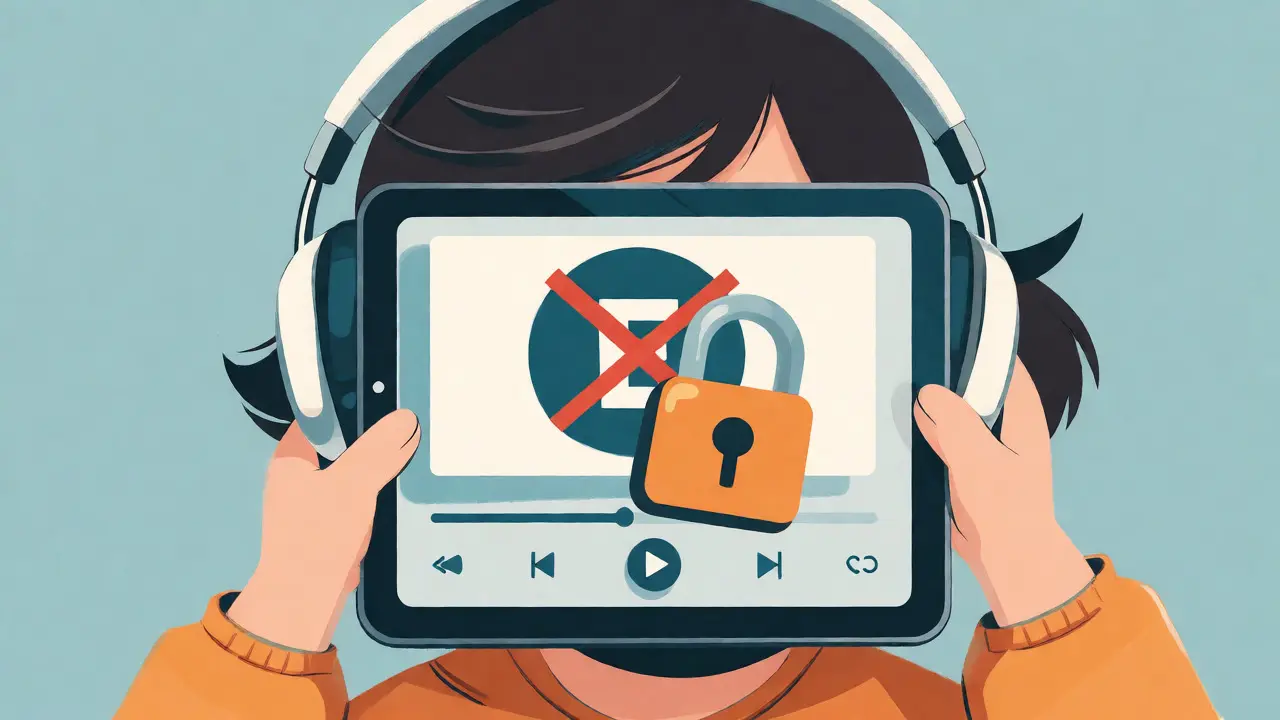
You hand your kid a tablet to listen to some tunes, and five minutes later, they’re blasting lyrics that would make a sailor blush. It’s a scenario every parent knows too well. The problem isn’t just the shock value; it’s that most music streaming services default to "open" settings. They assume you want access to everything. But if you have young ears in the house, you need a gatekeeper. This guide breaks down exactly how to lock down Music Streaming platforms using explicit filters and PINs so you can relax without worrying about what comes out of the speakers.
Why Default Settings Are Failing You
Most major platforms like Spotify and Apple Music prioritize discovery over protection. Their algorithms are designed to push popular hits, and unfortunately, many top-charting songs contain explicit language, drug references, or mature themes. If you haven’t manually adjusted your settings, your child’s playlist is likely identical to yours. There is no automatic age-gating unless you create a specific profile type. This means a seven-year-old listening to a "Kids Hits" playlist might still get served an unedited version of a track because the metadata wasn’t flagged correctly by the artist or label.
The Two Main Defense Layers: Content Filters vs. Account Restrictions
When we talk about parental control, people often mix up two different mechanisms. Understanding the difference saves you from frustration later.
- Content Filters: These are software-level toggles within the app. They hide tracks marked as "Explicit" (usually indicated by an 'E' icon). This stops bad words but doesn’t stop your kid from downloading new apps or changing their own settings.
- Account Restrictions & PINs: This is the hardware or OS-level lock. On iOS, this is Screen Time; on Android, it’s Digital Wellbeing or Family Link. This prevents the user from turning off the content filter or deleting the app entirely.
You need both. A content filter alone is like locking the front door but leaving the windows open. Your teenager can simply go into settings and toggle the filter off in ten seconds if there’s no PIN protecting that menu.
Step-by-Step: Securing Spotify for Families
Spotify is arguably the most popular service, but its family controls are split between the main account and individual profiles. Here is how to set it up properly in 2026.
- Create a Child Profile: Don’t just use the main account. Go to Account > Manage Profiles. Create a separate profile for your child. This keeps their history separate from yours.
- Enable Explicit Content Filter: Inside the child’s profile settings, look for "Explicit Content." Toggle this to "Allow Explicit Content" OFF. This hides songs with the 'E' tag.
- Use Spotify Kids: For children under 13, consider switching them to the dedicated Spotify Kids app. It’s a curated, ad-free environment with no search function, meaning they can only listen to pre-approved playlists. This is the safest bet for younger kids.
- Lock the App: Use your phone’s built-in restriction tools to prevent the child from accessing the Spotify settings page. On iPhone, go to Settings > Screen Time > Content & Privacy Restrictions > Allowed Apps, and ensure Spotify is allowed but restricted via Screen Passcode.
Apple Music: Leveraging Screen Time and Restrictions
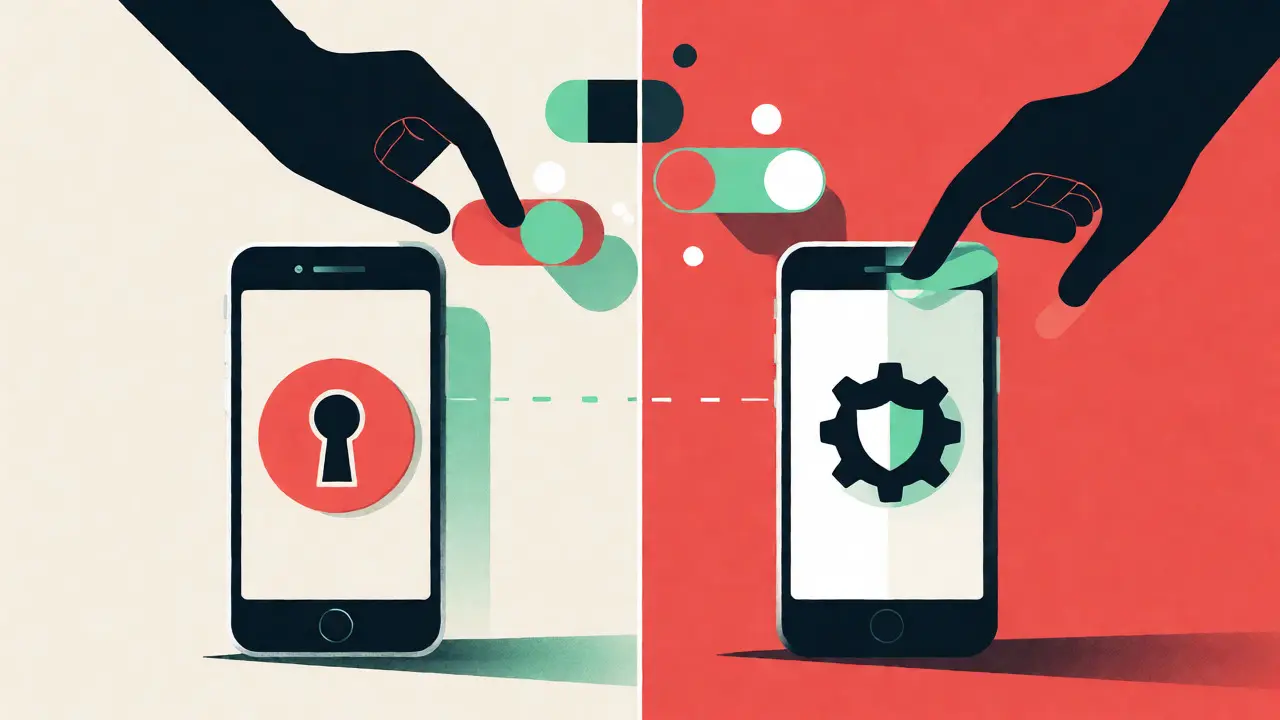
If your household is deep in the Apple ecosystem, Apple Music offers robust integration with iOS features. Unlike Spotify, which relies partly on its own profile system, Apple pushes the heavy lifting to the operating system level.
To block explicit songs on Apple Music, you don’t actually change settings inside the Music app first. You do it in the main iOS Settings. Navigate to Screen Time > Content & Privacy Restrictions. Tap on Content Restrictions, then select Music, Podcasts & News. Choose "Clean" instead of "Explicit." This global setting applies to all media consumed on that device.
| Feature | Spotify | Apple Music | YouTube Music |
|---|---|---|---|
| Dedicated Kids App | Yes (Spotify Kids) | No (Uses Restrictions) | Yes (YouTube Music Kids) |
| Explicit Filter Location | In-App Profile Settings | iOS System Settings | In-App Settings |
| PIN Protection | Via Device Lock | Native Screen Time PIN | Via Google Family Link |
| Offline Listening | Limited in Kids Mode | Full Access | Limited in Kids Mode |
Android Users: The Power of Google Family Link
For Android families, Google Family Link is the command center. It allows you to manage your child’s Google account remotely from your own phone. When you set up a child’s account through Family Link, you can enforce strict content ratings across all Google Play apps, including YouTube Music and Amazon Music.
Here’s the catch: not all third-party music apps respect these system-wide filters perfectly. While YouTube Music integrates tightly with Family Link, other apps might require manual in-app filtering. Always test the filter yourself before handing the phone over. Search for a known explicit song. If it plays, the filter isn’t working, and you need to dig deeper into that specific app’s settings.
Beyond Lyrics: Hidden Risks in Playlists and Radio
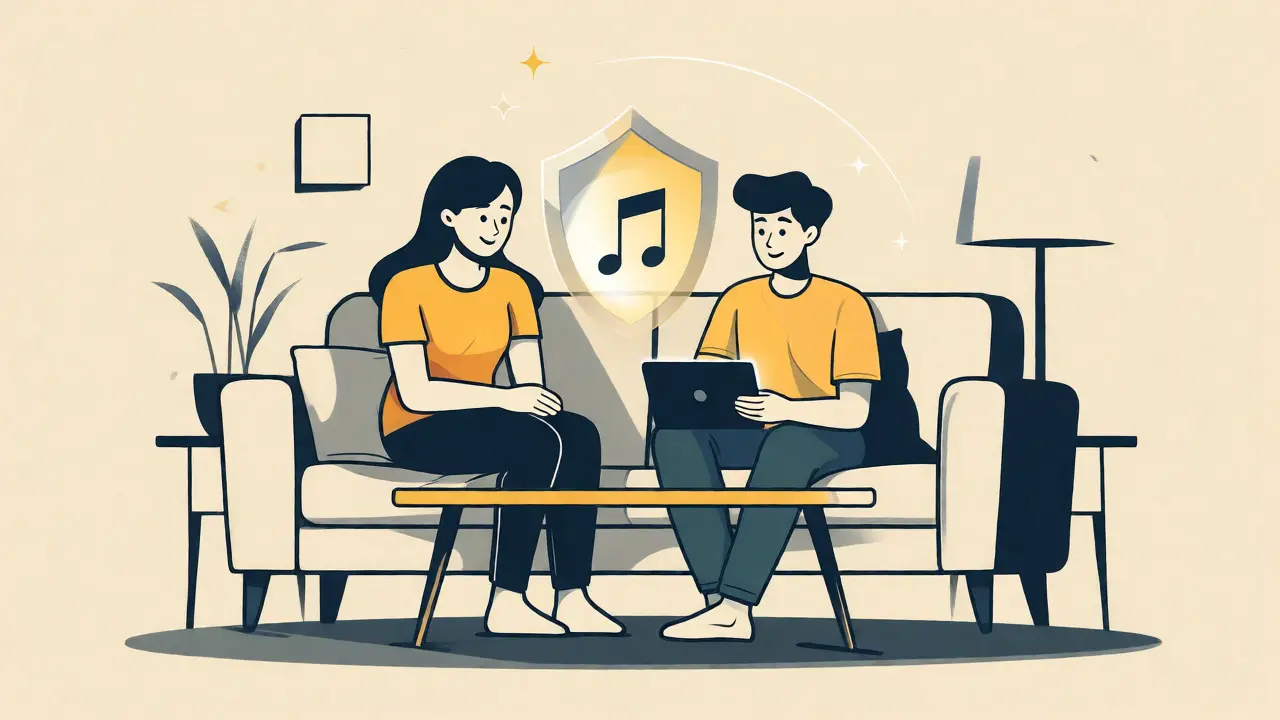
Filtering individual songs is easy. Filtering context is hard. Even if you block explicit lyrics, your child might stumble upon a podcast or a radio station that discusses mature topics. Most streaming services treat podcasts and music differently. Just because you filtered music doesn’t mean podcasts are clean.
Also, be wary of "Radio" or "Mixtape" features. These algorithmic generators pull from vast libraries. Sometimes, a non-explicit song gets mixed with an explicit version due to tagging errors. Regularly check the "Recently Played" section of your child’s profile. It’s the best way to audit what they’ve actually been hearing. If you see a track that slipped through, report it to the platform. Flagging helps train the algorithm for everyone else.
Troubleshooting Common Parental Control Glitches
Technology isn’t perfect. Here are three common issues parents face and how to fix them fast.
- The Filter Keeps Turning Off: This usually happens when the child logs out and back in, or updates the app. Ensure you have locked the app settings via your device’s screen time features. If the app itself has a password feature (like some premium tiers), enable it.
- Songs Still Playing Despite Filter: Check if the song is tagged incorrectly. Some artists release "clean" versions that aren’t properly labeled. In this case, you may need to manually remove that specific song from their library or block the artist entirely if they frequently release uncensored content.
- Downloads Ignoring Filters: Offline downloads sometimes bypass real-time filters. Clear the download cache periodically. If your child uses downloaded playlists, review the contents manually once a month.
Setting Up the Perfect Compromise
Total isolation isn’t always the goal. As kids hit their teens, banning all explicit content can feel restrictive and lead to rebellion. A better approach is tiered access. For under-10s, stick to curated apps like Spotify Kids or Apple Music’s Clean mode exclusively. For 10-14 year-olds, allow explicit content but keep the PIN protected so they can’t disable the filter without asking. For 15+, trust them with their own choices but maintain the PIN for account security rather than content policing.
Communication matters more than code. Explain why certain songs are filtered. It turns a technical restriction into a conversation about values and maturity. Once they understand the "why," they’re less likely to try hacking the system.
Does blocking explicit content also block instrumental songs?
No. Instrumental songs typically do not have the "Explicit" tag because they lack lyrics. However, some instrumentals might be part of an album where other tracks are explicit, but the individual track should remain accessible unless you block the entire album or artist.
Can my child delete their profile to bypass filters?
On most platforms, yes, they can switch profiles or create new ones if the app allows multiple users without a master password. To prevent this, you must use your device's native restriction tools (Screen Time on iOS, Family Link on Android) to lock the app settings or restrict profile creation. Simply setting a filter inside the app is often not enough for tech-savvy kids.
Is Spotify Kids free?
No, Spotify Kids is not free. It requires a subscription to Spotify Premium Family. It is included at no extra cost if you already pay for the Family plan, making it a great value-add for households with young children.
What happens if I lose my parental PIN?
If you forget your Screen Time or Family Link PIN, you can usually reset it using your Apple ID or Google Account credentials. However, this process can take a few hours or days depending on the platform's security protocols. Write your PIN down in a secure place immediately after setting it up.
Do podcasts follow the same explicit filters as music?
Not always. Many streaming services apply explicit filters separately to Music and Podcasts. You often need to enable the "Clean" restriction for podcasts specifically in your device settings. Always check both categories to ensure comprehensive coverage.